-
iTop Easy Desktop - No.1 Desktop Organizer for Windows
-
Automatically organize and customize Windows desktop. Make your messy desktop look clean and professional within seconds.

How to Change Mouse Cursor Color, Size, and Theme on Windows/Mac (Free Customization)
Learn how to change mouse cursor color, size, and style on Windows & Mac. Use easy steps to change mouse cursor for better visibility or reduced eye strain.
Bright backgrounds, high-resolution displays, and multi-monitor setups can make a default mouse cursor hard to spot. A lot of users are searching for how to change mouse cursor color, size, shape, or even style for better visibility, eye comfort, or simply personal taste. You don’t need advanced tools to make it happen.
In this post, several easy, reliable ways are shared to adjust your mouse cursor using built-in system settings, plus a smarter desktop organizer that makes pointer customization even more practical on both Windows and Mac.

Learning how to change mouse cursor settings can make daily computer use noticeably smoother. From clarity to comfort, cursor adjustments solve more problems than you expect.
Better visibility on any screen. A larger cursor or high-contrast color helps spot it instantly on bright webpages, large monitors, or multi-display setups without constant searching.
Reduced eye strain and fatigue. Users exploring how to change mouse color often do so to ease long work sessions, particularly when default cursors blend into backgrounds and force extra focus.
Accessibility and personal comfort. For users with vision challenges or motor issues, it improves precision, confidence, and overall control to customize cursor during everyday tasks.
Once you understand why cursor visibility matters, the next step is knowing how to change mouse cursor settings using Windows’ built-in options. Both Windows 10 and 11 offer simple controls for size and color, no downloads needed.
How to Change Mouse Cursor Windows 11 (Size & Color)
Windows 11 places Windows desktop customization and cursor customization front and center, so it’s easy to adjust visibility in seconds. If you’ve been searching for how to change cursor color Windows 11, use the following steps.
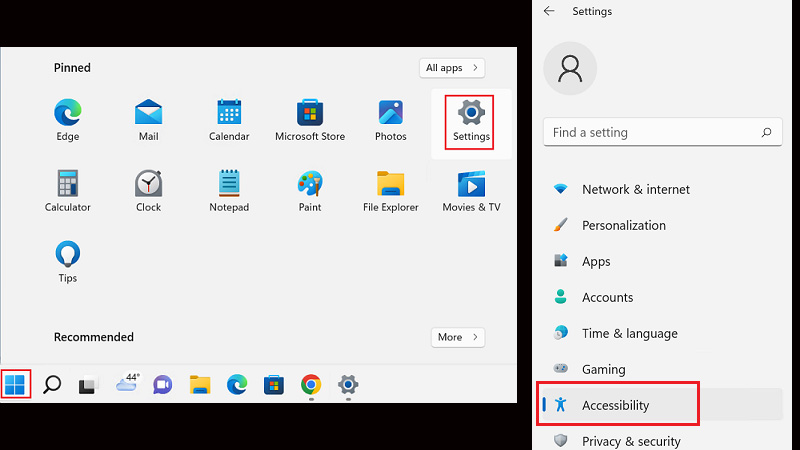
Step 1. Open Settings, select Accessibility, then click Mouse pointer and touch from the left panel. This section controls both cursor appearance and behavior.
Step 2. Under Mouse pointer style, choose a color option. You can switch between default white, black, inverted, or pick a custom color for stronger contrast.
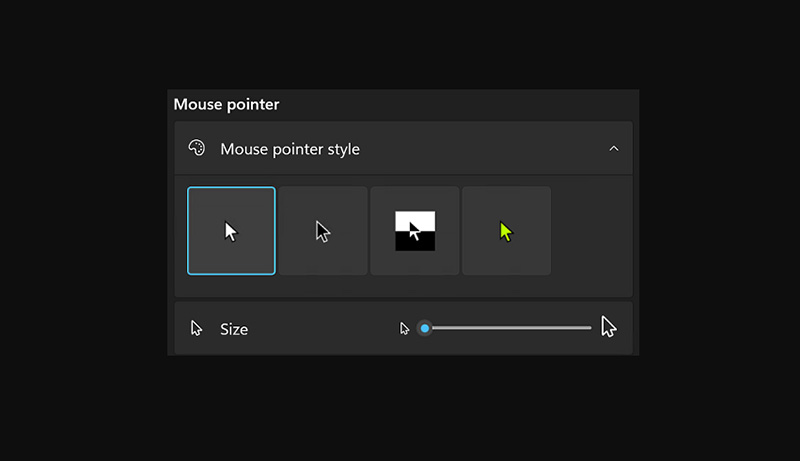 Step 3. Use the Size slider to enlarge or shrink the cursor. Adjust it until the pointer feels comfortable and easy to track across different backgrounds.
How to Change Mouse Color and Size on Windows 10
Windows 10 may look familiar, but its cursor controls are slightly tucked away. Once you know how to change mouse cursor options, adjusting visibility takes less than a minute.
Step 1. Click Start > Settings, choose Ease of Access, then select Cursor & pointer from the left sidebar to access appearance controls.
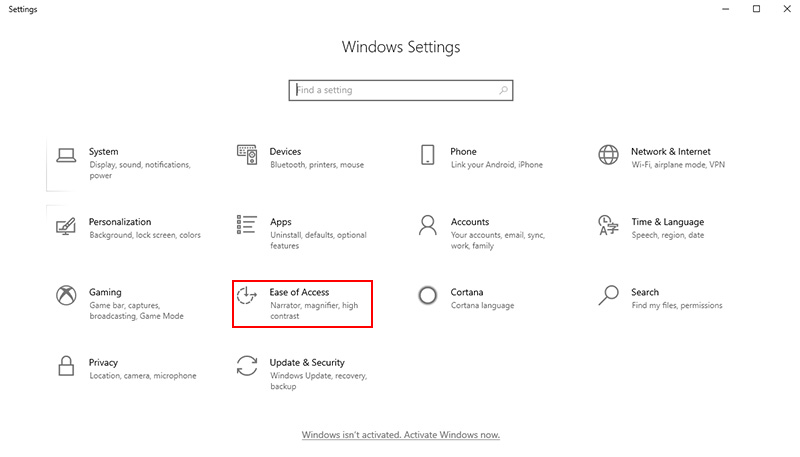
Step 2. In the Change pointer color and size section, pick white, black, inverted, or a custom shade. This answers the common question of how to change mouse color for better contrast.
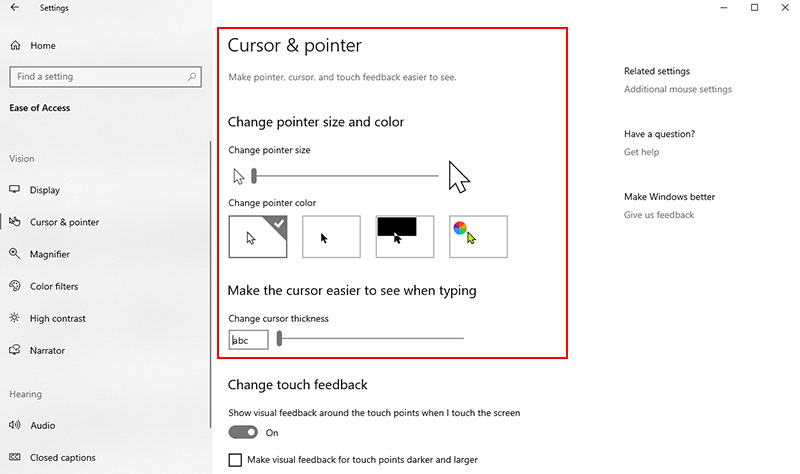
Step 3. Drag the Change pointer size slider to resize the cursor until it’s easy to spot without overwhelming your screen.
Additional Mouse Cursor Configurations
Beyond size and color, Windows offers a few overlooked options that refine daily control and comfort. These extras matter once you’ve learned how to change mouse cursor basics.
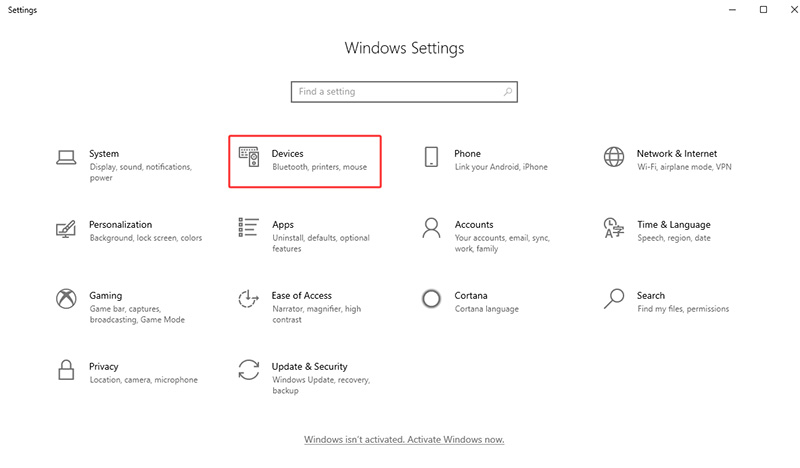
Step 1. Open Settings, go to Devices, then select Mouse and click Additional mouse settings to access advanced pointer options.
Step 2. Under the Pointer tab, enable pointer shadow, or select specific system state, such as background processing, precision selection, or text input, which can be customized individually.
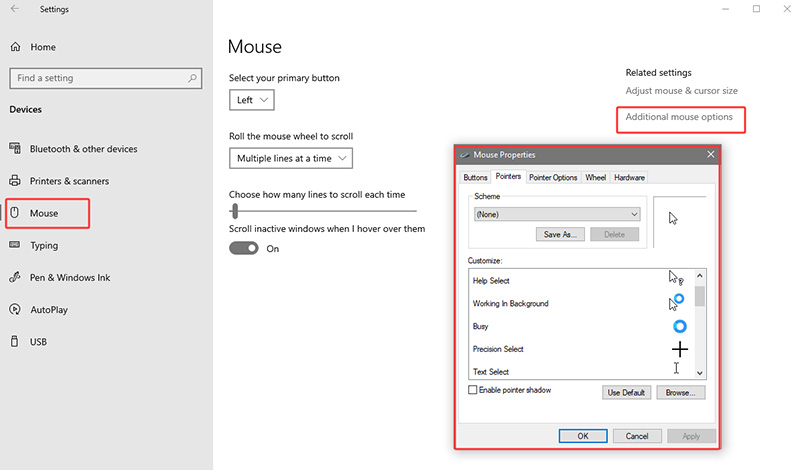
Step 3. Adjust motion speed or enhance pointer precision for smoother control. These tweaks complement how to change cursor color Windows 11 for a fully personalized experience.
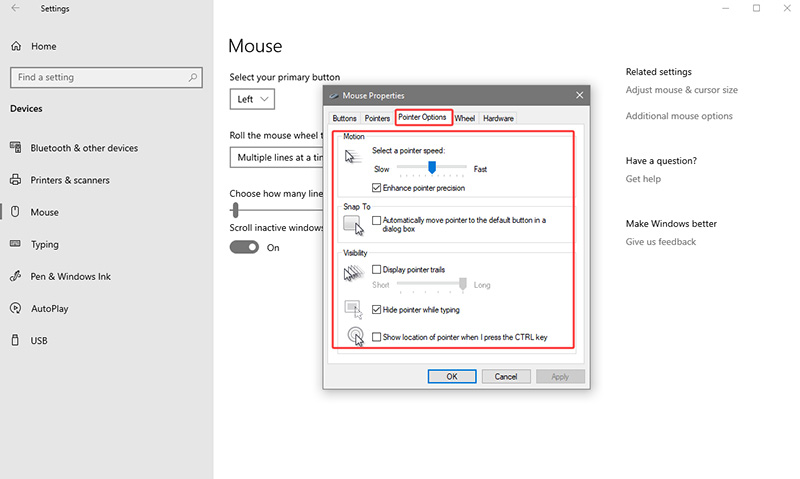
Many users figure out how to change mouse cursor basics quickly, but hitting visual or functional limits soon after. If you want distinctive icons, themed effects, and better desktop flow without complex tweaks, a dedicated desktop organizer tool like iTop Easy Desktop makes all the difference.

- iTop Easy Desktop - Keep Your Desktop Organized
-
- Box desktop icons to declutter your workspace
- Manage documents, games, media files, etc., at 1 click
- Add calendar, clock and other widgets to desktop
- Locate any file you want instantly with search box
For those who want to know how to change mouse cursor Windows 11/10 beyond default styles or simply wanting something more expressive, iTop Easy Desktop proves to be a solid, reliable solution. It blends cursor customization with desktop organization, saving time while adding personality. The tool offers tons of cursor effects, ranging from playful designs to clean, minimal styles, with smooth performance and rich personalization options built in.
Step-by-Step: Customize Mouse Cursor with iTop Easy Desktop
Step 1. Download and install iTop Easy Desktop from the official site. Launch it, and you’ll see all tools clearly grouped, no digging through menus.
Step 2. Click Personalization and select Mouse to open the cursor section and browse available mouse themes.
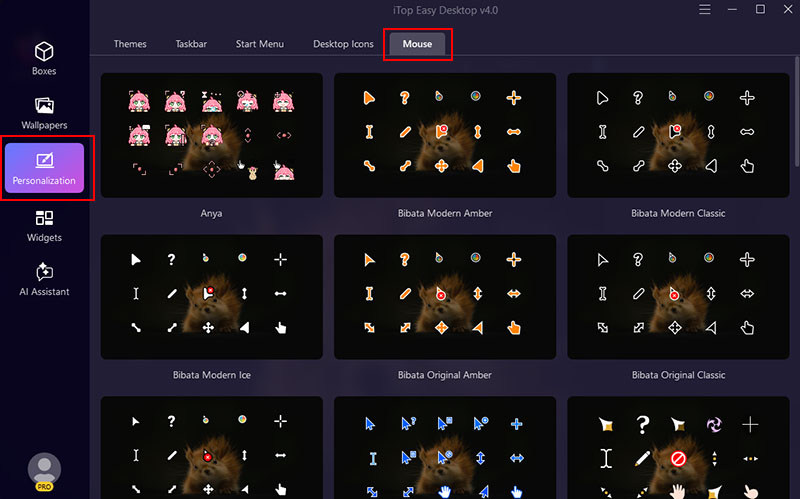
Step 3. Choose a style you like and click to apply it instantly, no restart or manual file replacement required.
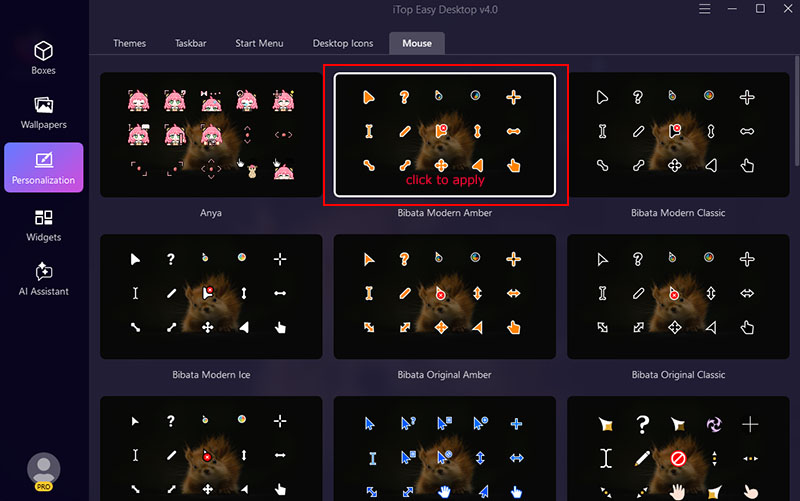
Why Use iTop Easy Desktop to Customize Mouse Cursor?
Get Custom Mouse Cursor by One Click
No technical setup, no registry edits. One click replaces the default pointer with a personalized design, and everyday navigation becomes more enjoyable and visually consistent.
30+ Mouse Themes & Effects for Win/macOS
You can switch between classic Windows 11 light or dark styles, macOS aesthetics, and modern minimalist looks without worrying about compatibility or manual imports.
Trendy Anime & Game Mouse Icons
From playful anime characters to gaming-inspired designs, it’s easy to match your cursor to your interests with a huge library of 4K wallpapers, perfect for streamers, gamers, or anyone tired of generic arrows.
Clean UI Design and AI Assistant
The interface of iTop Easy Desktop stays uncluttered and intuitive, while built-in AI assistance helps guide settings and customization choices without overwhelming first-time users.
More Desktop Customization with Ease
Cursor changes are only one of many features iTop Easy Desktop offers. Themes, taskbar tweaks, clock Widget windows 11, Start menu organization, desktop calendar widget, and smart desktop grouping all work together for a cleaner, faster workspace.
Windows users aren’t the only ones curious about how to change mouse cursor settings. On macOS, Apple keeps cursor controls clean and focuses on visibility and comfort rather than flashy themes.
If you’re figuring out how to customize mouse cursor behavior for long work sessions or wondering how to get custom mouse cursor color for better contrast, these built-in tools get the job done fast.
Step 1. Click the Apple menu, open System Settings, then choose Accessibility from the sidebar.
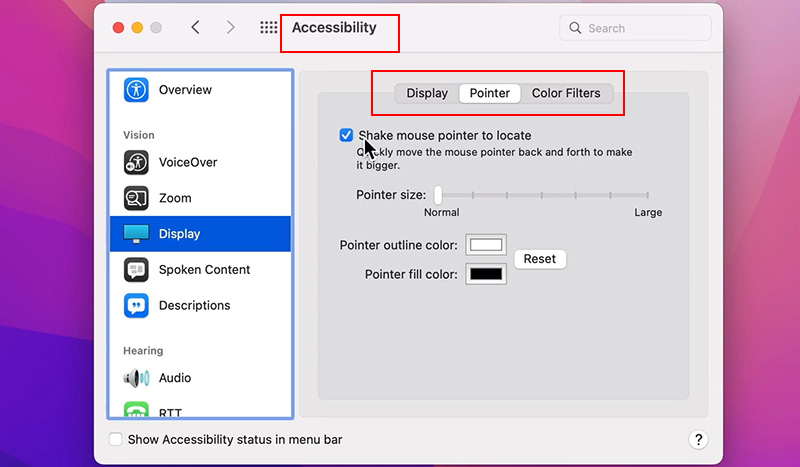
Step 2. Select Display, scroll to Pointer, and adjust the Pointer size slider until the cursor feels easy to track.
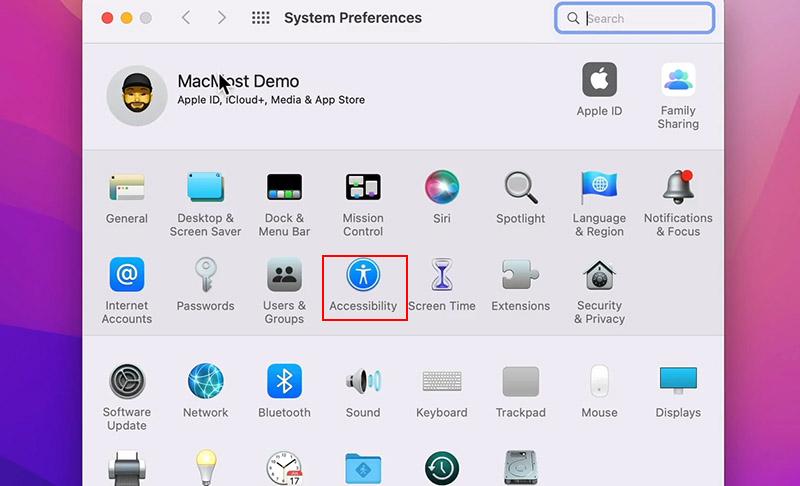
Step 3. Use Pointer outline color and Pointer fill color to apply high-contrast tones that stand out across light or dark backgrounds.
1. How to Change Cursor from Line to Arrow?
Open Windows Settings and go to Mouse. From there, click Additional mouse options to open the classic control panel. Switch to the Pointers tab, find Normal Select, and choose the default arrow cursor from the list.
2. How to Change Hand Cursor in Windows 10?
You can modify hand cursor in Windows 10 by opening Settings > Devices > Mouse > Additional mouse settings, switching to the Pointers tab, and selecting a different scheme.
3. Which Key is Used to Unlock the Cursor?
There isn’t a universal “unlock” key. Cursor issues are often tied to touchpads or tablet mode. Try pressing Esc, Scroll Lock, or reconnecting your mouse.
4. How Do I Reset the Cursor Settings?
Open mouse settings, go to Pointers, then choose the default scheme and apply it. This restores size, color, and icons back to Windows’ original configuration.
The Bottom Line
Once you understand how to change mouse cursor settings, improving the visibility on both Windows and Mac becomes straightforward. Built-in tools handle the basics, while iTop Easy Desktop unlocks deeper personalization, cleaner organization, and faster workflows. For a more intelligent and adaptable desktop experience, download iTop Easy Desktop and give it a try now.
- iTop Easy Desktop - Keep Your Desktop Organized
-
- Box desktop icons to declutter your workspace
- Manage documents, games, media files, etc., at 1 click
- Add calendar, clock and other widgets to desktop
- Locate any file you want instantly with search box
- Related Articles for Reference