-
iTop Easy Desktop - No.1 Desktop Organizer for Windows
-
Automatically organize and customize Windows desktop. Make your messy desktop look clean and professional within seconds.

Best Windows Taskbar Customizer Tools: 5 Top Apps to Personalize Your Taskbar
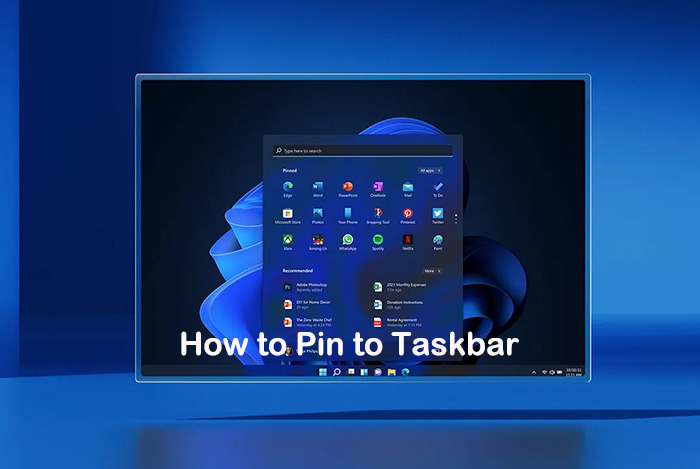
The Windows taskbar is one of the most frequently used UI elements, yet it often remains underutilized. With a powerful Windows taskbar customizer, you can go far beyond basic system settings to redesign how your taskbar looks, behaves, and integrates with your workflow. From centered icons to animated effects, taskbar customization has become an essential part of modern Windows personalization.
Whether you are looking for taskbar customizer Windows 10 solutions or exploring new options for Windows 11, the right taskbar customizer can dramatically improve both aesthetics and productivity. Keep reading to learn the top tools available today, and choose the best taskbar customization software for your needs.
Before diving into specific tools, it’s important to understand why taskbar customization is worth using. While Windows offers basic options like pinning apps or changing alignment, a dedicated Windows taskbar customizer unlocks deeper control that adapts the taskbar to how you actually work.
Using a professional taskbar customization app brings several clear benefits:
Improved productivity: Faster access to apps, cleaner layouts, and reduced clutter.
Better aesthetics: Match the taskbar with wallpapers, themes, and visual styles. Customize 4k wallpapers or live wallpapers based on your love.
Enhanced usability: Customize icon behavior, grouping, spacing, and animations.
Workflow personalization: Different setups for work, gaming, or creative tasks.
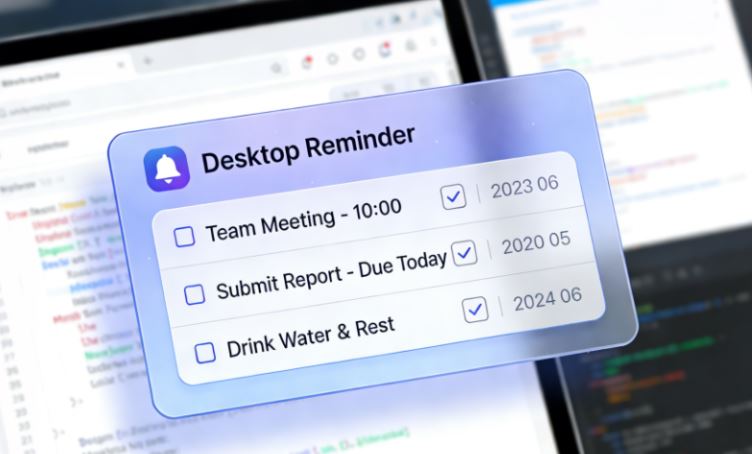
Extended functionality: Add widgets like the desktop Calendar widget, shortcuts, and smart desktop integrations beyond default Windows features.
Then, among multiple taskbar customizer Windows 11 or taskbar customizer Windows 10, which ones are really easy to use? See below.
After understanding the value of customization, let’s start with one of the most popular lightweight tools. TaskbarX is well-known for its clean approach to taskbar personalization, especially among users transitioning to modern layouts.
TaskbarX is a lightweight utility designed to customize the Windows taskbar on Windows 10, 8, and 7, supporting both 32-bit and 64-bit systems. It focuses on enhancing the taskbar experience without adding heavy system load.
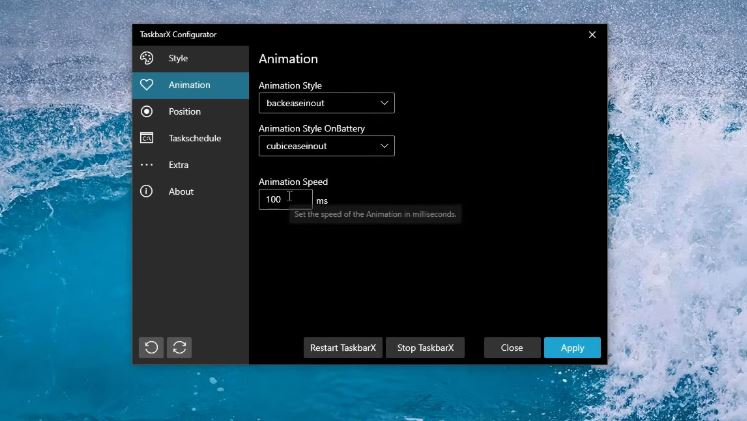
With TaskbarX, you can center taskbar icons, adjust icon size and spacing, reposition the taskbar to different screen edges, and tweak colors to better match their desktop theme. Beyond aesthetics, TaskbarX offers control over behavior across multiple monitors. For users who want a simple yet effective Windows taskbar customizer without overwhelming settings, TaskbarX strikes a great balance between minimalism and functionality.
If TaskbarX is about simplicity, 7+ Taskbar Tweaker is about power and precision. This tool is designed for users who want granular control over how the taskbar behaves rather than how it looks, making it a strong companion to other desktop organizers for Windows focused on improving overall workspace efficiency.
As a robust taskbar customization software, 7+ Taskbar Tweaker allows you to modify mouse interactions, task grouping, middle-click actions, and window management rules. It is especially popular among advanced users who rely heavily on multitasking and keyboard–mouse efficiency.
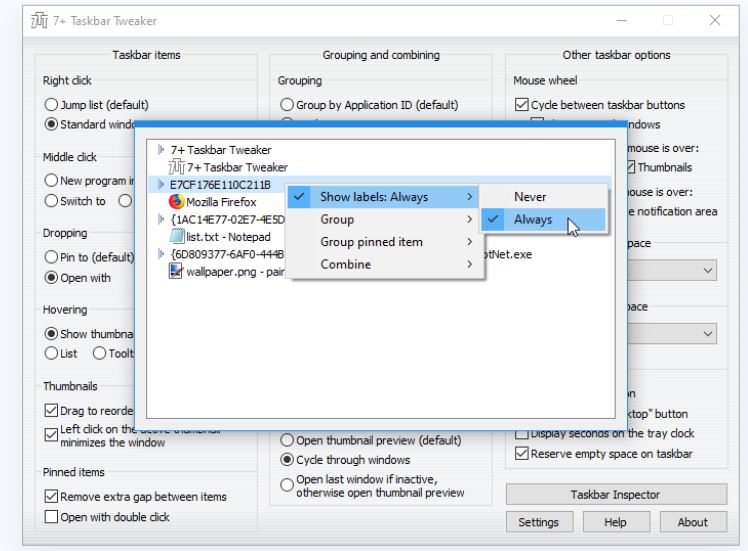
While its interface may feel technical at first, the payoff is significant. For productivity-focused users on Windows 10, this taskbar customizer Windows 10 solution provides deep behavioral customization that stock Windows settings simply cannot offer.
Moving beyond pure taskbar tweaks, StartAllBack and Start11 offer a hybrid approach that blends classic Windows design with modern customization. These tools are ideal for users who miss older Windows layouts but still want compatibility with newer systems, especially those who rely on a structured workflow supported by schedule making software.
Both solutions allow you to redesign the Start menu and taskbar together, making them more than a basic Windows taskbar customizer. You can adjust taskbar size, transparency, icon styles, and alignment while restoring classic behaviors removed in newer Windows versions, helping users keep their daily tasks organized and on track.
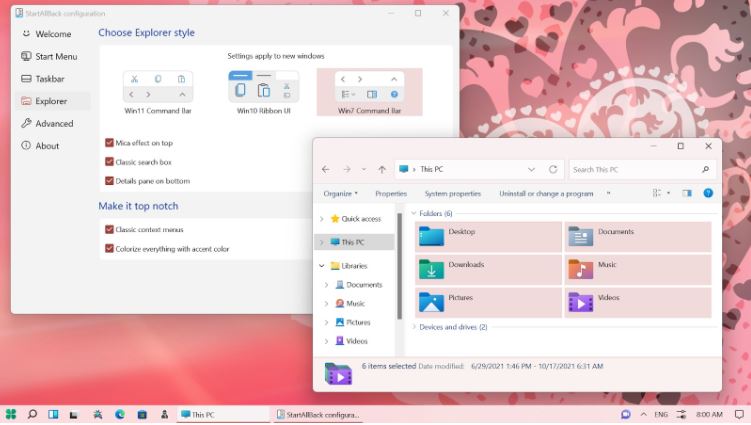
For users upgrading to Windows 11 but seeking familiarity, these tools act as a bridge. They function as a reliable taskbar customizer Windows 11 option while preserving productivity habits formed on earlier Windows releases.
TaskbarXI focuses on flexibility and visual enhancement, particularly for Windows 11 users who want more control over the redesigned taskbar. It provides options that go beyond native Windows customization.
With TaskbarXI, users can fine-tune taskbar appearance, spacing, and transparency while integrating better visual balance with desktop themes. It works well alongside other personalization tools, making it a solid taskbar customization app for users who enjoy experimenting with layouts.
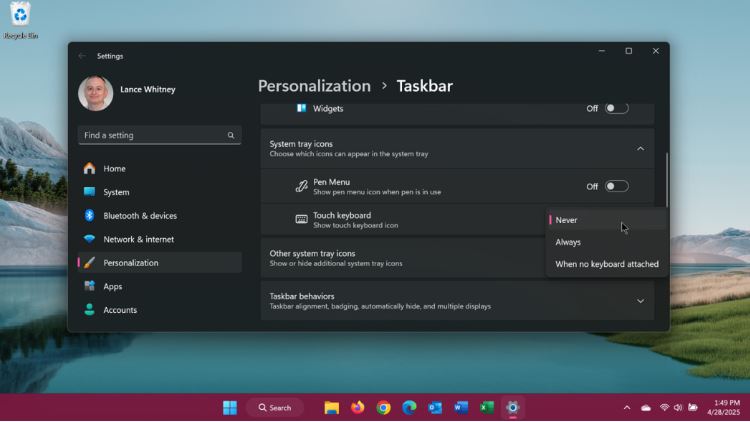
Although not as feature-heavy as some alternatives, TaskbarXI excels in delivering smooth visual refinements. It’s a good choice for users who want a modern Windows taskbar customizer that complements Windows 11’s design language.
While many tools focus solely on the taskbar, iTop Easy Desktop takes a broader approach. It is not just a Windows taskbar customizer, but an all-in-one desktop management solution designed to improve both organization and aesthetics.

- iTop Easy Desktop - Keep Your Desktop Organized
-
- Box desktop icons to declutter your workspace
- Manage documents, games, media files, etc., at 1 click
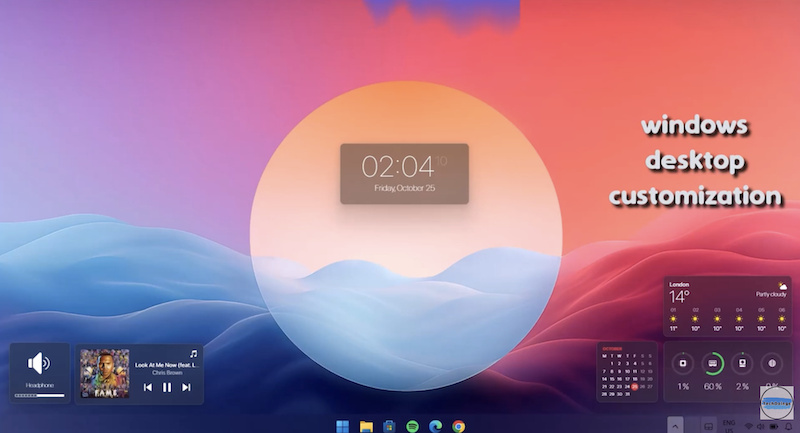
- Add calendar, clock and other widgets to desktop
- Locate any file you want instantly with search box
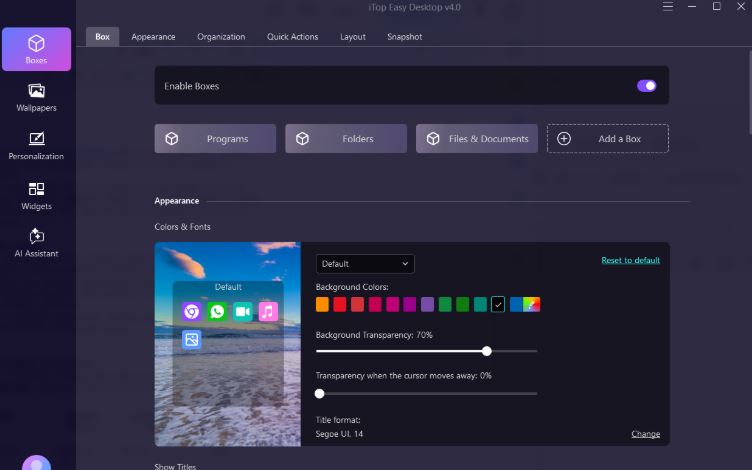
iTop Easy Desktop integrates taskbar customization with smart desktop zones, widgets, and visual enhancements. Users can align taskbar styles with wallpapers, widgets, and desktop layouts, creating a cohesive workspace rather than isolated tweaks. This makes it especially appealing for users who want both productivity and visual harmony.
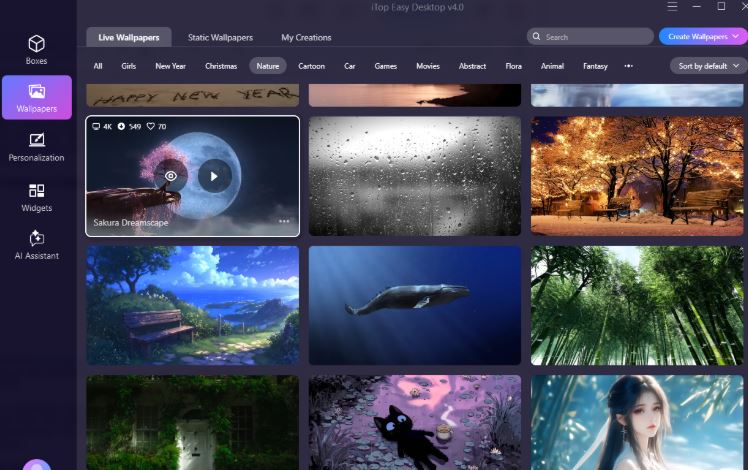
Core features of iTop Easy Desktop include:
Unified taskbar and desktop customization for a consistent experience
Smart desktop zones are similar to advanced desktop organizers for Windows
Create your own Boxes based on your personal categorization habits and clean your desktop
Easy wallpaper integration, including support for high-resolution visuals like 4k wallpaper for PC, live wallpapers, game wallpapers, and more
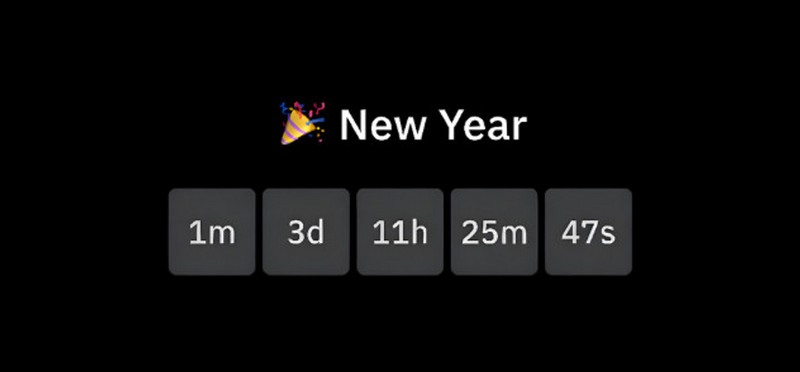
Productivity widgets, such as a calendar, notes, clock, weather, iPomodoro, etc.
Beginner-friendly interface with powerful customization depth
After reviewing each tool individually, here is a table to compare them side by side. While all five solutions function as a Windows taskbar customizer, they serve different user priorities, from aesthetics to productivity.
Windows taskbar customizer |
System Focus |
Customization Depth |
Ease of Use |
TaskbarX |
Windows 10/11 |
Medium |
High |
7+ Taskbar Tweaker |
Windows 10 |
High |
Medium |
StartAllBack / Start11 |
Windows 11 |
High |
Medium |
TaskbarXI |
Windows 11 |
Medium |
High |
iTop Easy Desktop |
Windows 10/11 |
High |
High |
Steps to Customize Windows Taskbar
Once you’ve chosen the right tool, getting started is straightforward. Using iTop Easy Desktop as an example, the process is beginner-friendly and efficient.
First, install and launch the software, then allow it to initialize your desktop environment. Next, choose a taskbar style that matches your workflow and visual preference. Finally, enhance the setup by adding widgets, wallpapers, and desktop zones to create a unified workspace.
Step 1. Download and install iTop Easy Desktop on your PC.
Step 2. Open it and go to Personalization > Taskbar.
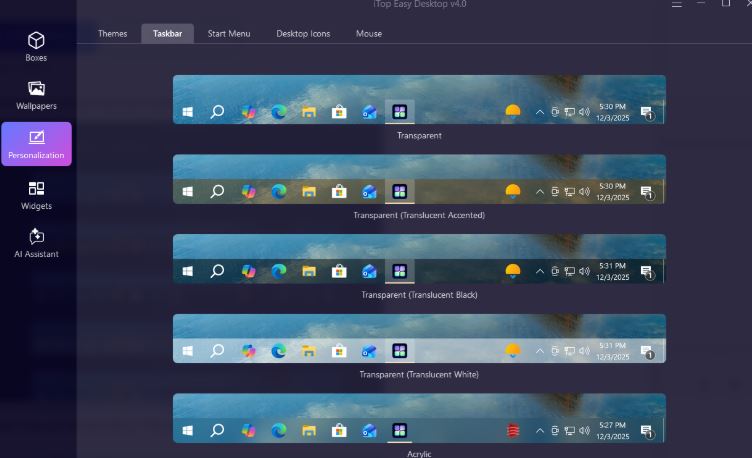
Step 3. Select and apply a taskbar layout or style.
With so many options available, choosing the right taskbar customization software depends on your personal needs. A thoughtful approach ensures long-term satisfaction rather than short-term novelty.
When evaluating a Windows taskbar customizer, consider the following:
System compatibility: Ensure support for Windows 10 or taskbar customizer Windows 11 requirements
Customization depth: Decide between visual tweaks or advanced behavioral controls
Ease of use: Beginners may prefer all-in-one solutions over technical tools
Performance impact: Lightweight tools are better for older systems
Extended features: Widgets, organizers, and productivity tools can add more value
The Bottom Line
A well-chosen Windows taskbar customizer can transform how you interact with your PC every day. Whether you prioritize clean visuals, advanced control, or full desktop organization, the right tool helps you create a workspace that truly fits your workflow. By understanding your needs and comparing the top options, you can move beyond default settings and unlock a more efficient, personalized Windows experience.
- Related Articles for Reference