-
iTop Easy Desktop - No.1 Desktop Organizer for Windows
-
Automatically organize and customize Windows desktop. Make your messy desktop look clean and professional within seconds.

How to Pin to Taskbar in Windows 10/11: Shortcut, Folder, File & More
Learn how to pin to taskbar on Windows 11 and 10. Pin apps, files, folders, and websites for faster access, plus tips to customize your taskbar efficiently.
The Windows taskbar sits at the heart of the desktop experience. Usually anchored at the bottom of the screen (though it can be moved), it acts as a central hub for launching apps, switching between windows, and keeping track of what’s running. Pinning items to the taskbar turns it into a personalized control panel with instant access to the tools you use most.
Windows offers several flexible ways for how to pin to taskbar, covering apps, files, folders, and even websites. Each method fits a different habit or use case. Read on to learn easy approaches and ideas you can adapt to your own setup.
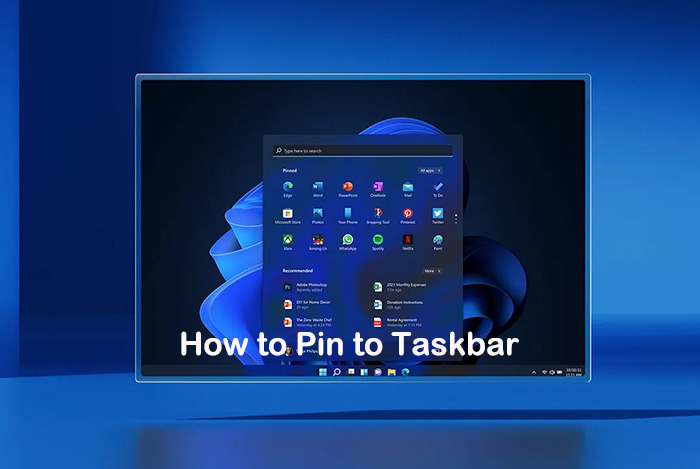
Once you understand why the taskbar matters, the next step is learning how to pin to taskbar without digging through settings. Below are three reliable methods that cover most everyday situations, whether the app is already installed, visible in the Start menu, or currently running.
Method 1. Drag and Drop to Taskbar
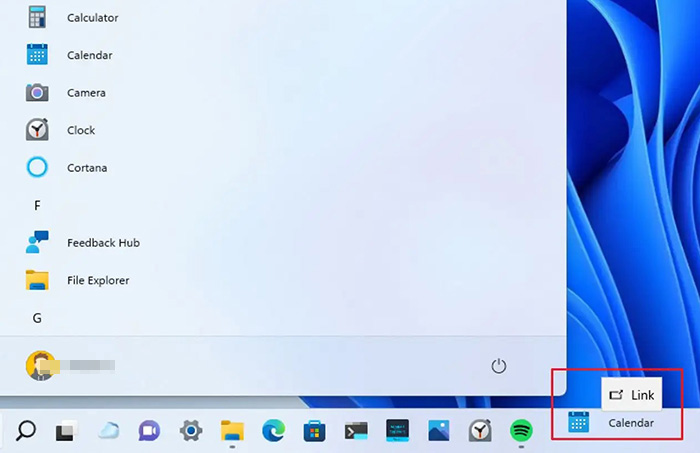
This is often the fastest answer to how to pin something to taskbar, especially for desktop shortcuts. Check the guide below to pin shortcut to taskbar Windows 11.
Step 1. Click the Start menu or locate the app icon on your desktop.
Step 2. Click and then hold the app icon with your mouse.
Step 3. Drag it down to the taskbar and release when you see it lock into place.
Method 2. From the Start Menu
This approach works well when the desktop is cluttered and you prefer a cleaner workflow. No matter which option you choose, mastering how to add to taskbar helps keep your most-used tools one click away.
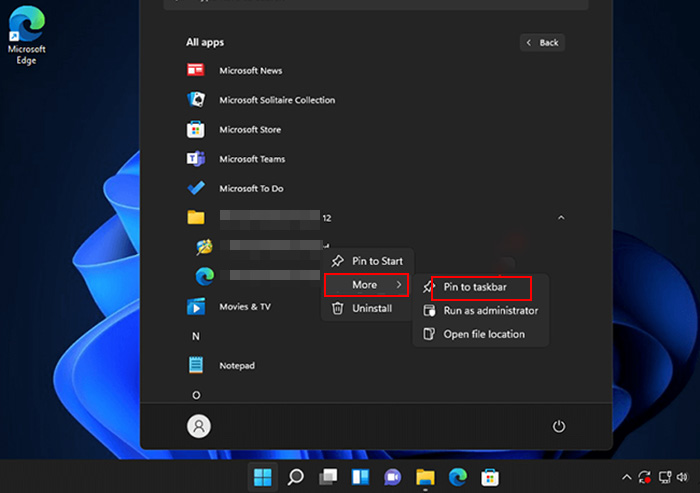
Step 1. Hit the Start button to view all installed apps.
Step 2. Find the app you want to keep within reach.
Step 3. Right-click on the app’s icon, choose “More,” and then select “Pin to taskbar” from the pop-up menu.
Method 3. From a Running Application
If you’re already using an app, this method makes how to pin to taskbar feel almost effortless.
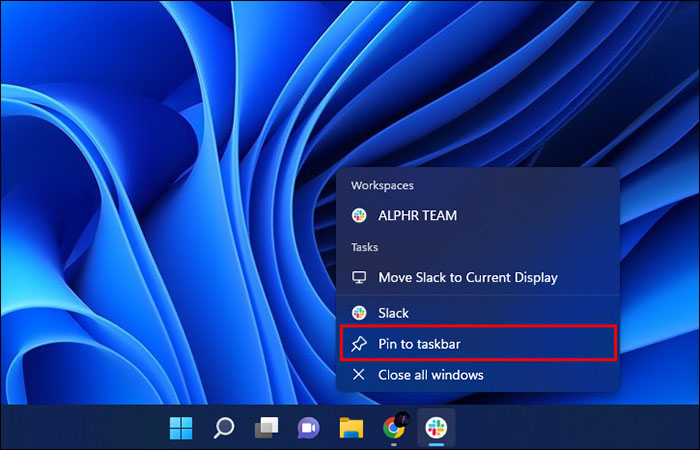
Step 1. Launch the app normally.
Step 2. Locate its icon on the taskbar while it’s open.
Step 3. Right-click the icon and choose “Pin to taskbar.”
After pinning your most-used apps, you may want the same one-click access for specific files or folders. This is where things work a little differently. In Windows 10 and Windows 11, you can’t directly attach files, folders, or drives to the taskbar. How to pin folder to taskbar? Still, with a simple workaround, you can handle how to pin to taskbar Windows 11 and keep important locations close at hand. For many users searching how to pin to taskbar, the following method fills the gap nicely.
Step 1. Open File Explorer and locate the file, folder, or drive you want quick access to.
Use the right-click menu to send folders to the desktop as a shortcut (Windows 11 users may need to open the classic context menu first).
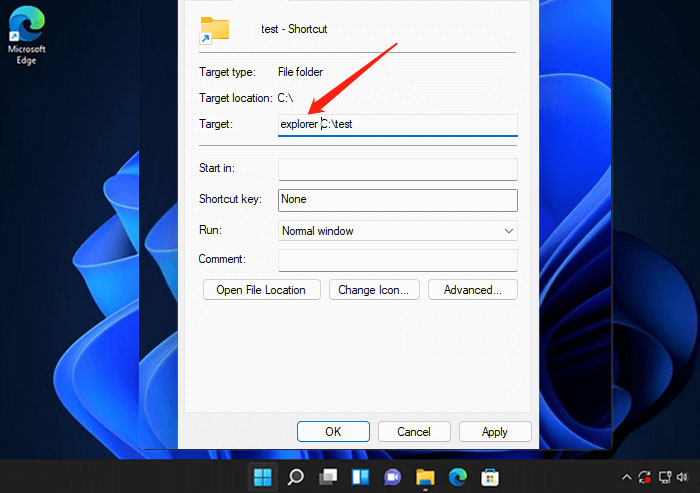
Step 2. On the desktop, right-click the newly created shortcut and open its properties.
In the Target box, add explorer.exe followed by a space before the existing path.
Step 3. Right-click the adjusted shortcut once more. From the extended context menu, choose the option to pin it to the taskbar.
Step 4. For drives, open File Explorer > This PC, and locate the drive under the Devices and drives, right-click the drive you want to pin to Task, then select “Create shortcut”, and directly pin the drive shortcut to taskbar.
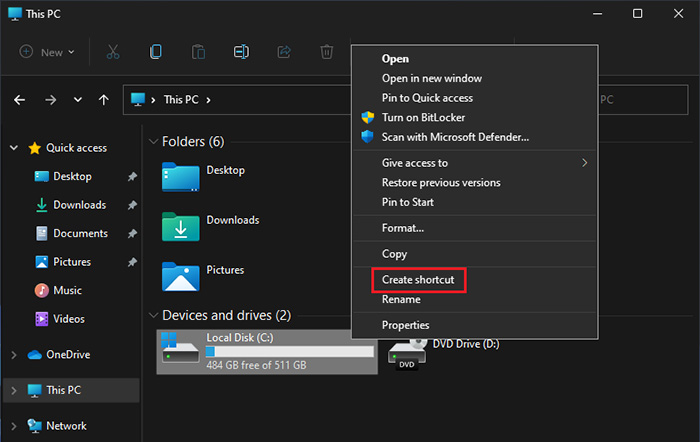
Users want to keep their most important websites within easy reach, and this can be achieved in just a few simple steps. Learning how to pin to taskbar with websites turns those pages into app-like shortcuts, cutting out the browser clutter. The setup is quick, though the steps differ slightly depending on which browser you use. If you want to make your taskbar more personalized, learn how to customize taskbar Windows 11.
How to Pin a Website in Google Chrome?
Resort to this method if you’re looking for how to pin Google to the taskbar or any site you regularly visit.
Step 1. Open Google Chrome on your PC and go to the website you want to pin in Google Chrome.
Step 2. Click the three-dot menu in the top-right corner in Google Chrome, select “Cast, save, and share”>“Create shortcut” from the list.
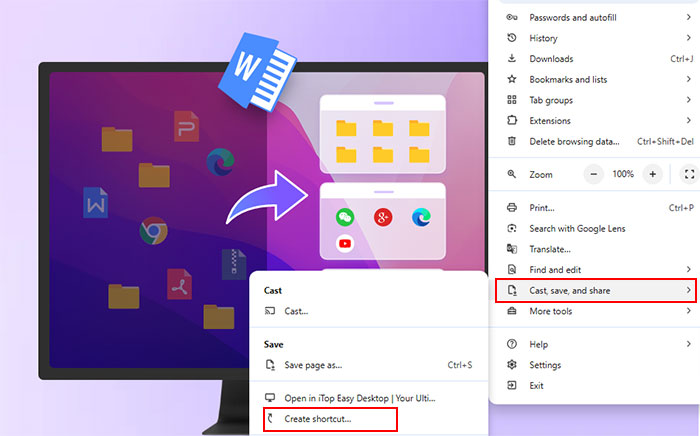
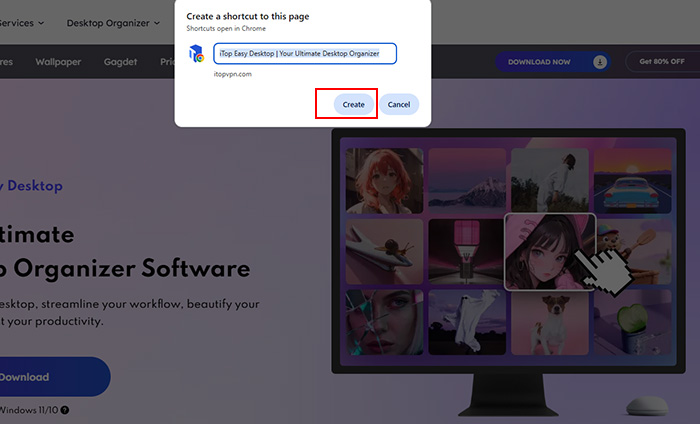
Step 3. Put a name for the shortcut, and click Create. Right-click the new shortcut and choose Pin to taskbar/start. These steps also answers how to pin website to taskbar Chrome for a clean, app-style experience.
How to Pin a Website in Microsoft Edge?
Before starting, unpin Firefox from the taskbar if it’s already there and close all Firefox windows.
Step 1. Open Microsoft Edge and load the target website.
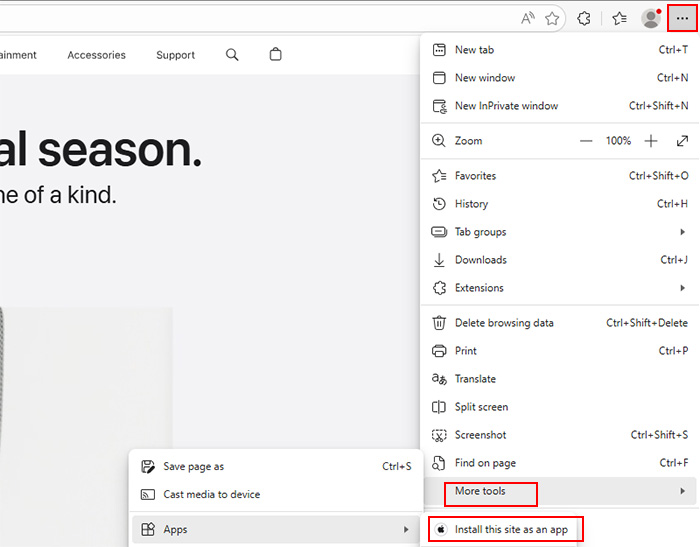
Step 2. Select the three-dot menu and choose More tools > Install this site as an app.
Step 3. After installation, right-click the app icon and select Pin to taskbar.
1. Why can’t I pin some files or folders directly?
Windows limits taskbar pinning mainly to applications. Files, folders, and drives aren’t treated as standalone apps, so they’re blocked by design. Using File Explorer–based shortcuts is the practical workaround most users rely on.
2. Do pinning apps take up extra disk space?
No. Pinned apps don’t duplicate program files or consume meaningful storage. The taskbar only stores shortcut references, so disk usage stays the same, even if you pin many apps for quick access.
3. How to pin Google to the taskbar?
Open Google in Chrome or Edge, create a site shortcut or install it as an app, then right-click and select “Pin to taskbar”. This gives Google an app-like icon you can launch instantly.
4. My pinned icon is missing. How do I fix it?
Restart File Explorer first, as taskbar glitches are common. If that fails, unpin and repin the item. App updates or moved shortcut paths can also cause icons to disappear unexpectedly.
After learning different ways to add shortcuts, many users still run into the same frustration: finding the right file or app fast enough. Quick access is the real reason people care about how to pin to taskbar, yet pinning alone doesn’t solve everything, especially when desktops get crowded. That’s why a smart desktop organizer for Windows makes sense, which helps you search instantly and visually customize how your taskbar works.
The recommended option is iTop Easy Desktop, a free Windows tool designed to speed up access while keeping everything tidy on desktop. Use the following steps to search items and customize the taskbar with iTop Easy Desktop.
Step 1. Download and install iTop Easy Desktop for taskbar customization on Windows, then launch it on your PC.
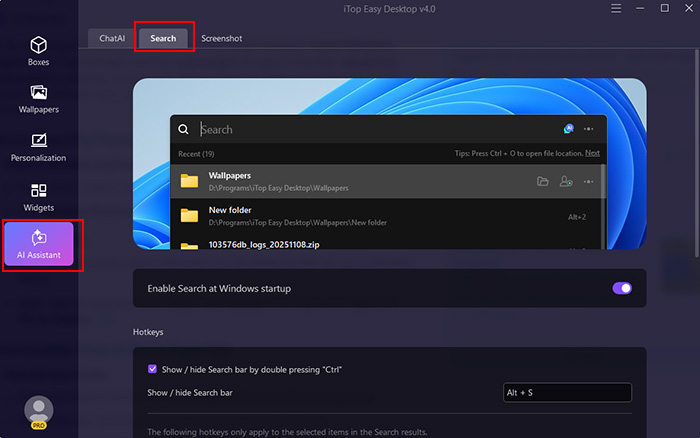
Step 2. Click AI Assistant on the left panel and select Search on the top, then activate “Enable Search at Windows startup”.
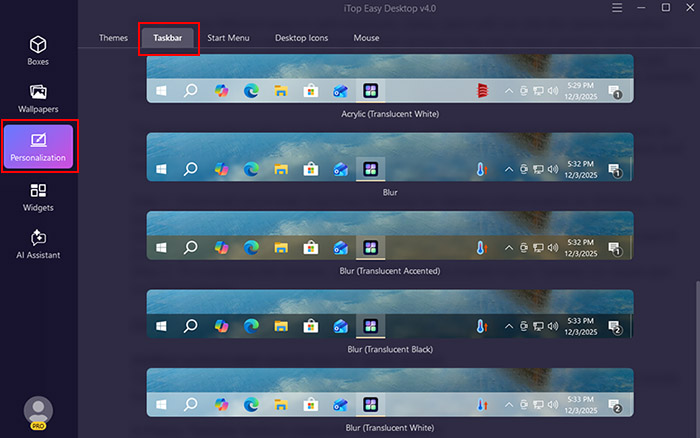
Step 3. To customize the taskbar, go to Personalization, then click Taskbar, and select your ideal taskbar style for visual and functional tweaks.
iTop Easy Desktop Features Overview:
-
Unified system-wide search box for quick access
The built-in search bar scans apps, files, and folders instantly. You type once and get results across the system, reducing time spent digging through menus or Explorer windows.
-
A Fancy Taskbar feature supports customization
Fancy Taskbar lets you adjust the look and layout of taskbar elements with different choices, such as transparent taskbar, blur taskbar, acrylic taskbar. It adds personality and clarity without sacrificing usability.
-
Always keep your desktop clean and uncluttered
Files, apps, documents, and shortcuts can be grouped into visual and customizable boxes to prevent icon overload. A cleaner desktop means less distraction and faster focus during daily work.
-
More practical productivity tools are available
Beyond search and taskbar tweaks, iTop Easy Desktop includes lots of useful widgets that streamline routines, including Clock widget Windows 11/Windows 10, Schedule, iNotes, Weather, ChatAI, QuickTools, etc.
Conclusion
Pinning items to the taskbar is all about working faster and staying organized. Once you truly understand how to pin to taskbar, your most-used tools are always within reach. And iTop Easy Desktop takes it further by offering instant smart search and fancy taskbar feature. Give it a try and enjoy more efficient desktop experience right now.

- iTop Easy Desktop - Keep Your Desktop Organized
-
- Box desktop icons to declutter your workspace
- Manage documents, games, media files, etc., at 1 click
- Add calendar, clock and other widgets to desktop
- Locate any file you want instantly with search box