-
iTop Easy Desktop - No.1 Desktop Organizer for Windows
-
Automatically organize and customize Windows desktop. Make your messy desktop look clean and professional within seconds.

How to Add a Calendar in Outlook for Better Planning
Learn how to add a calendar in Outlook - personal, shared, or group, and stay organized. Boost productivity with steps and 3 Outlook Calendar alternatives.
Managing work meetings, shared projects, and personal plans often means dealing with more than one calendar at a time. Outlook can handle this, but many users never go beyond the default setup. If you’ve ever missed an update or double-booked time, it’s usually a calendar issue, not a scheduling one. This post shares how to add a calendar in Outlook for personal use, shared access, and group planning, while also touching on Outlook’s limits and what Outlook alternative tools may work better.
Outlook supports several calendar types, but the menus aren’t always obvious, and the steps differ depending on what you’re adding. The sections below break down how to add a calendar in Outlook in practical terms, covering personal schedules, shared access, and group calendars without mixing them up.
How to Add My Calendar in Outlook?
If you’re setting up a personal schedule like travel plans, deadlines, or a side project, and searching for how to add a calendar on Outlook, this is where most people start. The steps below apply to both, with one small variation noted.
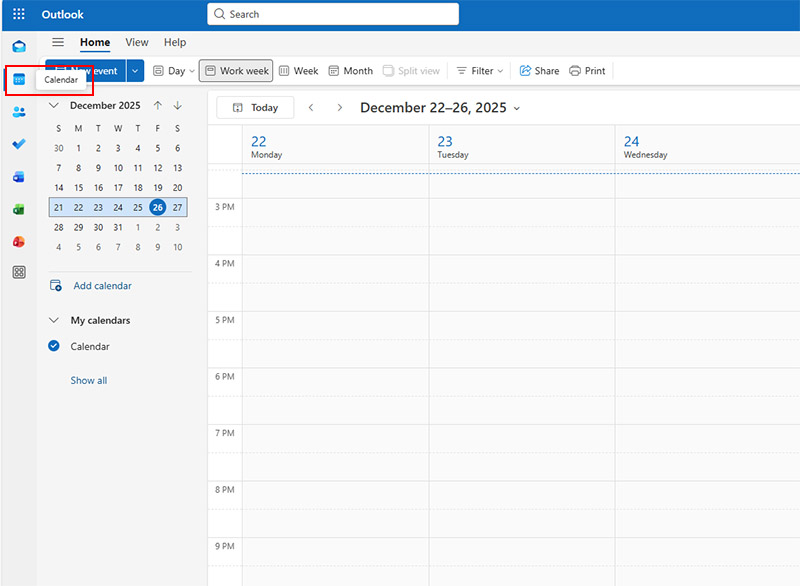
Step 1. Open Outlook and switch to Calendar view from the left sidebar.
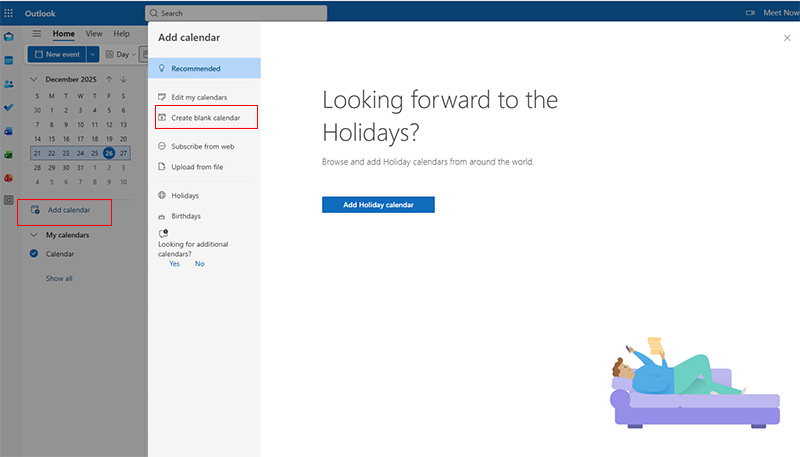
Step 2. Click Add Calendar, then choose Create blank calendar.
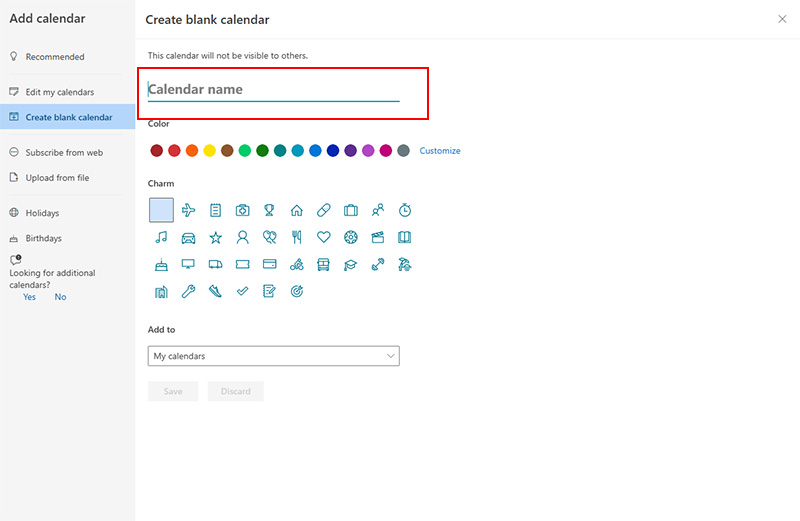
Step 3. Name your calendar and select where it should live (usually under “My calendars”). Select the color for your blank calendar. That’s how to create a calendar in Outlook to share.
How to Add a Shared Calendar in Outlook?
Shared calendars are common in teams, families, and client-facing roles. Users looking up how to add a calendar in Outlook 365 often get stuck because sharing only works when permissions are set correctly by the owner. Assuming access has already been granted, adding it is straightforward.
Step 1. Go to Calendar view and click Settings icon at the top right corner.
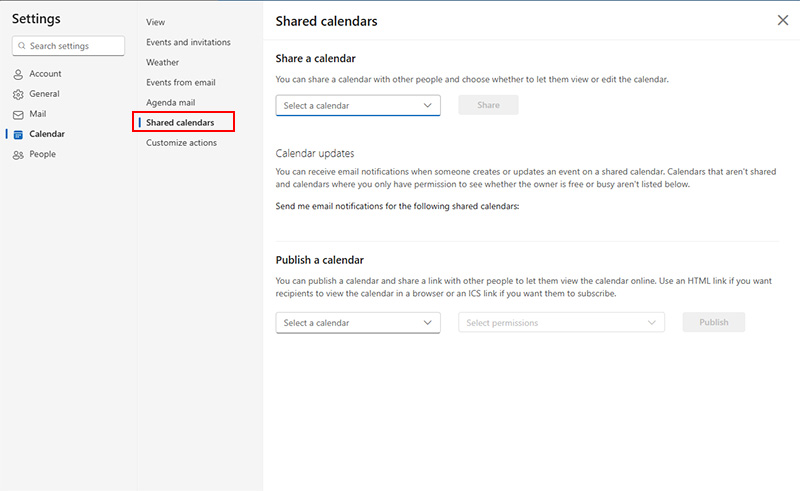
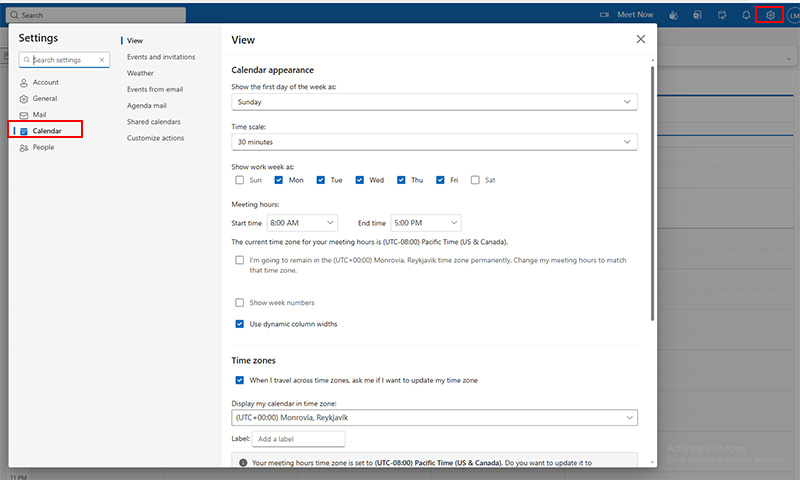 Step 2. On the Settings window, go to Calendar > Shared calendars. Select a calendar to share on the Shared calendars window.
Step 3. Search for the person who shared the calendar or email address and confirm. You now know how to add a person's calendar in Outlook.
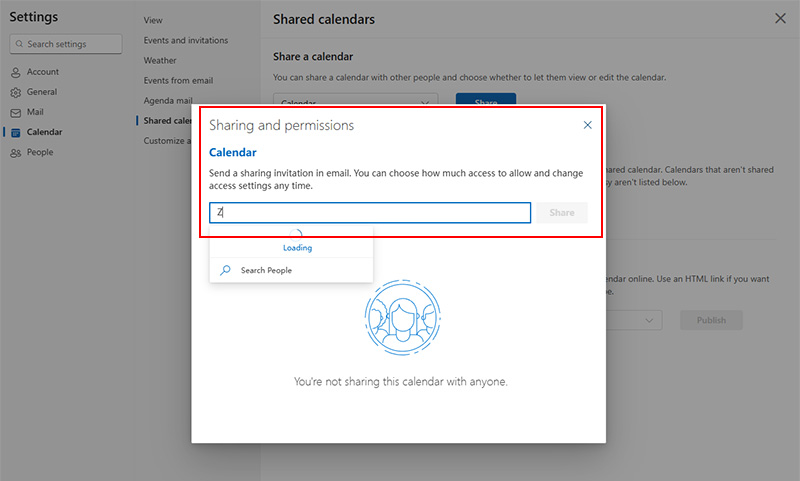
Accept the invitation if prompted, and the calendar will appear under Shared Calendars. If you’re following a guide on how to add a calendar on Outlook 365 and nothing shows up, the issue is usually missing permissions, not a software bug.
Group calendars work differently and are tied to Microsoft 365 Groups or Teams. For users researching how to add a calendar on Outlook, group calendars are often the cleanest option for ongoing collaboration without constant sharing requests. They’re useful for departments or long-term projects where everyone needs the same timeline. Use the following steps to learn how to add a calendar in Outlook 365 for groups.
Step 1. In Outlook, click Calendar from the navigation panel. In the left pane, expand Groups.
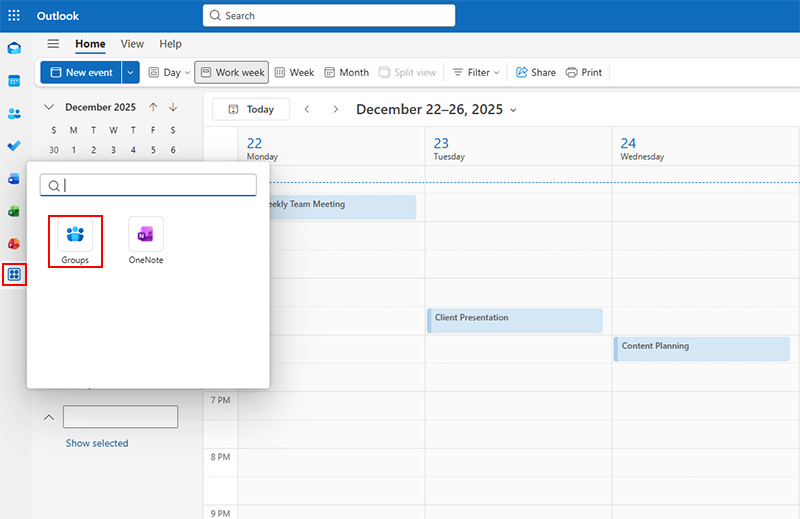
Step 2. Enter a name for the group and add the members you want to include.
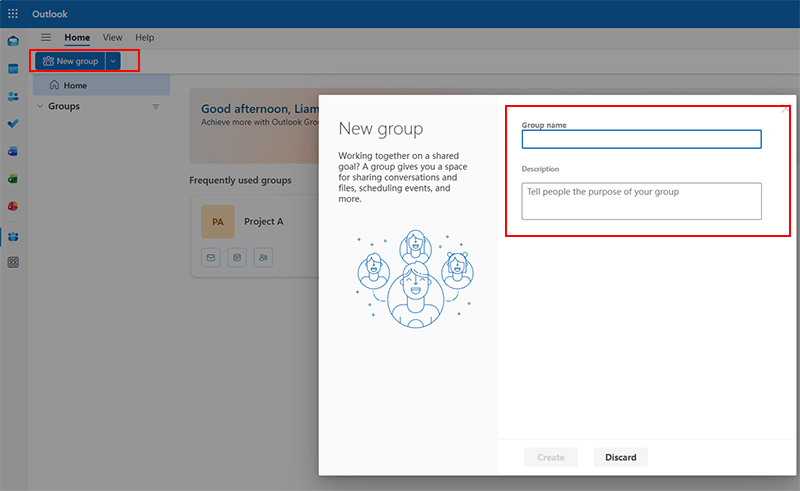
Step 3. After the group is created, open the Calendar from the group’s sidebar. Any events added to this calendar are automatically visible to all group members.
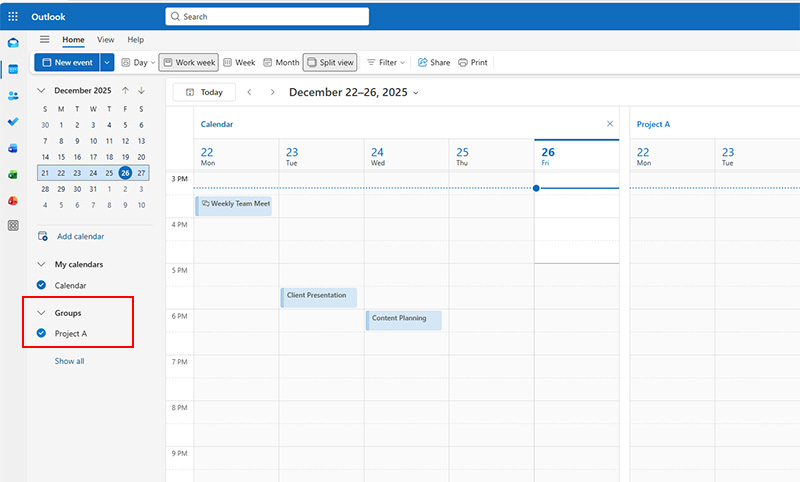
Want to put Outlook calendar to desktop? Refer to how to add Outlook calendar to desktop.
Even after you learn how to add a calendar in Outlook, it’s important to know its boundaries. Outlook is powerful, but certain quirks can catch users off guard. Being aware of these limitations helps plan around them efficiently.
Shared calendars may not update instantly, especially if permissions change midweek. Group calendars can’t always display multiple time zones properly.
Some third-party calendars might require manual syncing, and recurring events imported from other apps occasionally lose details.
Mobile versions of Outlook sometimes hide advanced features, limiting what you can edit or view on the go.
Lack essential custom fields for business, such as Order Numbers, Custom ID, and Reference Number.
While knowing how to add a calendar in Outlook or how to add a calendar on Outlook is useful, other tools offer faster syncing, easier cross-device access, and more flexible views. Here are three recommended Outlook alternatives for professionals and teams who want better control over their daily planning.
1. iTop Easy Desktop – Your All-in-One Calendar & Productivity Hub
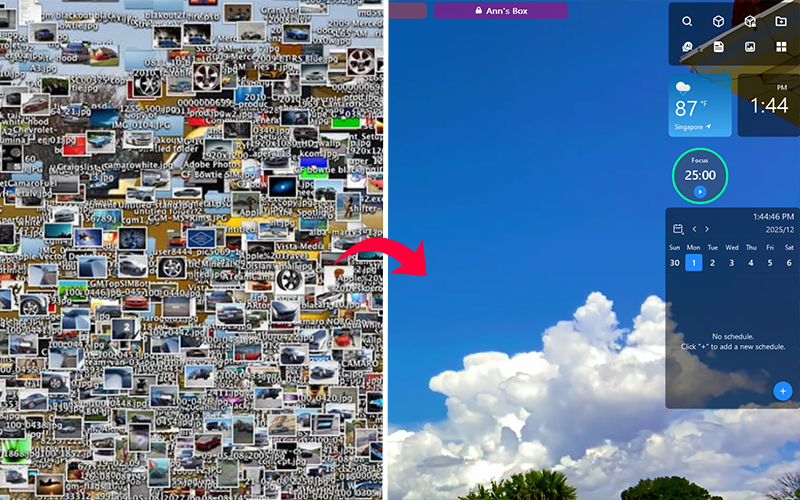
iTop Easy Desktop is a lightweight and user-friendly platform for managing calendars, tasks, and reminders without the clutter of traditional email clients. Its drag-and-drop interface makes it simple to create events, and switching between daily, weekly, or monthly views is seamless. iTop Easy Desktop also syncs smoothly with Google Calendar and Outlook Calendar, so nothing slips through the cracks. The tool offers many other useful widgets, such as clock widget Windows 11, weather, iNotes, etc.

- iTop Easy Desktop - Keep Your Desktop Organized
-
- Box desktop icons to declutter your workspace
- Manage documents, games, media files, etc., at 1 click
- Add calendar, clock and other widgets to desktop
- Locate any file you want instantly with search box
How to Add a Calendar with iTop Easy Desktop:
Step 1. Open iTop Easy Desktop and go to the Widgets tab. Enable “Schedule” to open the New schedule window.
Step 2. Click the plus icon to open the New schedule window, give the schedule a name, set the time, and description.
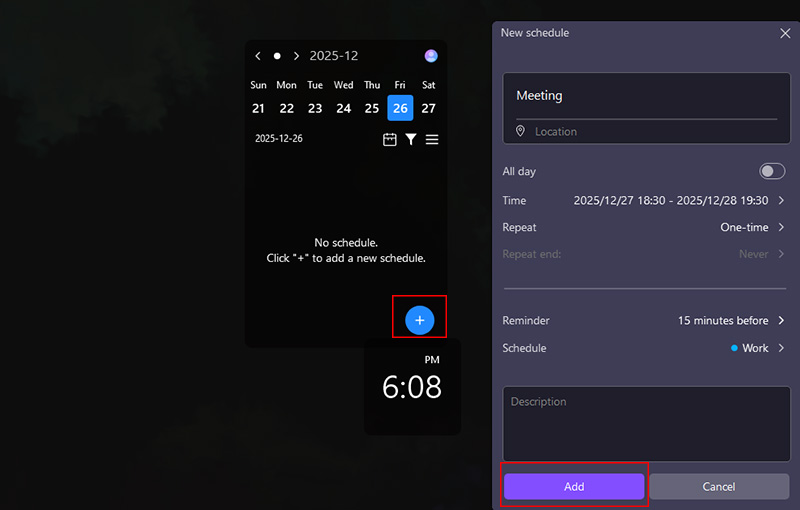
Step 3. Click the Add button to add the schedule with the Outlook alternative.
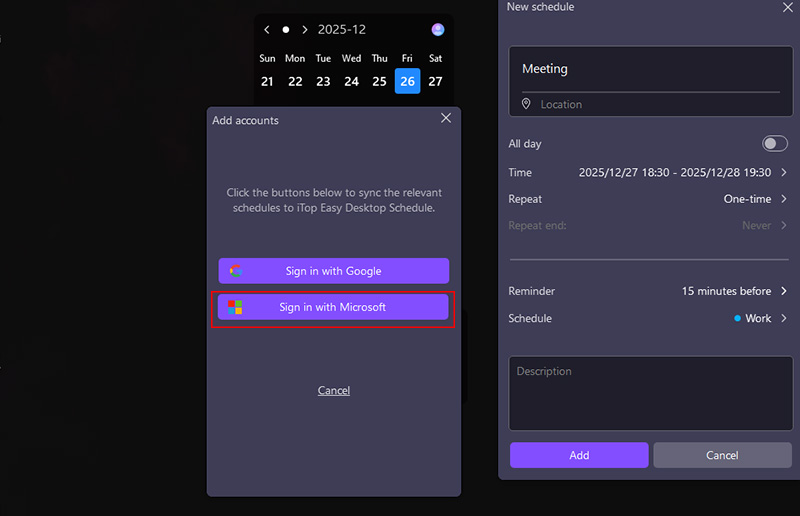
Tip: You can put calendar on desktop and sync iTop Easy Desktop schedule with your Outlook calendar, making it easy to see all your events in one place. This can be done via Add new > Sign in with Microsoft, and complete following the prompts.
2. Google Calendar – Simple, Collaborative, Cloud-Based
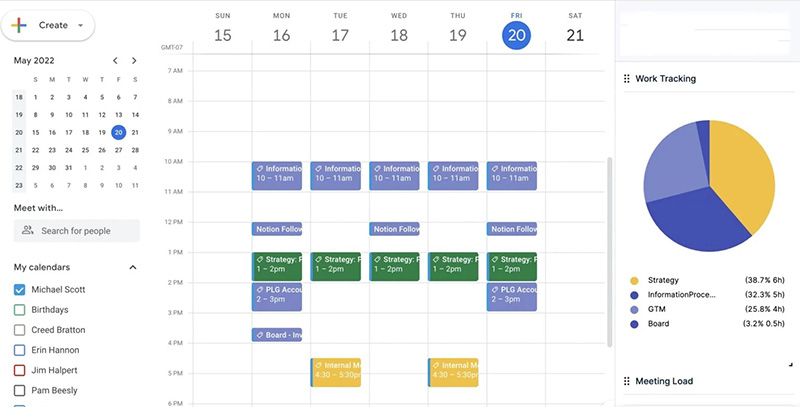
Google Calendar is a cloud-first calendar solution known for its simplicity and real-time collaboration. Like Outlook, it supports personal, shared, and group calendars with reminders and recurring events. The Outlook alternative integrates natively with Gmail, Google Meet, and other Google Workspace tools. The main downside of the desktop calendar widget is limited offline access, but its lightweight, web-first interface makes it ideal for quick scheduling on any device.
3. Proton Calendar – Privacy Focused Scheduling
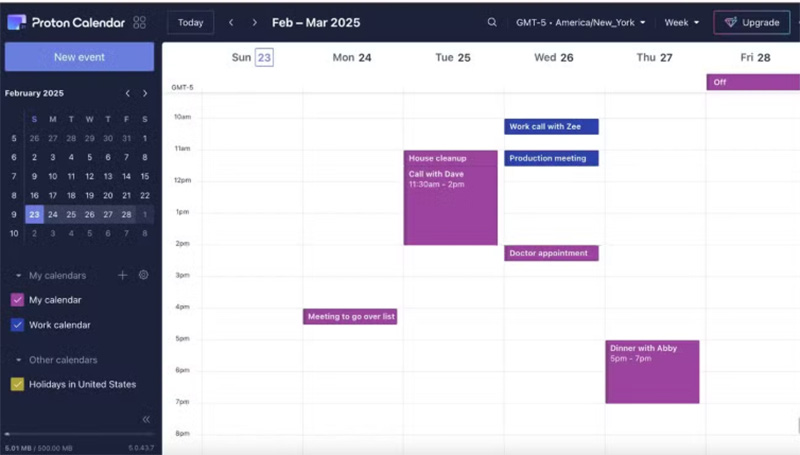
Proton Calendar prioritizes user privacy in its design, offering end-to-end encryption for all events. It covers the essentials: recurring events, multiple calendars, and reminders. Compared with Outlook, it doesn’t have advanced enterprise integration, but it works smoothly on web and mobile apps. If keeping your scheduling private is a priority, Proton Calendar provides peace of mind without sacrificing core functionality.
1. How do I add an external calendar to Outlook?
You can add an external calendar through “Add Calendar” > “From Internet” or “From File” and follow the prompts.
2. Why are some calendars not showing up in Outlook?
Calendars may not appear due to sync issues, permission restrictions, poor internet connection, or being hidden in the calendar view.
3. How do I view other calendars in Outlook?
Select “Calendar” view, then tick the boxes for shared or additional calendars under “My Calendars” or “Shared Calendars” to overlay them with your main schedule.
4. Can I add multiple calendars at once in Outlook?
Yes, Outlook allows you to add multiple calendars by importing calendar files or subscribing to calendar links. Once added, all calendars appear in the calendar pane.
5. How do I remove a calendar from Outlook if I no longer need it?
Right-click the calendar you want to remove and select “Delete Calendar” or “Remove Calendar.” This removes it on the Outlook desktop app without affecting other users if it’s shared.
The Bottom Line
Managing multiple calendars can get messy, but knowing how to add a calendar in Outlook, be it personal, shared, or group, keeps your schedule under good control. If you’re looking for even more efficiency, exploring top Outlook alternatives can streamline your workflow. Tools like iTop Easy Desktop complement your calendar management by organizing tasks, reminders, apps, and syncing Outlook calendars. Give it a try today and simplify your daily planning, keeping everything accessible and in sync.
- iTop Easy Desktop - Keep Your Desktop Organized
-
- Box desktop icons to declutter your workspace
- Manage documents, games, media files, etc., at 1 click
- Add calendar, clock and other widgets to desktop
- Locate any file you want instantly with search box
- Related Articles for Reference