-
iTop Easy Desktop - No.1 Desktop Organizer for Windows
-
Automatically organize and customize Windows desktop. Make your messy desktop look clean and professional within seconds.

How to Change Computer Font Style, Size, and Color [Windows Guides]
How to change computer font? Check out the methods to alter font style, size, and color in Windows, plus a great tool to enhance aesthetic and productivity!
There are plenty of reasons to change your computer font, for instance, maybe you are bored with the classic Segoe UI, or you simply want to improve readability. However, it seems many users struggle to adjust Windows’ default system fonts without proper instructions.
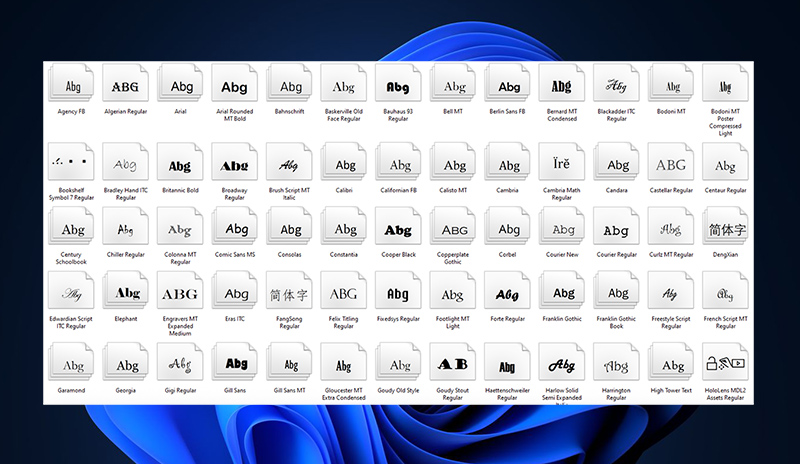
So, how to change computer font? This guide will walk you through every method. You can learn how to change computer font size, style, and color step by step. There’s also a bonus tool for desktop organization and customization. Just make sure to follow along!
How to change my computer font style or type? While it might seem simple, changing the font style/type in Windows is not that straightforward in Windows CE. Unlike many apps, Windows does not offer a built-in switch to change the default font. You will need to replace the Segoe UI with any installed font by editing the registry. Just make sure to back up the registry before making changes. Here’s how to change font on Windows 10/11.
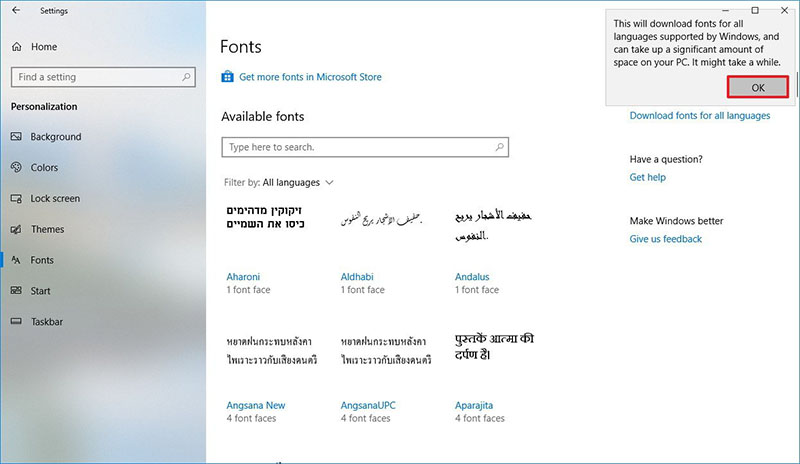
Step 1. Open the Start menu and launch Settings. Go to Personalization > Fonts (where fonts are stored in Windows). Browse the list of installed fonts and click the one you want to use. Note the full font name, for instance, Arial.
Step 2. From the Start menu to open Notepad. Paste the following code into the blank document. Replace “Font Name” with the exact font name you wrote down earlier. Keep the quotation marks intact.
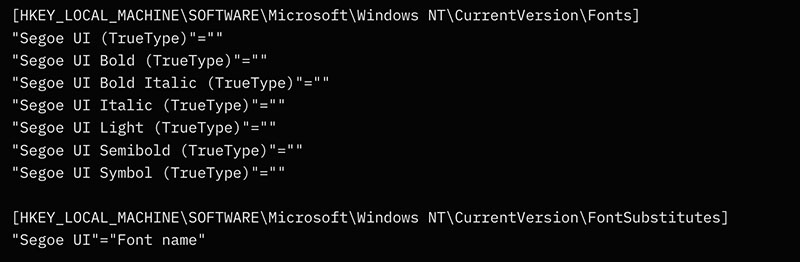
[HKEY_LOCAL_MACHINE\SOFTWARE\Microsoft\Windows NT\CurrentVersion\Fonts]
"Segoe UI (TrueType)"=""
"Segoe UI Black (TrueType)"=""
"Segoe UI Black Italic (TrueType)"=""
"Segoe UI Bold (TrueType)"=""
"Segoe UI Bold Italic (TrueType)"=""
"Segoe UI Historic (TrueType)"=""
"Segoe UI Italic (TrueType)"=""
"Segoe UI Light (TrueType)"=""
"Segoe UI Light Italic (TrueType)"=""
"Segoe UI Semibold (TrueType)"=""
"Segoe UI Semibold Italic (TrueType)"=""
"Segoe UI Semilight (TrueType)"=""
"Segoe UI Semilight Italic (TrueType)"=""
[HKEY_LOCAL_MACHINE\SOFTWARE\Microsoft\Windows NT\CurrentVersion\FontSubstitutes] "Segoe UI"="Font Name"
Step 3. Click File > Save As. Name the file with a .reg extension, for example, setfont.reg.
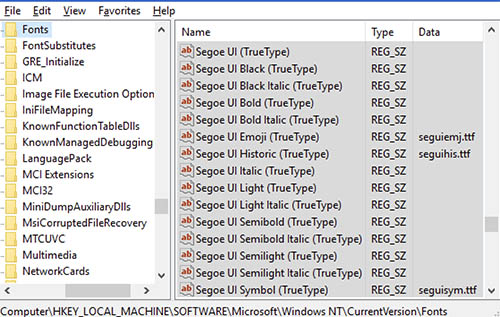
Step 4. Open the folder where you saved your .reg file. Right-click the file and choose Merge. Approve both confirmation prompts, and Windows will add the new entries to the Registry.
That’s how to change computer font Windows. Once the system restarts, Windows will switch to the font you selected.
Now you know how to change Windows font, so what about size? Worry not. No Registry or commands are needed. You can also change Windows font size menus, icons, and apps with the built-in options easily. Here's a step-by-step guide on how to change computer font size.
Step 1: Open the Windows Settings panel by pressing Windows + I. From there, choose Accessibility, and then click Text size.
Step 2: Move the Text size slider left or right to adjust the size of the on-screen text. You can use the live preview above the slider to know how the new size will look before applying it.
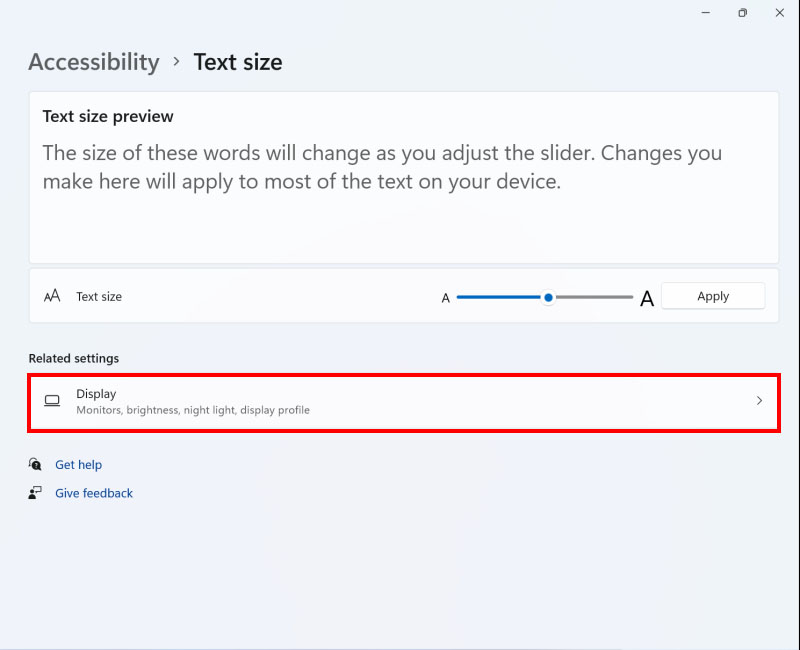
Step 3: When you're happy with it, select Apply. Most text across Windows updates instantly, though a few apps may require you to close and reopen them to apply the new size.
While the previous guides show how to change your computer font style and size, you might want to alter the font color as well. So, how to change Windows font color? You can either go with the appearance settings or Registry tweaks. We will cover how to change computer font color with two methods here.
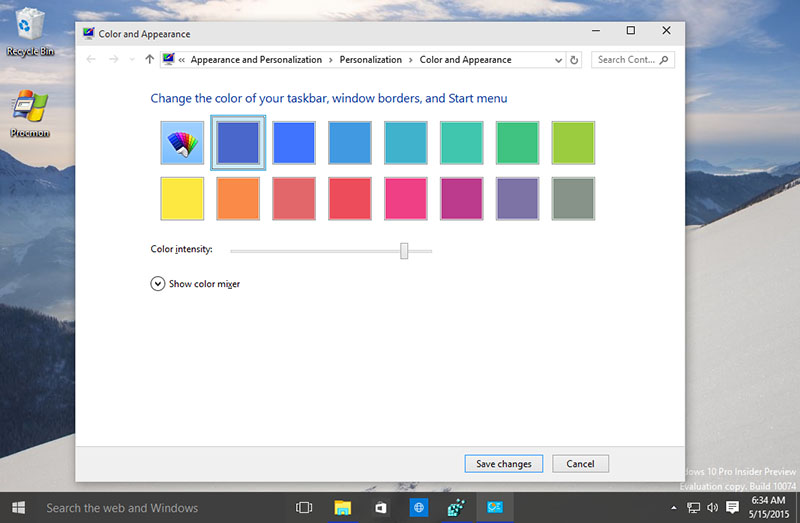
Step 1: Open the Start menu, search for the Control Panel, and launch it. From there, navigate to Appearance and Personalization, then choose Personalization and open Window Color and Appearance.
Step 2: Select the Advanced options to access a list of interface elements. Pick an item, such as Menu, then use the color selector to assign a new font color for that element.
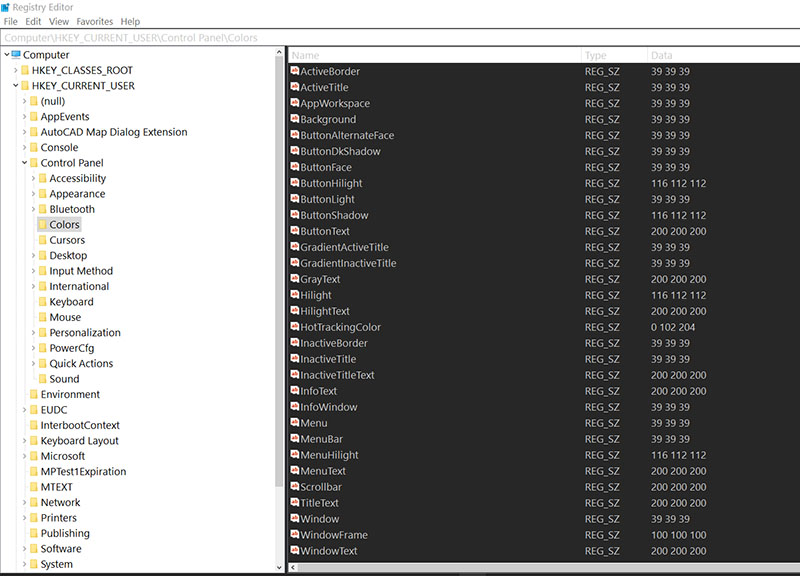
Step 3: If you want finer color control, you can modify the values directly in the Registry. Use hotkeys: Windows + R so you can open the Run box. Type regedit and press Enter.
Step 4. Go to: HKEY_CURRENT_USER\Control Panel\Colors. Find WindowText, open it, and replace its value with your desired RGB numbers (for example, 255 255 255 for white).
While the previous sections show how to change fonts in Windows natively, the steps can feel complicated, especially for beginners. Plus, if you are aiming for better contrast, improved readability, or a cleaner overall visual style, native settings may not be enough. In this section, we will explore additional practical methods to refine desktop font appearance in Windows.
1. Adjust the Background Color
How to change my computer font for better readability? Your desktop background color also matters. You can change it via this path: right-click the desktop, choose Personalize > Background, and select Solid color. Here, you can pick a light or dark shade to contrast with your icon text. This tip is quite helpful if your wallpaper makes labels difficult to read. No restart required.
2. Use a High-Contrast Theme
If you want to know how to change Windows font with dramatic visual improvements, a high-contrast theme can be rather useful. It can adjust text and UI colors system-wide to enhance clarity. Here’s the path for adjustment: Settings > Accessibility > Contrast themes. Choose a preset that can make fonts bolder and more visible.
Also Read: Best 4K Wallpaper for PC >>
3. Disable Drop Shadows for Icon Labels
Drop shadows on Windows can sometimes blur icon text, especially with minimal or flat backgrounds. You can disable them to create sharper, cleaner text visuals. Here’s how: Press Win + R, type sysdm.cpl, and hit Enter. Navigate to Advanced > Performance > Settings. Do not tick the “Use drop shadows for icon labels” for your desktop.
4. Adjust the font with a desktop organizer
While the previous tricks are helpful, they might not achieve your expectations if you are looking for deep customization. Worry not, this is the time iTop Easy Desktop comes into play. This smart desktop organizer automatically groups your icons into clean, structured boxes, keeping your workspace tidy and visually appealing.

- iTop Easy Desktop - Keep Your Desktop Organized
-
- Box desktop icons to declutter your workspace
- Manage documents, games, media files, etc., at 1 click
- Add calendar, clock and other widgets to desktop
- Locate any file you want instantly with search box
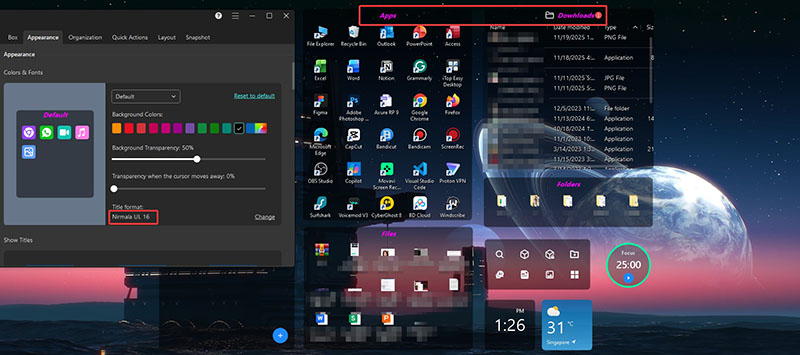
Even though it’s primarily an organizer, the tool offers font customization options that Windows simply doesn’t provide. You can adjust each box’s title font, color, style, and even visual effects to give your desktop a refined, personalized touch.
In addition, iTop Easy Desktop offers useful extras such as productivity widgets (calendar, iNotes, etc.), one-click icon hiding, private boxes for secure files, static and dynamic wallpaper support, and a built-in ChatAI assistant. It’s an all-in-one solution that elevates both organization and aesthetics on any Windows setup.
How to Organize Your Desktop with Custom Font Appearance?
Step 1. Download the desktop organizer to your Windows PC before everything else.
Step 2. Go to Boxes > Appearance. Click on the Change button.
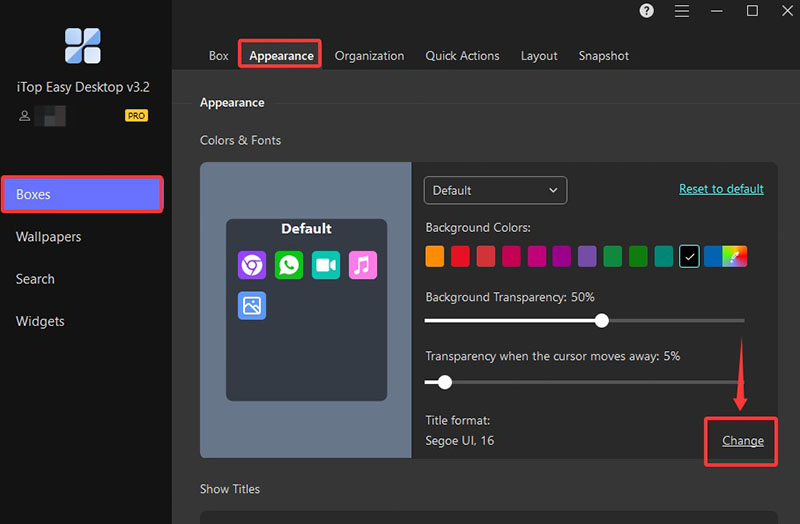
Step 3. Change the font style, color, effect, etc., with the options provided.
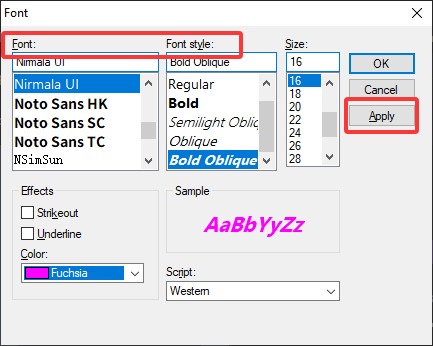
Step 4. Click the Apply button, and the font of the boxes will be changed instantly.
The Bottom Line
How to change computer font? This guide has covered steps for font style, size, and color. We’ve also introduced useful tricks to improve readability and overall desktop aesthetics in Windows. While these built-in options help, they may not offer the level of customization you need. If you are looking for a more personalized desktop styling, iTop Easy Desktop stands out as a practical and powerful solution. It gives you advanced control over font appearance, icon organization, and overall visual layout. Try the desktop organizer and transform your desktop into a cleaner, smarter workspace now!
- iTop Easy Desktop - Keep Your Desktop Organized
-
- Box desktop icons to declutter your workspace
- Manage documents, games, media files, etc., at 1 click
- Add calendar, clock and other widgets to desktop
- Locate any file you want instantly with search box