-
iTop Easy Desktop - No.1 Desktop Organizer for Windows
-
Automatically organize and customize Windows desktop. Make your messy desktop look clean and professional within seconds.

How to Change Display Settings: Make Desktop Work for You
Tired of messy desktops? Learn how to change display settings on your desktop, and discover simple tricks to tweak resolution, brightness, and wallpapers.
Overwhelmed by a messy desktop and outdated wallpapers? You can easily improve your workspace by organizing icons and optimizing your screen. Adjusting options like resolution and scaling, essentially learning how to change display settings, can make your desktop sharper, cleaner, and more enjoyable to use.

If you spend hours juggling multiple apps and scattered icons, changing display settings alone won’t solve your desktop chaos. This is why iTop Easy Desktop matters a lot. Compatible with Windows 11, 10, 8, and 7, it not only helps you optimize your screen layout but also automatically arranges both existing and incoming icons for a cleaner workspace.
How to Organize Your Desktop with iTop Easy Desktop
Step 1. Download and open iTop Easy Desktop, then navigate to the Boxes panel. Select “Add a Box” to create a new box.
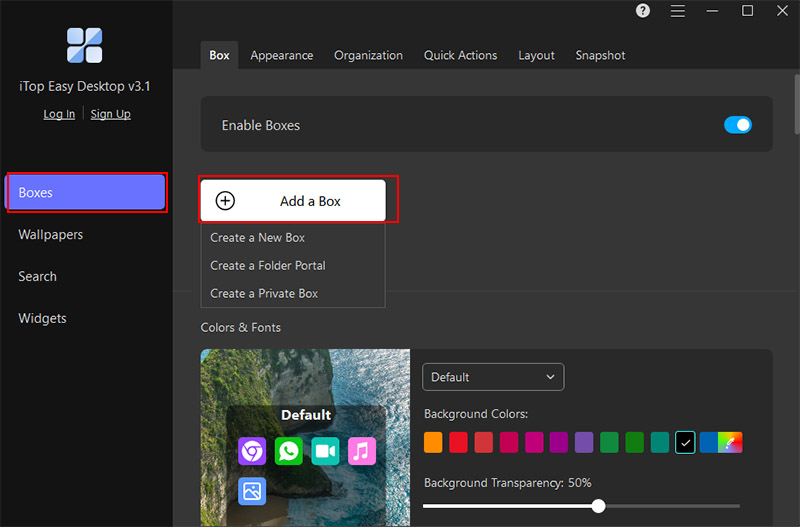
Step 2. Head to the Organization section to set up sorting rules. Assign file types to boxes using the + icon, or remove them anytime with a click.
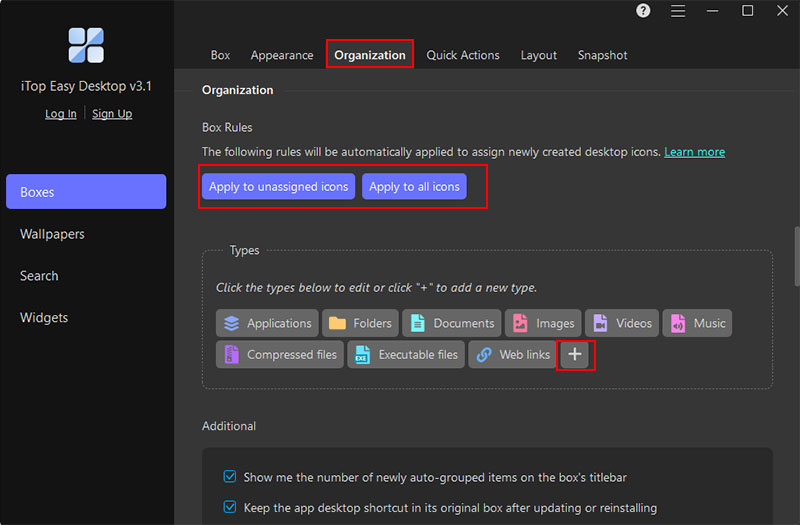
Step 3. Now, any new file or shortcut you add will automatically be sorted into the correct box, without complicated display settings Windows 10.
Core Features of iTop Easy Desktop
Auto-organize different icons in boxes
iTop Easy Desktop categorizes all your files and folders into visually distinct boxes. Your icons sort themselves, so you spend less time hunting. Your desktop stays neat, even with lots of new programs.
Free HD and 4K wallpaper
The desktop organizer offers a rich library of high-definition and 4K wallpapers. Clear images and neat icons make it easier to concentrate and give your eyes a break.
Convenient widgets: Weather, Clock, and iNotes
With built-in widgets, you can check the time, weather, or jot down notes without opening additional apps. These programs fit right onto your computer. You'll get more done without any hiccups in your work.
Private box, hide important documents
Sensitive files can be stored securely in a private box with strong passwords. Keep your vital documents private and organized with this simple trick. You won't even need complicated folder setups.
Chatbox AI and a to-do list to help with your workflow
iTop Easy Desktop includes an AI chatbox and a built-in to-do list. You can instantly set reminders, pose inquiries, or outline your agenda directly from your desktop.
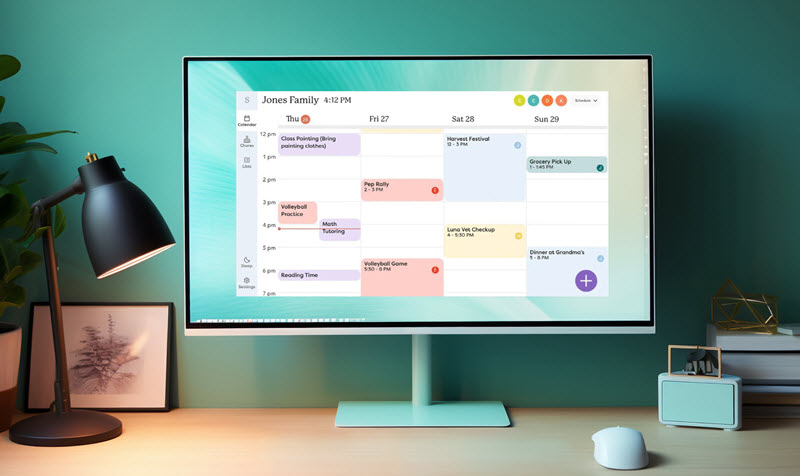
A chaotic desktop makes even the sharpest Display settings Windows 10 feel ineffective. One reliable solution is to combine how to change display settings with a visually structured and customizable wallpaper, which also works as a Windows desktop organizer. Tools like Canva’s desktop wallpaper templates allow you to personalize your workspace while keeping icons, calendar, and note lists organized.
Advantages Compared with Other Display Changers
Visual Organization. Canva templates divide your screen into clear sections for apps, notes, and widgets, thus helps you maintain a tidy layout without constant manual adjustments.
Creative Customization. Unlike standard system wallpapers, Canva offers drag-and-drop graphics, color schemes, and text blocks, so you match your desktop with your workflow and personal style.
Enhanced Focus. Predefined areas for calendar, to-do lists, apps, songs, or important documents reduce distractions and make it easier to locate essential items at a glance.
How to Use the Canva Customizable Wallpaper Template
Use the following steps to learn how to adjust brightness on Windows 10 desktop with Canva and creates a visually balanced workspace.
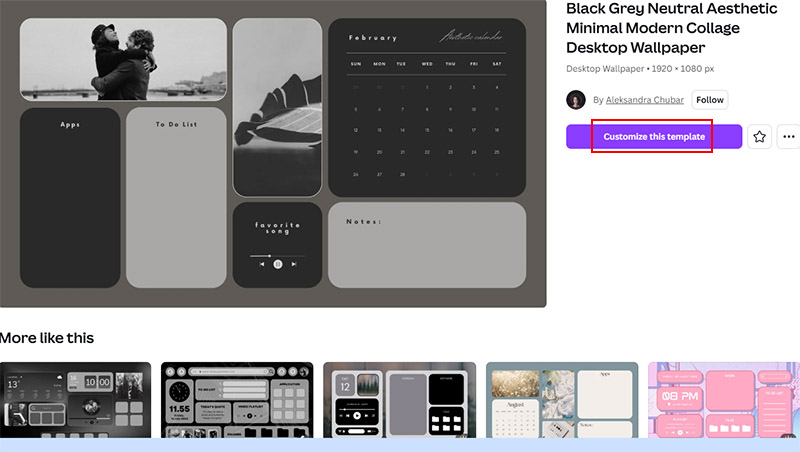
Step 1. Open Canva Desktop Wallpaper Templates, browse, and choose a template suited for your workflow.
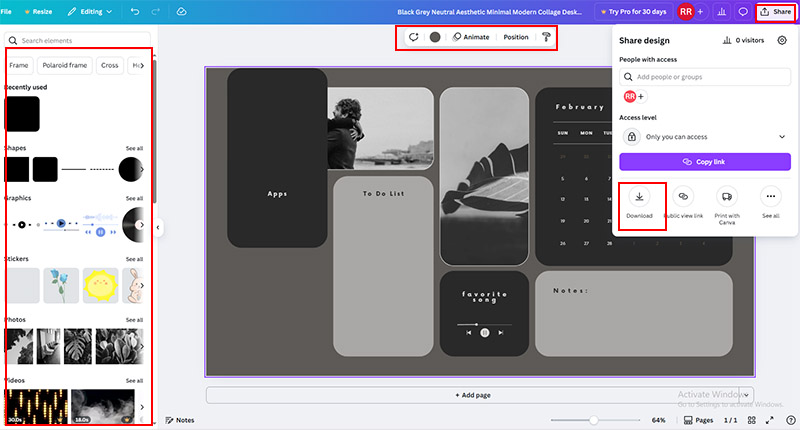
Step 2. Click Customize this template and customize sections for icons, apps, notes, calendar, and any personal widgets, including adjusting colors, shapes, position, and more.
Step 3. Click Share at the top right corner and click Download to download your wallpaper in HD or 4K resolution, then match your current display settings for optimal sharpness.
Platforms like Etsy offer an array of meticulously designed desktop organizers to easily transform desktop screens into clean, aesthetic, and highly functional workspaces. The templates already have areas set aside for your icons, to-do lists, notes, and helpful widgets.
Advantages Compared with Other Display Changers
High Customizability. Etsy templates allow fine-tuned placement for icons, notes, and widgets. All the desktop organizer wallpapers are in 4K UHD.
Aesthetic Appeal. Handcrafted designs emphasize color harmony, minimalism, and typography. Your workspace will be visually pleasant and reduces cognitive clutter.
Cross-Device Compatibility. These wallpaper templates work on different desktop screen resolutions and sizes, with clarity well preserved.
How to Use Etsy.com Wallpaper Template
Learn how to change display settings with Etsy desktop organizer and ensures your desktop looks professional and remains efficient.
Step 1. Visit Etsy Windows 11 Desktop Organizer and select a template that suits your workflow and aesthetic preferences.
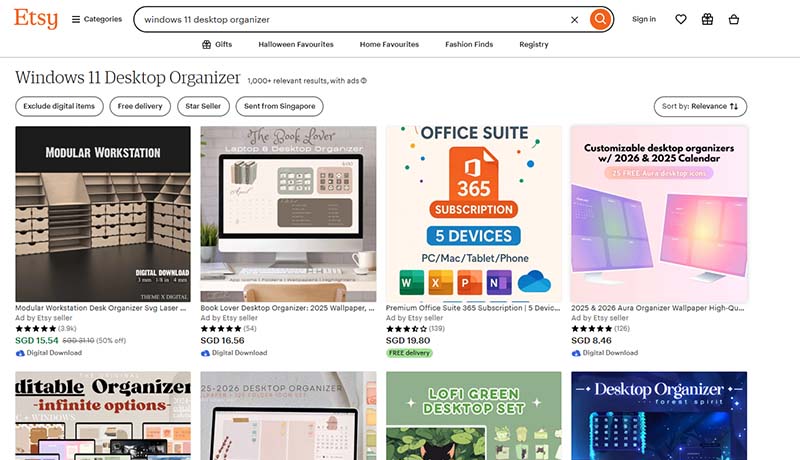
Step 2. Add to basket and pay for the desktop organizer wallpaper.
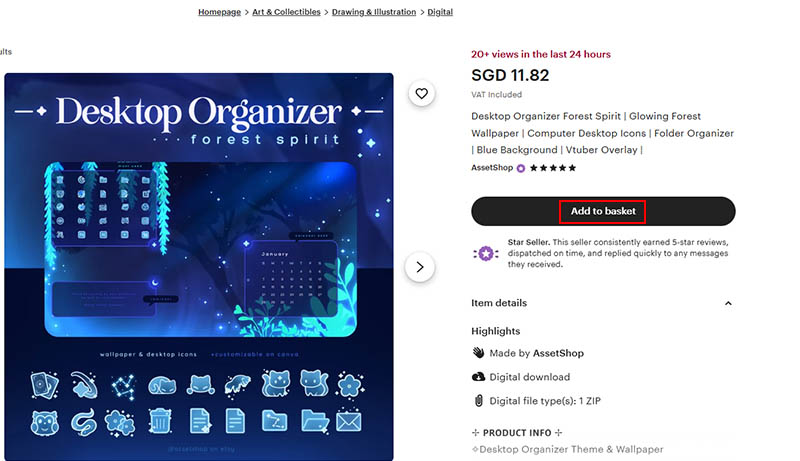
Step 3. Right-click your desktop → Personalize → Background , and apply the downloaded template.
Step 4. Align your icons, notes, and widgets according to the template layout, maximizing both organization and visual clarity.
Sidebars is another way recommended here to set up your work area with specific spots, so your apps drop right where you need them. You can tailor your desktop with Tiles by grouping apps and shortcuts into pages, shifting layouts to your preference, and applying unique visual styles and preview effects.
Advantages Compared with Other Display Changers
Dynamic Window Management. Sidebars automatically snap windows into designated zones and keeps your desktop organized, reducing time spent manually moving apps.
Custom Layouts. You can design layouts that match your workflow, be it for work, gaming, or creative projects, more flexibly than standard display arrangements.
Complete desktop personalization. It creates custom pages, pin shortcuts, and manages apps with filters. You can reposition or auto-hide the bar and replace the taskbar with system tray icons.
How to Use the Stardock Desktop Organizer
Follow the guide below on how to change display settings with Stardock, your desktop will become an efficient and visually appealing workspace.
Step 1. Download and install Stardock Tiles from Stardock and launch it.
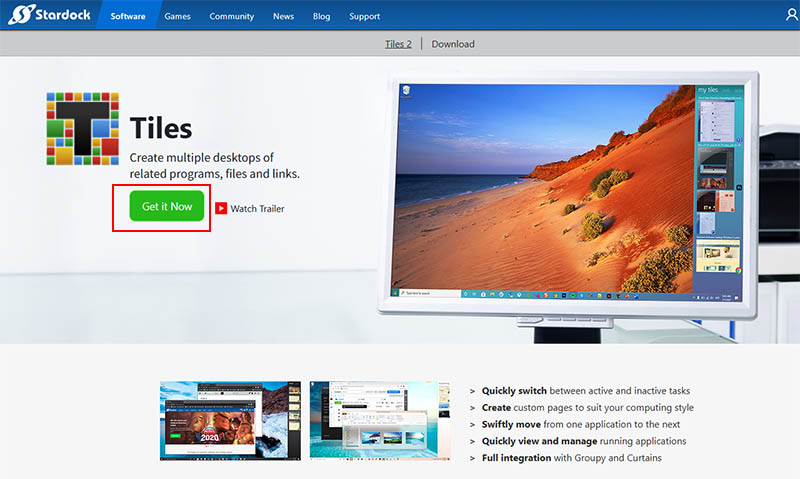
Step 2. Open the Tiles sidebar and choose a page label (e.g., My Tiles, Documents, or Apps).
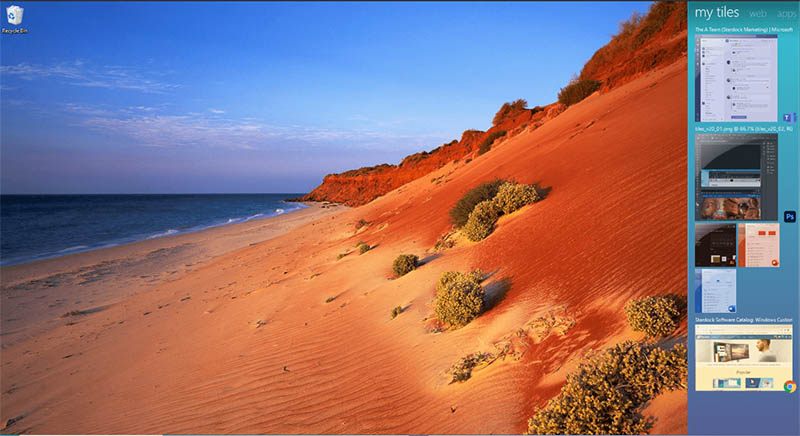
Step 3. Drag and drop items (programs, documents, or URLs) onto Tiles. Hold Shift to add a running app as a live preview tile, inactive apps appear as icons.
Cleaning up your desktop goes beyond just making it look good. A well-organized screen actually helps you find files quickly and work without distractions. While many users focus on system options, knowing how to change display settings on Windows or Mac can give your workspace a productivity boost. You can get your work done quicker and keep that desktop tidy with these seven free methods.
How to change the resolution? Right-click your desktop → Display settings → select the Display resolution drop-down menu and choose your preferred option for sharper visuals. You can adjust screen size to fit monitor.
Change font size, app size, and other items. Adjust scaling under Display settings to ensure text and icons are comfortable to read, especially on high-resolution monitors.
Change screen orientation. Switch between landscape and portrait modes to suit document editing, coding, or creative projects.
Taskbar adjustments. Right-click the taskbar > open Taskbar settings > toggle search, widgets, and icon alignment as needed.
Background image. Right-click desktop > select Personalize > choose Background > pick or upload a clean wallpaper.
Make the best use of the Start menu. Open Start > right-click apps to pin/unpin > drag items into folders > remove shortcuts.
Adjust brightness. Click Start > go to Settings > System > Display > move the Brightness slider to adjust to a comfortable level. Display settings Windows 11 may differ on Windows 10 or earlier.
While these pointers sharpen what you see, they can't organize a crowded display or untangle a chaotic arrangement of elements. For a truly clean desktop, try an all-in-one desktop organizer like iTop Easy Desktop, which automatically arranges icons and widgets for maximum efficiency.
Conclusion
A neatly organized desktop helps sharpen concentration and improve workflow.With system adjustments and tools such as iTop Easy Desktop, it’s easy to master how to change display settings while keeping your workspace sleek. Download iTop Easy Desktop today and take control of your desktop like a pro.

- iTop Easy Desktop - Keep Your Desktop Organized
-
- Box desktop icons to declutter your workspace
- Manage documents, games, media files, etc., at 1 click
- Add calendar, clock and other widgets to desktop
- Locate any file you want instantly with search box