-
iTop Easy Desktop - No.1 Desktop Organizer for Windows
-
Automatically organize and customize Windows desktop. Make your messy desktop look clean and professional within seconds.

How to Show Clock on Desktop in Windows 11/10 & Mac
How to put a clock on desktop? This article introduces the best ways to show clock on desktop in Windows 11/10 and Mac for checking the time at any moment.
People hope to Keep track of time during work or study to measure the progress reasonably. Choose to show clock on desktop that allows you to quickly confirm the present time and set alarm for the following schedule or special events to boost efficiency. You can explore clocks across multiple styles and themes, for example, digital clock, analog clock and world clock, which can be used as decoration on your desktop as well.
How to put a clock on desktop? In this article, we’ll guide you to show clock on desktop in Windows 11/10 and Mac with no effort.
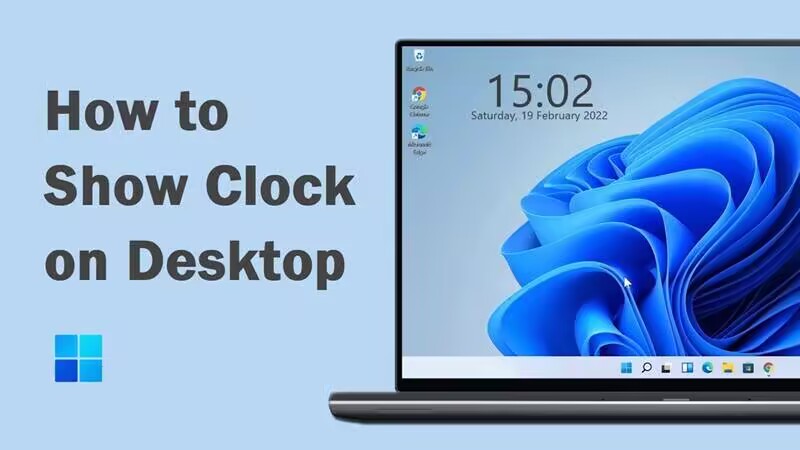
Windows 11 doesn’t support adding a clock widget to desktop directly. By default, the time information is presented on the taskbar. If you want to show clock on desktop Windows 11, download and use a third-party tool, for example, Widget Launcher.
Widget Launcher is a host of widgets for Windows 11. It has the ability to instantly add clocks, calendars, sticky notes and other desired gadgets on the desktop. It not only offers preset skins available to personalize the colors of included widgets but supports 3-rd party extension for reaching extra skins and widgets. Follow the tutorial to learn how to add clock to desktop using Widget Launcher.
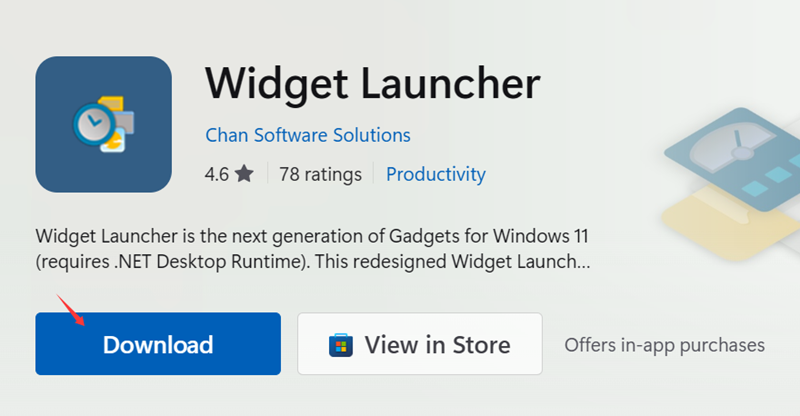
Step 1. Search Widget Launcher in Windows Store. Download and install it.
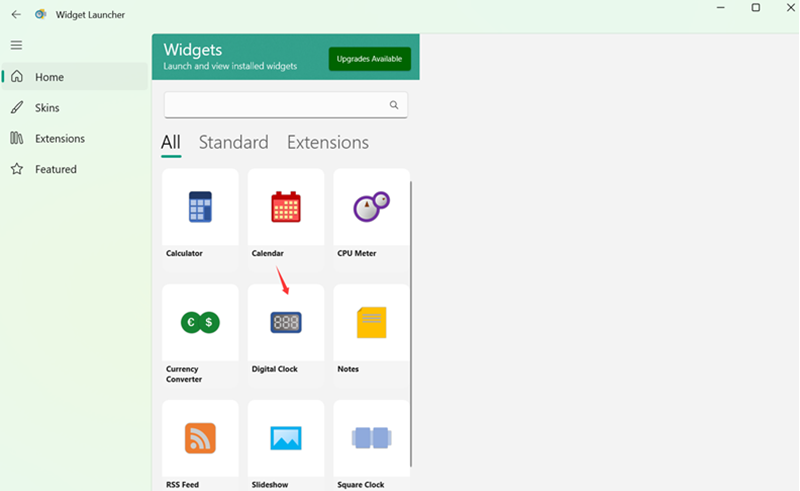
Step 2. Launch the program. All the available widgets are show on the home page. Find and choose a clock you want to add.
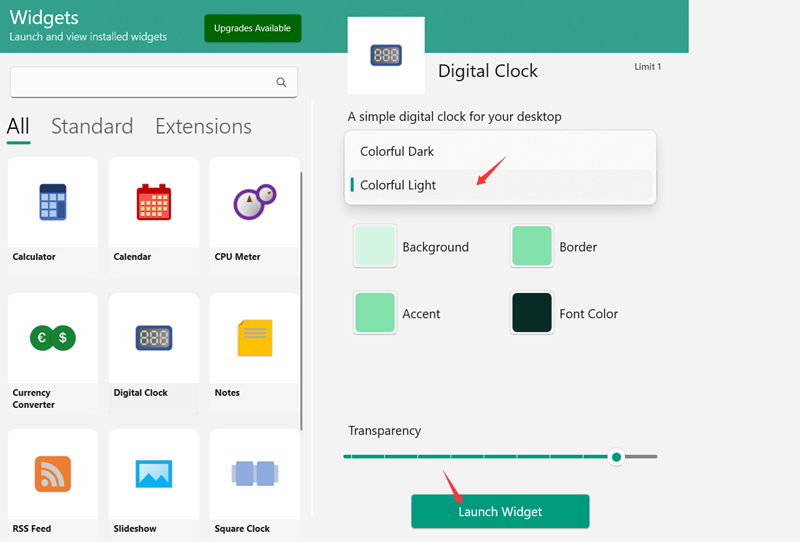
Step 3. Choose a skin style and customize the color as you like. Next, click “Launch Widget”.
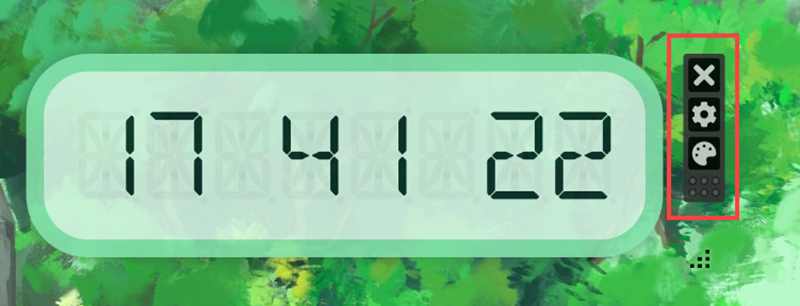
Step 4. Soon later, you can see the clock on the desktop. Additionally, go to settings and color palette to customize the clock if needed.
Widget Launcher makes it simple to show clock on desktop, but has some limitations.
Pros:
Include several clock widgets for Windows desktop;
Customize clocks with skins and colors;
Easy and free to add and remove clocks on desktop.
Cons:
Require .NET Desktop Runtime to activate the program;
Upgrade to Pro for ads removal and advanced features.
Alternative to Widget Launcher, iTop Easy Destkop, the industry-leading free desktop organizer for Windows, offers a set of useful widgets and tools to make your desktop look cool and clean. You can make the clock active on desktop in one-click, no extra installation required.
How to add clock on Windows 10 desktop? iTop Easy Desktop can lead you out.
Step 1. Download and install iTop Easy Desktop on your Windows computer.
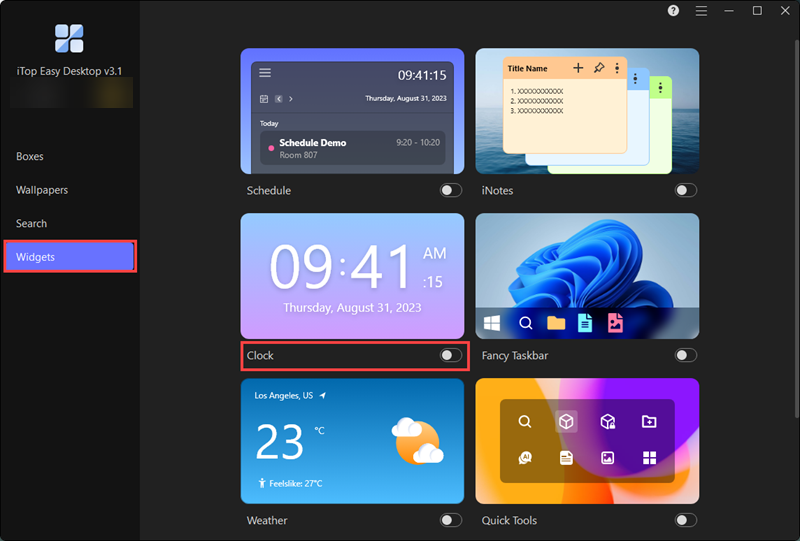
Step 2. Launch iTop Easy Desktop and head to Widgets.
Step 3. Find Clock from the listed widgets and enable it.
Step 4. The Settings window appears. Customize the clock, from clock style, time format, size to appearance as you like. Click Apply to save changes. Now, you can see the clock on your desktop.
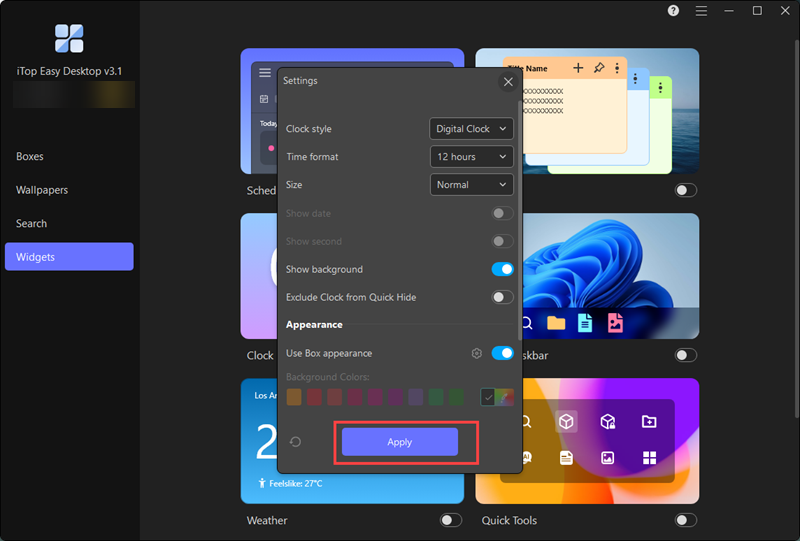
Apart from helping show clock on desktop, you can explore more value of iTop Easy Desktop.
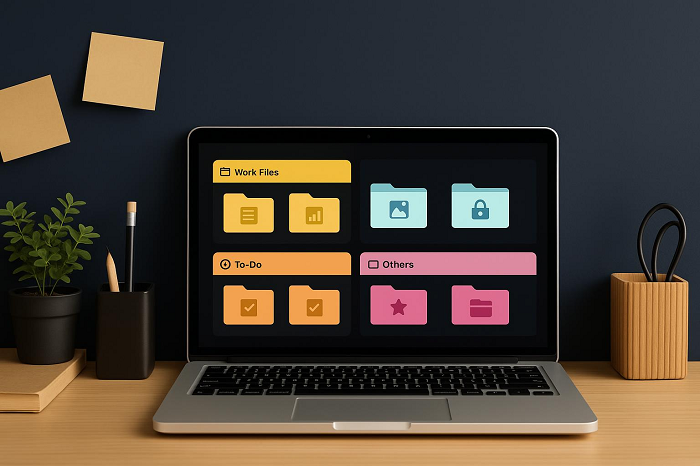
Keep your desktop organized effortlessly by Boxes
iTop Easy Desktop allows you to create a variety of boxes to categorize documents, apps, games, etc., so that you can quickly locate the items you want in the well organized boxes. You can also personalize the boxes by changing the colors, fonts, transparency for better appearance.
Add Schedule and iNotes widgets
iTop Easy Desktop includes an array of widgets to boost productivity. Schedule reminds you of next important events, iNotes helps you check to-do lists conveniently, and other widgets like weather, clock, lets you track info in real-time. Adding those widgets on desktop, you can arrange and manage your task with high efficiency.
Live wallpapers
Bored of your desktop background? Explore a new one from iTop Easy Desktop’s wallpaper library. There are both live wallpapers and static wallpapers across a wide range of styles. You can choose to download wanted wallpapers in different resolutions, from 720p/1080p to 4K, and set them as background at the touch of a button.
ChatAI and more tools
iTop Easy Desktop builds in a ChatAI powered by ChatGPT as your work assistant. Ask any question and it will intelligently give you an answer. The desktop organizer designs more tools to automatically align and save layouts for better management.

- iTop Easy Desktop - Keep Your Desktop Organized
-
- Box desktop icons to declutter your workspace
- Manage documents, games, media files, etc., at 1 click
- Add calendar, clock and other widgets to desktop
- Locate any file you want instantly with search box
Unlike Windows, Mac has a native clock app for users to easily check the in the selected cities around the world. You can show clock on desktop or notification centre and customize it. Now, follow the steps to add the clock widget to your Mac desktop.
Step 1. Right click anywhere on your desktop and select “Edit Widgets...”.
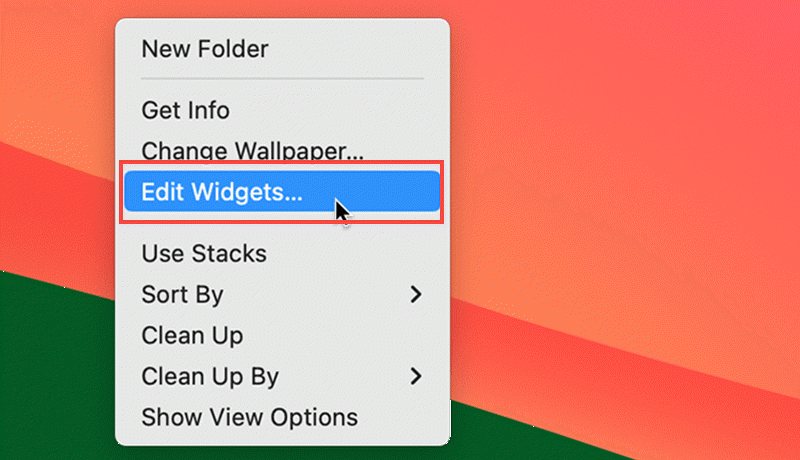
Step 2. Select Clock on the left sidebar. Several clock styles are listed, City, Clock and World Clock.
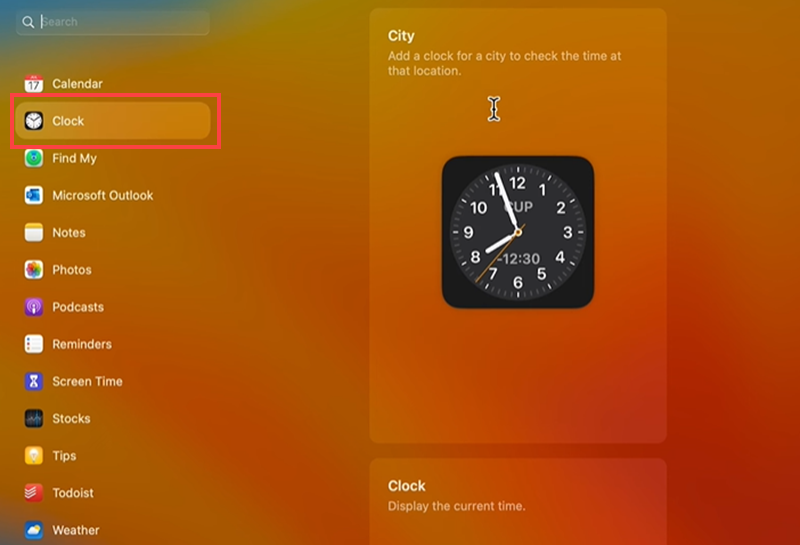
Step 3. Move to the clock you want to add. A green + icon appears, click the icon.

Step 4. After the clock is shown on the desktop, click Done.
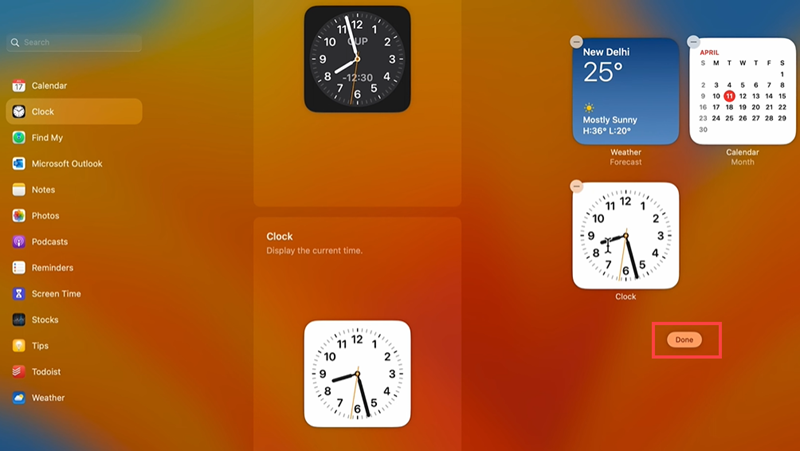
TIPS
You are allowed to customize the City or World Clock widget to check the time of a specific region. Right click on the widget > select Edit “Clock” > choose a city. If you want to rearrange a World Clock widget, drag the cities into a new order.The Bottom Line
To show clock on desktop is one of the most efficient ways to track time. Window users should get help from a third-party program to add clock to desktop for the lack of a native clock widget. iTop Easy Desktop, the versatile desktop organizer and widgets provides, empowers you to put the clock and personalize it at one click. In addition, it streamlines the process of how to add sticky notes to desktop and apply other useful widgets. If you are trying to display clock on Windows desktop, iTop Easy Desktop is a good choice.
- iTop Easy Desktop - Keep Your Desktop Organized
-
- Box desktop icons to declutter your workspace
- Manage documents, games, media files, etc., at 1 click
- Add calendar, clock and other widgets to desktop
- Locate any file you want instantly with search box