-
iTop Easy Desktop - No.1 Desktop Organizer for Windows
-
Automatically organize and customize Windows desktop. Make your messy desktop look clean and professional within seconds.

How to Add Websites to Desktop? Chrome/Firefox/Opera/Edge
How to add websites to desktop? Check out the simple methods to make it via different systems/browsers, plus the best tool to sort out your desktop easily!
Website shortcuts on your desktop are so convenient; they offer so much more convenience than you expected! There is no need to type in the URLs; you can just click on the icons to visit them instantly. So, how to add websites to desktop? It’s not that complicated. This blog will introduce step-by-step instructions for mainstream browsers—Chrome, Firefox, Opera, and Microsoft Edge. There’s a bonus tip as well, which can help you organize your desktop easily!
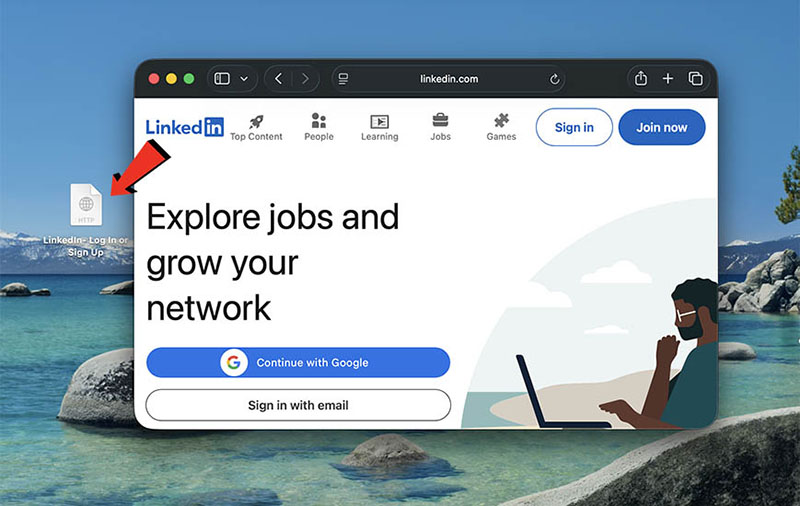
On Windows 11, you can place website shortcuts directly on your desktop to achieve instant access. Just follow these simple instructions:
Step 1: Open Safari. Go to a website you want to save as a shortcut for easy desktop access.
Step 2: Select the padlock icon. Drag it directly to your desktop. Then the site will instantly appear as a shortcut icon.
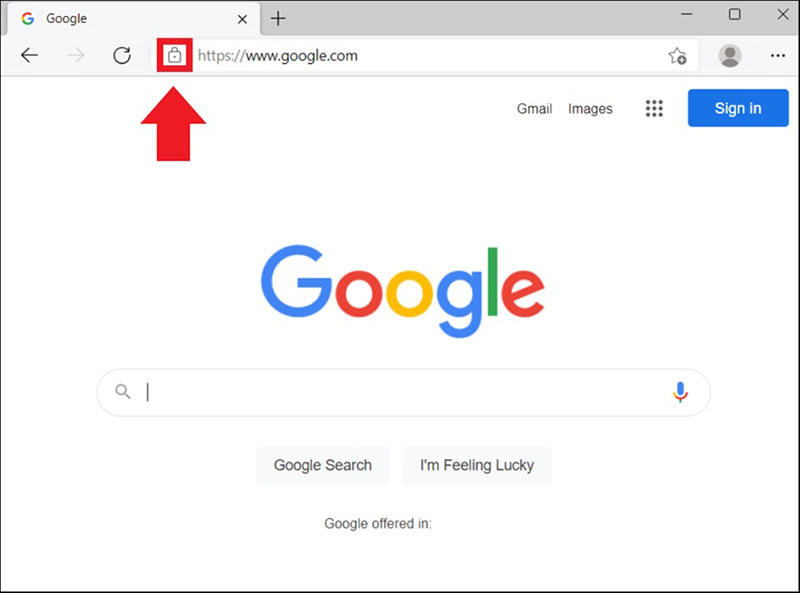
That’s it. It’s fast and effortless. This drag-and-drop technique also works in other browsers and applies to both macOS and Windows systems.
Mac users can also save websites to the desktop with ease. Below is the quickest method for Apple’s default browser—Safari.
Step 1. Navigate to the site you want to keep as a shortcut via Safari.
Step 2. Make sure to highlight the entire URL address. Drag it to your desktop.
Step 3. Then the website will be stored as a shortcut instantly.
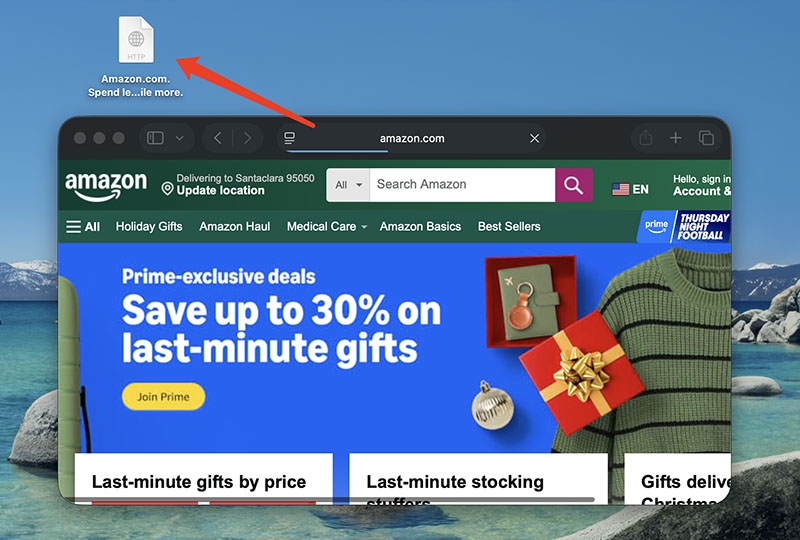
It’s just as easy as breathing. So what about other browsers? You can basically follow this drag-and-drop approach to save a website from any browser as a shortcut on Mac and Windows.
The previous parts have illustrated the simplest methods based on operating systems. If you prefer browser-specific methods, here’s how to add websites to desktop using different browsers.
How to Create a Desktop Shortcut to a Website in Chrome
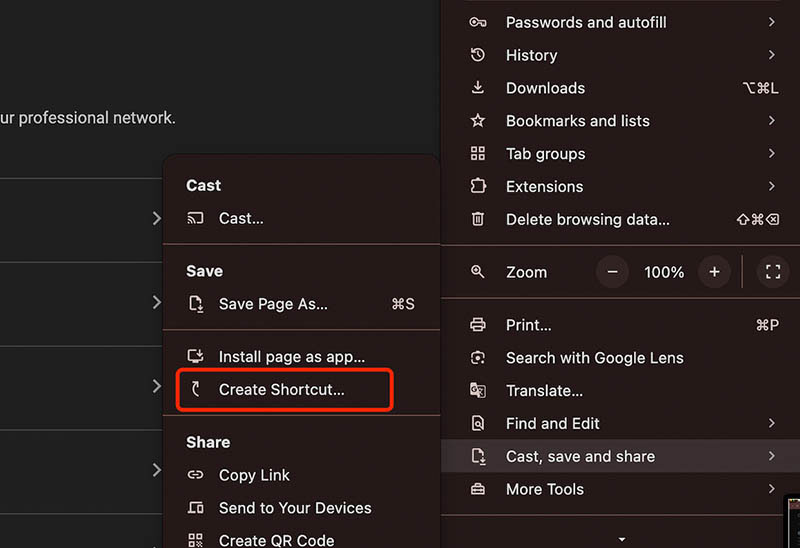
Step 1: Open Chrome and load the website you want to save. Click the three-dot setting menu in the top-right corner.
Step 2. Choose “Create, save and share,” then click Create shortcut. Name the shortcut, and Chrome will immediately add it to your desktop.
How to make a website shortcut on desktop Microsoft Edge
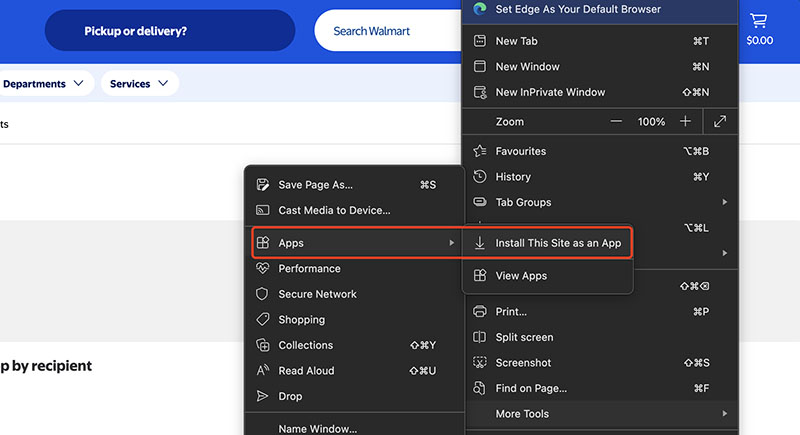
Step 1: Start Microsoft Edge and navigate to the target website. Open the settings menu in the upper-right corner.
Step 2: Select Apps, then choose “Install this site as an app.” Edge will automatically generate a desktop icon for the site.
How to make a desktop shortcut for a website Firefox
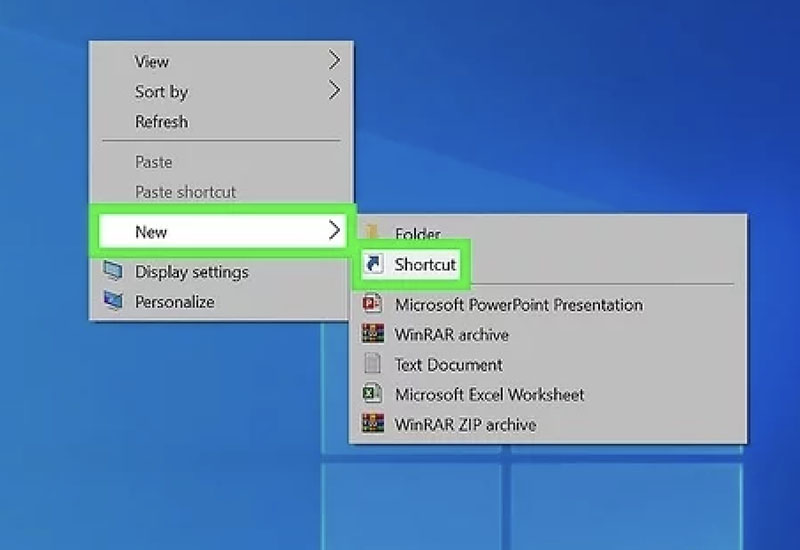
Step 1: Right-click anywhere on your desktop. Select New > Shortcut.
How to Add Websites to Desktop New Shortcut
Step 2: Paste the full website URL into the location field. Click Next, name the shortcut, and finish. The icon will appear on your desktop.
How to make a website shortcut on desktop Opera
For Opera, you can either use the drag-and-drop method to create a desktop shortcut for a webpage or use the “Create shortcut” option(introduced above) from the menu on Windows.
How to make a website shortcut on desktop Microsoft Edge/Chrome/Firefox/Opera? The precious sections have covered all specific steps. Once a website shortcut is created, you can pin it for even faster access.
How to Add Websites to Desktop Taskbar Windows
To pin websites to your Windows Taskbar, you will need to use Microsoft Edge as the browser.
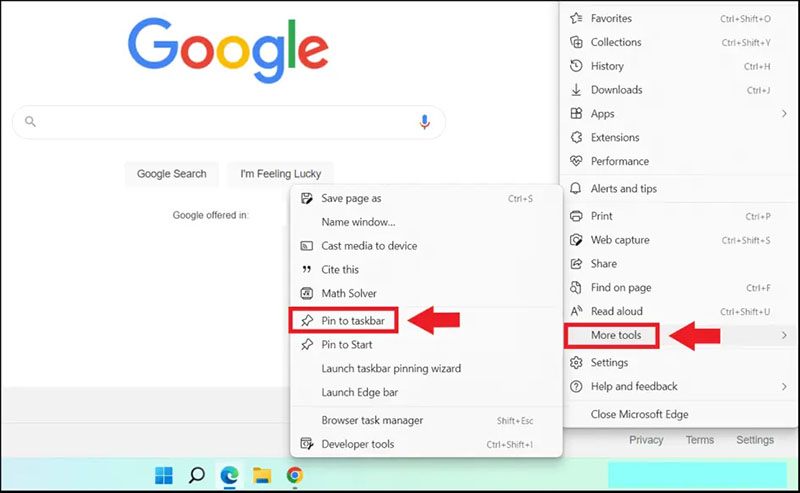
Step 1: Open Edge, visit the website, and click the three-dot settings menu. Select More tools, then choose Pin to taskbar.
Step 2: The website will now appear as an icon on your taskbar.
If you use Chrome, you’ve got to add the website to the desktop first. Then you need to right-click on it. After that, choose the “Pin to Taskbar” to make it appear on your desktop.
How to Add Websites to Desktop Dock Mac
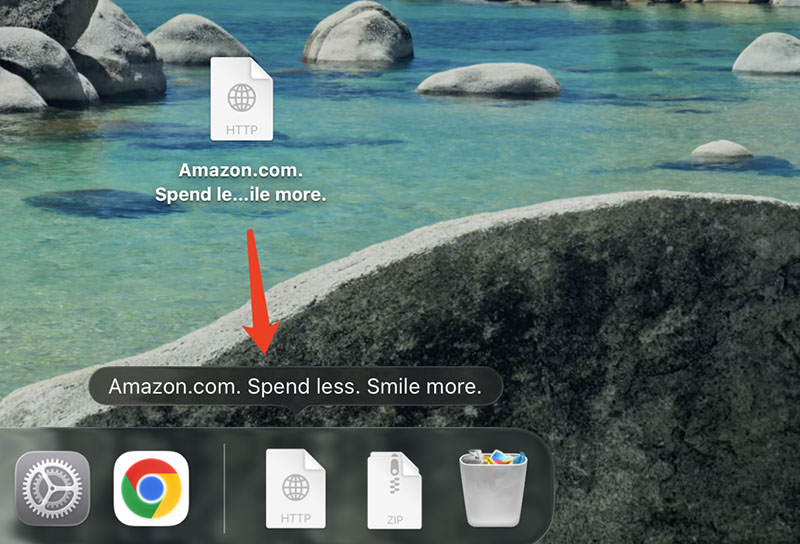
The way to add websites to the dock on Mac is pretty straightforward. First, save the website as a desktop shortcut. After that, simply drag the icon from your desktop down to the Dock. The shortcut will stay there for quick access.
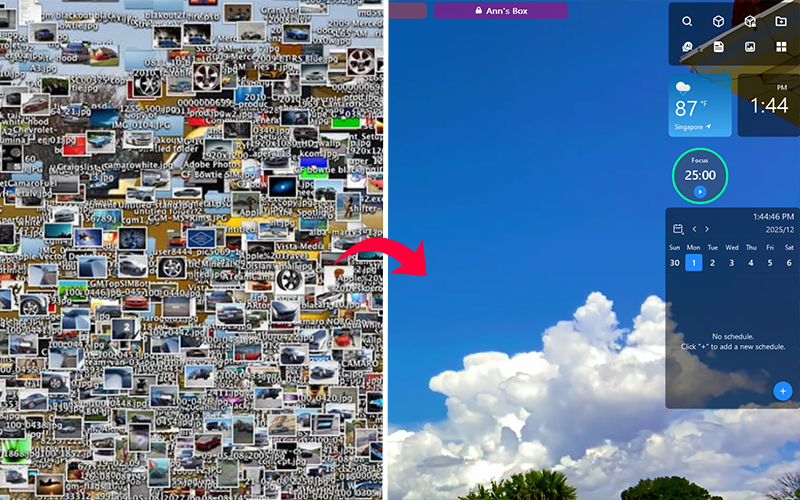
By now, you already know how to add websites to your desktop quickly and efficiently. However, as more website shortcuts, files, and apps accumulate, your desktop will become cluttered soon. But worry not. That’s when iTop Easy Desktop comes in. The software works best for automatically arranging icons, files, and website shortcuts into clean boxes. With minimal effort, you can easily transform a messy desktop into an organized workspace!
Highlighted features:
-Create custom rules that can automatically sort new files, apps, and shortcuts into categorized boxes.
-Lock sensitive files into boxes with passwords to protect privacy from unauthorized access.
-Customize box styles, colors, and layouts to build a visually appealing desktop based on your preferences.
-Enhance your desktop and create a more attractive workspace with dynamic wallpapers and backgrounds.
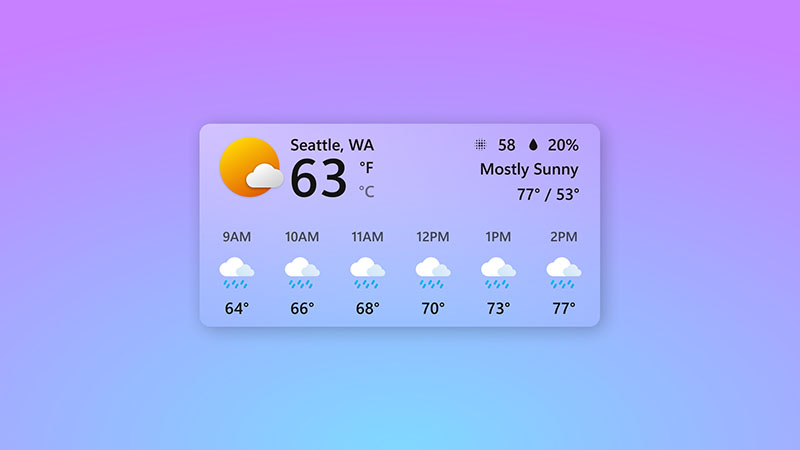
-Access tools like Schedule, iNotes, Clock, Weather, and Pomodoro timer to boost daily productivity.
How to arrange desktop icons on Windows
Step 1. Visit the official iTop Easy Desktop website, download the app, and complete the installation.
Step 2. Open the organizer app, go to the Boxes section. Choose Organization to manage auto-sorting rules.
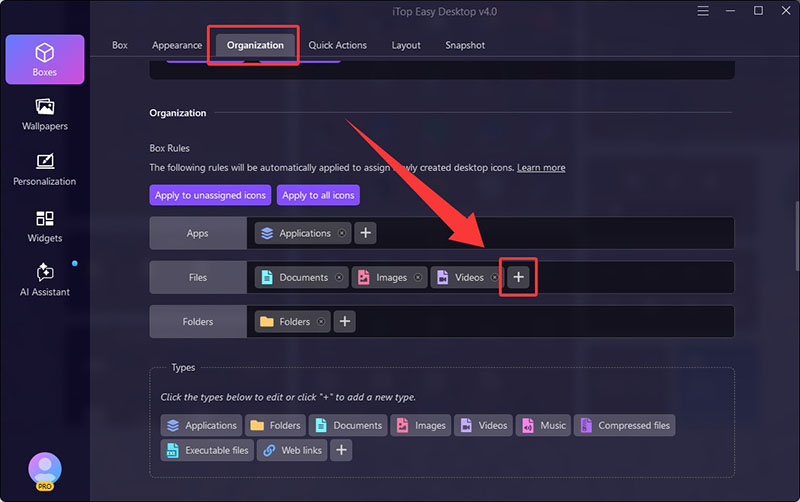
Step 3. Click the Plus (+) button in the “File” section to create a new automatic grouping rule for your desktop icons. Choose “Others excepted from the rules” because website icons are not included in any category provided.
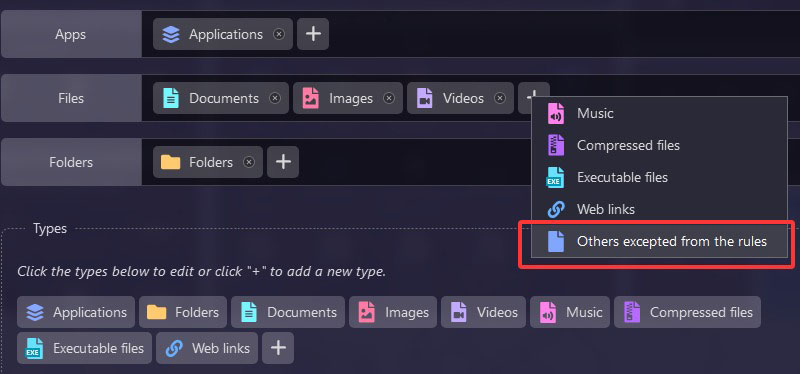
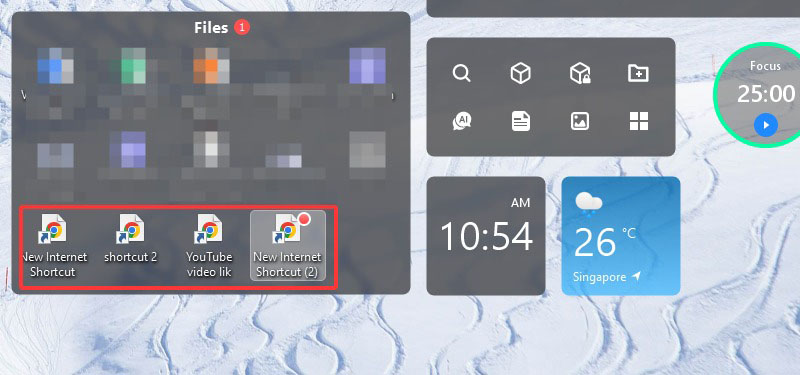
Step 4. Decide whether the rule should apply only to ungrouped icons or to all icons after setting the rules. Confirm your settings, and your website shortcuts will be grouped automatically.
Conclusion
How to add websites to desktop? After reading this guide, you should now be fully equipped with multiple methods for Chrome, Firefox, Opera, and Microsoft Edge. But just mind that website shortcuts might build up over time. If you want to keep everything organized, iTop Easy Desktop is a smart solution you should never miss out on! It automatically sorts files, folders, and website shortcuts into neat categories. So you can easily maintain a clean and efficient workspace. Try it to enjoy a more organized desktop for free!

- iTop Easy Desktop - Keep Your Desktop Organized
-
- Box desktop icons to declutter your workspace
- Manage documents, games, media files, etc., at 1 click
- Add calendar, clock and other widgets to desktop
- Locate any file you want instantly with search box
- Related Articles for Reference