-
iTop Easy Desktop - No.1 Desktop Organizer for Windows
-
Automatically organize and customize Windows desktop. Make your messy desktop look clean and professional within seconds.

How to Encrypt Files on Windows/Mac with Ease | 4 Free & Safe Ways
How to encrypt files? This blog introduces the 4 best methods on Windows/Mac. Just learn how to protect sensitive data using password encryption with ease.
From laptops to mobile phones and USB drives, today, your files are everywhere. If your device is lost, stolen, or accessed by someone else, your private documents, photos, or work files might be exposed in seconds. That’s why file encryption is extremely important, especially as remote work and online sharing become increasingly common.
In this guide, you will learn how to encrypt files easily and safely for free on both Windows and Mac. Just follow along to find the 4 best ways to secure your files.
How to encrypt a file? Before introducing the steps, it’s essential to figure out why you need to do so. Here are the key reasons to encrypt files.
Protect sensitive personal files from unauthorized access on shared, stolen, or compromised devices.
Keep business documents and client information secure; reduce risks of leaks and unnecessary lawsuits.
Secure files during email, USB, or cloud transfers to prevent interception by hackers or malicious third parties.
Reduce the risk of identity theft, ransomware attacks, and misuse of unprotected data.
As you can see, file encryption plays an important role in today’s digital life. Just read on to learn how to encrypt a file for added peace of mind!
Windows offers a built-in feature called “Encrypting File System (EFS),” which is ideal for home users handling sensitive data on NTFS-formatted drives. The feature is especially useful in scenarios when you want to prevent casual access without full-disk encryption. However, note that the EFS ties encryption to your user account, so it's best for non-shared computers.
How to encrypt a file in Windows 10/11via EFS:
Step 1. Right-click the file or folder you want to encrypt, then select "Properties" from the context menu.
Step 2. In the Properties window, click the "Advanced" button under the General tab, check the box for "Encrypt contents to secure data," and click OK.
Step 3. Confirm the changes, and Windows will handle the encryption.
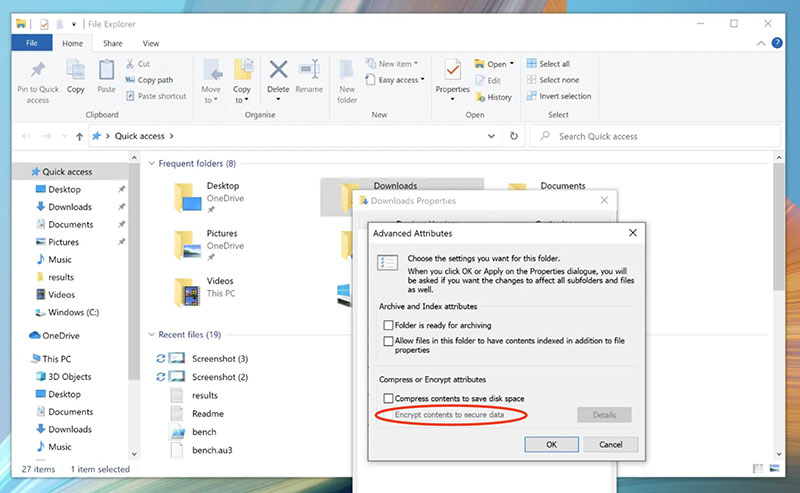
Note: While EFS provides basic protection, it's not foolproof against advanced attacks or if someone gains access to your login credentials. For stronger security and password protect a folder on your computer desktop, consider the more powerful options below.
For those who require top-tier security, it’s clear that Windows’ default is not enough. But worry not. iTop Easy Desktop is here to help. Equipped with advanced encryption technology, this software can lock files and folders in a "Private Box " on your desktop to prevent unauthorized access. Meanwhile, it doubles as a free desktop organizer that can help you manage and customize your workspace.
How to encrypt files with iTop Easy Desktop on Windows:
Step 1. Download and install the iTop Easy Desktop on Windows.
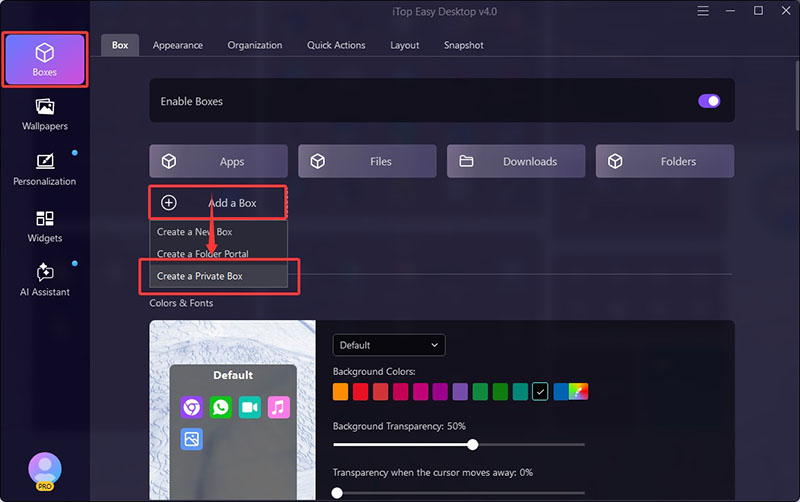
Step 2. Go to > Boxes > Add a box > Create a private box.
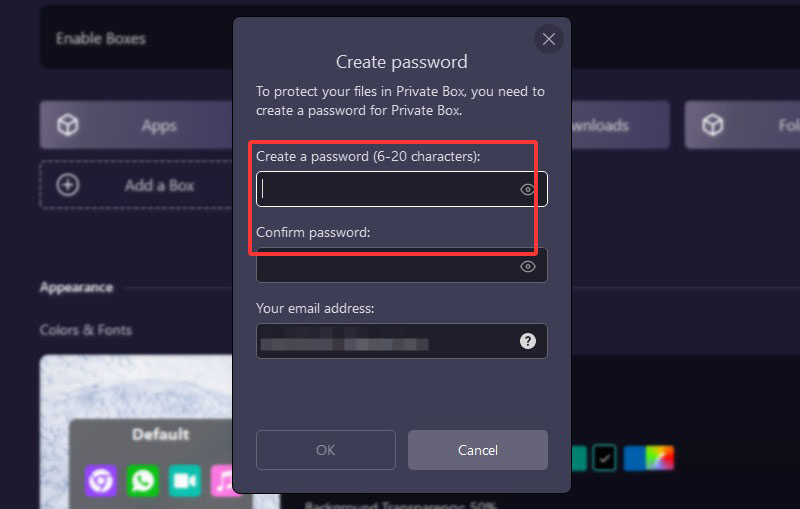
Step 3. Enter and confirm the password. Input your email address if needed. Click OK to proceed to customizations.
Step 4. Adjust your preferences here: background color, transparency, font, etc.
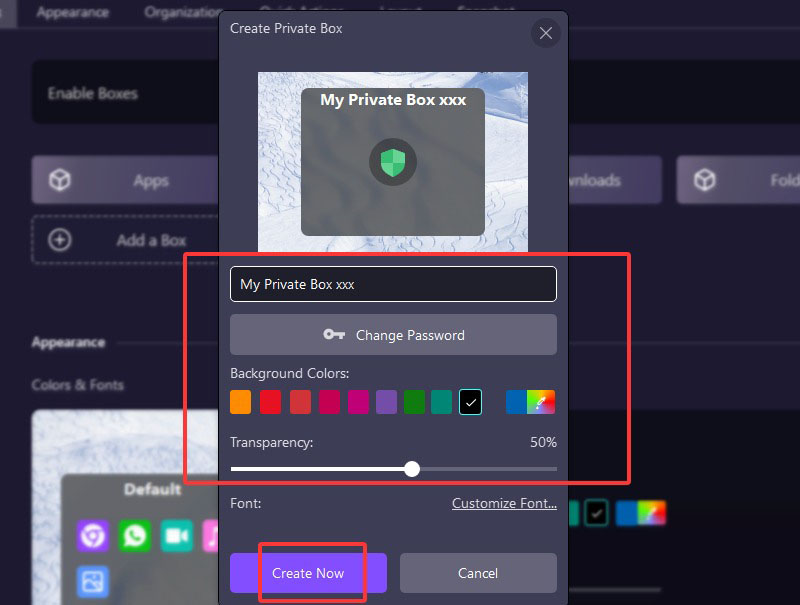
Step 5. Click Create Now, and your private box will appear on your desktop.
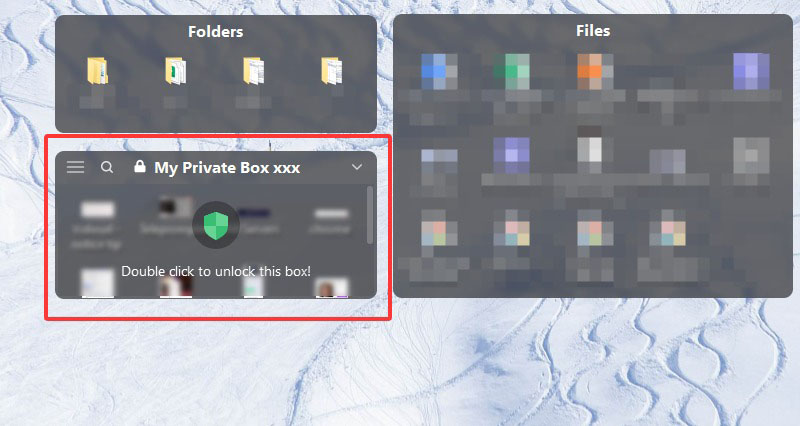
That’s how to encrypt a file with password with iTop Easy Desktop. Now let’s check out the features to learn more about the software.
How iTop Easy Desktop encrypts and protects your files
Lock and encrypt files/folders in private box: How to encrypt a file with password? iTop Easy Desktop offers a password protected Private Box to help you out. The feature will lock your sensitive files on your desktop, providing robust privacy and protection against prying eyes.
Double click to hide anything on screen: With a quick double-click on the desktop, you can instantly hide all boxes to create an empty screen. This feature is quite practical for screen sharing, meetings, and presentations, protecting your privacy from exposure effectively.
Manage and customize boxes as you like: iTop Easy Desktop is highly customizable. You can not only set the rules to decide how you want to group the files, but also adjust colors/sizes/layouts of the boxes to make your workspace match your taste!
Create your personal folder portal: The Folder Portal feature is also quite handy; consider it a mini File Explorer on Windows. It allows you to access a specific folder instantly from your desktop, without digging through complicated directory paths.

- iTop Easy Desktop - Keep Your Desktop Organized
-
- Box desktop icons to declutter your workspace
- Manage documents, games, media files, etc., at 1 click
- Add calendar, clock and other widgets to desktop
- Locate any file you want instantly with search box
Another useful way to protect your data is by using compression software like WinRAR, which is also the most common method on Windows and Mac. Equipped with strong AES-256 encryption, WinRAR is not just a simple compression software but also a great choice to password-protect your confidential documents.
How to encrypt a file in Windows 11 via WinRAR:
Step 1. Select a file or a folder. Just like usual, right-click on it to find the WinRAR menu > Add to archive.
Step 2. In the archive window, name the file. Click the “Set password” button and give it a strong password.
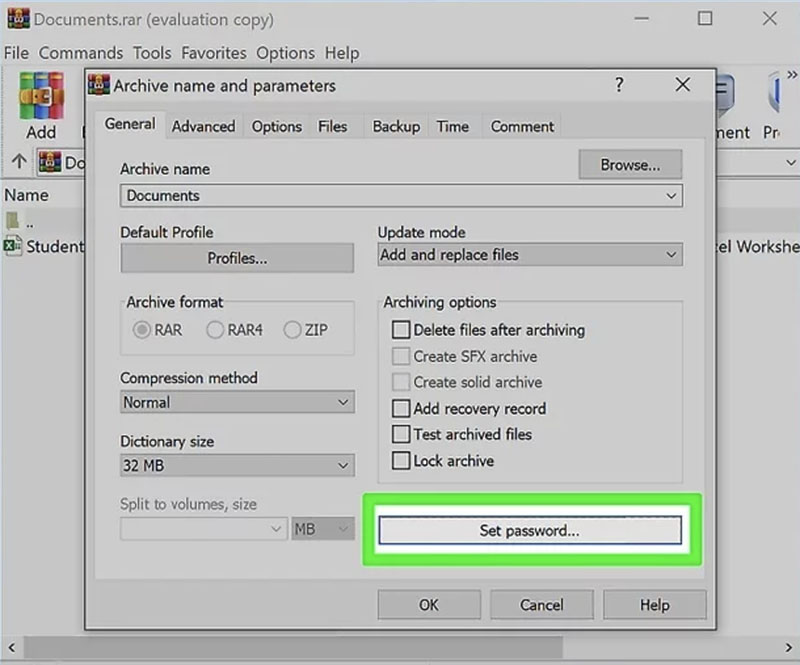
Step 3. Enable the “Encrypt file names” so no one can see the names of the files unless they enter the password. Click OK to create your encrypted RAR file.
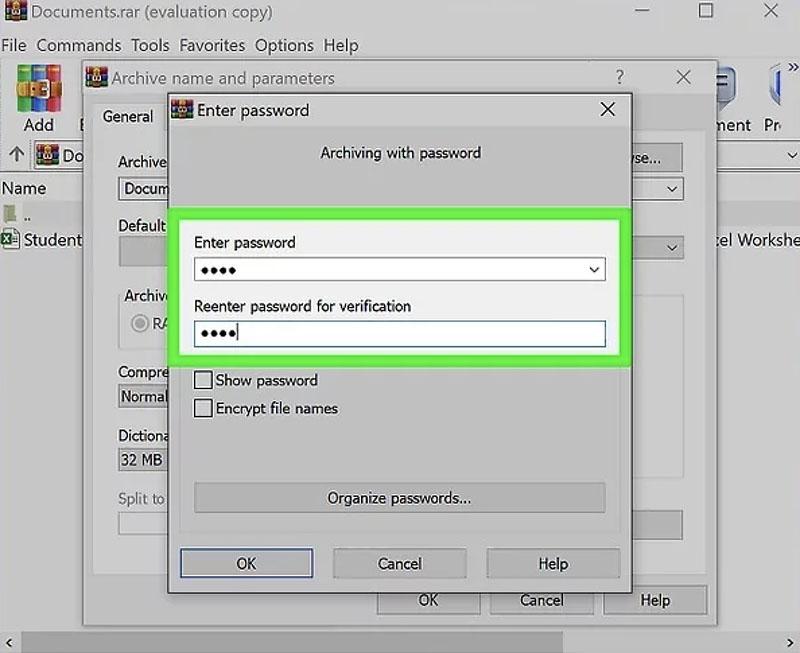
That’s it. So, how to encrypt a text file? WinRAR can compress virtually any file format. That means the steps outlined above apply as well. Just make sure to delete the unencrypted files afterward to ensure confidentiality.
The previous parts have introduced useful methods for Windows. So, is there a Mac-specific approach? The answer is YES. Mac users have a powerful solution—FileVault, which provides full-disk encryption using XTS-AES-128 to protect your entire drive.
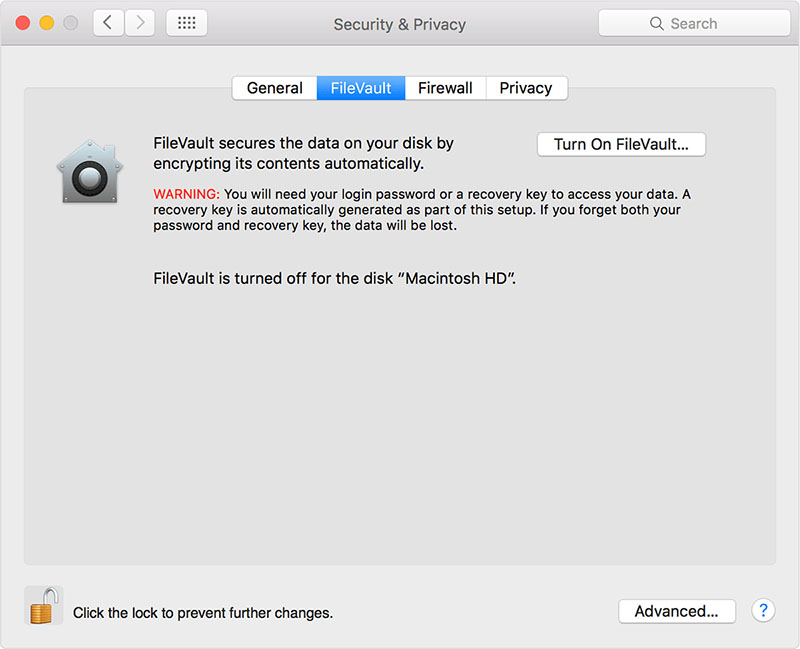
FileVault automatically encrypts everything, including system files. It’s a strong encryption method that can protect your files against device theft, which has no influence on your Mac as it happens quickly in the background. However, there might be potential data loss if you forget your login password or recovery key.
How to encrypt files using FileVault:
Step 1. Open System Settings > Security & Privacy. Go to the FileVault tab, click the lock icon to authenticate, and select Turn On FileVault.
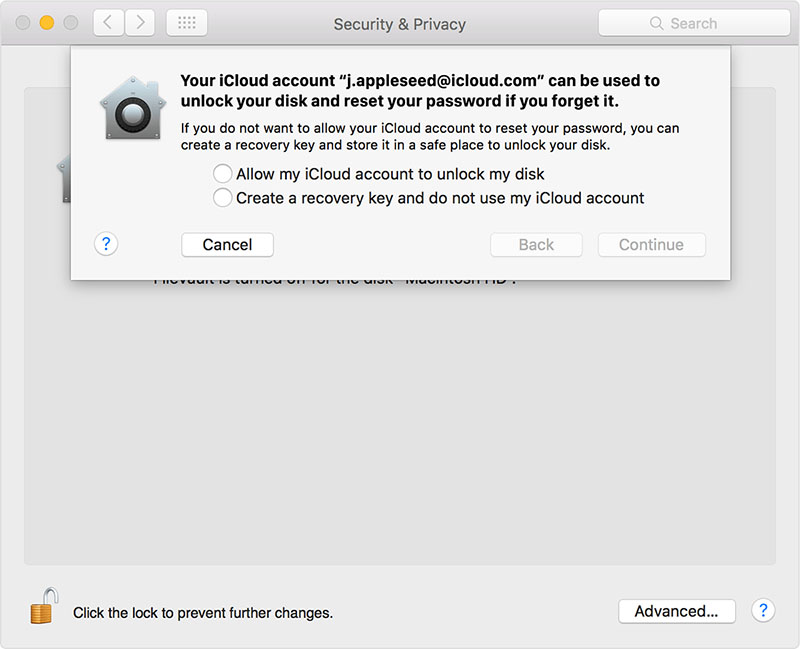
Step 2. Choose a recovery option (iCloud account or recovery key), then Mac will start the encryption.
Conclusion
How to encrypt files? From Windows’ built-in EFS to iTop Easy Desktop, WinRAR, and FileVault, you now have several effective methods to choose from. If your goal is to quickly lock sensitive files on your desktop away from prying eyes, iTop Easy Desktop stands out as the best option. It’s also a smart desktop organizer that can declutter your workspace. Try it and take control of your desktop security and organization now!