-
iTop Easy Desktop - No.1 Desktop Organizer for Windows
-
Automatically organize and customize Windows desktop. Make your messy desktop look clean and professional within seconds.

How to Change Lock Screen Wallpaper | Complete Guides on Windows/Mac/iOS/Android
Learn how to change lock screen wallpaper on Windows 11/10, macOS, Android, and iPhone with step-by-step guides and easy troubleshooting tips.
Is your lock screen feeling stale? Whether you’re looking to personalize your device, match your mood, or just refresh your daily view, learning how to change lock screen wallpaper is a simple yet powerful way to make your tech truly yours. From Windows PCs to Macs, and from Android phones to iPhones, the process varies, but the goal is the same: a fresh, inspiring first glance.
This comprehensive guide will walk you through step-by-step instructions for every major platform, ensuring you can customize your lock screen background seamlessly. Keep reading to unlock the full potential of your device's personalization.
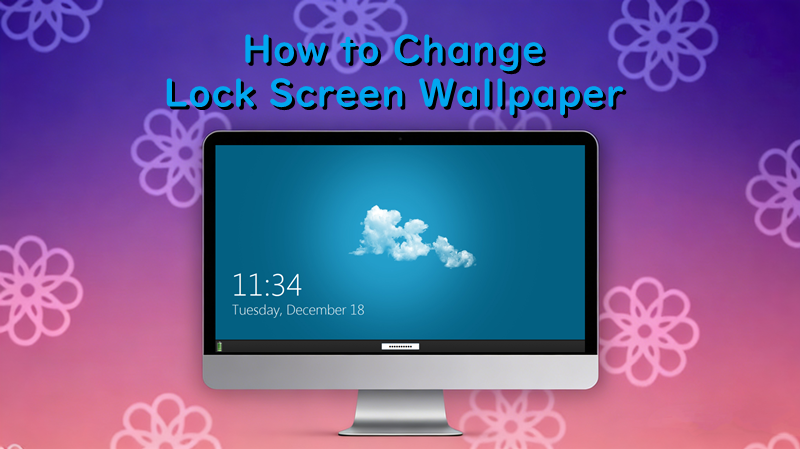
Customizing your Windows lock screen is a straightforward process. Here’s how to change lock screen wallpaper on Windows 11 and its predecessor, Windows 10.
Windows 11
Changing your Windows 11 lock screen wallpaper is intuitive with its modern Settings menu. If you're specifically looking for how to change lock screen wallpaper Windows 11, follow these steps:
Step 1. Click the Start button and select the "Settings" gear icon, or press Windows Key + I.
Step 2. In the Settings window, click on "Personalization" from the left sidebar, then select "Lock screen."
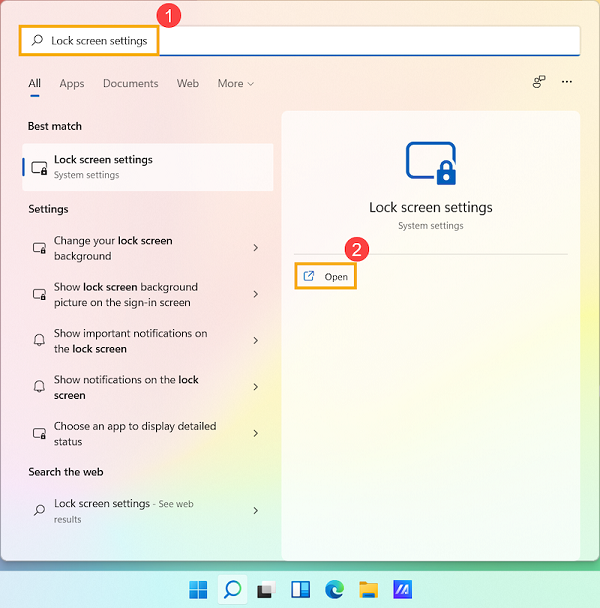
Step 3. Under "Personalize your lock screen," click the dropdown menu next to "Personalize your lock screen." Select "Picture."
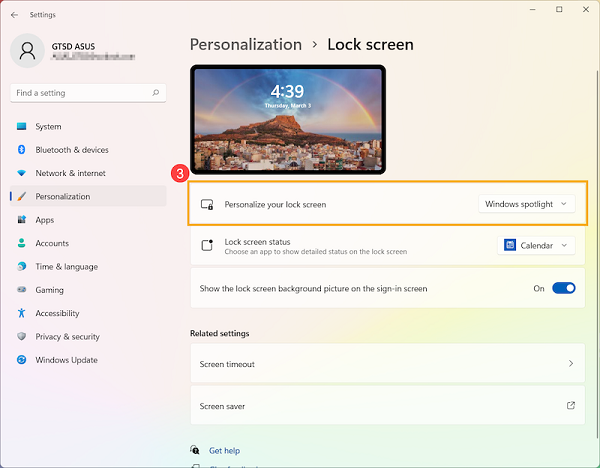
Step 4. Click the "Browse photos" button. Navigate to the image you want to use, select it, and click "Choose picture." Your new lock screen background is now set.
Windows 10
The process of how to change lock screen wallpaper windows 10 is quite similar.
Step 1. Click Start and select "Settings" (the gear icon).
Step 2. Click on "Personalization," then choose "Lock screen" from the left-hand menu.
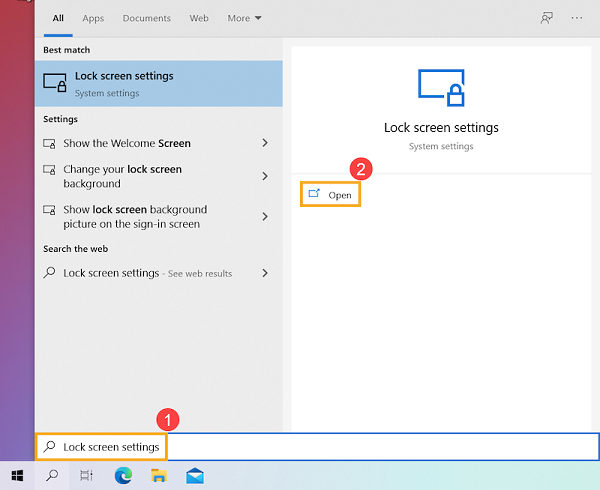
Step 3. Under "Background," use the dropdown menu to select "Picture."
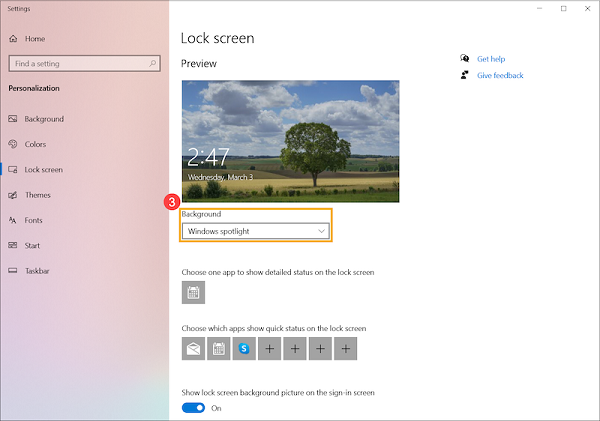
Step 4. Click "Browse" under "Choose your picture," find your desired image file, and click it to set it as your new lock screen background.
This method allows you to quickly learn how to change lock screen background on your Windows 10 machine.
Also Read: How to Change Computer Font Style, Size, and Color >>
Sometimes, you might encounter issues when trying to fix how to change lock screen wallpaper. Here are common roots and fixes:
Inactive User Account: If you're on a managed computer (like in a school or office), an administrator might have disabled lock screen personalization through Group Policy. You may need to contact your IT department.
Insufficient Permissions: Ensure you are logged in with an administrator account. Standard user accounts sometimes have restrictions.
Corrupted System Files: Corrupted Windows system files can break personalization features. Run the System File Checker tool by opening Command Prompt as an administrator and typing sfc /scannow.
Outdated or Buggy Graphics Driver: An incompatible display driver can sometimes interfere. Try updating your graphics driver through Device Manager or the manufacturer's website.
If you find the native Windows settings limiting or encounter persistent errors, a dedicated desktop customization tool offers a foolproof alternative. iTop Easy Desktop is a powerful, user-friendly application designed to give you complete control over your desktop and lock screen aesthetics, bypassing common system glitches.

- iTop Easy Desktop - Keep Your Desktop Organized
-
- Box desktop icons to declutter your workspace
- Manage documents, games, media files, etc., at 1 click
- Add calendar, clock and other widgets to desktop
- Locate any file you want instantly with search box
This tool not only simplifies the process of how to change lock screen on Windows 11 but also enriches it with a vast library of high-quality images and advanced organization features. Let’s see how to use it.
How to Change Lock Screen Wallpaper with iTop Easy Desktop?
Step 1. First, download and install iTop Easy Desktop. Here is the quick option.
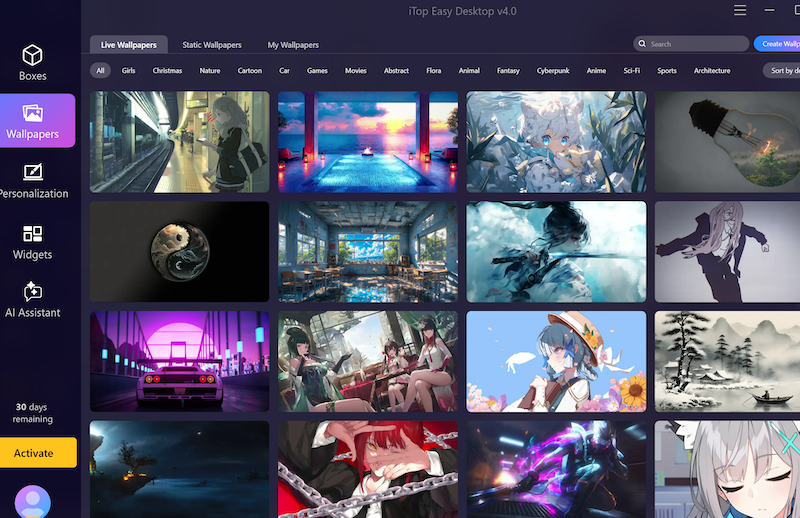
Step 2. Open the application. Switch to the "Wallpaper" tab within its intuitive interface.
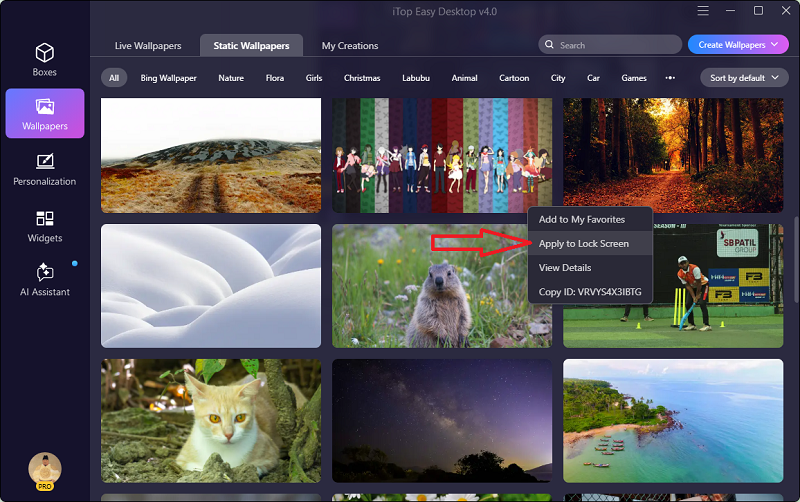
Step 3. Go to Static Wallpapers, hover over the wallpaper you like, click on the tree-dot button and select Apply to Lock Screen.
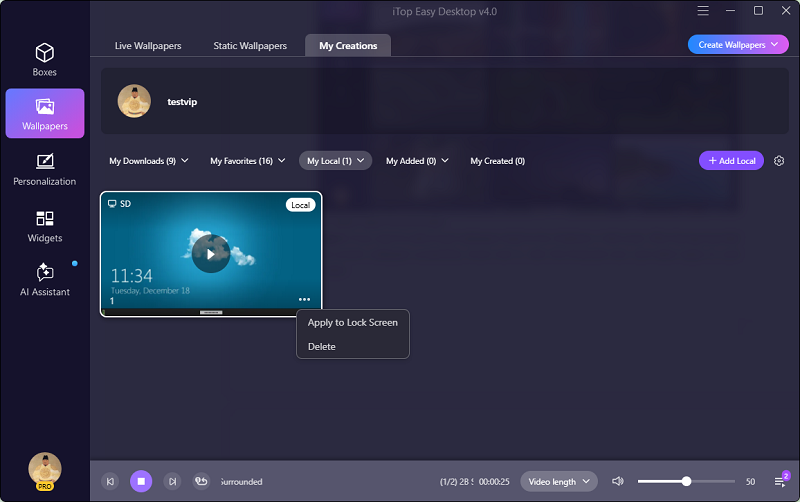
Step 4. If you want to add a local wallpaper, head to My Creations > Add Local. After having imported the custom wallpaper successfully, hover over it, click the three-dot icon, and select Apply to Lock Screen.
Beyond just fixing wallpaper issues, iTop Easy Desktop enhances your entire desktop experience:
Aesthetic HD Wallpaper Download: Access a constantly updated, curated collection of stunning high-definition wallpapers for both desktop and lock screen.
Smart Desktop Organization: Automatically sort desktop icons, files, and shortcuts into neatly arranged groups or categories with a single click.
Customizable Layout Support: Create and save personalized desktop layouts fitting your preference, such as the color, the font, quick actions, etc.
Portable Widget Solutions: Add useful widgets (like weather, CPU monitor, or calendar) directly to your desktop without cluttering your system.
- iTop Easy Desktop - Keep Your Desktop Organized
-
- Box desktop icons to declutter your workspace
- Manage documents, games, media files, etc., at 1 click
- Add calendar, clock and other widgets to desktop
- Locate any file you want instantly with search box
Personalizing your Mac's lock screen is also known as changing your login window background. Here’s a quick guide on how to change lock screen wallpaper on Mac.
Step 1. Click the Apple logo in the top-left corner and select "System Settings" (or "System Preferences" on older macOS versions).
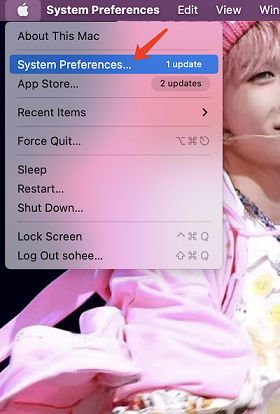
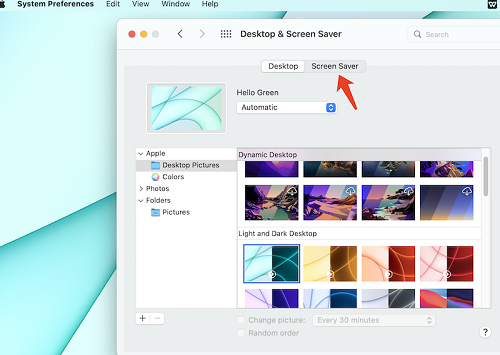
Step 2. In the sidebar, click "Wallpaper." If you don't see it, you might find it within the "Desktop & Dock" or "Desktop & Screen Saver" section.
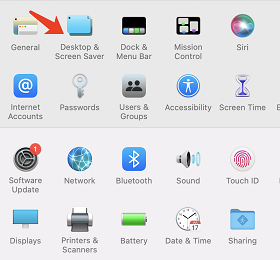
Step 3. To use a custom image, click "Add Folder..." or the "+" button and select the folder containing your desired image.
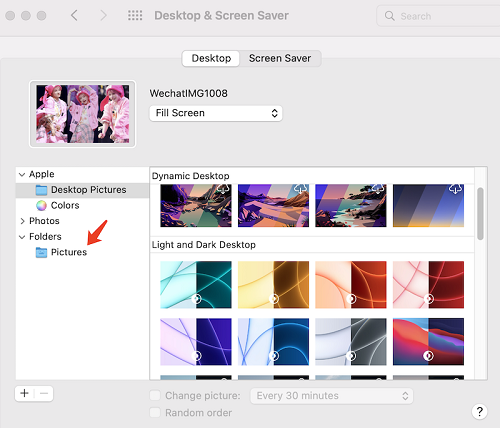
Step 4. Select your chosen image from the panel. Often, it will apply to both the desktop and lock screen. For more control, look for an "Apply to Lock Screen" option or note that in recent macOS versions, the login screen uses the current desktop wallpaper.
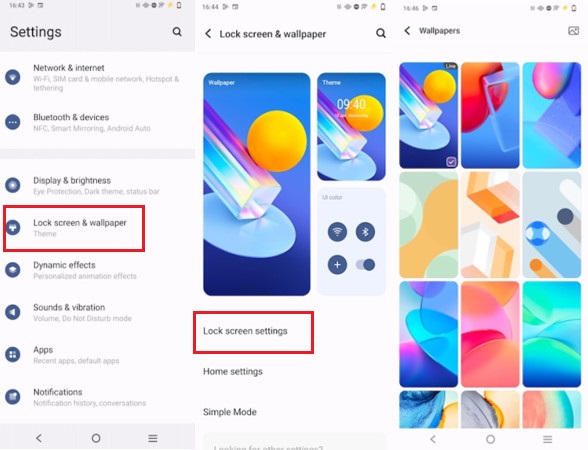
The process can vary slightly by manufacturer (Samsung, Google Pixel, etc.), but the general steps to how to change lock screen on Android are consistent.
Step 1. Swipe down and tap the gear icon to open your device's Settings app.
Step 2. Look for "Wallpaper" or "Wallpaper & style." You may also find it under "Display" or "Personalization."
Step 3. Tap on "Change wallpaper" or a similar option. You will typically see options for "Home screen," "Lock screen," or "Both."
Step 4. Tap "Lock screen." Browse through your device's gallery, pre-installed wallpapers, or a live wallpaper collection. Select your preferred image, adjust the cropping if needed, and tap "Set wallpaper" or the checkmark.
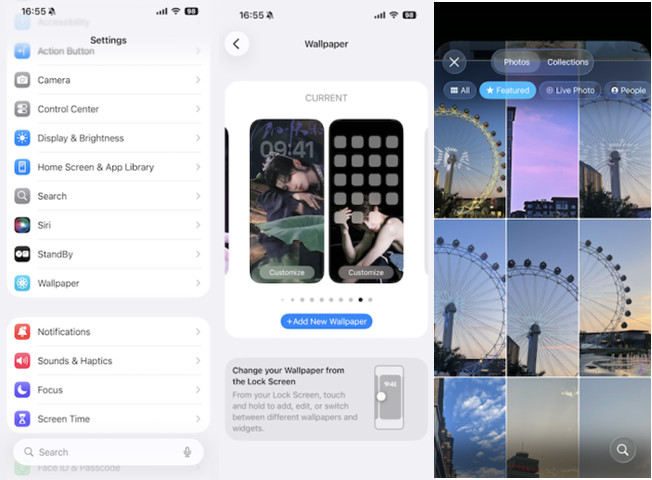
Customizing your iPhone is seamless with iOS. Here's how to change lock screen wallpaper on iPhone.
Step 1. Press and hold on an empty area of your Home Screen or Lock Screen until the icons jiggle. Tap the "+" icon in the bottom-right corner. Alternatively, go to Settings > Wallpaper.
Step 2. You'll see a "Customize" option at the bottom of the Lock Screen preview. Tap it.
Step 3. Tap "Add New Wallpaper." You can choose from Apple's curated collections, your Photo Library, or even create a Weather or Astronomy wallpaper.
Step 4. Browse and select your desired background. You can further customize fonts and widgets here. Once satisfied, tap "Add." Finally, choose "Set as Wallpaper Pair" or "Set on Lock Screen" to confirm.
The Bottom Line
Knowing how to change lock screen wallpaper across Windows, macOS, Android, and iOS empowers you to personalize every device you own. While each operating system has its built-in method, Windows users seeking a flawless, feature-rich experience should consider a desktop organizer. iTop Easy Desktop not only eliminates common troubleshooting headaches but also transforms your desktop management with smart organization, vast wallpaper libraries, and handy widgets. Give it a try to unlock a new level of customization and efficiency on your Windows PC.
- iTop Easy Desktop - Keep Your Desktop Organized
-
- Box desktop icons to declutter your workspace
- Manage documents, games, media files, etc., at 1 click
- Add calendar, clock and other widgets to desktop
- Locate any file you want instantly with search box