-
iTop Easy Desktop - No.1 Desktop Organizer for Windows
-
Automatically organize and customize Windows desktop. Make your messy desktop look clean and professional within seconds.

How to Set a Picture as Wallpaper on Various Devices
How to set a picture as wallpaper? This guide covers steps for Windows, Mac, Android, and iOS, as well as a bonus tool for a clean and organized desktop!
Today, people love customizing their desktops; that’s why visually appealing wallpapers and desktop backgrounds are quite trendy. You can set beautiful screens with lively animated wallpapers, calm minimalist scenes, or anything that reflects their mood and style.
So, how to set a picture as wallpaper that fits perfectly? You can find 7 simple and reliable methods here! Just read on to find how to make it on Windows, Mac, Android, and iOS to get a crisp and balanced screen.
Personalizing your Windows desktop is a simple yet effective way to enhance your computing experience. Let’s explore two primary methods for Windows 11/10: the native feature and advanced software for more customization.
Way 1. Set a Picture as Wallpaper on Windows 11/10 Desktop
The most common method for Windows users is to use its built-in personalization settings. The feature has always been there, and the steps to use it are basically the same on different Windows systems. Here’s how to set a picture as wallpaper on Windows 11/10.
Step 1. Click the Start menu and select the gear icon to open Settings. Then go to Personalization from the menu options.
Step 2. In the left sidebar, select Background. Go to Personalize your background > Picture to set a single image as your wallpaper. Click “Browse” to select a picture for a new background.
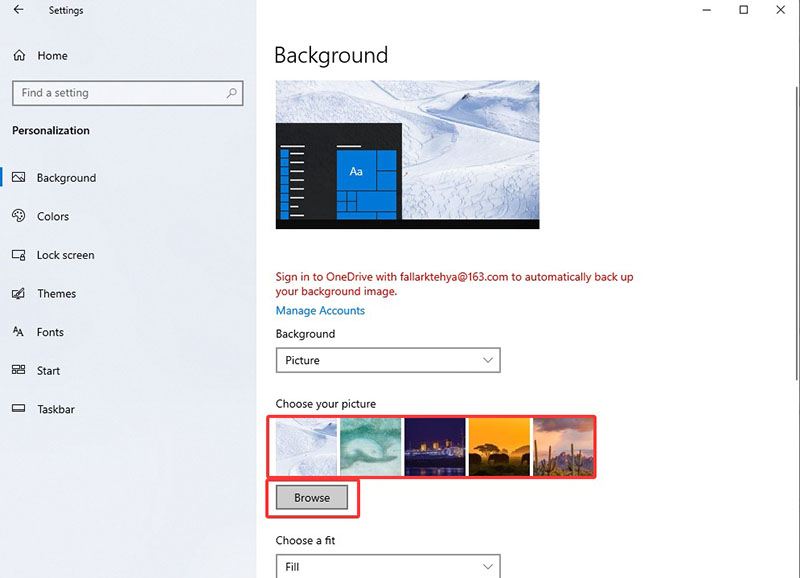
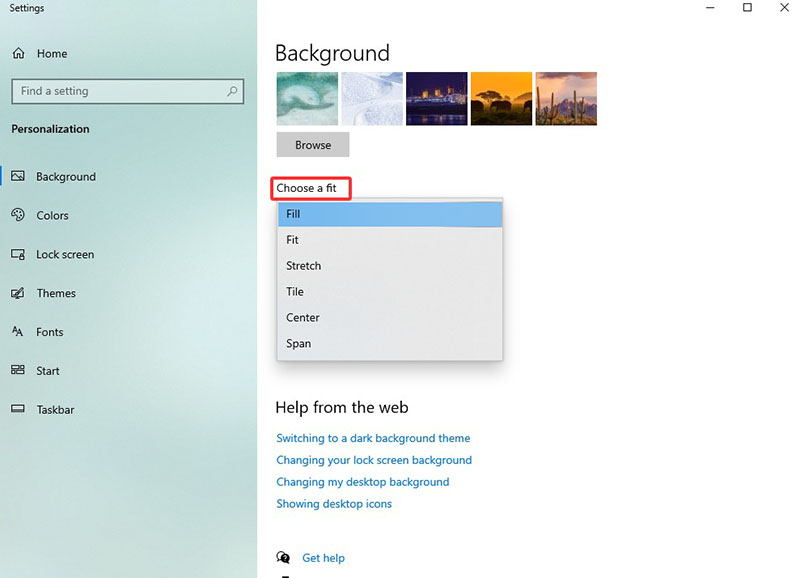
Step 3. Choose the display option here to decide how you want to display your desktop(Fit, Fill, etc).
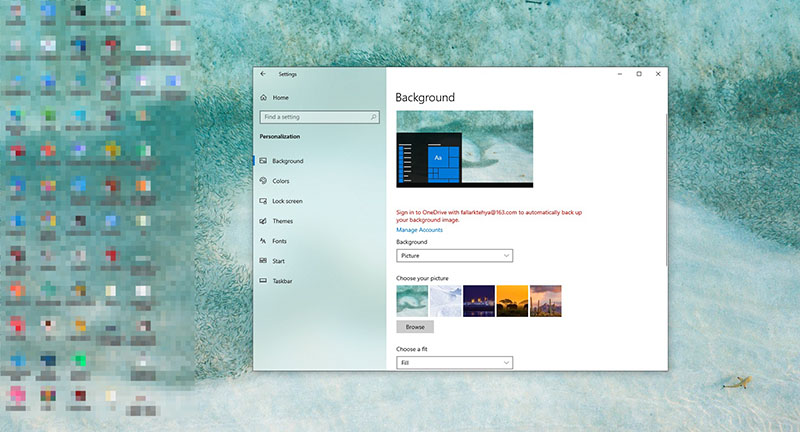
That’s how to put a picture as wallpaper natively. The process is pretty straightforward and can be done in a few clicks!
Way 2. Customize Your Wallpaper with Best PC Desktop Organizer
While the native method is great for basics, it does not support advanced customization features and live wallpapers. But worry not, you can use a third-party tool for easy personalization and iTop Easy Desktop is a great one.
The software supports various wallpaper formats (static/animated options) and even easy desktop organization. If you are looking for a tool for wallpaper management with productivity features, this software is the best choice that comes in handy.

- iTop Easy Desktop - Keep Your Desktop Organized
-
- Box desktop icons to declutter your workspace
- Manage documents, games, media files, etc., at 1 click
- Add calendar, clock and other widgets to desktop
- Locate any file you want instantly with search box
How to Set a Picture as Wallpaper with iTop Easy Desktop
Step 1. Visit the official website and download iTop Easy Desktop for free.
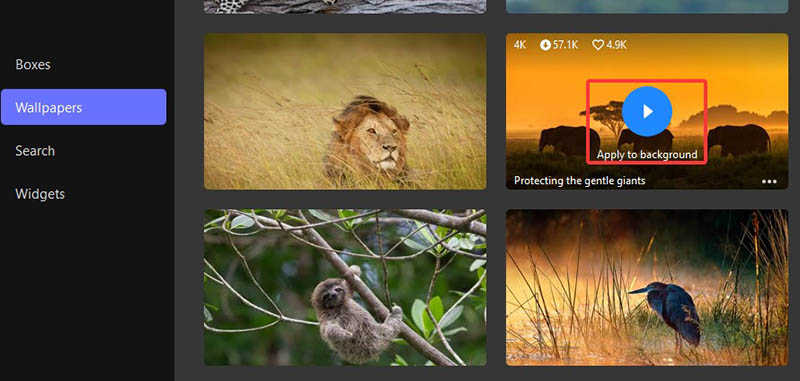
Step 2. Launch it and go to the Wallpapers section. Browse through the available options and pick one. Click “Click to Download” to get the wallpaper you like.
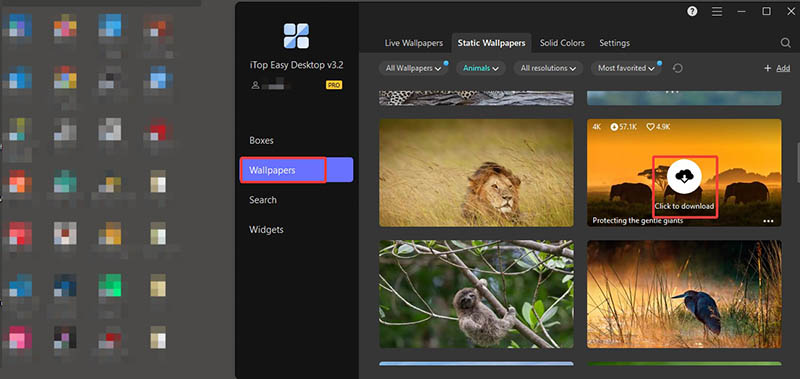
Step 3. Once the download is complete, click “Apply to Background” to instantly set it as your desktop wallpaper.
Top Reasons to Choose iTop Easy Desktop
Set Any Picture as Wallpaper for Free
With iTop Easy Desktop, you can set any image or video as your wallpaper at no cost. Just feel free to access a massive library of thousands of high-quality wallpapers without hidden fees or limits!
1080P/4K Static & Live Wallpapers
iTop Easy Desktop offers 1080P and 4K wallpapers in both static and live formats. You can choose from diverse themes: nature, cityscapes, and abstract art, your call! Looking for a live wallpaper for PC? There are also tons of options(dynamic wallpapers) to bring your screen to life.
Full Wallpaper Customization
The software lets you tailor your wallpaper exactly how you want it. You can adjust live wallpaper settings like playback mode, volume for video wallpapers, and display preferences to match your style.
Perfect Fit for Any Screen
How to change desktop background on Windows perfectly? Whether it’s a photo or live wallpaper, iTop Easy Desktop automatically adapts it to your screen size without distortion. You can make any picture fit perfectly on your display with the best visual possible.
Smart Desktop Organizer for Better Productivity
The software is also a powerful desktop organizer that can keep your workspace neat and efficient. You can sort folders/files/shortcuts into customizable boxes on your desktop and use smart widgets to make your desktop aesthetic and organized.
So what about Mac? It’s easy. You can use any picture for your background in a few clicks. Here’s how to set a picture as a background on Mac.
Way 1. Select a Picture as Background with Context Menu
Step 1. Find the picture you want to set as the background image.
Step 2. Right-click on it and choose “Set Desktop Picture.” Now the image will be automatically set as the background.
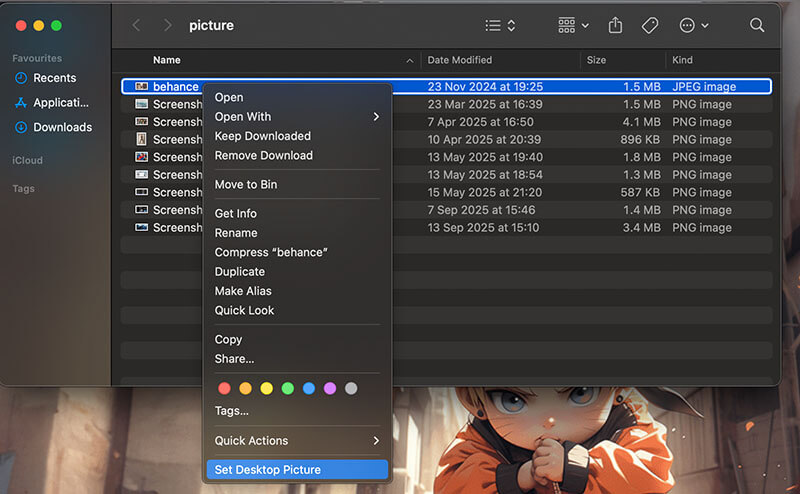
Step 3. Go to System Settings > Wallpapers if you want to adjust the look.
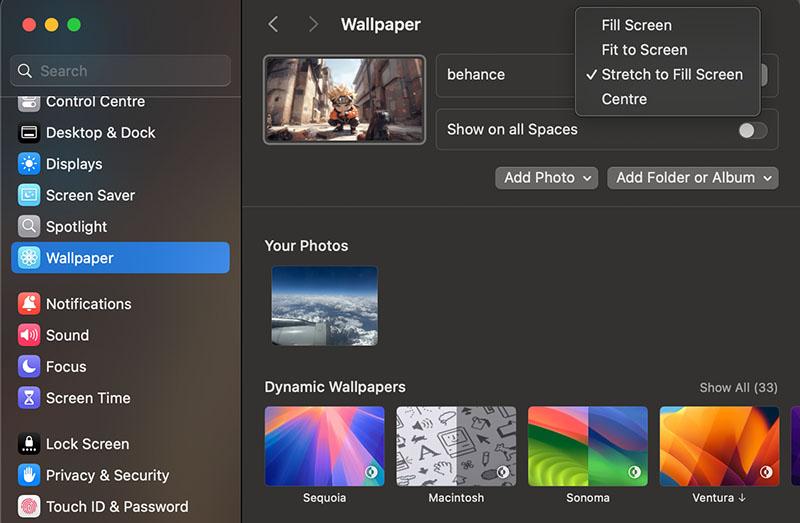
Way 2. Set a Picture as Wallpaper Using System Settings
Step 1. Go to the Apple icon in the top left > System Settings > Wallpapers.
Step 2. Use a picture from the library. Go to the Add Photo button to upload one from the local files. Adjust the fit based on your needs.
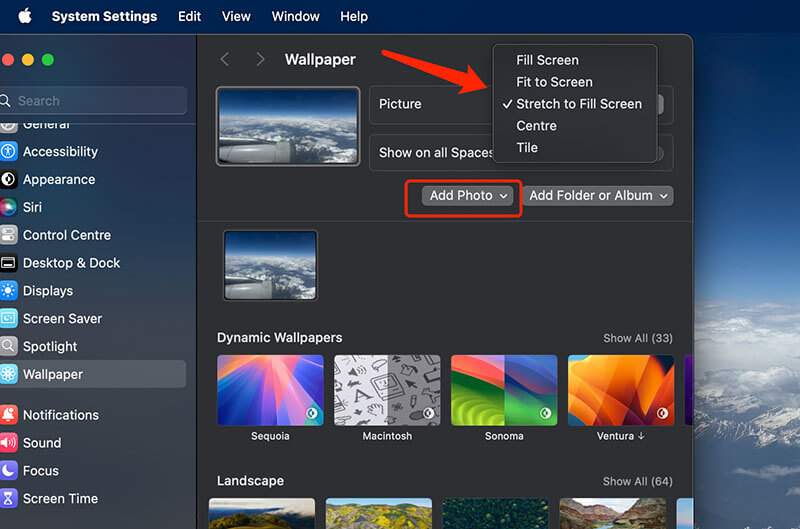
Step 3. You can also set a dynamic background from Mac’s built-in gallery.
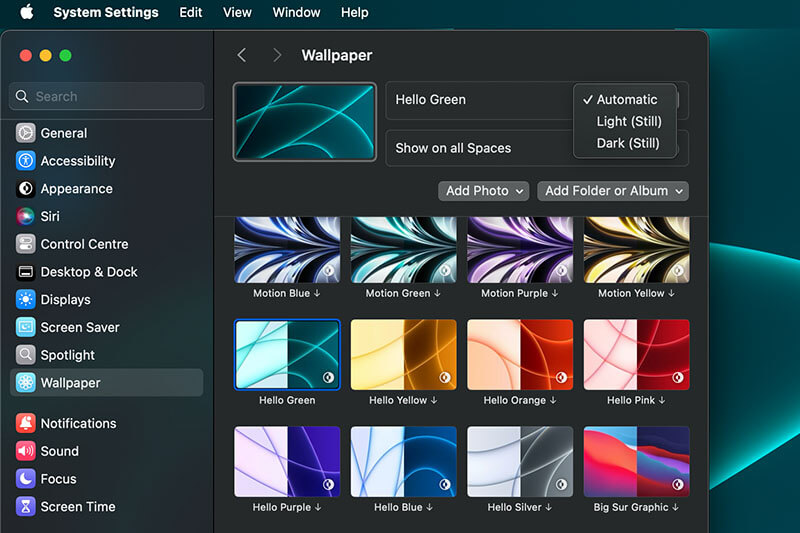
That’s how to set a picture as a background on Mac. Please note that you can only use the dynamic wallpapers from the library. Mac does not support animated wallpapers from uploads.
You May Like: Best 5 Desktop Calendar Widget Apps for Windows 10 & 11 >>
The previous sections cover a full guide on how to set a picture as desktop background on Windows and Mac. In this part, let’s focus on mobile devices. Here’s how to put a picture as wallpaper on Android.
Way 1. Set Your Wallpaper with the Wallpaper Settings
Step 1. Long-press a space on your home screen.
Step 2. Tap on Wallpapers. Find the photo you want to set as the background.
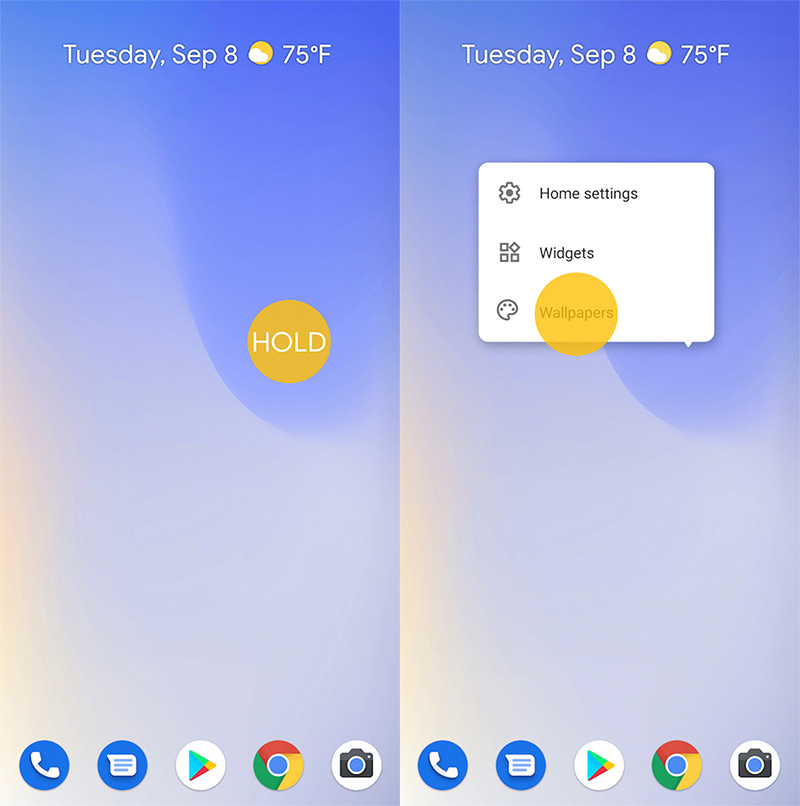
Step 3. Tap Set Wallpaper. Choose where you want to see this wallpaper.
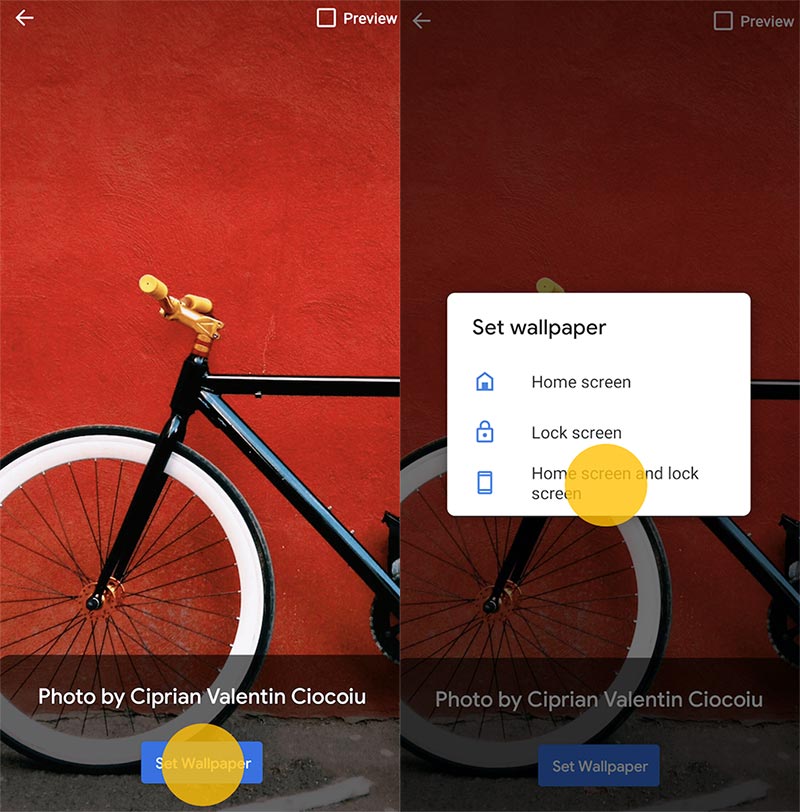
Way 2. Pick a Picture as Wallpaper from the Gallery
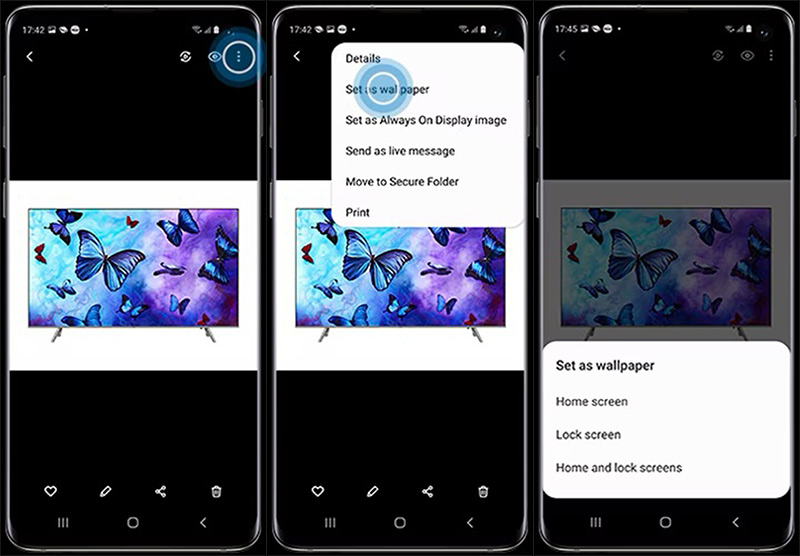
Step 1. Open the Gallery app and select a photo.
Step 2. Tap the three-dot menu and choose "Set as wallpaper."
Step 3. How to set a picture as your home screen wallpaper? Choose from the options: Home screen, Lock screen, or Home and Lock screen.
Now iOS users might be wondering: How do I set a photo as my wallpaper? It’s equally simple! Here are the steps.
Step 1. Open Settings and tap "Wallpaper."
Step 2. Tap "Add New Wallpaper" and choose "Photos" or another option as you see fit.
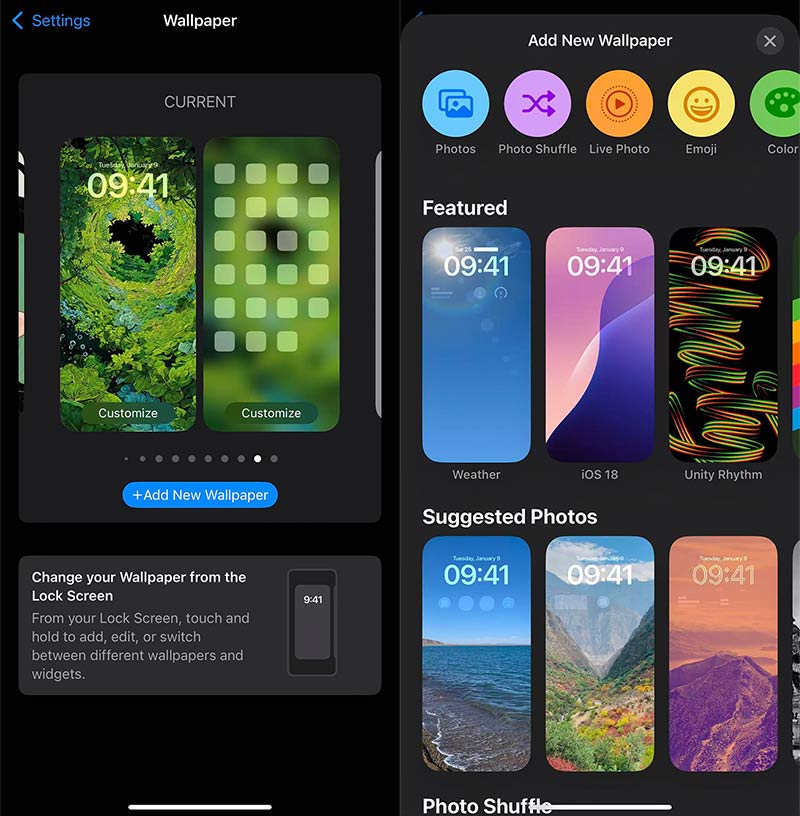
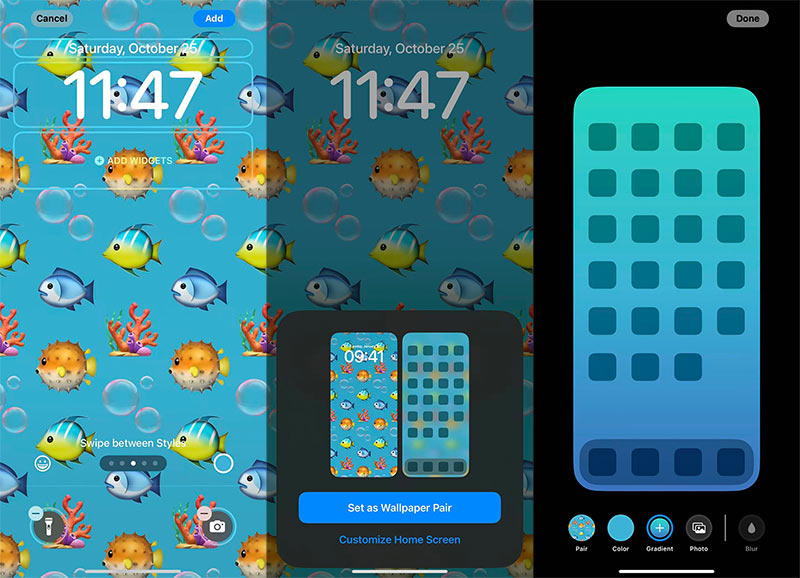
Step 3. Select your picture. Adjust the appearance and preview the effect. Tap "Add" to set it as a Wallpaper pair or further customize the Home screen with color options.
Sometimes, setting a flawless wallpaper requires a few more efforts; you might need to make sure it displays sharply without distortion or cropping. So, how to make it? Worry not, you can use three quick tips here to make your picture look great on any screen.
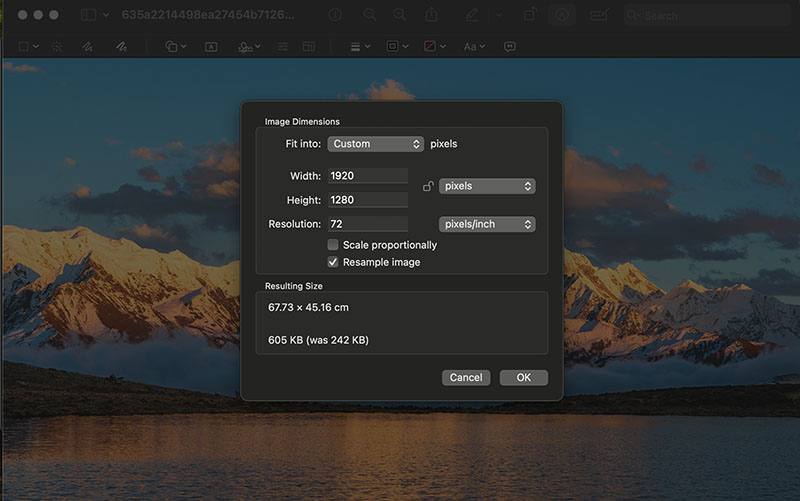
Tip 1. Crop or Resize Your Picture
How to make a picture wallpaper size perfectly? You may use image editors(Windows Photos, Mac Preview, or Photoshop) to crop or resize images to match your screen resolution. Here, 1920×1280 should be an ideal solution for most desktop screens, which maintains proportions accurately and prevents blurriness.
Tip 2. Extend Wallpaper to Fit the Screen
What about the fit? How to make a picture fit wallpaper? Whether for Windows or macOS, you can choose display modes like Fill, Fit, or Stretch in wallpaper settings. These automatically adjust the image to fill your screen while maintaining balance and detail.
Tip 3. Add Borders or Frames
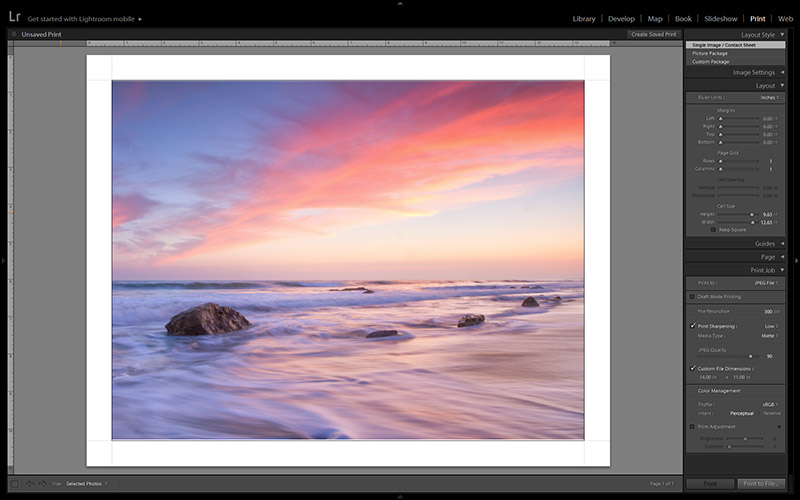
If the aspect ratio differs, you can consider adding simple borders or gradient frames using editing software. It can be an advanced Photoshop or a simple online editor; choose one as you see fit.
The Bottom Line
How to set a picture as wallpaper? If you have read this far, you know it’s just as simple as that. You should be able to set a picture as wallpaper on Windows, Mac, Android, and iOS with ease now. For the best results on Windows, iTop Easy Desktop is a top pick. It combines free 4K wallpapers, live options, and smart organization features in one tool. Download it today to make your desktop both beautiful and efficient now!
- iTop Easy Desktop - Keep Your Desktop Organized
-
- Box desktop icons to declutter your workspace
- Manage documents, games, media files, etc., at 1 click
- Add calendar, clock and other widgets to desktop
- Locate any file you want instantly with search box
- Related Articles for Reference
-
-

Top 5 Stardock Fences Alternatives for Windows 11/10 Desktop
-
How to Add Sticky Notes to Desktop on Windows/Mac
-
How to Organize Computer Files and Folders Effectively Like a Pro
-

Top 7 Best Notes App for Windows 2025 – Features, Pros, and Cons
-

Top Websites to Download Anime Wallpaper for Desktop
-
How to Make Your Desktop Look Aesthetic [Windows-Exclusive]
-
Best Free Desktop Organizers for Windows 11/10 to Tidy Your Desktop
-
Best 4K Wallpaper for PC: Ultimate High-Resolution Picks [2026]
-



