-
iTop Easy Desktop - No.1 Desktop Organizer for Windows
-
Automatically organize and customize Windows desktop. Make your messy desktop look clean and professional within seconds.

Best Tools to Customize Cursor Trails, Themes & Effects
This blog will introduce the best tools for cursor customization. Learn how to customize cursor themes, trails, and styles on Windows, Mac, and Chrome.
Aside from wallpapers, fonts, and colors, there are many other ways to personalize your desktop. One often-ignored option is customizing your mouse cursor, which is a small detail that can make a surprisingly big impact on your overall visual experience. However, many users still don’t know how to change the cursor properly. No worries. This blog will walk you through easy methods to customize cursor themes, sizes, colors, trails, and even animations. Just follow along to master everything in minutes!
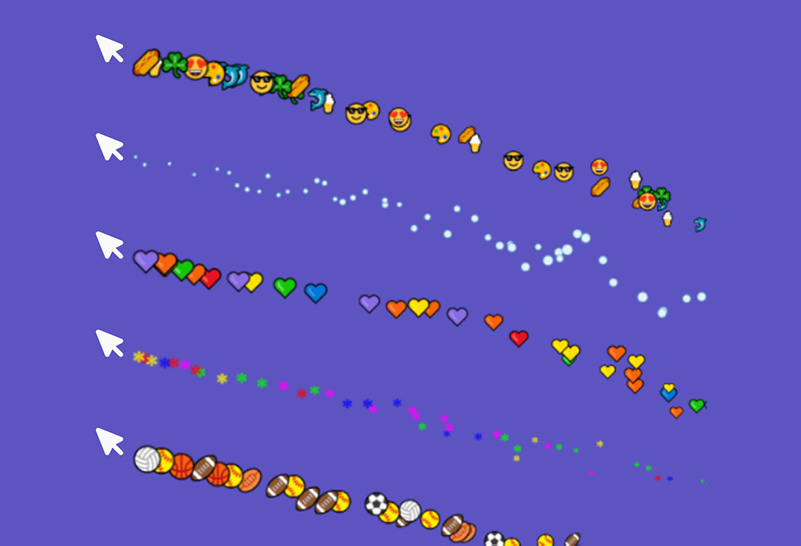
Today, both Windows and Mac allow users to customize the cursor in every aspect. Generally, you can change the following aspects of a cursor with your system’s built-in settings or a third-party tool.
1. Cursor Size/Color: The first thing you can do is to customize mouse pointer dimensions(increase/decrease) to get better visibility, which is great for high-resolution screens. You can also customize cursor colors to match your theme. This helps in accessibility, making it easier to spot the cursor.
2. Cursor Theme: Your default pointers can be replaced by various themes, which alter shapes for different actions, such as clicking or loading. Windows comes with pre-installed themes, and you may also find innovative ones from third-party apps.
3. Cursor Trails: Add visual effects where the cursor leaves a trailing path(glowing lines, particles, etc.) to get a more dynamic look.
4. Cursor Animations: Incorporate movements, for instance, spinning arrows or bouncing pointers during interactions.
5. Text Select Effect: Customize cursor highlights text, with effects like underlines, color shifts, particles, etc.
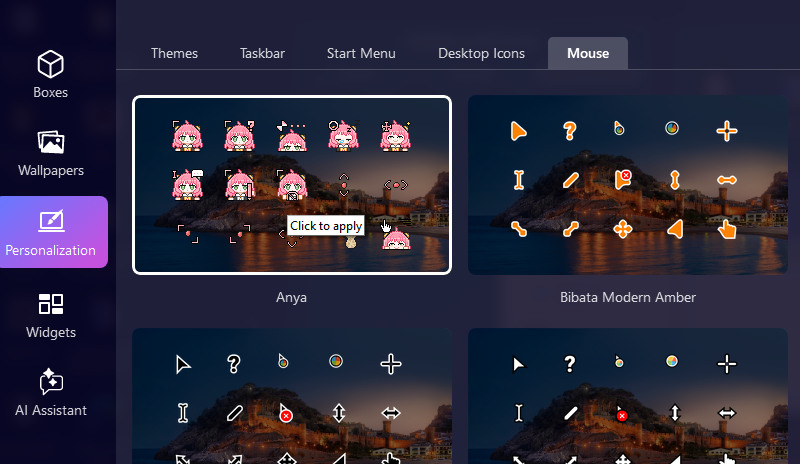
iTop Easy Desktop is a Windows-based desktop organizer, offering a plenthora of features to make your desktop clean and organized. You can find up to 31 cursor effects to personalize your mouses. The stypes vary from cutty animal to clean lines and icons, various options are waiting for you to select. Now, please refer to the tutorial below to set up your desktop and add special cursor effects for your mouse.
Step 1. Download iTop Easy Desktop on your PC.
Step 2. Switch to the 'Persnalization' Tab > Mouse to preview all the cursor effects you can obtain from iTop Easy Desktop.
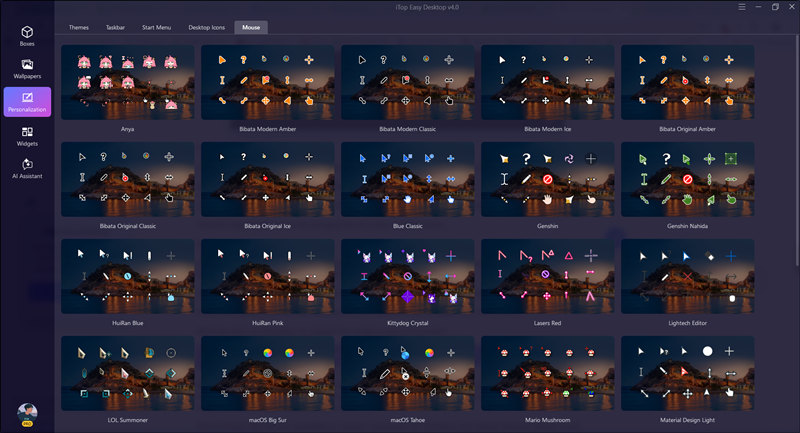
Step 3. Hit on the one you choose and the cursor effect is automatically applied on your desktop.
Pros:
-Various cursor effect options to choose from
-Smoothly movements and glidings, no burden to your PC
-Start with your PC, no need to reset each time
-A lot more personalization options available to make your PC stylish
Cons:
-Only support Windows operating system
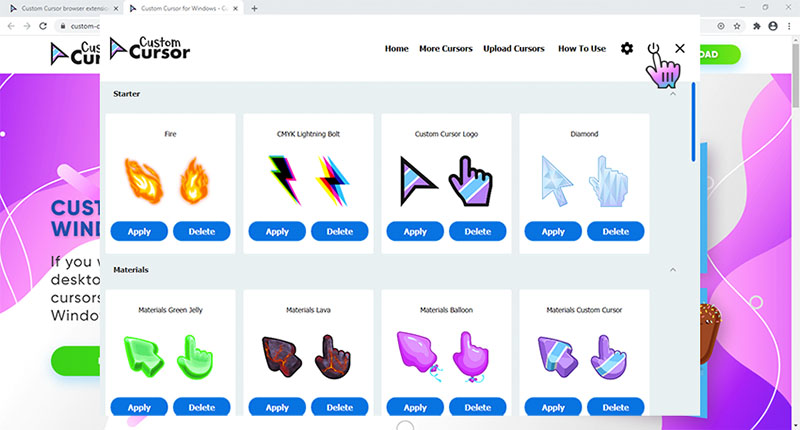
Custom Cursor for Windows is a popular desktop tool that allows users to customize cursor themes with thousands of ready-made packs. You can access a large collection of free cursors, with various themes like cute, anime, gaming, and memes. For those who want to improve visibility on large screens, the app lets you customize mouse pointer size for better visibility.
Custom Cursor for Windows is designed with simplicity. Just install the app, browse preview lists of cursor collections, and select a pack to change your desktop cursors instantly. You can also upload your own custom cursor files to create a unique style and manage your own personal collections of cursors easily.
Pros:
-Completely free to download and use, with no hidden costs.
-7,800+ different cute cursor packs available for versatile customization.
-Simple one-click application without complex system settings.
-Adjustable cursor size to enhance usability on various displays.
Cons:
-Potential issues after long-term use with many packs installed.
-Third-party sources might pose risks; security concerns for the downloaded cursor packs.
-Limited to predefined packs; no built-in editor to create original cursors.
-Can not customize cursor trails, highlights, and other effects freely.
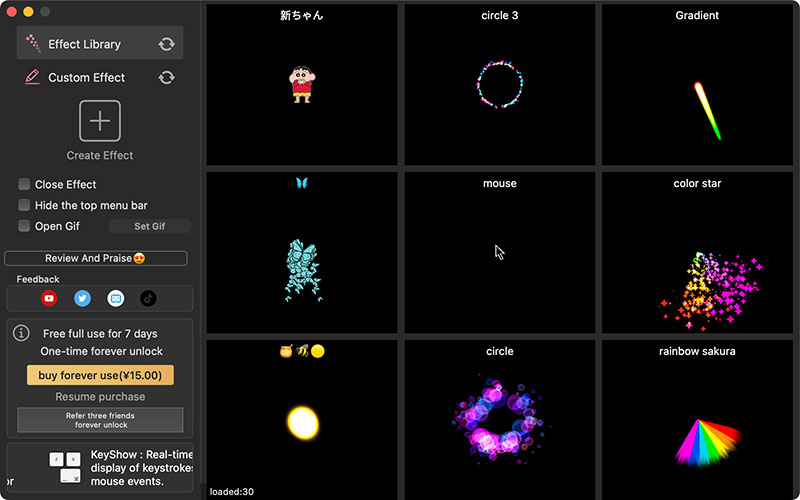
For Mac users who want to customize cursor trails, CursorEffect2 is an excellent choice. The custom cursor for Mac can enhance your cursor visibility by adding decorative animations, such as glowing trails, colorful particles, light streaks, and other animated effects that follow your mouse movement in real time. The eye-catching pointer effect largely improves visibility and brings fun to your Mac experience.
It not only offers a vast library of multi-special animation effects but also allows you to customize cursor effects. You can easily create your own cursor with the sample effect by adjusting particle parameters, colors, trails, etc. Optimized for macOS 10.14 and later, it ensures low CPU usage and higher efficiency,
Pros:
-Free download, and there’s a free trial for 7 days to try basic effects.
-Greatly enhance cursor visibility; practical for big and wide screens.
-Low system resource use for smooth macOS operation.
-Easy setup and adjust parameters for instant customization.
Cons:
-Not free forever; requires a lifetime subscription to unlock the entire library.
-The cursor effects can be too distracting for shining colors, not ideal for work and business use.
-Support Mac only; no custom cursor for Windows app.
-More effect-focused for now; no extensive theme libraries.
-Steep learning curve for the customization panel.
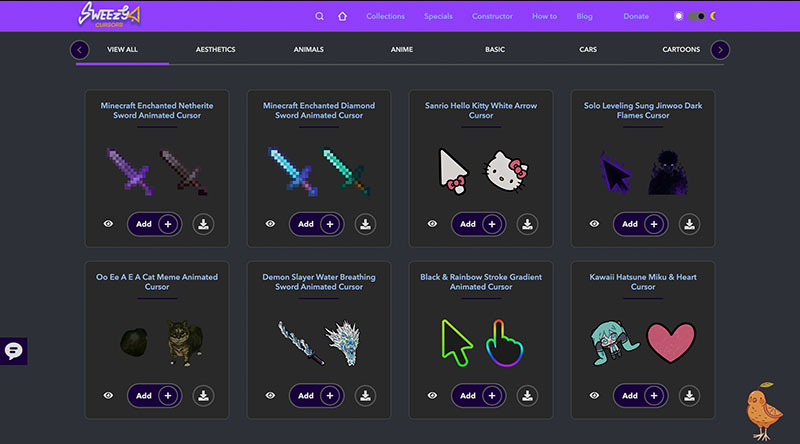
Do you know you can customize cursor using a browser extension? Here, Sweezy Cursors is the best free tool to customize cursor within the Chrome environment. The custom cursor for Chrome offers a vast collection of animated and static cursors in categories, for instance, Comics and Games, Cartoons and Anime, Memes and Cats, and Cute designs. Just add it to your Chrome to add a cute pointer instantly.
The extension allows you to customize cursor size and themes as you see fit. It also supports uploading personal images for unique designs. What’s more surprising, it comes with a built-in constructor feature that lets you create custom arrow styles. With this brilliant tool, you can easily replace the default pointer with expressive, moving options to add personality and joy to browsing!
Pros:
-A vast and diverse collection of free animated cursors, with regular updates and creative themes.
-User-friendly interface for quick selection, application, and customization.
-Lightweight with no reported performance impacts. No slowing down the browser.
-Overall, high-rated reviews for bringing fun to cursor customization.
Cons:
-It doesn't work on Chrome Web Store pages, internal browser areas (home, settings, downloads), or navigation bar elements due to Google's restrictions.
-Some users feel confused about how to apply, disable, or switch cursors effectively.
-Occasional glitches where selected cursors don't persist or fail to appear on certain sites.
-Browser-only functionality; no support for system-wide environment.
Ready to customize cursor effects, but don’t know where to begin? Here are some standout themes that capture users with their creativity and appeal. Drawing from popular sources, these themes bring unique visuals to enhance your desktop experience.
Goku (Dragon Ball Series): Available on custom-cursor.com for Windows, this theme features Goku’s iconic face, which is a great pick for dedicated Dragon Ball lovers. Fans can also explore the full Dragon Ball cursor collection here, including Super Saiyan Goku, Krillin, Vegeta, and other beloved characters.
Nintendo Series (Mario & Friends): Available on custom-cursor.com, this fan-favorite set includes iconic characters such as Mario, Luigi, Princess Peach, and Bowser. Each cursor embodies the charm of classic platformers with playful gestures, fireball effects, and whimsical animations.
Gaming (Minecraft Block): The theme can be found on custom-cursor.com’s Minecraft Cursor Collection. Its pixelated texture and interactive cursor trails simulate various gaming practices. This theme is ideal for Minecraft enthusiasts who want immersive gaming visuals.
JoJo's Bizarre Adventure: Available on custom-cursor.com and Sweezy extension, the pack showcases fan-favorite heroes like Jonathan Joestar and Josuke Higashikata, as well as iconic villains. The cursors feature intense anime-style poses and dramatic motion effects, great for users who like bold designs.
Now you know how to customize cursor effects on Windows, Mac, and Chrome, but there’s still more you can do to upgrade your visual experience. Here, iTop Easy Desktop is one of the best tools to transform your entire workspace. This software allows you to create a cleaner and more efficient desktop environment easily.
Core features of iTop Easy Desktop
-Access stunning dynamic wallpapers, HTML pages, static images, or solid colors for your background. Available in various categories like Nature, Anime, Landscape, etc.
-Automatically group icons, files, and folders into customizable boxes with options for colors, transparency, and auto-alignment.
-Powered by ChatGPT, iTop Easy Desktop offers quick translations, content creation, and workflow assistance right from your desktop.
-The software perfectly integrates schedules, weather, clocks, and sticky notes for productivity boosts.
How to use iTop Easy Desktop’s Wallpaper?
Step 1. First, download and install the free iTop Easy Desktop software from the official website.
Step 2. Open the app and go to the Wallpapers section, then choose All Types. Browse through the live wallpapers, select one you like, and click Download.
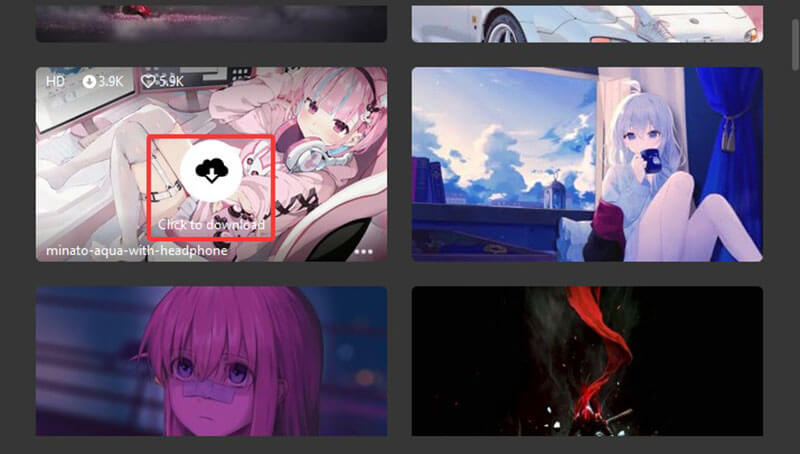
Step 3. After the anime wallpaper is downloaded, click the Play button to activate the animation.
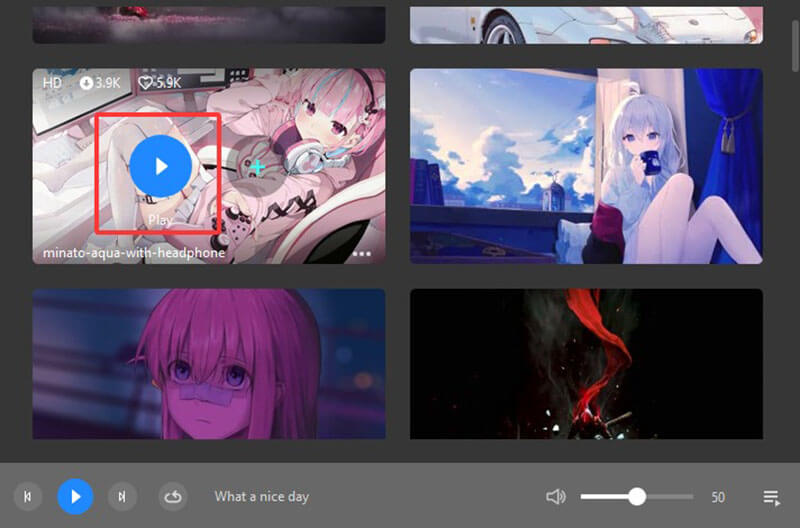
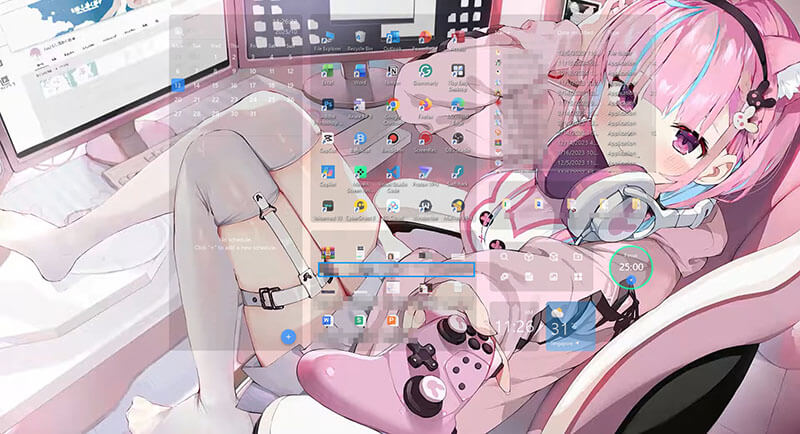
Step 4. That’s it! Now your Windows desktop will display a dynamic wallpaper that can bring your background to life.
Conclusion
With the 3 best tools outlined above, now you can easily customize cursor effects, trails, and themes on Windows, Mac, or Chrome. But when it comes to a complete desktop visual makeover, iTop Easy Desktop is a solid choice. You can not only elevate the entire aesthetic but also enhance productivity. Just try it to transform your workspace instantly for free now!

- iTop Easy Desktop - Explore Aesthetic Wallpapers for PC
-
- Free download wallpapers across a wide range of styles
- Animate your desktop with free HD/4K live wallpapers
- Create custom wallpapers from images/videos with ease
- Apply and change desktop backgrounds in one click