-
iTop Easy Desktop - No.1 Desktop Organizer for Windows
-
Automatically organize and customize Windows desktop. Make your messy desktop look clean and professional within seconds.

Best Sticky Note Widgets for Windows/Mac/iPhone/Android
Stop missing important tasks. Use a sticky note widget tested and rated in 2026 to keep reminders always in sight on Windows, Mac, iPhone, iPad, and Android.
You know the feeling: twenty browser tabs open, Slack pinging in the corner, and somehow the one task that actually matters slips through the cracks. Maybe you keep bouncing between apps just to check a simple to-do list. It shouldn’t be that hard to stay organized. A sticky note widget keeps your reminders pinned right on your screen, so they stay in sight without interrupting your workflow.
In the following sections, you’ll find a curated selection of the best sticky note widgets available for Windows, Mac, iPhone, and Android. Each is picked to keep your priorities front and center without adding extra clutter.

Daily work rarely happens in one place. Tasks arrive through email, chat, meetings, and random thoughts in between. Without something visible to anchor them, important details fade fast. A sticky note widget app keeps priorities where you can see them without digging.
Prevent forgetting important tasks
When reminders stay on your screen, they’re much harder to ignore. Instead of relying on memory or buried apps, your key deadlines and quick notes remain in front and center throughout the day.
Reduce app switching
Constantly jumping between task managers, calendars, and note apps drains focus. Sticky notes widget options sit directly on your desktop or home screen to cut down unnecessary clicks and keep your attention where it belongs.
Improve productivity
Visible reminders create gentle accountability. Seeing what needs to be done encourages quicker action and clearer prioritization, so you move through tasks with less hesitation and fewer distractions.
Organize workflows with colors and categories
Many sticky note widget tools support color coding or simple grouping. You can separate personal errands from work projects at a glance, then even busy schedules feel structured and manageable.
If you work on a PC every day, having notes visible on your desktop can save more time than you’d expect. In this section, several productive and free tools that function as a sticky note widget Windows users can rely on, are shared and reviewed, from built-in options to more customizable desktop organizers.
1. Microsoft Sticky Notes – Built-in Sticky Note Widget for Windows
As a built-in sticky note widget Windows, you can open multiple notes at once, move them around freely, and apply basic formatting like bold text or checklists to keep things clear. If you sign in with a Microsoft account, your notes sync across devices, which is convenient for switching between a laptop and another PC. It’s completely free, and there’s nothing extra to install or learn. Customization options are fairly limited. You won’t find advanced organization tools or deeper productivity features here. It’s also easy to learn how to add sticky notes to desktop or pin them to the taskbar.
How to pin Microsoft Sticky Notes on Windows
Step 1. Open the Start menu and locate “Sticky Notes” on your PC.
Step 2. Launch the app and create a new note.
Step 3. Right-click the app icon on the taskbar and select “Pin to taskbar” to keep it accessible at all times.
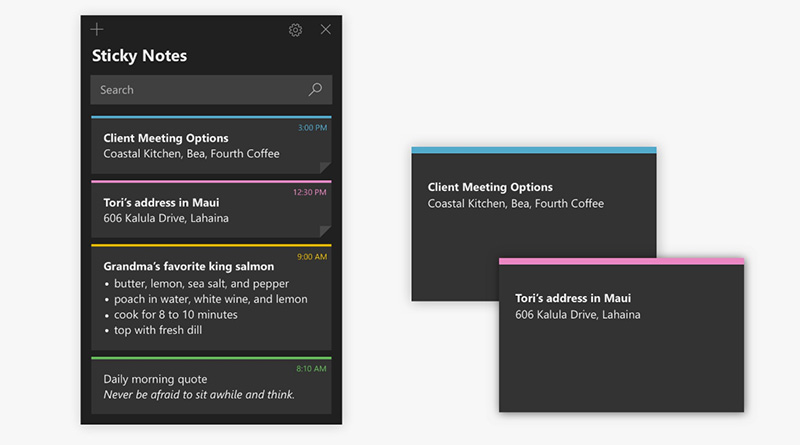
While Microsoft’s tool works well for basic reminders, a more powerful sticky note widget Windows solution, such as iTop Easy Desktop, is required for deeper customization and expanded desktop control.
2. iTop Easy Desktop – All-in-one Windows Sticky Notes Widget
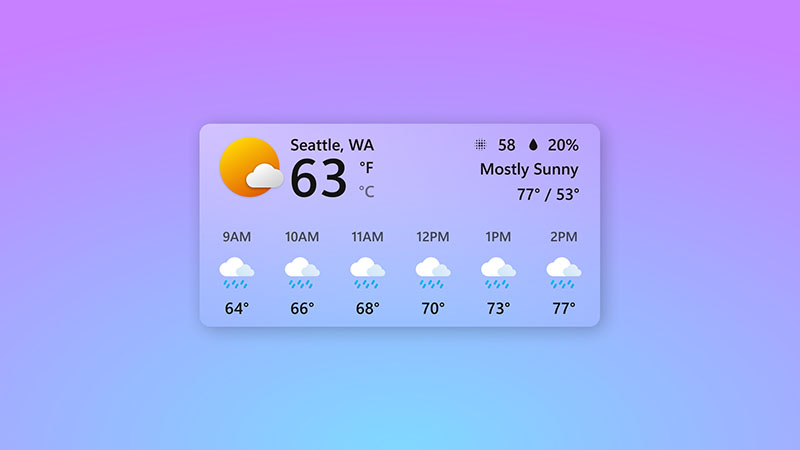
iTop Easy Desktop goes beyond a simple sticky notes widget. It’s a full desktop organizer polished to clean up clutter and centralize useful widgets. Alongside notes, it offers schedule management, weather widgets, a clock widget Windows 11, and quick search tools. For anyone looking for a more flexible sticky note widget Windows option, this program shows stronger customization without complicating the setup.

- iTop Easy Desktop - Keep Your Desktop Organized
-
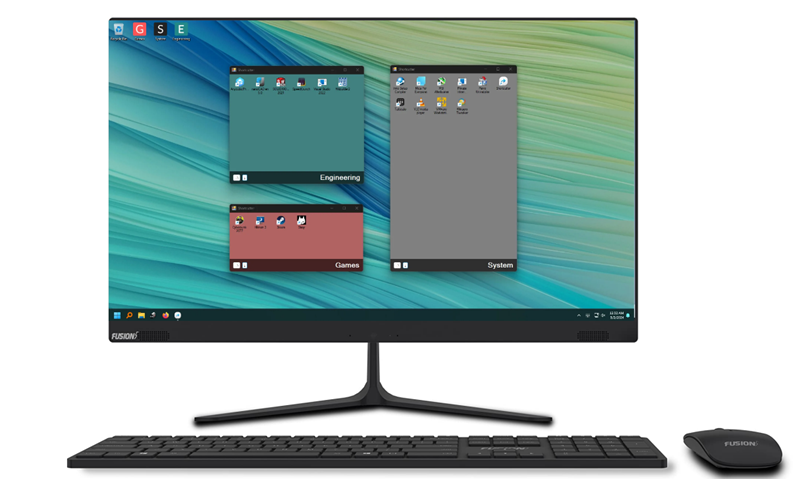
- Box desktop icons to declutter your workspace
- Manage documents, games, media files, etc., at 1 click
- Add calendar, clock and other widgets to desktop
- Locate any file you want instantly with search box
Why Choose iTop Easy Desktop Sticky Note Widget
Free unlimited sticky note widget for Windows
There’s no restriction on the number of notes you can create with the desktop organizer. It’s suitable for heavy daily planning or project tracking.
Easily customize the sticky note widget color
You can adjust note colors to separate work, study, and personal reminders visually. Color coding helps reduce confusion at a glance.
Productivity tools in sticky notes
Built-in support for bullet lists, ordered lists, code blocks, and clickable links turns a simple note into a lightweight productivity hub.
Able to pin to the Windows desktop to always check
Notes remain fixed on your desktop, ensuring important information stays visible without reopening apps.
Other effective desktop organization features
Beyond notes, the desktop organizer for Windows can group icons, clean up layouts, and add functional widgets that keep your workspace tidy and efficient.
How to Enable Sticky Note Widget on Windows
Step 1. Download and install the all-in-one sticky note widget for PC here.
Step 2. Launch the tool and enable the sticky notes widget from the widget panel.
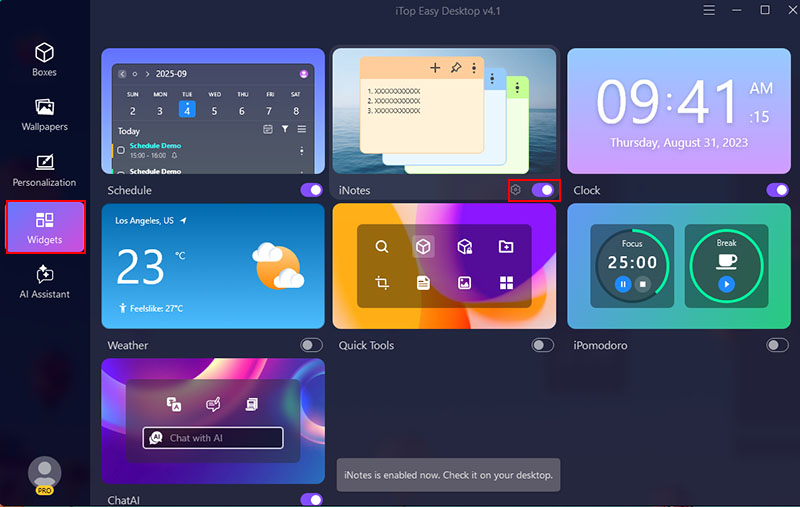
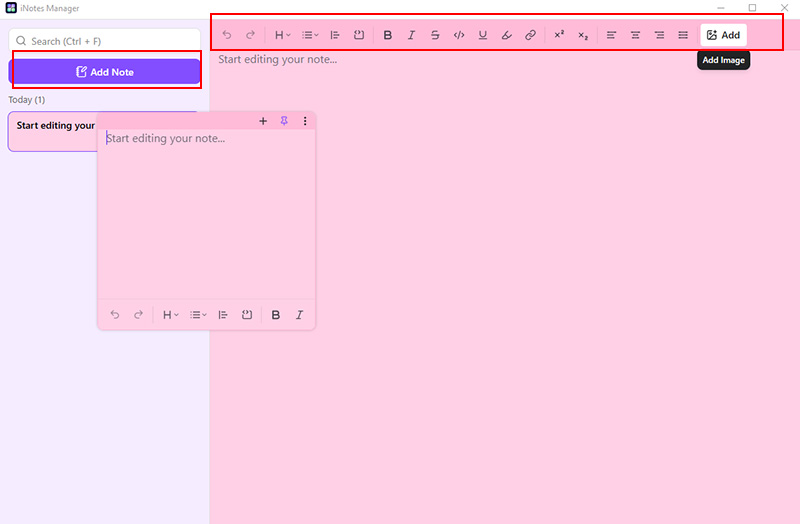
Step 3. Create a new note, customize its color and content, add an image to the note, etc.
Mac users don’t need to download anything extra to get started. Apple includes a lightweight app called Stickies for quick reminders and short notes. If you want a simple sticky note widget experience without extra setup, this built-in tool covers the basics well.
The sticky note widget Mac app helps you create floating notes that can stay on top of other windows. You can resize notes, choose from several colors (yellow, blue, green, pink, purple, and gray), and even make them translucent so they don’t completely block what’s underneath. Basic text formatting is supported, and you can drag images like 4K wallpaper or PDFs directly into a note.
This sticky note widget Mac solution is intentionally minimal. Notes are stored locally and don’t sync through iCloud. There’s no trash folder for recovery, and advanced tools like tags or checklists are absent. As a sticky note widget Mac for everyday desktop visibility, though, users will find it fast, clean, and distraction-free.
How to Enable the Built-in Stickies App on Mac
Step 1. Open Finder, go to Applications, and double-click Stickies (or search for it using Spotlight).
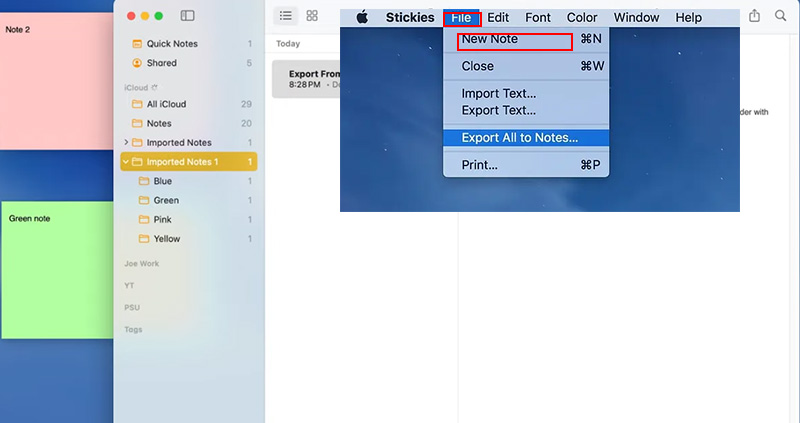
Step 2. Click “File” in the menu bar and select “New Note” to create your first sticky.
Step 3. Move, resize, or customize the note’s color from the “Color” menu, and enable “Float on Top” if needed to keep it visible.
Also Read: Best 5 Desktop Calendar Widget Apps for Windows 11 & 10 >>
When you want reminders right on your screens without opening another app, apps that offer a sticky note widget for iPhone or iPad experience can be incredibly handy. Below are some popular choices that let you pin simple notes.
Sticky Widgets
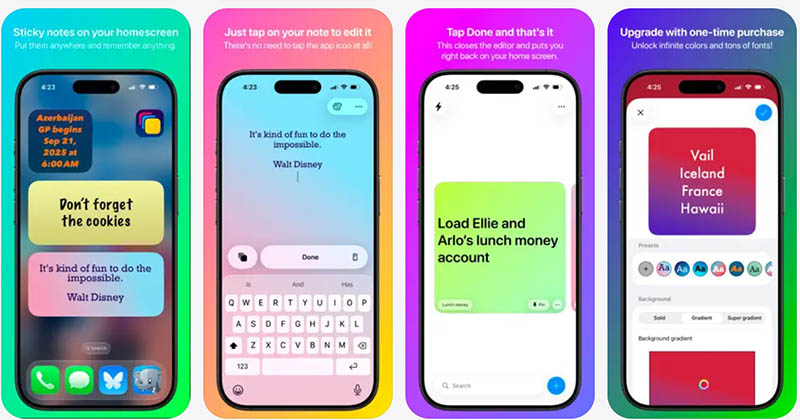
This sticky note widget iPad and iPhone app is all about putting notes front and center on iPhone and iPad home screens. You can add multiple sticky widgets in various sizes and customize backgrounds, fonts, and. Users praise its straightforward setup and flexibility, though some premium features require a purchase.
Sticky Notes Widget
This app supports lots of customizable fonts, colors, and styles, making it easy to personalize reminders without leaving the home screen. Key features include note editing, auto sync via iCloud, dark mode, etc.
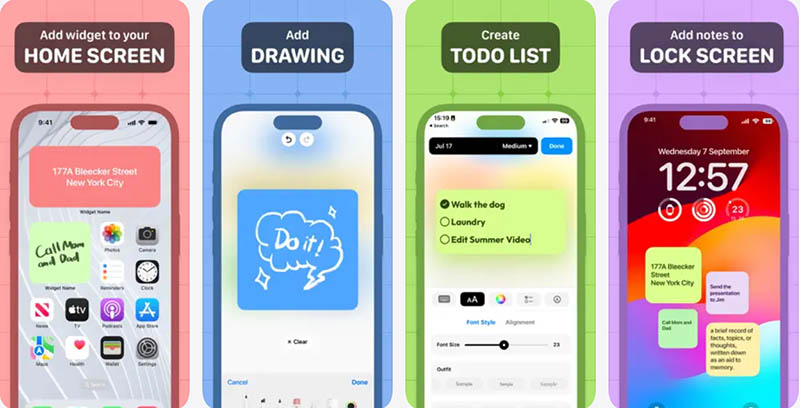
Sticky Notes
Sticky Notes brings simple memo widgets that appear as soon as you pick up your device. It includes interactive home and lock screen widgets, big text mode for easy reading, and 25 color customization options. You can also build to-do lists or even insert photos into a note.
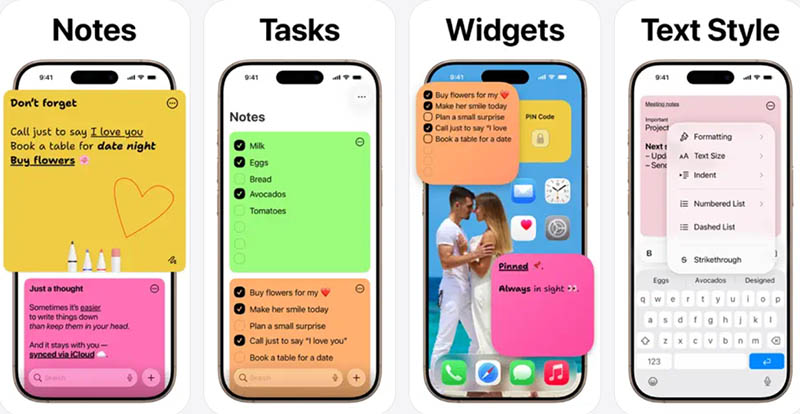
Also Read: Best Desktop Countdown Widgets: Countdown Timer to Any Date >>
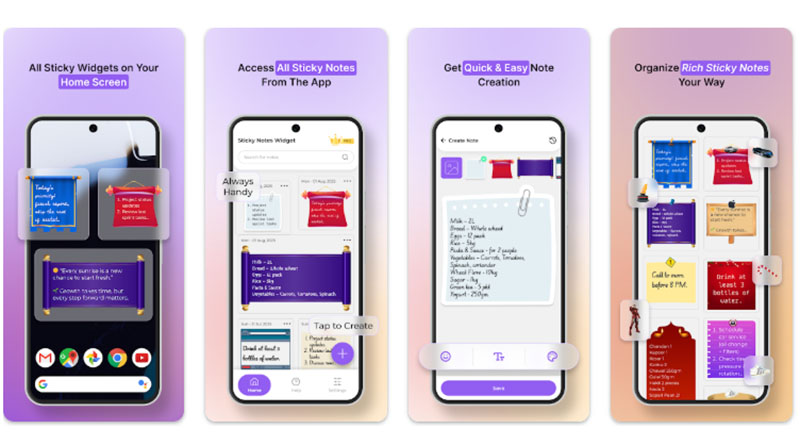
If you want quick reminders on your home screen without digging through folders, an Android sticky note widget app can be helpful. These options bring notes to your fingertips while you’re checking messages, browsing, or tackling tasks.
Another Note Widget
This lightweight app lets you drop colorful sticky notes right onto your home screen. You can tweak handwritten fonts, backgrounds, emojis, 40+ themes, and sizes to match your style. Reviewers appreciate how fast and fuss-free it is, though some wish for more advanced features like reminders or cloud sync.
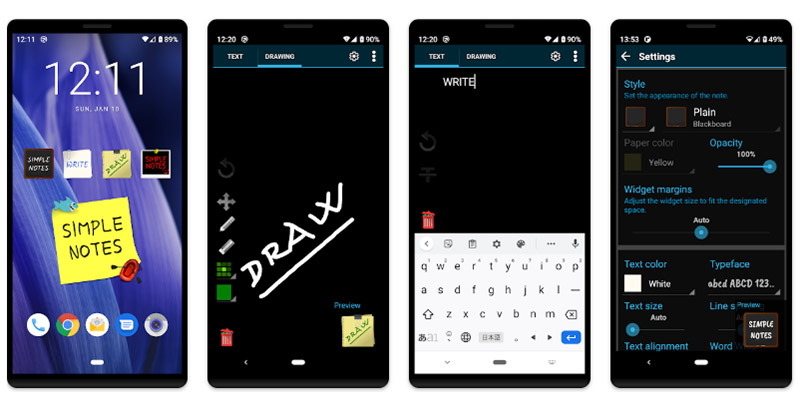
Simple Sticky Notes Widget
Simple by design, this app focuses on putting notes in plain sight. Its strength lies in minimalism: large widgets with resizable text that are easy to read at a glance. It doesn’t overwhelm with bells and whistles, but that also means it lacks deep customization or list features that power users might want.
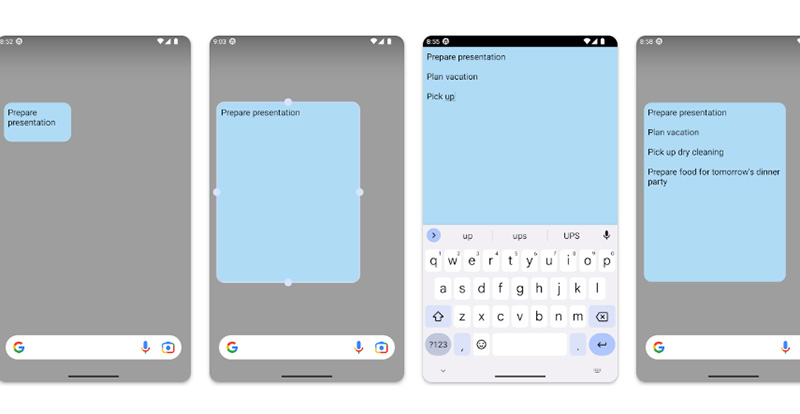
Sticky Notes+ Widget
The app combines clean visuals with handy tweaks. All features are available without hidden charges or ads. It supports dictating notes on the go for capturing ideas without typing. Some users note occasional glitches with resizing on certain launchers, but overall, it’s a solid pick for reminders and quick scribbles.
The Bottom Line
Managing too many tasks and reminders can feel overwhelming, but a sticky note widget keeps everything within easy reach. Across Windows, Mac, iPhone, iPad, and Android, there are tools to suit every workflow. For Windows users, iTop Easy Desktop provides unlimited notes, customizable colors, and a suite of desktop organizer features, so your key tasks stay visible without hopping between apps. Streamline your desktop and keep your priorities in view. Download iTop Easy Desktop and experience a workspace that’s simple, efficient, and distraction-free.
- iTop Easy Desktop - Keep Your Desktop Organized
-
- Box desktop icons to declutter your workspace
- Manage documents, games, media files, etc., at 1 click
- Add calendar, clock and other widgets to desktop
- Locate any file you want instantly with search box