-
iTop Easy Desktop - No.1 Desktop Organizer for Windows
-
Automatically organize and customize Windows desktop. Make your messy desktop look clean and professional within seconds.

How to Add Windows Spotify Widget on Windows 11/10 & Mac (2026 Guide)
Want to add a Spotify widget to your desktop? Check out useful methods to add a Windows Spotify widget and steps for Mac, as well as troubleshooting tips.
With millions of users worldwide, Spotify remains one of the most popular music streaming apps today. It offers a seamless listening experience across both desktop and mobile devices. Recently, many users have been asking how to get a Spotify widget on their desktop for free. If you are one of them, you’ve come to the right place.
This guide walks you through easy methods to add a Windows Spotify widget, along with step-by-step instructions for Mac users. You will also find practical fixes for common issues like the Spotify desktop widget not working, plus a handy tool that can organize and enhance your desktop setup!
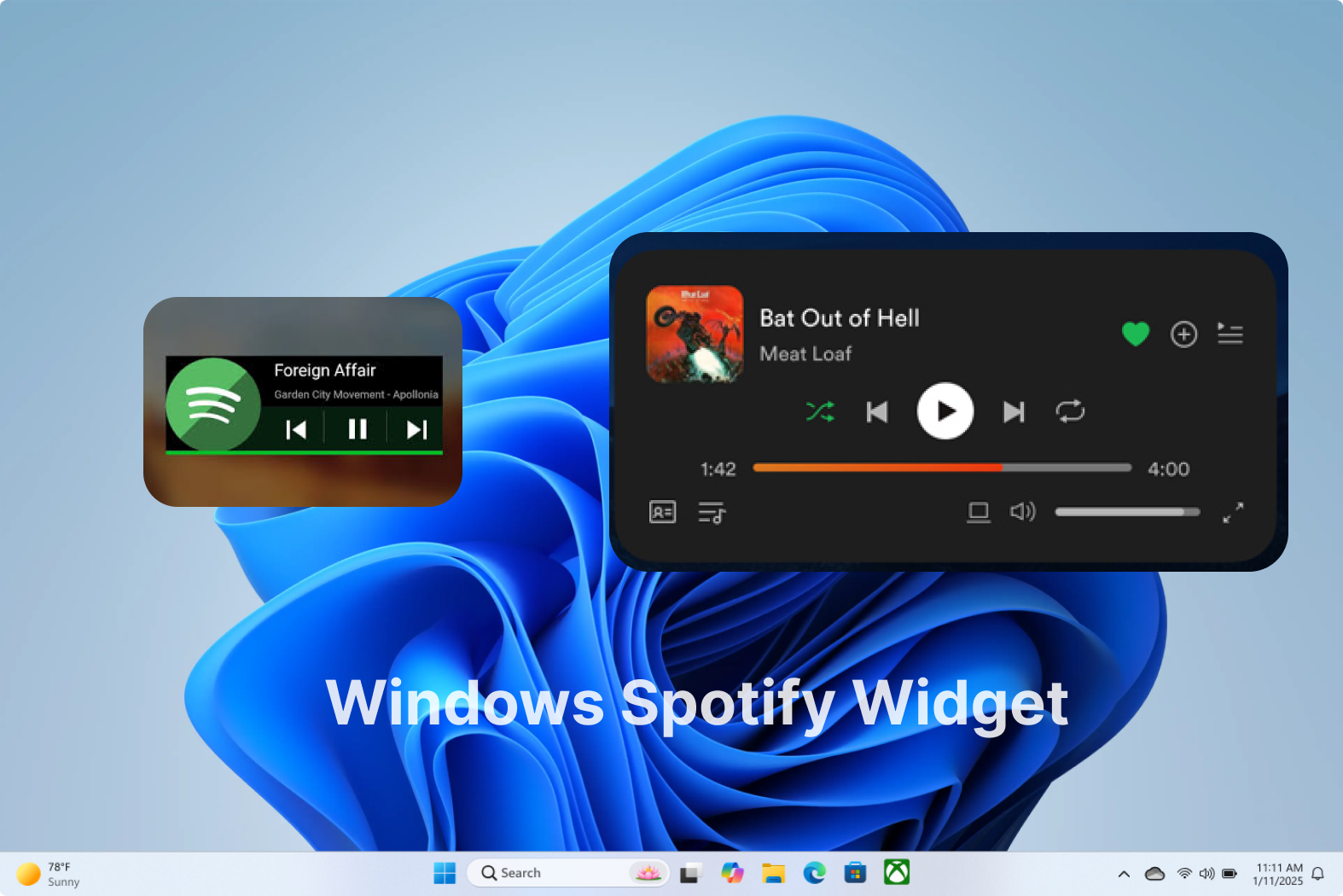
A Windows Spotify widget is a compact and interactive desktop tool that allows you to control Spotify playback without opening the full app. Generally, it shows the current song, artist details, and basic controls(play/pause/skip). Many users prefer a Spotify desktop widget because it improves efficiency for multitasking. You can enjoy music with easy control while working or gaming, which helps maintain focus and improve overall productivity.
Now that you understand the basics, let’s move on to the practical steps for adding a Spotify widget for PC.
Method 1. Get Windows Spotify widget via Xbox Game Bar
The Xbox Game Bar is a built-in Windows feature designed primarily for gamers, but its flexible widget system also supports apps like Spotify. This allows you to control music playback through an overlay while working, browsing, or gaming without switching windows. Here’s how to add Spotify to desktop Windows 11.
Step 1. Open the Xbox Game Bar using the Win + G keys. Click the Widget Menu, find Spotify in the list, and add it to the overlay panel.
Step 2. When prompted, select Link Account and sign in to connect your Spotify profile securely now.
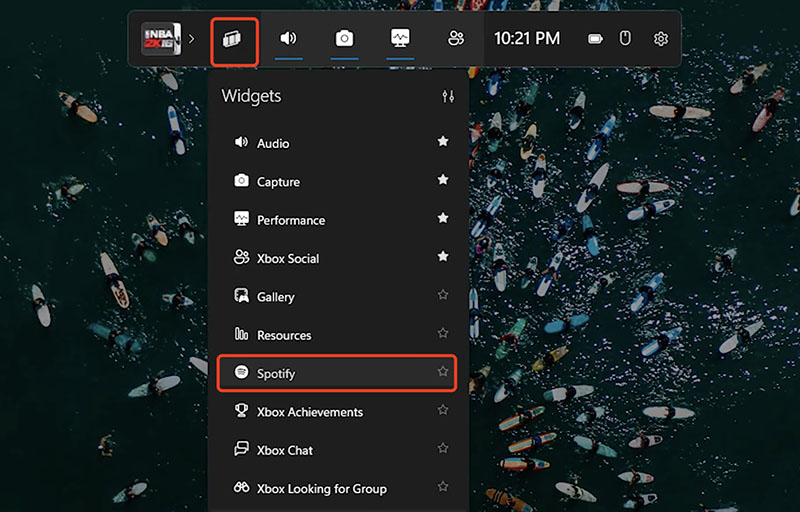
Step 3. Click Launch Spotify to display the widget. Now, the Spotify widget Windows 11 lets you control music easily.
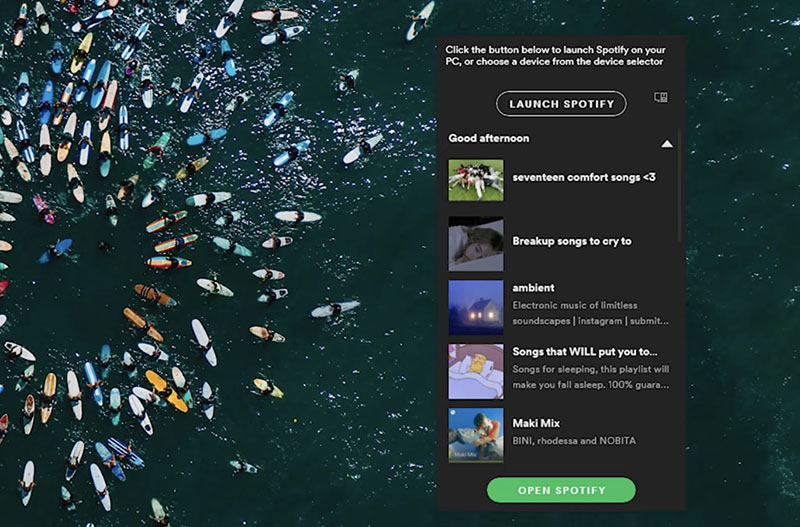
Method 2. Use the Built-in Spotify Widget via Google Chrome
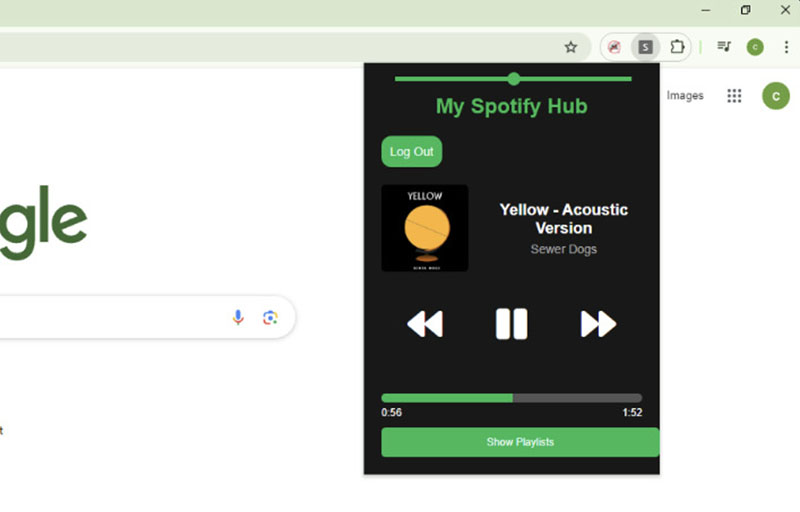
This method lets you use a Spotify widget directly in Google Chrome. The Spotify desktop widget will automatically adapt its background color to match the current album art. You can control playback with play, pause, and skip actions.
Step 1. Open Google Chrome, visit the Chrome Web Store, and search for a Spotify widget extension.
Step 2. Select your preferred extension, click "Add to Chrome," and follow the installation process.
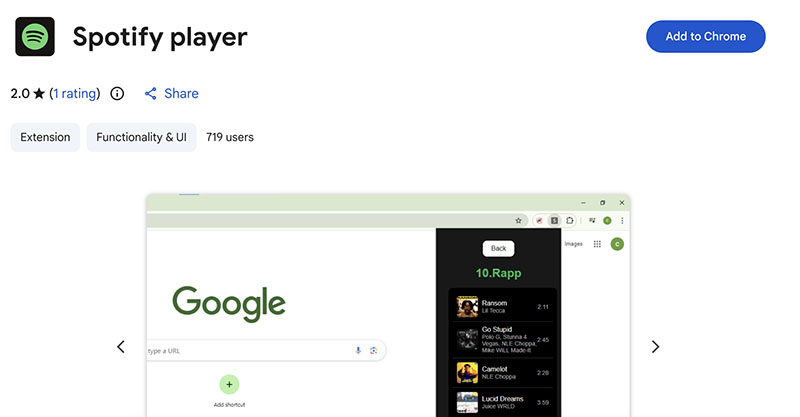
Step 3. Click the Spotify widget icon in the toolbar, sign in to your Spotify account, and control playback directly from Chrome.
Method 3. Add Windows Spotify Widget with Lofi Spotify Mini Player
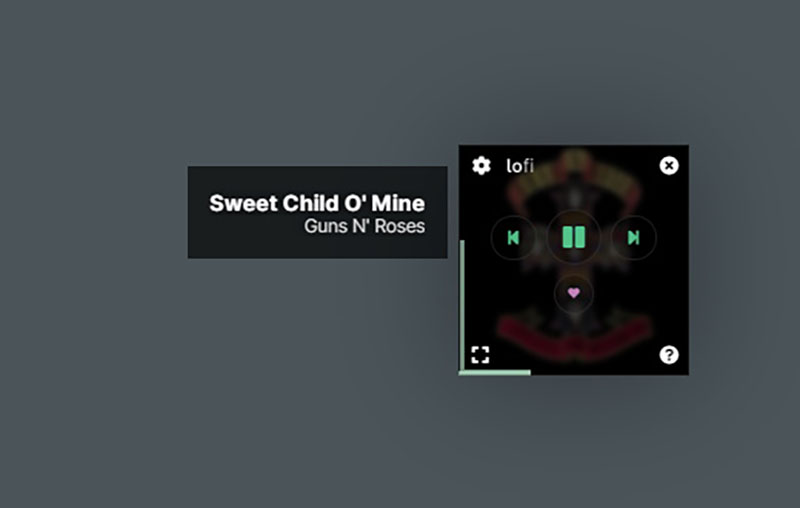
Lofi Spotify Mini Player is a minimalist Spotify widget for Windows, Mac, and Linux. It takes up very little space and can keep track of details visible while staying unobtrusive. As a free and open-source Spotify widget Windows 11, Lofi includes stylish visualizations, making it both practical and visually engaging for everyday Spotify listening.
Step 1. Visit the official Lofi website, download the Windows version, install it, and open the app.
Step 2. Select Login, then approve the authorization request to connect Lofi with your Spotify account.
Step 3. Start playing music on Spotify, and the current track will instantly appear in the Lofi mini player.
Now that we have covered 3 practical Windows Spotify widget options, it’s time to take a look at macOS. For Mac users, two methods let you enjoy similar convenience.
Method 1. Enable Spotify on Mac Automatically
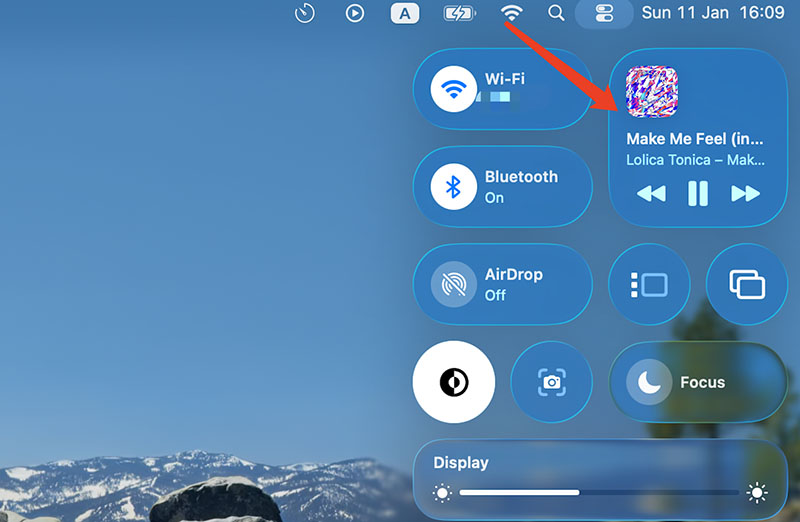
On Mac, you can not add Spotify as a widget to the desktop. Yet the clock, weather, and desktop calendar widget, etc., are available. So, how to enable Spotify as a widget on Mac? It’s easy. It will appear in the Control Center as long as you play the Spotify Music app. The mini block is basically like a widget, which allows you to control playback as you like. Here’s a simple overview.
Step 1. Play music with the Spotify app on your Mac.
Step 2. Click on the Control Centre on the top right to reveal the playback.
Step 3. The mini section will show the music name and playback control options.
Method 2. Add Spotify Mini Player on Mac Using Alfred
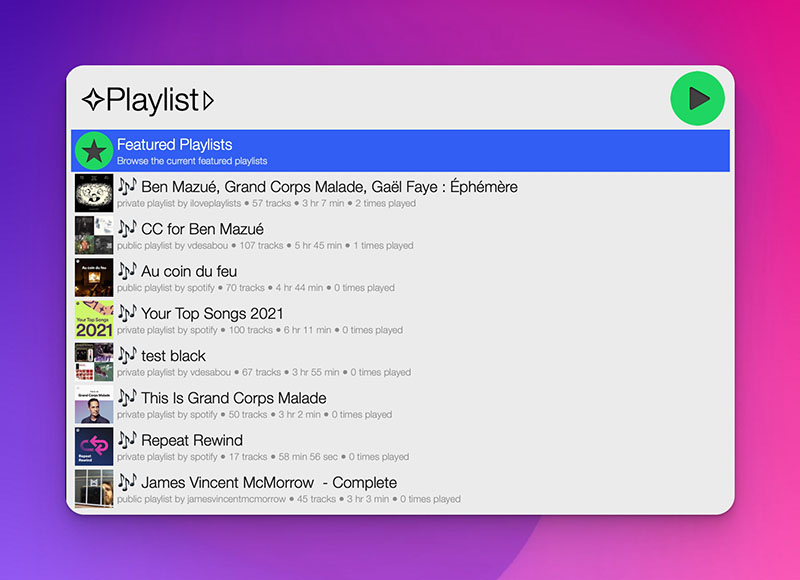
Alfred Spotify Mini Player is a robust app that allows Mac users to control Spotify seamlessly. It supports tons of advanced features, for instance, fuzzy search, playlist browsing, track removals, podcast integration, Spotify Connect, customizable themes, and much more for an enhanced listening experience.
Step 1. Download the latest version of Alfred from its official website. Initiate and complete the installation.
Step 2. Follow the on-screen setup prompts to authorise Spotify access and complete integration.
Step 3. Once finished, it will appear on your desktop as an advanced Spotify widget.
If your Windows Spotify widget is not displaying or functioning correctly, it can interrupt your listening experience. Below are eight proven fixes to help ensure your Spotify widget for desktop runs smoothly again.
Fix 1. Restart Your System
A quick restart can resolve many temporary glitches that interfere with widget performance. Shut down your PC, wait about 30 seconds, and then restart it.
Fix 2. Check the Network or VPN
Spotify widgets rely on a stable internet connection. If your network is unstable or a VPN is active, playback may fail. Disable any VPN and make sure your connection is reliable.
Fix 3. Re-add the Spotify Widget on PC
Sometimes the Windows Spotify widget connection simply needs a refresh. Remove the Spotify widget from Xbox Game Bar, then add it back again.
Fix 4. Update the Spotify App
Running an outdated version of Spotify can lead to compatibility issues. Open the app, check for available updates, and install the latest release.
Fix 5. Check Spotify Widget Settings
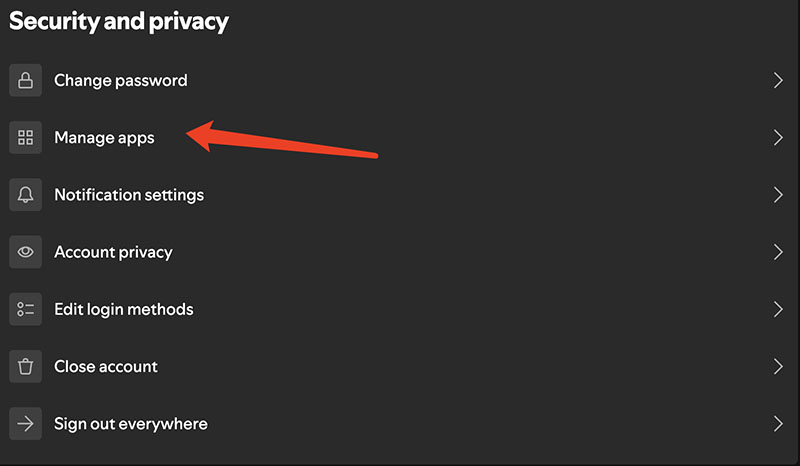
Confirm that all required permissions are enabled in Spotify via Account Overview > Manage Apps. Or you can go to the Xbox Game Bar and ensure Spotify is linked.
Fix 6. Disable Low Power Mode
Power-saving modes may limit background app activity. Open Power Options and switch to Balanced or High Performance for better widget functionality.
Fix 7. Clear App Cache and Data
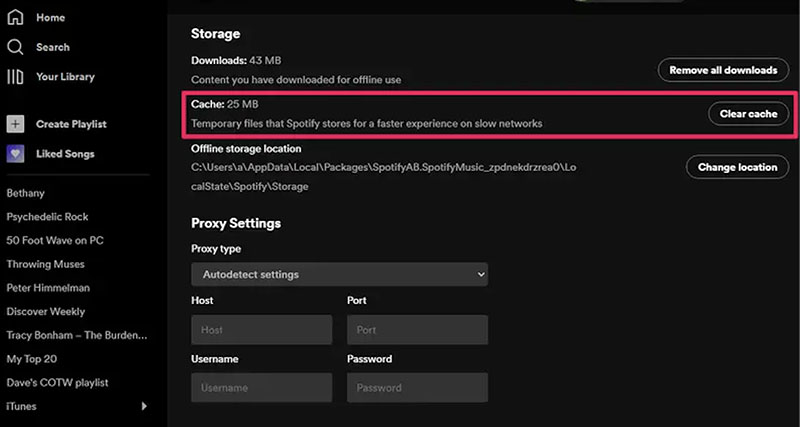
Excessive cached data can cause glitches over time. You can clear Spotify’s cache in the app settings, or perform a clean reinstall if problems persist.
Fix 8. Contact the Support Team
If none of the above solutions seem to work, you will need to reach out to Spotify or Microsoft support and provide detailed information about the issue for further assistance.
Now you know the ways to add a Windows Spotify widget and the steps for Mac. Aside from widgets, it’s crucial to improve your desktop organization to make Spotify even more accessible. How to make it? One simple solution is iTop Easy Desktop, which lets you quickly launch the Spotify app, access music files, open playlists, and manage related folders hassle-free.

- iTop Easy Desktop - Keep Your Desktop Organized
-
- Box desktop icons to declutter your workspace
- Manage documents, games, media files, etc., at 1 click
- Add calendar, clock and other widgets to desktop
- Locate any file you want instantly with search box
How to Create Spotify Box with iTop Easy Desktop
Step 1. Download iTop Easy Desktop for free, install it on your Windows PC, and launch the program.
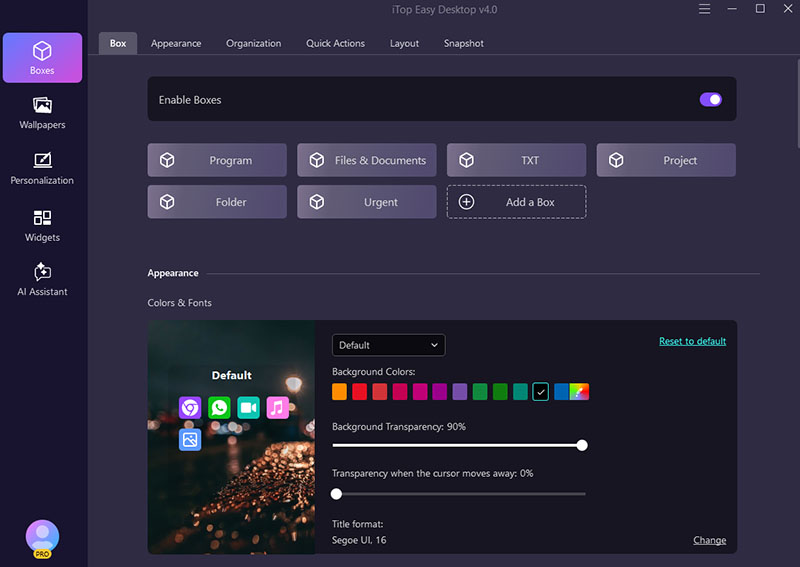
Step 2. Go to the Boxes section. Toggle on “Enable Boxes” on top. Your Spotify will be automatically grouped in the App Box on your desktop.
Step 3. Switch to the Organization panel, click the plus (+) icon beside a box. For instance, you can include Spotify music files in the Project box.
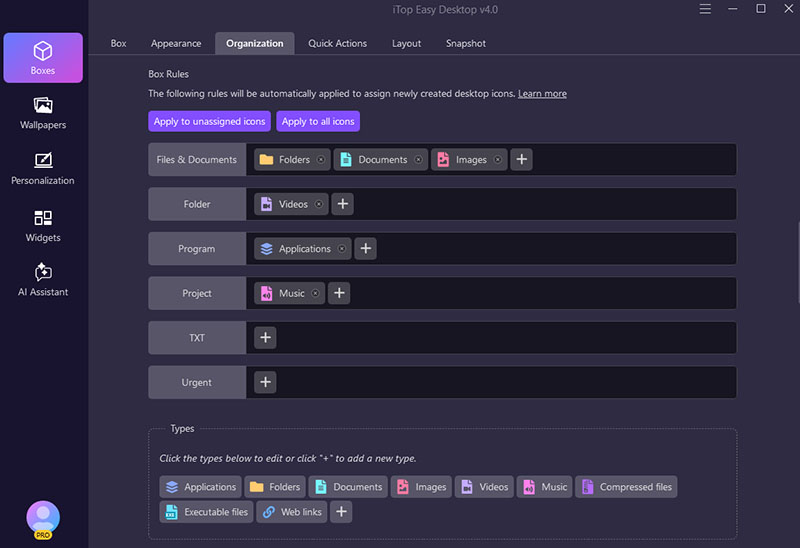
Step 4. Apply your settings, and iTop Easy Desktop will automatically group your Spotify app, playlists, and related music files.
TIPS
If your files are cluttered and make finding things hard, check out how to organize computer files with practical methods and useful tips!Why Choose iTop Easy Desktop to Organize Playlists
Create Custom Box for Spotify Free
The desktop organizer is 100% free to use. You can create a dedicated box with customization via settings or the Quick Action, a simple feature that lets you draw on your blank space on your desktop!
Quickly Start & Stop Spotify Music Playing
The best desktop organizer lets you launch and control Spotify instantly. You can open the app, control playback, and access music files with just a few clicks.
Personalize Spotify Desktop Icons
iTop Easy Desktop lets you customize the appearance, like colors, fonts, etc. You can personalize the boxes and Spotify icon styles to improve visual appeal.
Auto Organize Spotify Playlists by Multi-Filter
The best desktop organizer for windows, especially for your Spotify playlists. It can be effortless as the app can automatically sort Spotify-related music files using multiple filters such as name, size, or file type.
Multiple Desktop Widgets for High Efficiency
You can boost productivity with built-in Schedule, iNotes, Weather, and Clock widgets, and enhance your setup with 4k wallpaper for PC for a visually appealing desktop environment.
How to Get a Spotify Widget on Android and iPhone?
For Android, long-press the home screen, tap Widgets, search for Spotify, and add it. On iPhone, touch and hold the lock screen, tap Customize > Add Widgets > Spotify.
Can I Add a Spotify Widget to Lock Screen on Desktop?
It’s not possible to directly add a widget to the desktop lock screen on Windows or Mac. However, if Spotify is playing, media controls might appear on the lock screen automatically.
How to Make a Custom Spotify Widget on Windows?
To create a custom Spotify widget on Windows, you can start with the built-in Xbox Game Bar for simple playback controls. For more advanced customization(themes, layouts, etc.), Spicetify is a powerful option. It modifies the Spotify desktop app itself and allows you to install custom themes and extensions via PowerShell and Spicetify’s marketplace.
The Bottom Line
This guide has shown how to add a Windows Spotify widget on both Windows 11/10 and there are also practical methods for Mac. Now you can control Spotify
music seamlessly on your desktop. As you can see, iTop Easy Desktop takes it a bit further, which allows you to organize apps, playlists, and music files efficiently. Download it today to streamline your desktop and enjoy Spotify hassle-free!
- iTop Easy Desktop - Keep Your Desktop Organized
-
- Box desktop icons to declutter your workspace
- Manage documents, games, media files, etc., at 1 click
- Add calendar, clock and other widgets to desktop
- Locate any file you want instantly with search box