-
iTop Easy Desktop - No.1 Desktop Organizer for Windows
-
Automatically organize and customize Windows desktop. Make your messy desktop look clean and professional within seconds.

Windows Focus Assist | Definition, How to Use & Alternative
Learn what Windows Focus Assist is, how to use it on Windows 10 & 11, and discover the best alternative to manage time and tasks efficiently.
When you are working on an important project, watching videos, or gaming, distractions can strike at any time. But worry not, Microsoft introduced Windows Focus Assist, a feature that blocks unnecessary notifications to help you stay concentrated.
So, what is focus assist in Windows exactly? How does it work then? In this guide, let's explore everything about Focus Assist in Windows: setup steps for Windows 10 and Windows 11, plus a smarter alternative to boost your productivity!
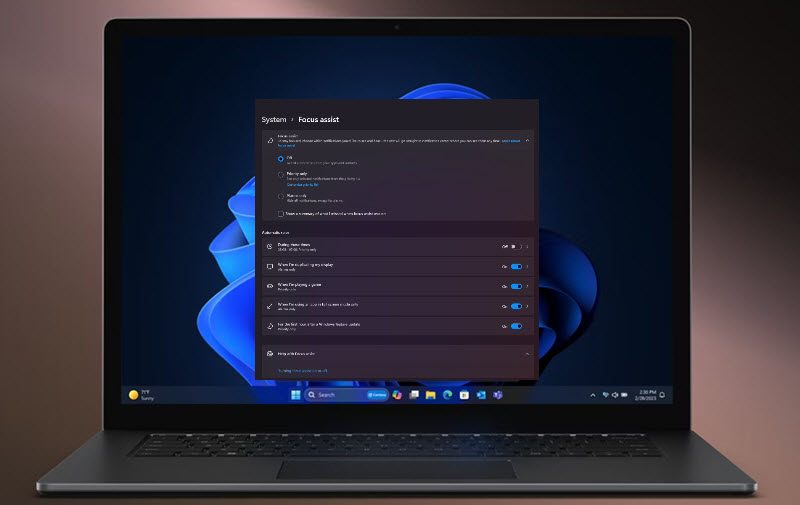
Focus Assist in Windows is a built-in tool that mutes unnecessary notifications when you need to focus. This feature is preinstalled on Windows 10 and Windows 11. You can choose to get all notifications off or allow certain notifications from a customized list. In Windows 11, it supports focus sessions with timers and integration with the Clock app for progress tracking. The feature can even integrate with services like Spotify to play focus playlists.
The benefits of Windows Focus Assist are obvious: it enhances concentration, reduces interruptions, and tracks daily focus time with streaks and goals. The feature works on Windows 10 and 11, great for PC users who want to stay focused and productive for a whole day!
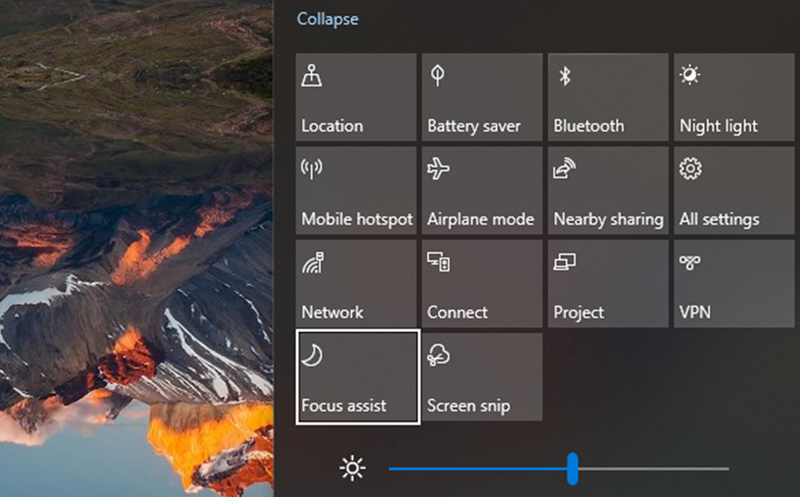
Windows Focus Assist functions by temporarily silencing incoming notifications and messages based on predefined rules. When you activate the feature, it will put non-priority alerts to the notification center without popping up or making sounds.
Generally, you can select from modes: All Off mode, "Priority only" to filter notifications based on a customizable list, or "Alarms only" blocks everything except alarms and timers. For Windows 11, the process is even more integrated. You can link it with the Clock app to track progress, control session length, and view summary reports.
This detailed control ensures it adapts to your routine perfectly, with optimal focus achieved. Once the session ends, Windows Focus Assist automatically restores normal notifications. So you will never miss important updates after your focus time.
What is focus assist in Windows, and how does it work? Now you should know the specifics. In this part, let’s see how to use the Focus Assist feature in Windows 10 and 11 respectively.
How to Use Windows 10 Focus Assist
Step 1. Press Windows key + I, go to System > Focus assist. Choose Off (all notifications), Priority only (custom list), or Alarms only (blocks all except alarms).
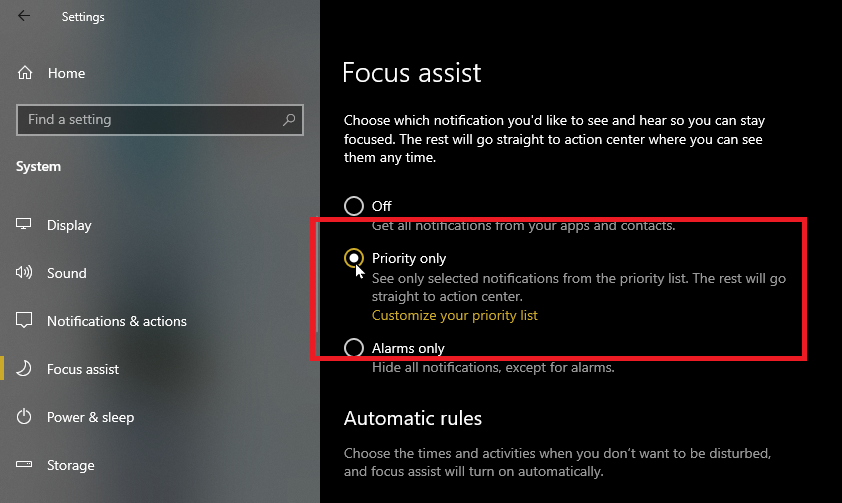
Step 2. For the Priority only mode, click "Customize your priority list" to add specific contacts from your address book, essential apps, or enable calls, texts, and reminders from linked devices.
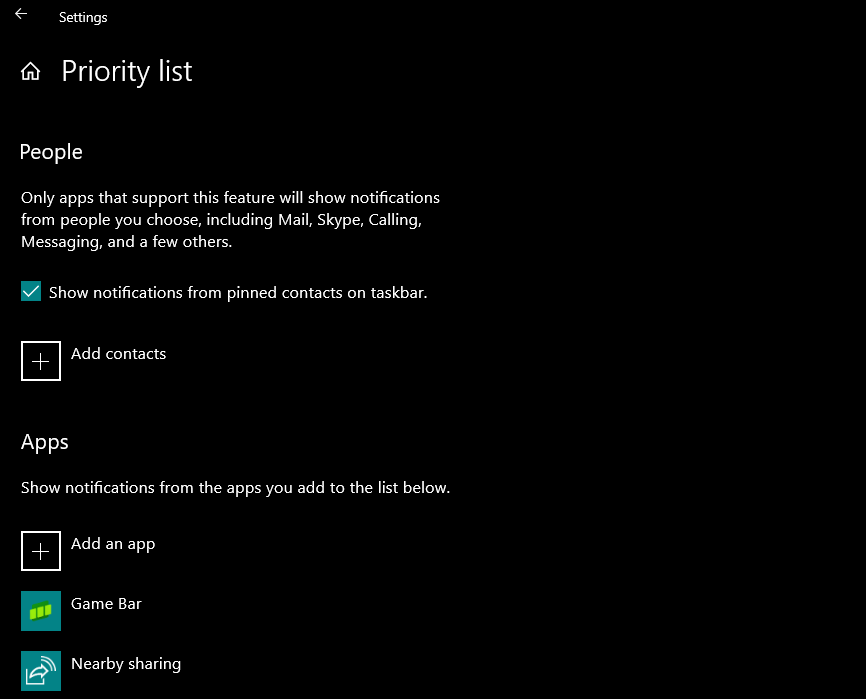
Step 3. Set up automatic rules by toggling on switches for different scenarios, as shown in the screenshot.
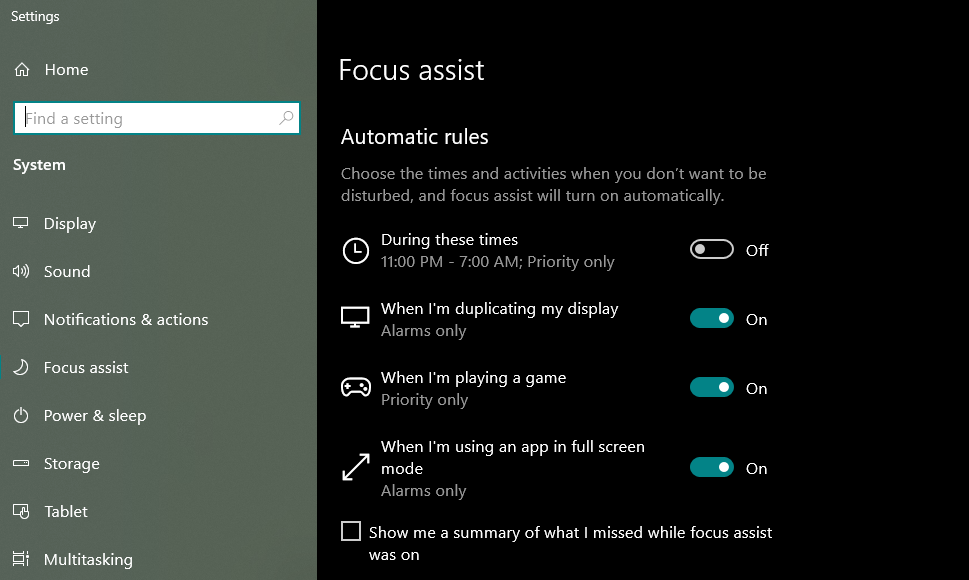
Step 4. Enable the summary settings to receive a recap. Check the Action Center to review and manage grouped missed notifications by app.
How to Use Windows 11 Focus Assist
In Windows 11, Focus Assist has been made a part of the Clock app. Here's how.
Step 1. Open the Clock app, set the session length and optional daily goal, and link Spotify for music or Microsoft To Do for tasks if needed.
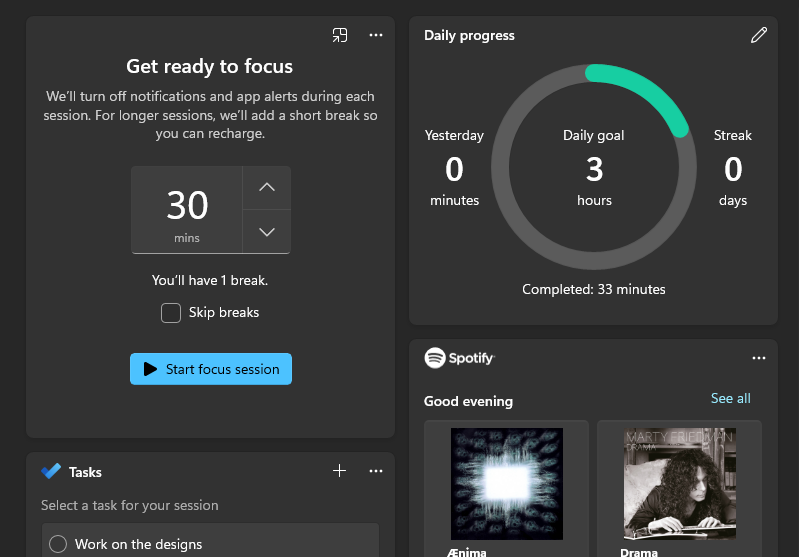
Step 2. Click the settings icon at the bottom left to adjust focus and break durations. Select end sounds, choose a theme, tweak notification settings, etc.
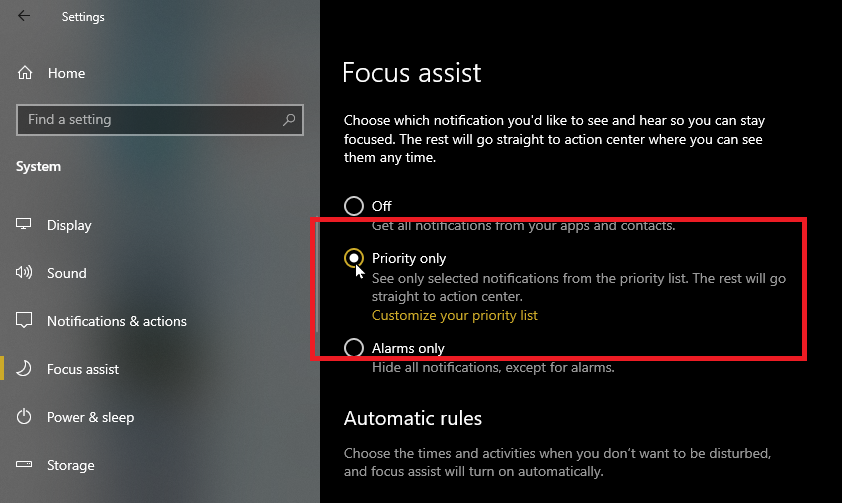
Step 3. Select "Priority only" to customize a list or "Alarms only" to hide all but alarms; check "Show a summary of what I missed" for post-session recaps.
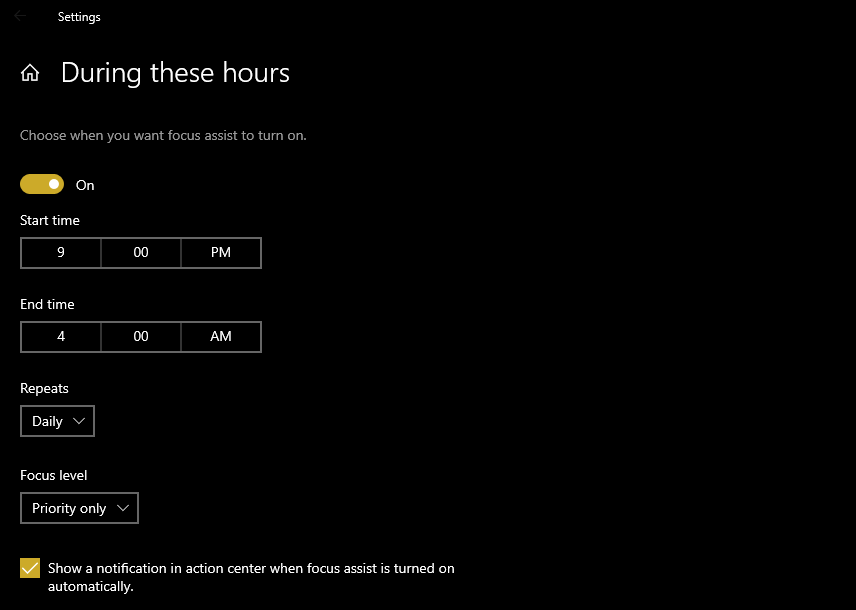
Step 4. In the "Automatic rules" section, toggle and edit rules for “During these hours.” Set times, days, and focus level; adjust the other options based on your news.
That's it. When the feature is active, look for the small moon icon on the taskbar's far right; click it to see all missed notifications.
While the Windows Focus Assist feature is easy to use, many users report errors/issues in the forum. To avoid the inconvenience, iTop Easy Desktop is a much more reliable alternative. The stable software allows you to add practical widgets; you can manage your time and tasks more efficiently. Plus the smart desktop organization capabilities, the software is a comprehensive solution for great focus and efficient task management.

- iTop Easy Desktop - Keep Your Desktop Organized
-
- Box desktop icons to declutter your workspace
- Manage documents, games, media files, etc., at 1 click
- Add calendar, clock and other widgets to desktop
- Locate any file you want instantly with search box
Here are the features that can help you stay organized and focused with the Windows desktop organizer.
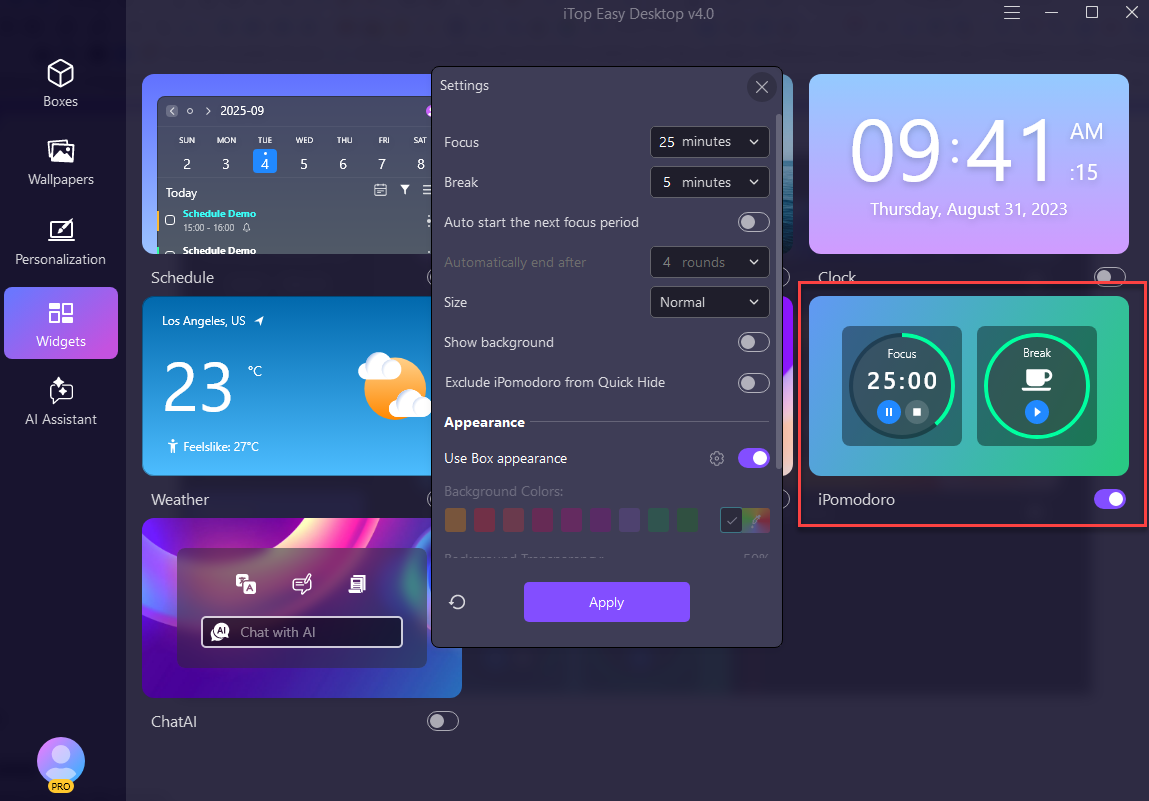
Set Focus & Break Sessions: Structure your work in timed intervals using the built-in iPomodoro widget. Focus on your tasks, take scheduled breaks, and easily maintain consistent productivity for a full day.
Show Clock on Desktop: Display a customizable clock on your desktop to monitor time at a glance. Best for remote workers to track time zones and alarms, keeping them synchronized globally.
Add Schedule for Events: Keep tasks, events, and reminders visible on your desktop. Play your work and study efficiently, and you will never miss important deadlines and appointments.
Display Sticky Notes: You can create sticky notes for tasks, ideas, or even use it as quick reminders. They will stay on your desktop for easy reference and so you never lose track of important items.
Arrange Icons & Files in Boxes: Organize desktop items into a set of boxes with color, transparency, and alignment options. You can even set a password for your sensitive or confidential files!
How to use iTop Easy Desktop iPomodoro Widgets
Step 1. Free download and install iTop Easy Desktop.
Step 2. Go to Widgets > iPomodoro to enable the widget. You can also enable other widgets like iNotes, Schedule, etc. Here.
Step 3. The iPomodoro will appear on your desktop. Click on the Settings menu to adjust the intervals, break time, round, etc.
How to use iTop Easy Desktop for auto sorting
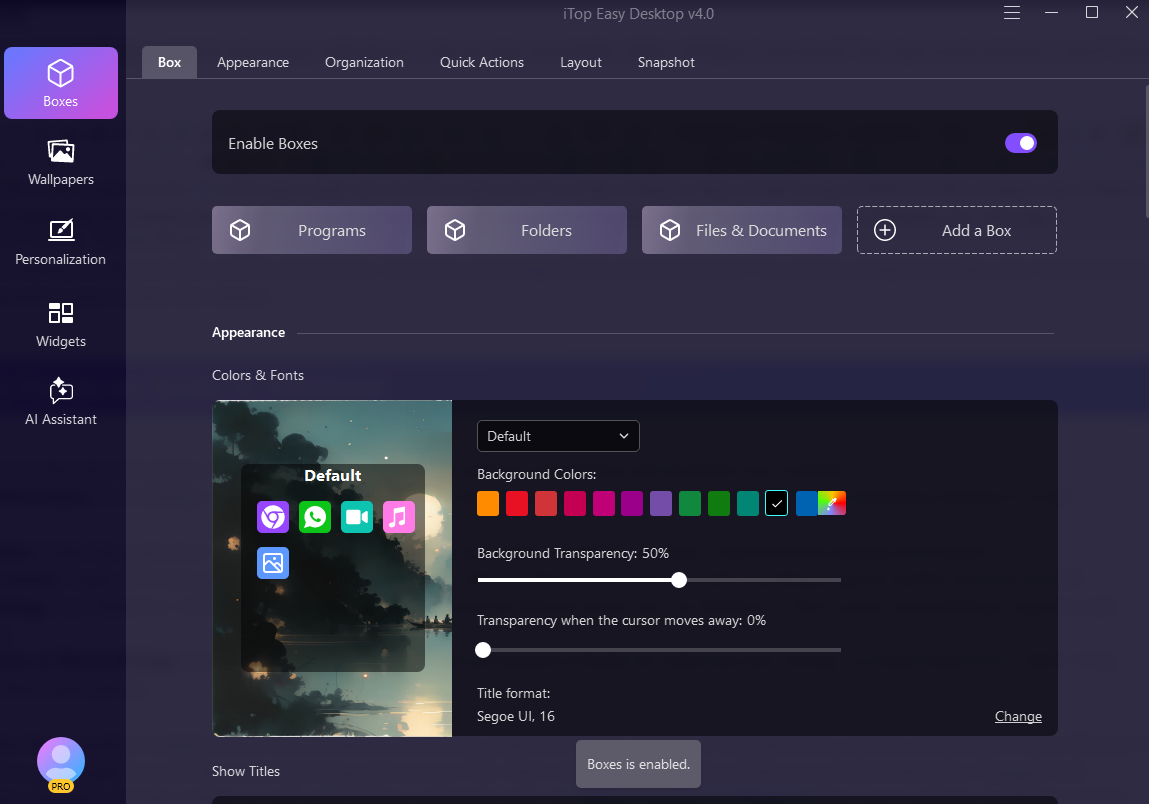
Step 1. Launch iTop Easy Desktop. Head to Boxes > Enable Box.
Step 2. All icons on your desktop are automatically sorted to certain boxes. Add boxes and manage files in one box if needed. You can also set appearance like color, font for the box.
Step 3. After the customization, enjoy a clutter-free desktop.
Windows Focus Assist is not the only tool out there. Here are some more tips that can enhance concentration and streamline your workflow:
Minimize visual distractions: Go to Settings > Accessibility > Visual effects to turn off animations, reduce transparency, and shorten notification durations to avoid lingering alerts.
Clean up the taskbar: Under Personalization > Taskbar, hide unnecessary icons and enable auto-hide to maintain a distraction-free desktop environment.
Simplify the Start menu: Toggle off recent apps and items via Personalization > Start to reduce visual noise and make launching programs quicker and more focused.
Optimize multitasking: Press Windows + Z to snap windows into organized layouts for efficient screen use. Use Windows + Tab to create virtual desktops; separate work tasks from personal.
Read distraction-free in Microsoft Edge: Enable Immersive Reader (F9) to activate Immersive Reader for clutter-free text viewing. Use Read Aloud (Ctrl + Shift + U) to focus on content without interruptions.
Conclusion
As you can see, Windows Focus Assist is a helpful feature to block distractions and stay productive for sure. Just follow the guide above, and you can easily set it up on Windows 10 and Windows 11. However, there might be issues that can be frustrating and not easy to fix. That’s why iTop Easy Desktop stands out as the best alternative. Equipped with iPomodoro, Clock, iNotes, Schedule, and other widgets, as well as the desktop organization tools, the desktop organizer for Windows allows you to maintain an efficient and tidy workspace effortlessly. Get it for great focus and productivity now!
- iTop Easy Desktop - Keep Your Desktop Organized
-
- Box desktop icons to declutter your workspace
- Manage documents, games, media files, etc., at 1 click
- Add calendar, clock and other widgets to desktop
- Locate any file you want instantly with search box