-
iTop Easy Desktop - No.1 Desktop Organizer for Windows
-
Automatically organize and customize Windows desktop. Make your messy desktop look clean and professional within seconds.

Windows 11 Classic Start Menu: How to Restore the Classic Look Easily
Windows 11 classic Start menu, how to make it? Explore the built-in tweaks and the 3 best tools to restore the classic Start menu on Windows 11 easily.
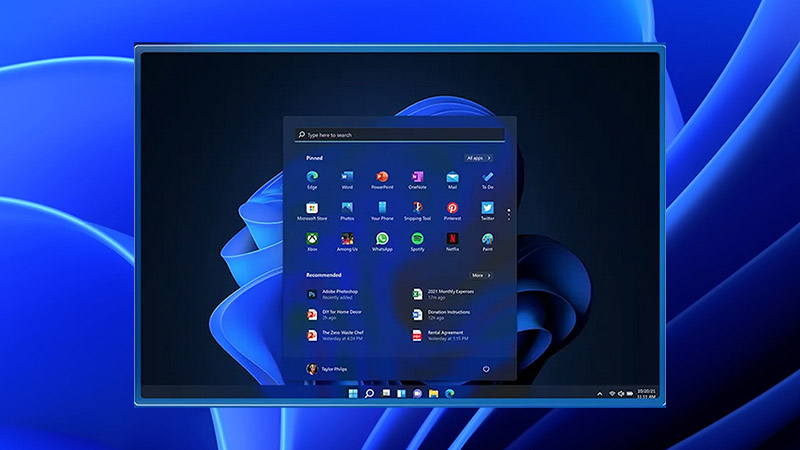
Windows 11 introduced a sleek Start menu featuring pinned apps, recommendations, and a built-in search bar. While visually modern, this redesign has not resonated with everyone. That’s why many users are looking for a Windows 11 classic Start menu that brings back the familiar layout and overall feel of previous Windows versions. In this guide, we will walk you through why users want to switch back, Windows 11’s built-in tweak, the best third-party tools to restore the classic Start menu Windows 11, and step-by-step instructions to make the change easily.
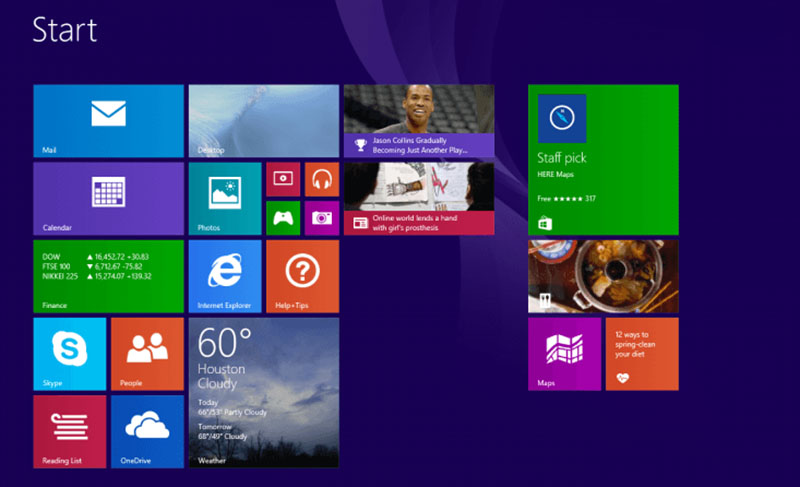
While the new Start menu looks refreshed and modern, many still prefer the traditional experience and want to make Windows 11 change Start menu to classic. Why so? Here are the main reasons.
Familiarity and Comfort: Many users are accustomed to the classic Start menu in Windows for years. This familiar structure allows users to locate programs quickly.
Improved Productivity: The new Start menu often highlights recommendations that occupy more space. Switching to the classic Start menu Windows 11 reduces distractions and allows users to access frequently used apps faster.
Better Customization: The Windows classic Start menu allows deeper personalization, such as custom sorting, folder creation, shortcut additions, and theme adjustments.
Enhanced Accessibility: The straightforward list format is easier for keyboard navigation. It’s also more user-friendly for individuals with visual or usability challenges.
While many users want to adopt the Windows 11 classic Start menu, Microsoft does not provide a built-in option to fully restore it. The system only offers a few customization settings that help reduce clutter and simplify the design. Here’s what you can do:
Unpin unwanted apps/recommendations: Right-click pinned apps and select Unpin from Start. To remove suggestions, go to Settings > Personalization > Start and disable recommendations. This might create a cleaner Windows 11 classic Start menu feel.
Use the “All apps” view: Click All apps in the Start menu to access an alphabetical program list; this might resemble the traditional layout.
Resize the Start menu vertically: Drag the top edge upward to display more apps, though customization options remain limited.
Use keyboard shortcuts for search: Press Win + S or Win + Q to quickly launch apps without navigating the menu.
It is worth noting that Microsoft does not offer a true classic mode. There is no classic Start menu Windows 11 download pack, either. To fully make Windows 11 change Start menu to classic, third-party tools are typically required.
While built-in options offer minor changes, third-party tools can make Windows 11 change Start menu to classic styles easily. In this part, we will introduce 3 best tools that allow you to do so.
1. iTop Easy Desktop
How to get classic Start menu in Windows 11 for free? Check out iTop Easy Desktop, an all-in-one solution designed for users who want both a Windows 11 classic Start menu and a cleaner workspace. With just a few clicks, you can easily change Windows Start menu to classic styles that resemble Windows 7/10. It also offers additional layouts, such as transparent and side-by-side styles, giving you more flexibility for Start menu personalization.
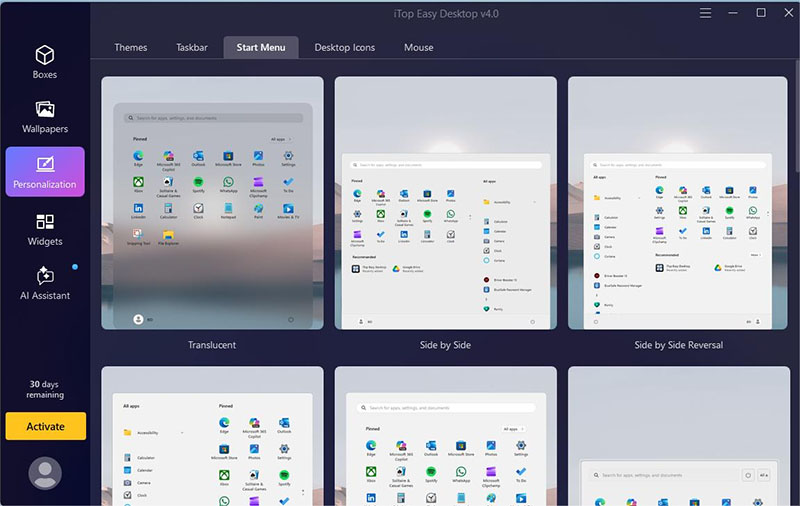
Beyond the Start menu, iTop Easy Desktop provides rich personalization options. Users can customize themes, adjust taskbar appearance, modify desktop icons, and even personalize mouse effects to create a cohesive and visually comfortable Windows environment based on their preferences.
Pros:
Windows 11 change Start menu to classic for free
Combine Start menu customization with desktop organization
Support productive widgets and wallpapers
Free software without annoying ads
Lightweight and regularly updated
Cons:
More focused on desktop organizer functions
2. Open-Shell
Open-Shell is a free and open-source tool that can restore classic Start menu Windows 11. Its original Classic Shell project lets users choose between Windows 7, Windows XP, or clean single-column layouts. Users can also enjoy customizable skins, smooth animations, and enhanced search functionality.
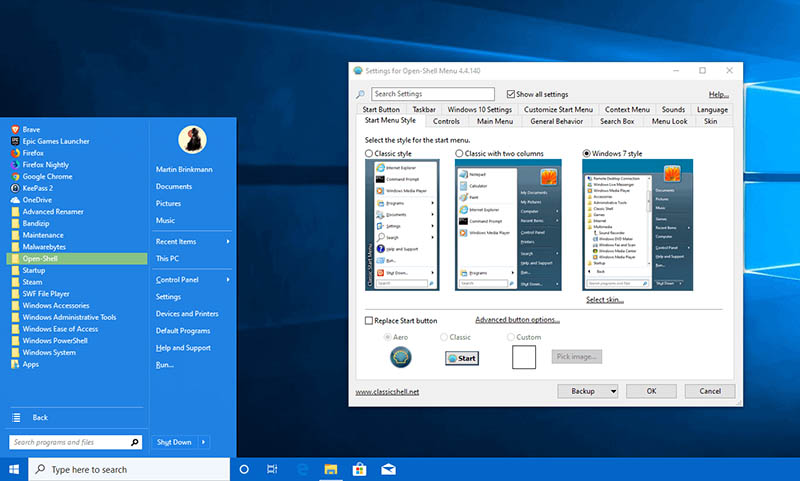
For users who want to customize Windows 10 Start menu, Open-Shell remains a popular choice as well, thanks to its deep configuration options. In addition to Start menu customization, Open-Shell can restore classic taskbar elements, allowing users to create a more consistent and familiar desktop appearance across Windows versions.
Pros:
Completely free for Windows 11 classic Start menu
Frequent community-driven updates
A wide selection of custom skins
Support Start menu and File Explorer integration
Minimal resource usage for smooth performance
Cons:
The interface may feel overwhelming
Major Windows updates can occasionally cause conflicts
3. Stardock Start11
Stardock Start11 is a powerful tool that can fully restore the classic Start menu Windows 11 with professional-grade customization options. It supports multiple Start menu styles, including Windows 7 and Windows 10 layouts. You can easily bring back structured app lists and traditional navigation behavior to achieve a more authentic and classic Start menu for Windows 11.
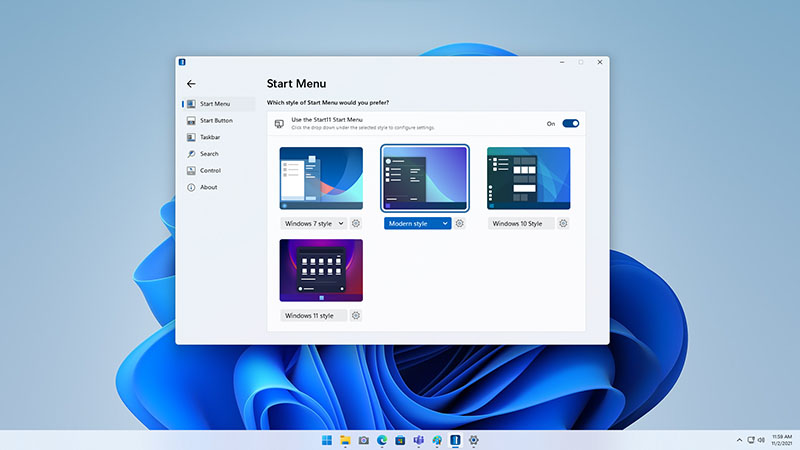
Start11 offers extensive control over the overall interface. Users can adjust colors, transparency, icon sizes, and menu layouts. It also supports pinning files, restoring classic context menus, and repositioning the taskbar to suit different workflows. With deep integration into the Windows search engine, it delivers a smoother search experience.
Pros:
Extensive styles and themes for a personalized classic Start menu on Windows 11
Lifetime updates included with purchase
Enhances overall UI with layout refinements
User-friendly interface for fast and easy setup
Cons:
Paid software, unlike free alternatives
Limited focus on desktop organization features
For those who want to make Windows 11 change Start menu to classic hassle-free, iTop Easy Desktop stands out as the No.1 choice. Here's how to get the Windows 11 classic Start menu with just a few clicks.

- iTop Easy Desktop - Keep Your Desktop Organized
-
- Box desktop icons to declutter your workspace
- Manage documents, games, media files, etc., at 1 click
- Add calendar, clock and other widgets to desktop
- Locate any file you want instantly with search box
Step 1. Download and install the iTop Easy Desktop on your Windows 11 PC.
Step 2. Navigate to Personalization on the left and choose the Start menu tab on top.
Step 3. Select the Windows 10 Start menu style to modify the look instantly.
That’s it. When you find the tweaks for Windows 11 classic Start menu not working, iTop Easy Desktop is the simplest tool to make the change instantly!
While Windows 11 classic Start menu improves navigation, you can take it a bit further and enhance the overall experience with iTop Easy Desktop. As the best desktop organizer, it’s a user-friendly desktop management tool that can improve both aesthetics and overall organization, making daily computer use more comfortable and efficient.
Top Easy Desktop can automatically sort desktop icons into customizable boxes based on file type or usage. Combined with practical widgets and curated wallpaper galleries, it keeps files, shortcuts, and folders neatly arranged while boosting daily productivity. It helps users create a cleaner, more efficient workspace without complicated setup or technical knowledge.
Tip: Learn how to remove Recycle bin from desktop and maintain a cleaner look using iTop Easy Desktop.
The Bottom Line
If the modern Start menu is not your thing, switching back to the classic look can make your life easier. So, how to get the Windows 11 classic Start menu? With tools like iTop Easy Desktop, Open-Shell, and Start11, you can bring back the familiar layout in just a few clicks. But if you want the simplest and the most beginner-friendly option, iTop Easy Desktop is a great place to start. Download it and enjoy a cleaner Windows experience again!
- iTop Easy Desktop - Keep Your Desktop Organized
-
- Box desktop icons to declutter your workspace
- Manage documents, games, media files, etc., at 1 click
- Add calendar, clock and other widgets to desktop
- Locate any file you want instantly with search box