-
iTop Easy Desktop - No.1 Desktop Organizer for Windows
-
Automatically organize and customize Windows desktop. Make your messy desktop look clean and professional within seconds.

How to Remove Recycle Bin from Desktop in Windows 10/11 [4 Methods]
Learn how to remove Recycle Bin from desktop on Windows 11 or 10 easily with Windows settings, Registry tweaks, Group Policy Editor, and one-click tools.
Some users want to know how to remove Recycle Bin from desktop for a clutter-free desktop, where icons don’t compete for attention, and the workspace feels calmer. Others might simply need to prevent accidental deletions or just for aesthetic reasons. Windows offers multiple ways to hide or remove it, but the options aren’t always obvious, especially for those who aren’t familiar with system settings. This guide walks you through three official Windows methods on how to remove trash bin from desktop, along with a one-click solution without guesswork.
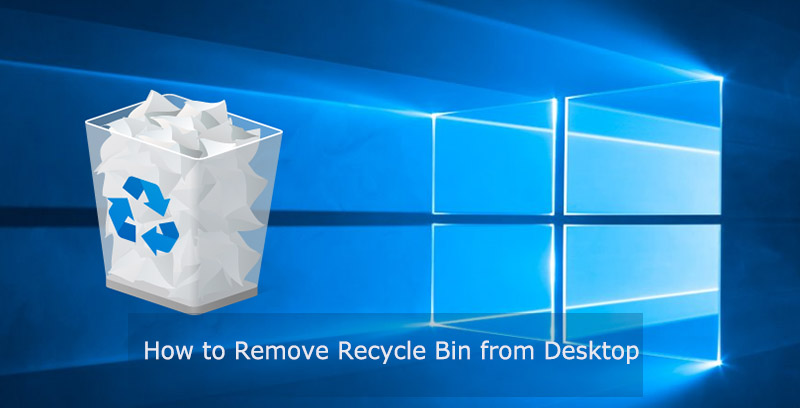
Your desktop is often the first place you interact with when using Windows, and too many icons can make it feel messy or distracting. That’s one of the main reasons why many users remove desktop shortcuts, as well as the trash bin. By understanding the following main reasons, you can choose the method that fits your needs best without compromising access when you actually need the bin.
Minimalist and uncluttered look: Without the Recycle Bin on screen, your desktop feels lighter, so you can focus on the files and folders you use most. Knowing how to remove Recycle Bin from desktop helps achieve this instantly.
Prevent accidental deletions: Dragging files into the bin by mistake happens more often than people realize. Learning how to remove trash bin from desktop adds a safety layer for sensitive documents.
Customized appearance and workflow: Users who tweak wallpapers, shortcuts, or productivity setups often wish to figure out how to get recycling bin off desktop so the layout stays consistent and visually appealing.
If you prefer not to install extra software, Windows has built-in options to hide system icons, including the Recycle Bin. This method is straightforward and safe. Here’s how to remove Recycle Bin from desktop Windows 10/11 step by step.
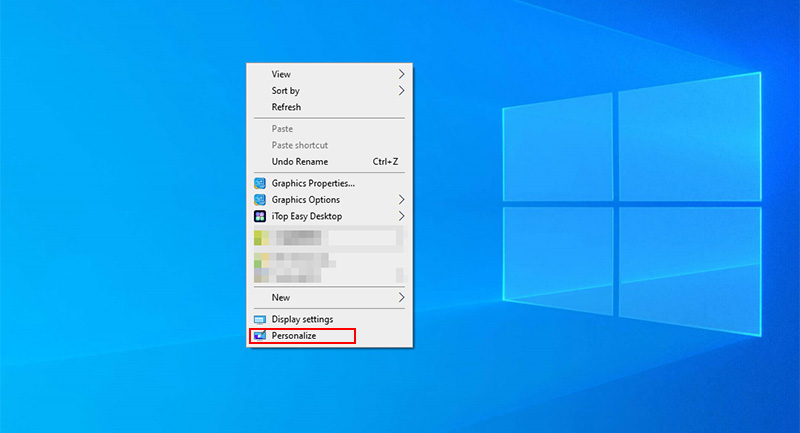
Step 1. Right-click on an empty area of your desktop and choose Personalize. This opens the main settings for desktop appearance and icon management.
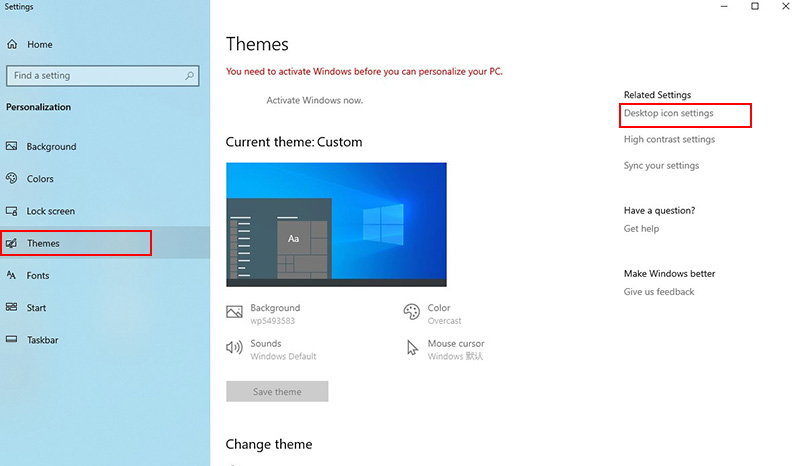
 Step 2. In the left-hand menu, select Themes, then click Desktop icon settings under the “Related Settings” section.
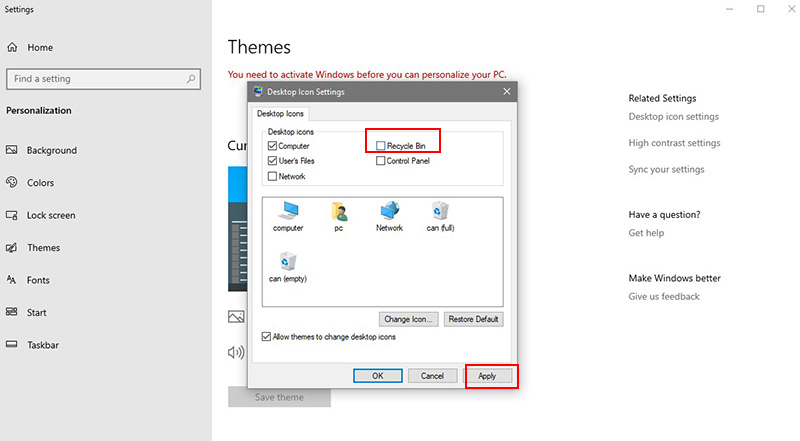
Step 3. In the window that appears, uncheck Recycle Bin. Click Apply to save changes. Your desktop immediately removes the bin icon.
Tips: This process shows the simplest way to hide the bin and illustrates how to remove trash bin from desktop without any third-party tools. If you later need it back, the same window allows you to restore it. Following these steps also explains how to get recycling bin off desktop safely for minimalistic setups.
For users who want a deeper level of control, the Windows Registry allows you to hide the Recycle Bin without touching other system icons. This method is precise and shows exactly how to remove Recycle Bin from desktop for users who want full control. It’s also a safe way to understand how to get recycling bin off desktop without affecting other icons.
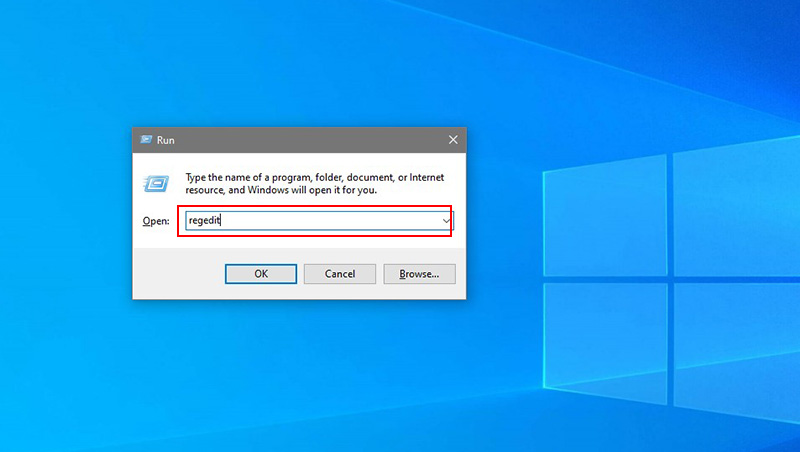
Step 1. Press Win + R to open the Run dialog, type regedit, and click OK to launch the Registry Editor. Confirm any prompts from User Account Control.
Step 2. Navigate to the following path:
HKEY_CURRENT_USER\Software\Microsoft\Windows\CurrentVersion\Explorer\HideDesktopIcons\NewStartPanel
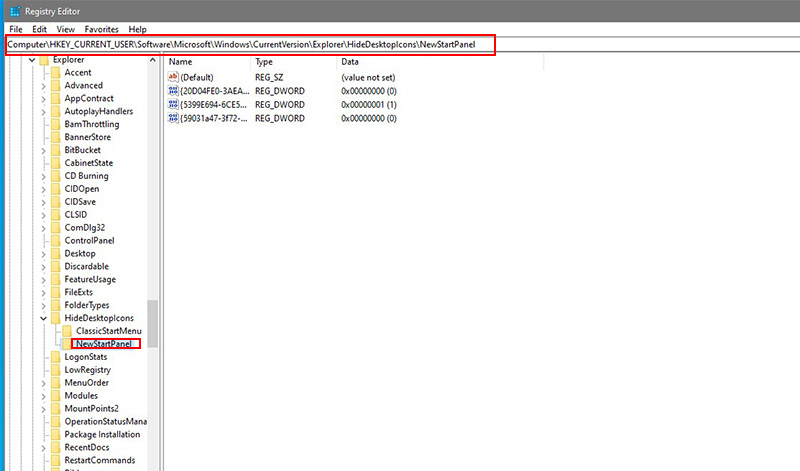
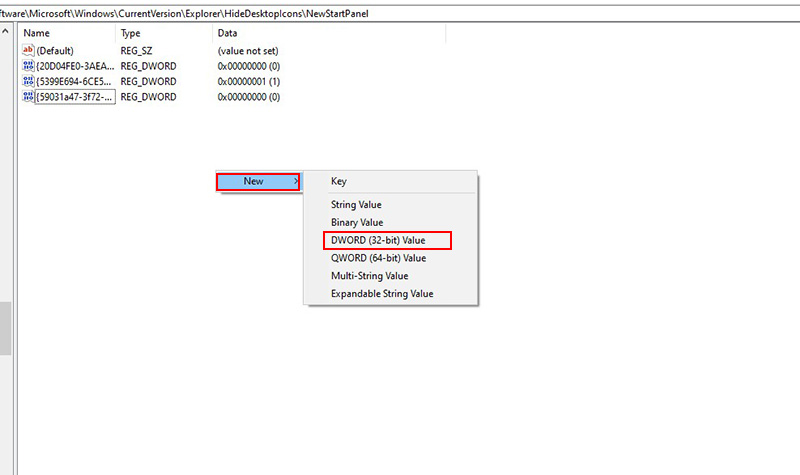
Step 3. In the Registry Editor, right-click the right pane, choose New > DWORD (32-bit) Value.
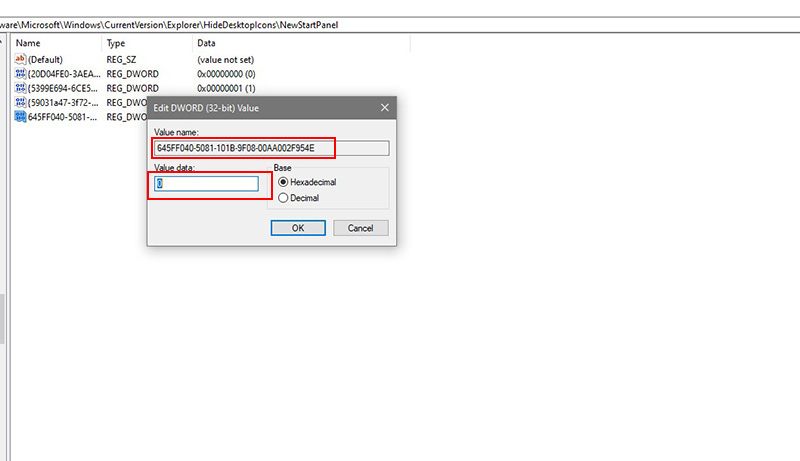
Step 4. Name it {645FF040-5081-101B-9F08-00AA002F954E}, set its value to 1, then close the editor and refresh your desktop or restart Windows to hide the Recycle Bin. That’s how to remove Recycle Bin from desktop Windows 11/10.
Managing multiple desktops or want a more system-wide approach? The Group Policy Editor offers a clean way to hide the Recycle Bin. The tool provides a reliable way to manage multiple machines or user accounts, and it clearly shows how to get recycling bin off desktop in a controlled, reversible manner.
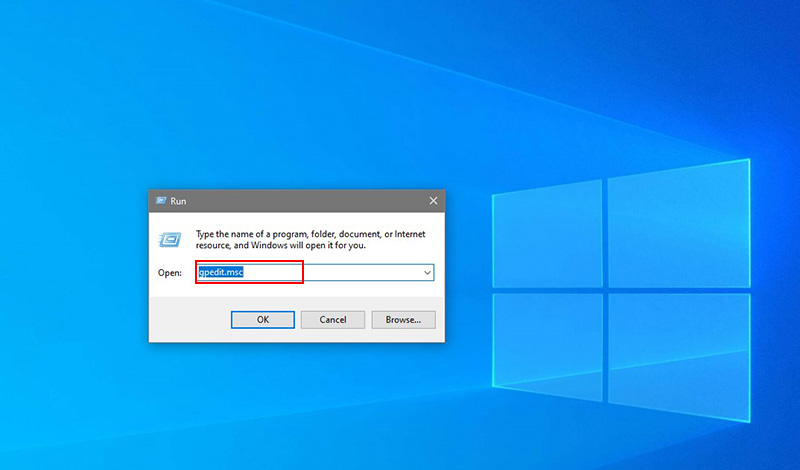
Step 1. Press Win + R, type gpedit.msc, and hit OK to open the Group Policy Editor.
Step 2. In the editor, navigate to: User Configuration > Administrative Templates > Desktop.
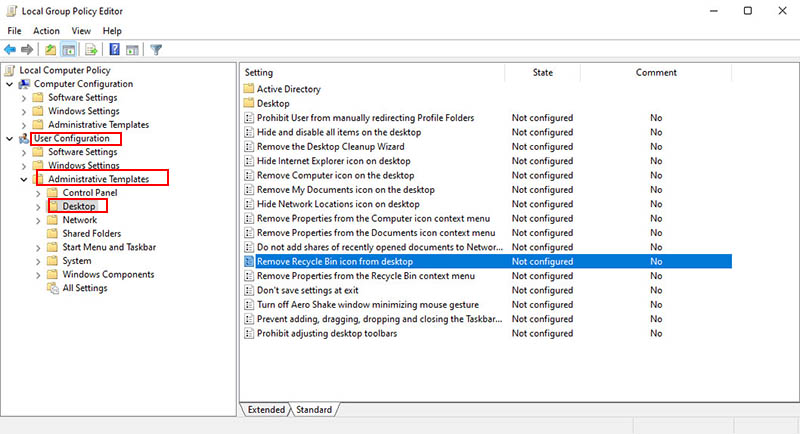
Step 3. Find the policy named “Remove Recycle Bin icon from desktop”. Double-click it, set it to Enabled, then click Apply or OK.
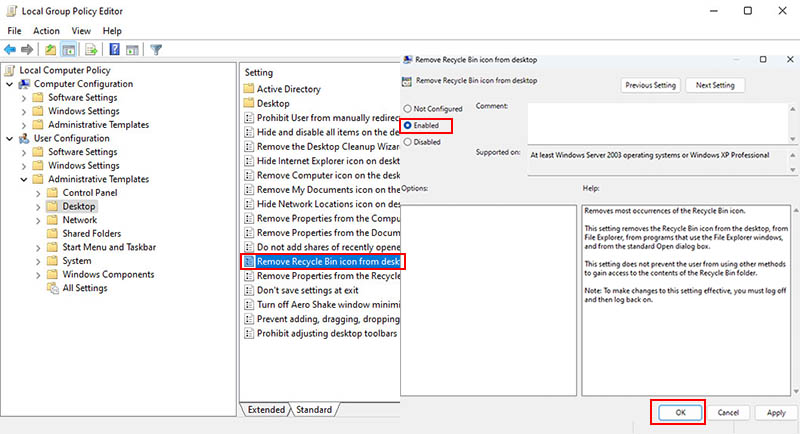
Step 4. Close the editor and either restart Windows Explorer or log out and back in. The Recycle Bin icon will disappear from your desktop immediately.
Combined with the previous guides, you now know how to remove trash bin from desktop for individual setups, and also how to remove Recycle Bin from desktop in a more administrative context.
Those who hope to remove Recycle Bin from desktop without dealing with Windows settings or the Registry, a one-click solution can save a lot of time. iTop Easy Desktop helps you manage icons automatically, which is a good choice for minimalists or anyone who rearranges their workspace frequently.

- iTop Easy Desktop - Keep Your Desktop Organized
-
- Box desktop icons to declutter your workspace
- Manage documents, games, media files, etc., at 1 click
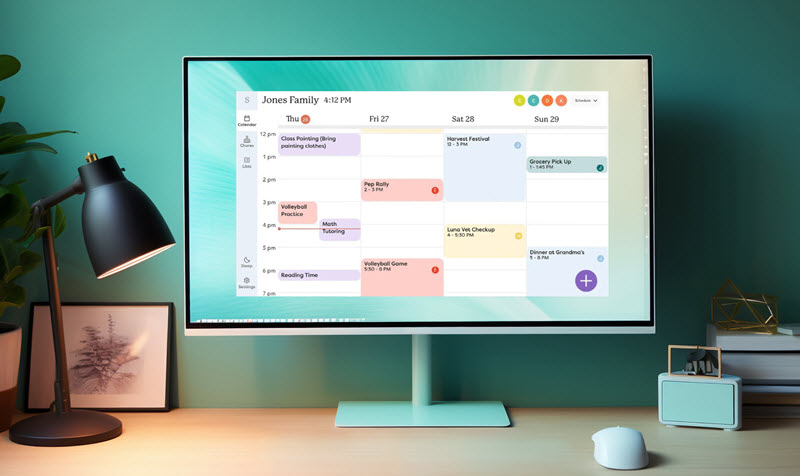
- Add calendar, clock and other widgets to desktop
- Locate any file you want instantly with search box
Key Features:
One-click hide/show Recycle Bin: iTop Easy Desktop can instantly hide icons from desktop or restore them, including the Recycle Bin and any other desktop icons. No manual tinkering required.
Free to use: Core features of iTop Easy Desktop are completely free, with no hidden charges or adware.
Compatible with multiple Windows versions: The best desktop organizer works on Windows 11, Windows 10, 8, and 7, so your desktop setup stays consistent.
Lightweight and responsive: Changes take effect quickly and keep your desktop smooth and responsive without noticeable lag or added system load, even when managing many icons or boxes at once.
Organize Desktop with Boxes: The desktop organizer for PC groups files, folders, and shortcuts into flexible desktop boxes automatically. You can personalize each box’s look, adjust colors, transparency, tab layout, and icon styling.
How to Use iTop Easy Desktop to Remove Recycle Bin from Desktop
Step 1. Download and install iTop Easy Desktop on your Windows PC. Once installed, launch the program.
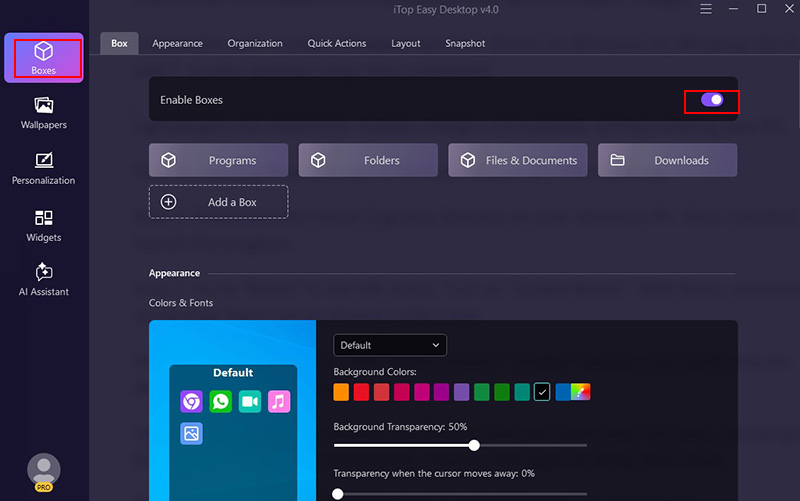
Step 2. Go to “Boxes” in the left menu. Turn on “Enable Boxes”. With Boxes activated, all desktop items can be placed inside a box.
Step 3. Still under “Boxes”, click “Quick Actions”. Enable “Double-click blank area on desktop to hide and show icons”.
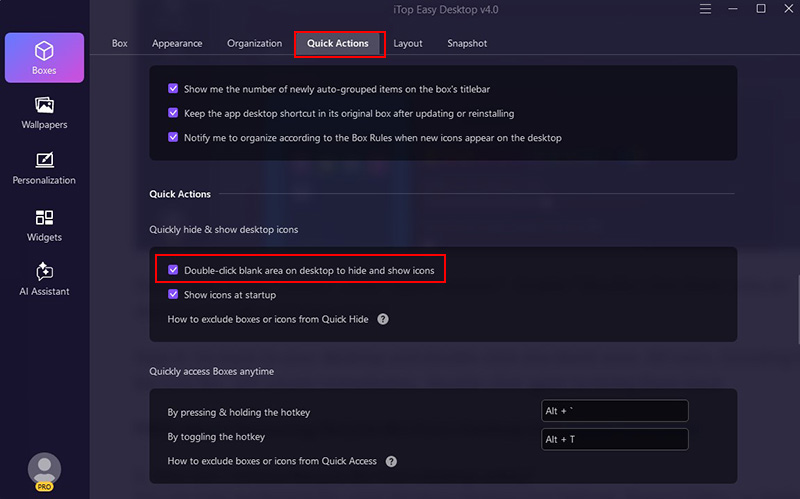
Step 4. Go back to your desktop and double-click any blank area. All icons, including the Recycle Bin, will vanish immediately. Double-click again to bring them back.
1. How can I remove Recycle Bin from desktop safely?
You can hide the Recycle Bin using Windows Desktop Icon Settings, Registry Editor, or desktop organizer tools like iTop Easy Desktop.
2. Can you remove Recycle Bin from desktop permanently?
Yes, you can remove Recycle Bin from desktop permanently using Registry or Group Policy changes. These methods stop the icon from appearing but are reversible.
3. How do I remove icons from my desktop that won’t delete?
Restart your PC and trying again. If it still won’t go, open Command Prompt as an administrator, navigate to your Desktop folder, and use the delete command.
4. Will removing the Recycle Bin from the desktop delete my files?
No. Hiding or removing the Recycle Bin icon only affects its visibility on the desktop. All deleted files still go to the Recycle Bin and can be restored or permanently deleted as usual.
5. How to get Recycle Bin back on desktop after hiding it?
If you want to get Recycle Bin back on desktop, reopen Desktop Icon Settings or iTop Easy Desktop and enable the icon. It will reappear instantly without affecting files.
The Bottom Line
Learning how to remove Recycle Bin from desktop can simplify your workspace and prevent accidental deletions. While Windows methods work, iTop Easy Desktop makes it faster and reversible, and desktop organization is efficient with one click. Try it today to keep your desktop clean, organized, and easy to manage