-
iTop Easy Desktop - No.1 Desktop Organizer for Windows
-
Automatically organize and customize Windows desktop. Make your messy desktop look clean and professional within seconds.

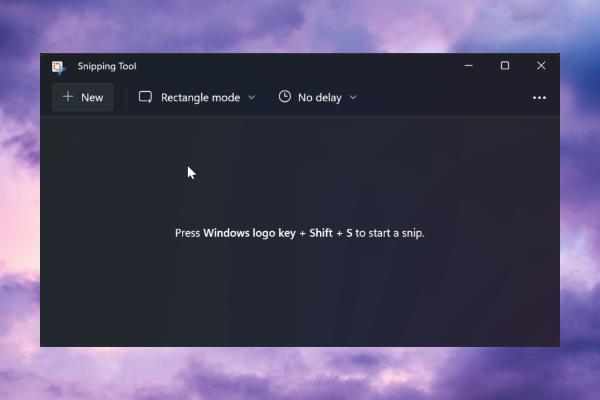
[Fixed] Snipping Tool Not Working Windows 11/10
Is your Snipping Tool not working on Windows 11 or 10? From shortcut failures to crashing, find proven fixes and a powerful alternative to capture your screen again.
We’ve all been there. You spot the perfect meme, need to capture an error message for IT, or want to save a recipe online. You instinctively hit the shortcut keys or click the app, but nothing happens. The Snipping Tool won’t open, the shortcut keys feel broken, or the program just freezes on you. It’s incredibly frustrating when a built-in tool lets you down. Don’t worry, you’re not alone. This post will show why you run into Snipping Tool not working and, more importantly, how to get it back up and running so you can get back to what you were doing.
Before we jump into fixing things, it helps to understand what might be going on under the hood. There isn't just one reason why the Snipping Tool does not work; it's usually one of a few common culprits. Let's break down why your Snipping Tool not working Windows 11.
Outdated Windows updates: This is a big one. Sometimes, a Windows update can accidentally introduce bugs that affect built-in apps like the Snipping Tool. Conversely, if your system is outdated, you might be missing a crucial patch that fixes a known issue where the Snipping Tool not working Windows 11 is a known side effect.
Third-Party program or shortcut conflict: Do you have other screenshot tools like ShareX, Dropbox, or even gaming overlays (like Discord or GeForce Experience) installed? These apps can sometimes hijack the same shortcut keys (like Windows Snipping Tool not working is a common symptom) or interfere with the Snipping Tool's ability to open.
Permission restriction: For the Snipping Tool to capture your screen, it needs certain permissions. If these were accidentally revoked—especially after a big system update—the app might open but appear blank or crash when you try to take a snip. This is a classic sign that your Snipping Tool not working is due to a permission conflict rather than a deeper system issue.
Corrupted Snipping Tool app files: Just like any other software, the Snipping Tool's files can become corrupted. This can happen after an improper shutdown or a glitchy update, leading to crashes or the app simply refusing to launch.
Random tech glitches: Sometimes, there's no big mystery. A temporary glitch in the system's user interface or a process that's stuck can prevent the Snipping Tool from working correctly.
Okay, let's get your screenshots back. We'll start with the quick and easy fixes and work our way through the more detailed ones. Try these in order, and hopefully, one of them will solve your Windows Snipping Tool not working issue.
1. Restart computer & relaunch Snipping Tool
It's time to start with the classic move for a reason: restart your PC. It sounds almost too simple, but you'd be amazed at what it clears up. A quick restart clears out the system memory (RAM) and stops any background hiccups that might be interfering with the tool. So go ahead, restart your PC, and then try opening the Snipping Tool again.
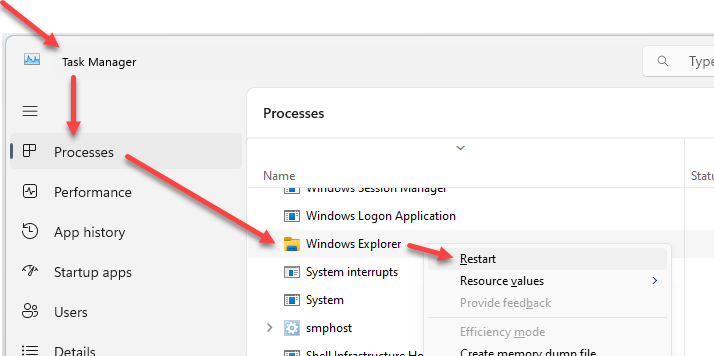
2. Restart Windows Explorer in Task Manager
If a full restart feels too disruptive, or if the Windows Snipping Tool shortcut not working is your main issue, try restarting Windows Explorer. This process controls the taskbar, start menu, and notification area, and restarting it can often unstick a frozen UI without a full reboot.
3. Update Snipping Tool to the latest version
Sometimes the issue isn't with Windows itself, but with the Snipping Tool app. If you're experiencing your Snipping Tool not working, it might be because you're running an outdated version. Microsoft releases updates for its Store apps separately from the main OS. So try to update your tool now.
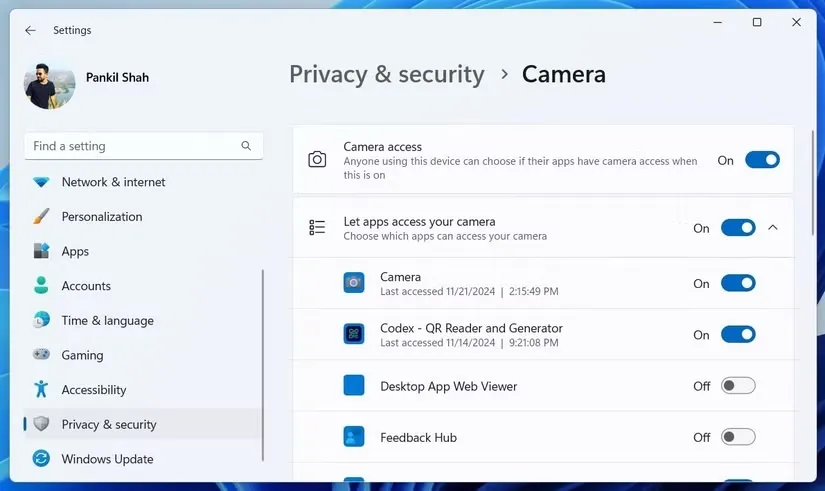
4. Check whether Snipping Tool is allowed in security settings
The Snipping Tool needs permission to work, especially for screen recording features, but also for basic functionality. If Snipping Tool does not work after a system update, it's worth checking whether these permissions have been reset or disabled.
5. Run Windows Troubleshooter
If you're dealing with the Snipping Tool not working issue, Windows has a built-in troubleshooter that can automatically detect and fix problems with various apps, including those from the Microsoft Store.
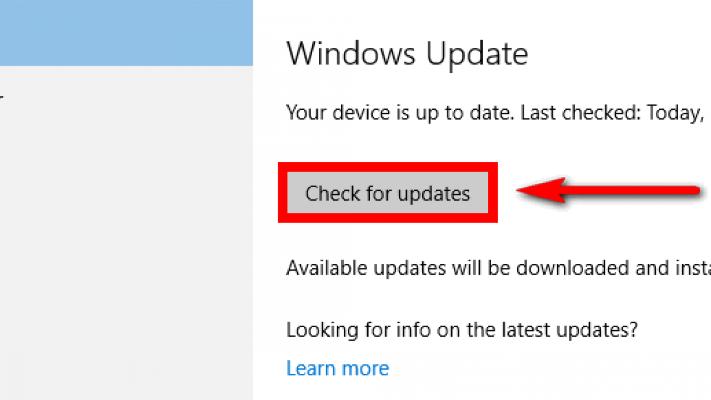
6. Install the latest Windows updates
As mentioned earlier, sometimes the fix comes directly from Microsoft. If the issue is widespread, they'll often release a patch. This is particularly common when asking "why is my Snipping Tool not working?" after a major OS update. Installing the latest Windows updates is also worth a try.
7. Close conflicting programs
If your Snipping Tool not working is specifically due to shortcut key failures, there's a high chance another program is intercepting them. Think about any app that uses overlays or custom shortcuts: Discord, GeForce Experience, PowerPoint, or even Spotify. Here is how to.
1. Start by closing these apps one by one from the system tray (the little arrow next to the clock).
2. After closing each one, try using the Snipping Tool shortcut (usually Win + Shift + S) to see if it starts working.
3. When you find the culprit, you can either keep it closed when you need to snipe or go into its settings to change or disable its conflicting hotkey.
8. Turn off Focus Assist
This is a sneaky one. Focus Assist is designed to silence notifications so you can concentrate. However, when it's on, it can also block the Snipping Tool notification that appears after you take a screenshot. If you're sitting there asking "why is my Snipping Tool not working?" despite it opening fine, this is likely why—you're just not seeing the preview or edit window pop up.
Also Read: How to Change Display Settings >>
You’ve tried everything, restarted a dozen times, and dug through every setting. But the Windows 11 Snipping Tool not working problem persists. It happens. Sometimes, instead of fighting with a stubborn system app, the smartest move is to use a tool that just works. While you could use Snip & Sketch, the reality is it shares the same underlying framework as the Snipping Tool, so you might run into the same issues. For a truly frustration-free experience, you need a fresh approach.
That’s where iTop Easy Desktop comes in. It’s not just a replacement for your broken screenshot tool; it’s an upgrade to your entire desktop experience. Think of it as a productivity powerhouse that just happens to include a flawless screen capture utility. When your default tools fail, iTop Easy Desktop is the smarter, more reliable choice.

- iTop Easy Desktop - Keep Your Desktop Organized
-
- Box desktop icons to declutter your workspace
- Manage documents, games, media files, etc., at 1 click
- Add calendar, clock and other widgets to desktop
- Locate any file you want instantly with search box
Here’s why you’ll love using it for screenshots and beyond, especially if you're currently dealing with Snipping Tool not working on your system.
Multiple capture modes: Need to capture a long webpage or a chat log? The scrolling window mode has your back. It also offers full-screen, window, and region capture.
Uncompressed output quality: Say goodbye to blurry, pixelated screenshots. iTop Easy Desktop captures images in crisp, original quality.
Built-in annotation and editing: Once you’ve taken a shot, you can instantly mark it up with arrows, text, shapes, and highlights—perfect for creating tutorials or pointing out details.
Extend desktop features: As a bonus, it also acts as a desktop organizer, automatically sorting your files into neat boxes. Plus, it comes with gorgeous wallpapers and useful desktop widgets like a calendar and weather forecast.
Ready to try it? It’s incredibly simple. Here’s how to use the screenshot feature. First, download and install iTop Easy Desktop from the official website.
Step 1: Download iTop Easy Desktop and complete the installation.
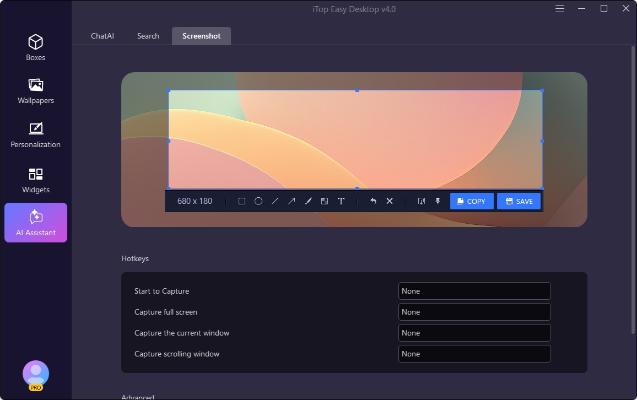
Step 2: Open the AI Assistant panel by pressing the Alt + X hotkey, then select Screenshot from the menu.
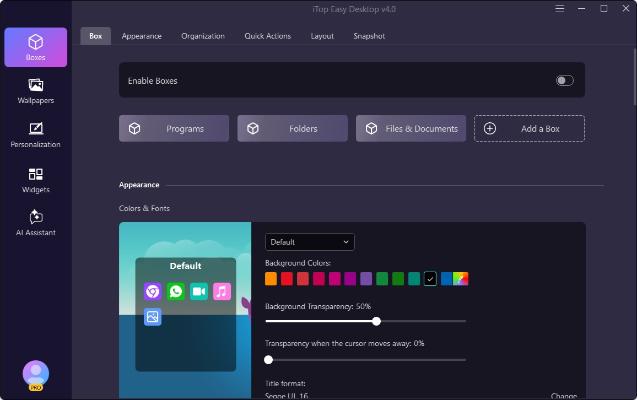
Step 3: Now you're all set! Use your customized hotkey whenever you need to capture anything—whether it's a full screen, a specific window, or a scrolling webpage.
The Bottom Line
A malfunctioning screenshot tool can really throw a wrench in your workflow. As we've covered, the reasons for Snipping Tool not working range from simple glitches and conflicting apps to corrupted files and permission issues. Hopefully, one of the built-in fixes got you back on track. But if you're still stuck, don't let it slow you down. An alternative like iTop Easy Desktop isn't just a backup plan; it's a powerful upgrade that offers reliable capture, superior editing tools, and a cleaner, more organized desktop. Give it a try, and take the frustration out of grabbing your screen for good.
- iTop Easy Desktop - Keep Your Desktop Organized
-
- Box desktop icons to declutter your workspace
- Manage documents, games, media files, etc., at 1 click
- Add calendar, clock and other widgets to desktop
- Locate any file you want instantly with search box