-
iTop Easy Desktop - No.1 Desktop Organizer for Windows
-
Automatically organize and customize Windows desktop. Make your messy desktop look clean and professional within seconds.

Windows Screenshot Shortcut Guide – Fast Ways to Capture Your Screen
Master every Windows screenshot shortcut, learn all Windows screenshot hotkeys, and compare top tools to improve capture and management on your Windows PC.
Taking screenshots is now part of everyday digital work and life. From saving online information to reporting software issues, knowing the right Windows screenshot shortcut and setting often-used personal Windows screenshot hotkeys helps you capture your screen in seconds. These keyboard-based methods eliminate the need to open extra software, which is the fastest way to take screenshots on your display.
But speed is only part of the story. Methods for setting a screenshot shortcut for Windows vary. An easier way to set and use a Windows screenshot shortcut also supports better organization and productivity. Then, what are Windows screenshot hotkeys, how to set them, and how to use them? keep reading.
A screenshot shortcut for Windows refers to a keyboard key combination that instantly captures screen content. Instead of opening programs like Paint or third-party apps, users rely on a Windows screenshot shortcut to grab the screen directly through the system. It’s the most efficient screenshot shortcut for PC users who value speed.
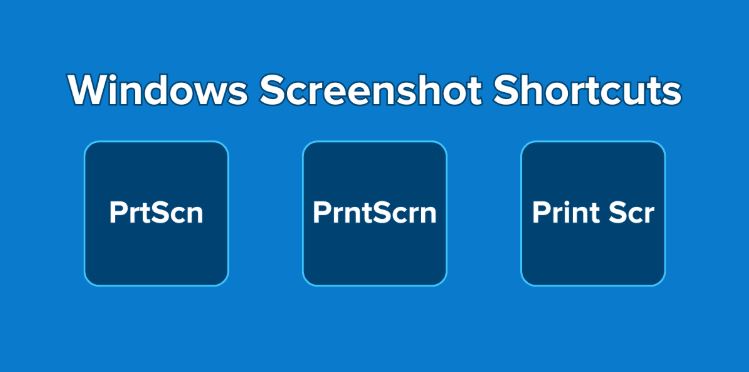
Traditional screenshot methods require more steps - open an app, paste the image, save the file. A Windows screenshot hotkey removes this friction. Some shortcuts capture the whole display, others focus on a single window or custom area. Understanding each Windows screenshot shortcut allows you to match the method to the task, improving workflow efficiency.
Windows provides several built-in Windows screenshot shortcut options that act as default Windows 11 screenshot shortcut commands, as well as for Windows 10.
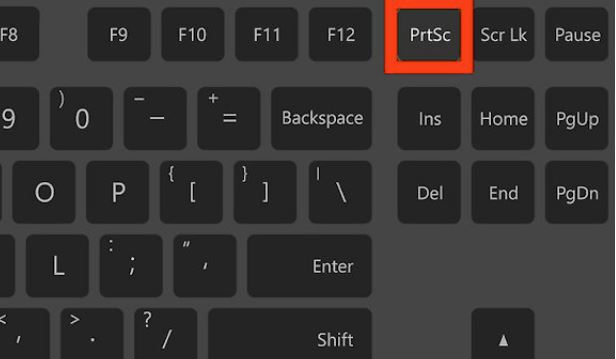
1. PrtScn
Captures the entire display to the clipboard. You paste it into an app. Best for quick copying into chats or documents.
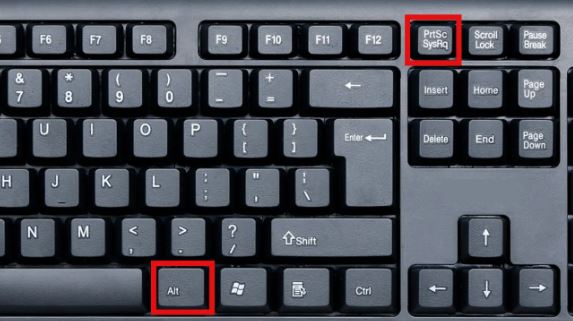
2. Alt + PrtScn
Captures only the active window. This Windows screenshot hotkey is perfect for software guides or error reporting.
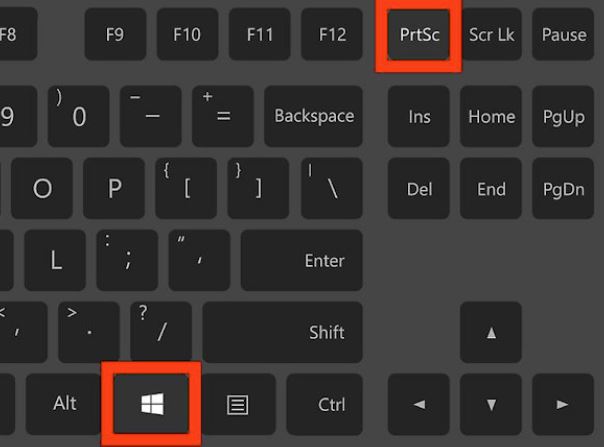
3. Win + PrtScn
A powerful Windows screenshot shortcut that automatically saves the image. The screen briefly dims to confirm capture. Ideal for long sessions or documentation.
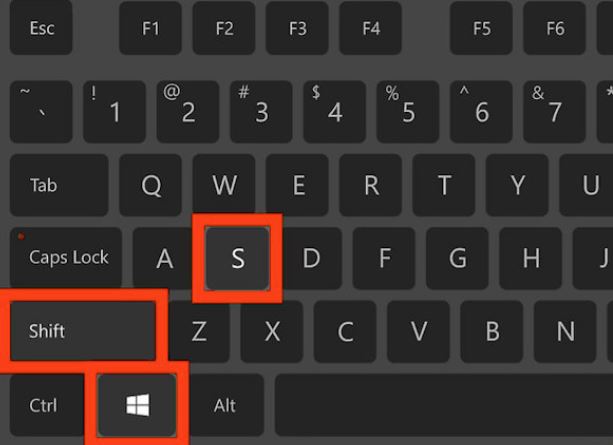
4. Win + Shift + S
Opens a flexible snipping overlay. Users can choose region shapes, making this one of the most practical screenshot shortcut for Windows options.
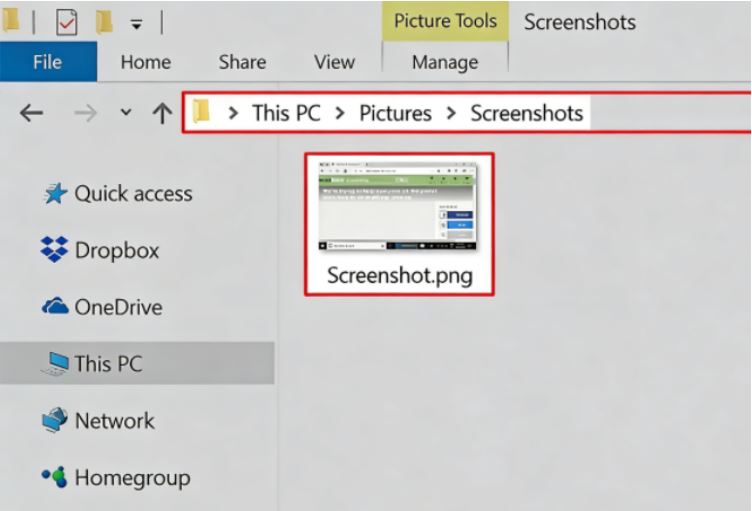
Where Your Screenshots Are Saved in Windows
When using the Windows screenshot shortcut Win + PrtScn, files are automatically stored in Pictures → Screenshots.
Clipboard captures from PrtScn or Alt+PrtScn must be pasted and saved manually. Snipping Tool captures stay in the notification history until saved. Knowing storage locations prevents lost files and improves workflow organization.
Although the Windows screenshot shortcut is faster, editing options are limited. You capture first and open and modify later. It suits quick communication and documentation.
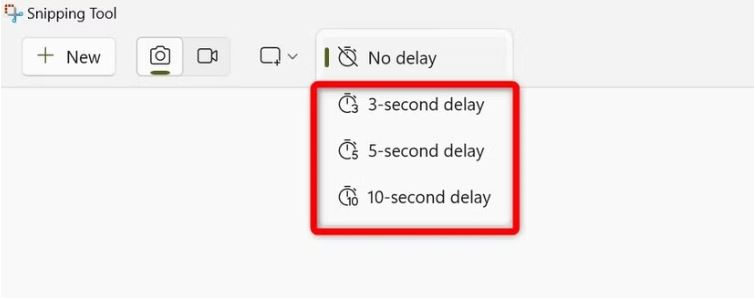
Snipping Tool expands beyond a simple screenshot shortcut for Windows. It offers delayed capture, pen annotations, highlighting, and cropping tools. When instructions or visual explanations are required, it outperforms standard hotkeys.
For speed, use shortcuts; for precision and clarity, use built-in tools - combining both builds an effective Windows screenshot shortcut routine.
On compact keyboards, the Windows screenshot shortcut PrtScn may require Fn since it may share space with F12 or F8, making it unreliable. Some systems even disable the key by default. This interrupts your normal Windows screenshot hotkey workflow.
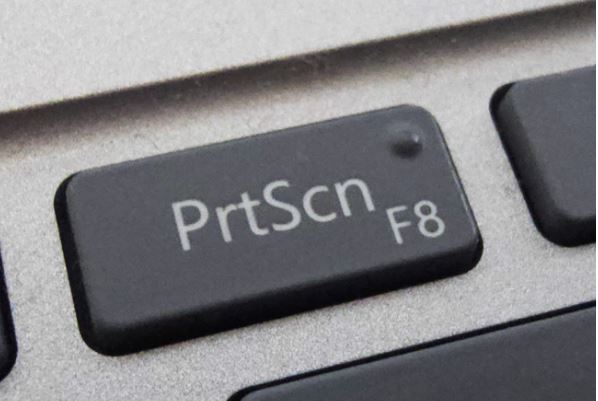
In such cases, switching to an alternative screenshot command for Windows options like Win+Shift+S helps. You can also use desktop enhancement tools like iTop Easy Desktop that allow custom shortcut mapping, improving reliability and flexibility.
iTop Easy Desktop is a free desktop management, customization, and efficiency enhancement tool for Windows systems. It not only improves the visual experience but also fundamentally optimizes the screenshot process.

- iTop Easy Desktop - Keep Your Desktop Organized
-
- Box desktop icons to declutter your workspace
- Manage documents, games, media files, etc., at 1 click
- Add calendar, clock and other widgets to desktop
- Locate any file you want instantly with search box
As a multi-functional desktop organizer for Windows, it provides a one-stop experience for desktop management, personalization, and efficiency enhancement. You can quickly organize and access programs, folders, and files using its "box" function. In the "Personalization" section, you can switch between various beautiful themes such as natural landscapes and underwater whales, and adjust colors and transparency to create a personalized desktop style.
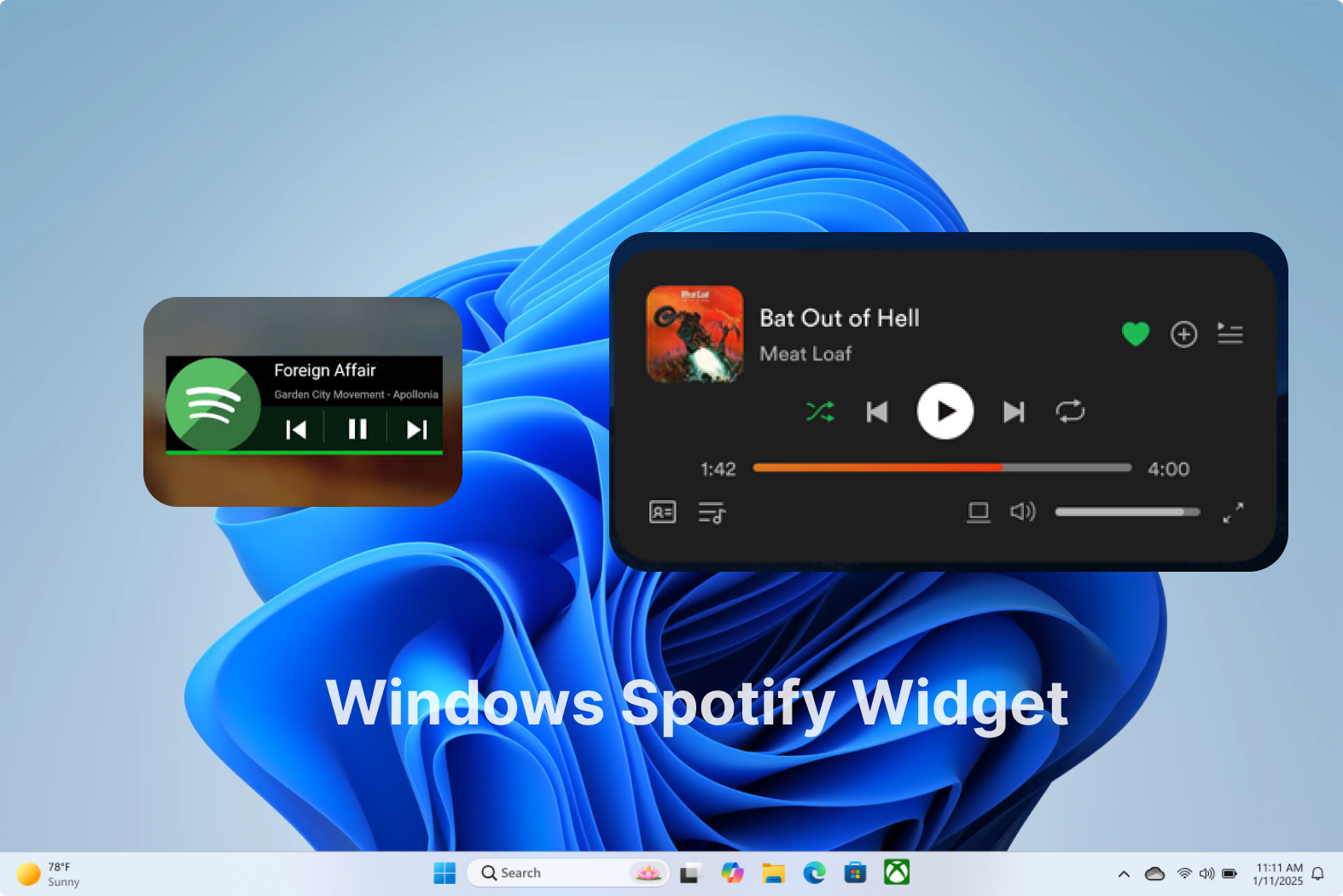
In addition, it offers a dedicated wallpaper section. You can set custom static or dynamic effects for your system in the wallpaper area, supporting 4K wallpapers for PC, or create your own custom wallpapers. It also includes useful components such as calendar reminders, a desktop calendar widget, a weather widget, and a clock widget for Windows 11 & 10.
How It Makes Windows Screenshot Shortcuts Easier
In terms of screenshots, iTop Easy Desktop has significantly enhanced the basic Windows screenshot shortcut. It not only supports custom hotkey settings but also automatically categorizes screenshots into preset management boxes, preventing screenshot files from piling up on the desktop or in cluttered folders. It can create categories based on different uses, such as work screenshots, study materials, and design resources, greatly improving screenshot retrieval efficiency.
Furthermore, it supports features like quick preview, renaming, and opening locations, making screenshots more than just simple images; they become truly manageable and organized units of information. Combined with its overall desktop organization capabilities, iTop Easy Desktop is a true desktop organizer for Windows, balancing aesthetics and efficiency, suitable for any user who wants to improve their Windows desktop experience.
Key features for Windows Screenshot Shortcuts:
Visual screenshot grouping
Cleaner desktop workflow
Improved multitasking
Custom hotkey setup
AI assistant support
Better file and screenshot access efficiency
With iTop Easy Desktop, capturing the screen becomes part of a structured desktop system rather than an isolated action. You can combine a custom Windows screenshot hotkey with automatic sorting, visual grouping, and flexible storage settings. This means every time you use a Windows screenshot shortcut, the image is not just captured - it’s already organized and ready for later use. Below is how to set it up and start using it efficiently.
Step 1. Install and open the tool.
Step 2. From the left, select AI Assistant > Screenshot.
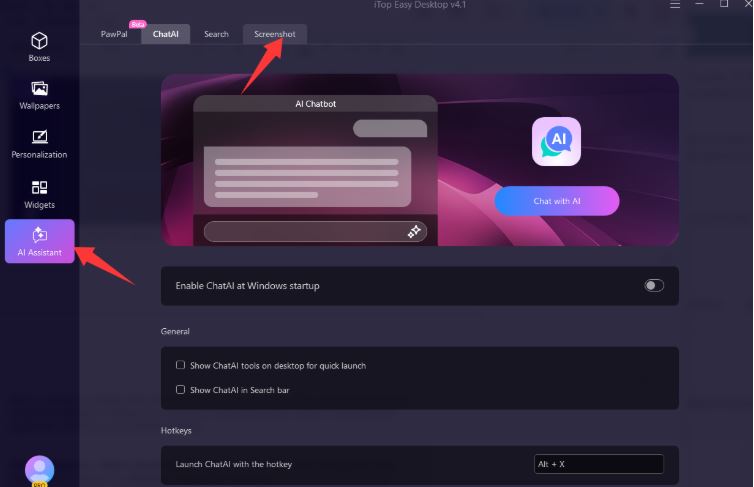
Step 3. Set your preferred capture hotkey to your preference.
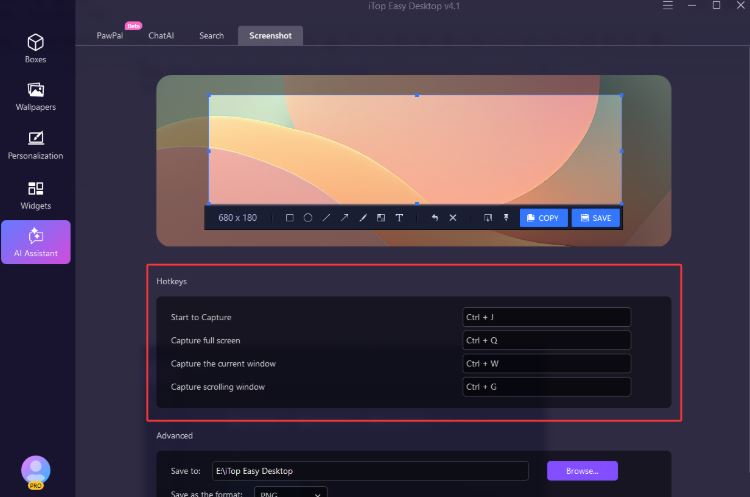
Step 4. Configure storage path and format in advanced settings. Then, you can use your set screenshot hotkeys to capture now. And your screenshots will be saved in the folder and organized in the Box you customized before.
Different tools enhance the Windows screenshot shortcut experience in unique ways. Some focus on editing, others on sharing or automation. Below is a comparison to help you choose.
Tool |
Best for |
Hotkey Support |
Organization |
Windows Built-in |
Quick capture |
Yes |
Low |
Snipping Tool |
Light editing |
Yes |
Low |
iTop Easy Desktop |
Management + capture |
Custom |
High |
Each tool supports the screenshot shortcut for Windows concept differently — built-in tools focus on simplicity, while iTop Easy Desktop extends capabilities for power users or better organizing needs.
The Bottom Line
Using the right Windows screenshot shortcut setup means faster captures, fewer interruptions, and better file organization. Built-in hotkeys handle quick needs, while tools expand control, editing, and desktop efficiency. A balanced approach creates a smoother daily workflow. Take screenshots and manage your desktop however you like.
- Related Articles for Reference