-
iTop Easy Desktop - No.1 Desktop Organizer for Windows
-
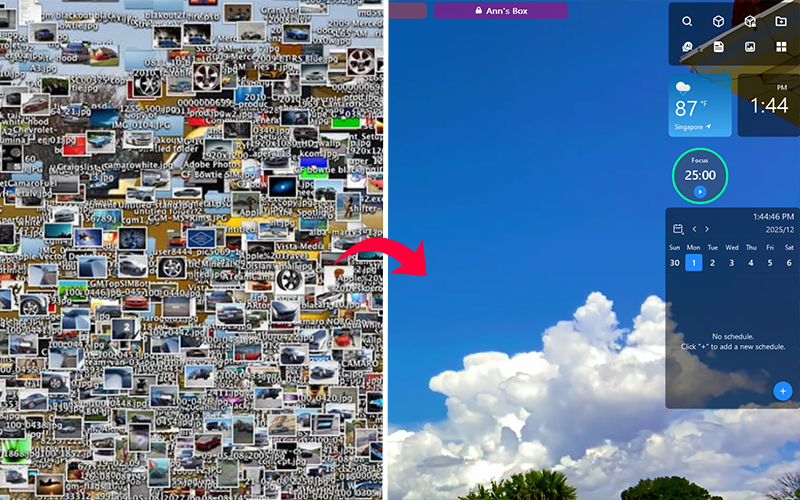
Automatically organize and customize Windows desktop. Make your messy desktop look clean and professional within seconds.

How to Make Transparent Taskbar Windows 11 Without Any Software?
Want to make the taskbar transparent in Windows 11? Follow the best 4 free ways to achieve transparent taskbar Windows 11 with or without any software.
A transparent taskbar adds a cool, minimalist touch to your desktop. It breaks the boundary of the solid block to pair well with the aesthetic wallpaper and reduces distractions letting you keep focus on you tasks. It is also recognized as a stylish design that suits the modern UI of your system, especially Windows 11.
How to make transparent taskbar in Windows 11? In this article, you can find 4 possible ways to turn the gray or black taskbar into transparent with no effort.
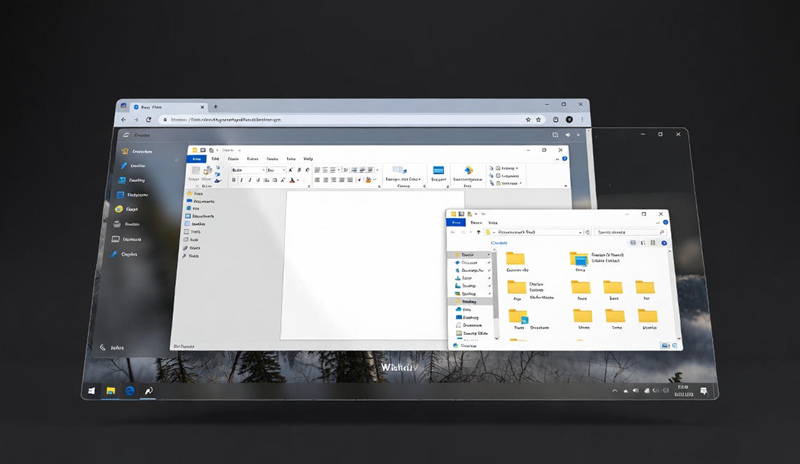
Luckily, Windows 11 offers a “transparency effects” option in Settings that makes windows and surfaces appear translucent. When you toggle on the option, the taskbar turns transparent automatically. Now, let’s get started.
Step 1. Launch Start Menu and select Settings. If you can’t find Settings in Star Menu, search Settings and open it. Otherwise, press the Windows icon + I on your keyboard to access Settings.
Step 2. Go to “Personalization” on the left sidebar and select Colors.
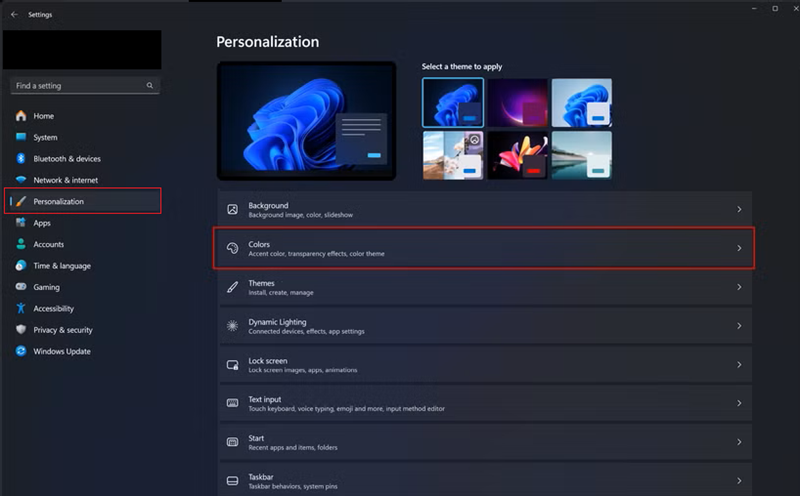
Step 3. In the “Colors” panel, turn on “Transparency effects”.
Step 4. Back to your desktop and the taskbar turns semi-transparent.
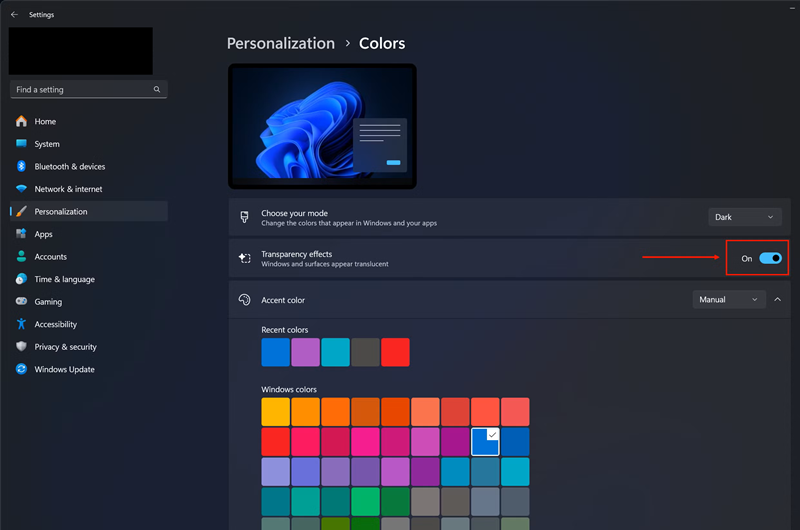
Notice: It is the most straightforward and official method to make taskbar transparent in Windows 11without any software. However, you can’t set the transparency level. If you need a customizable way to get a Windows 11 transparent taskbar, try other workarounds or using a third-party tool.
iTop Easy Desktop, the versatile desktop organizer for PC, simplifies how to make transparent bar on Windows 11. It offers a Personalization option that allows you to customize the style of the taskbar - be transparent, acrylic or blur - making it look consistent with your desktop. Additionally, it presets specially designed themes, start menu, icons and cursors which bring your Windows 11 desktop to the next level.
iTop Easy Desktop has a beginner-friendly design that navigates you to quickly find out how to transform the taskbar into a transparent appearance in Windows 11. Also, the steps below can walk you through better.
Step 1. Download the desktop organizer officially. Double click the .exe file and follow the instruction to install it on Windows 11.
Step 2. Open iTop Easy Desktop. Go to Personalization > Taskbar.
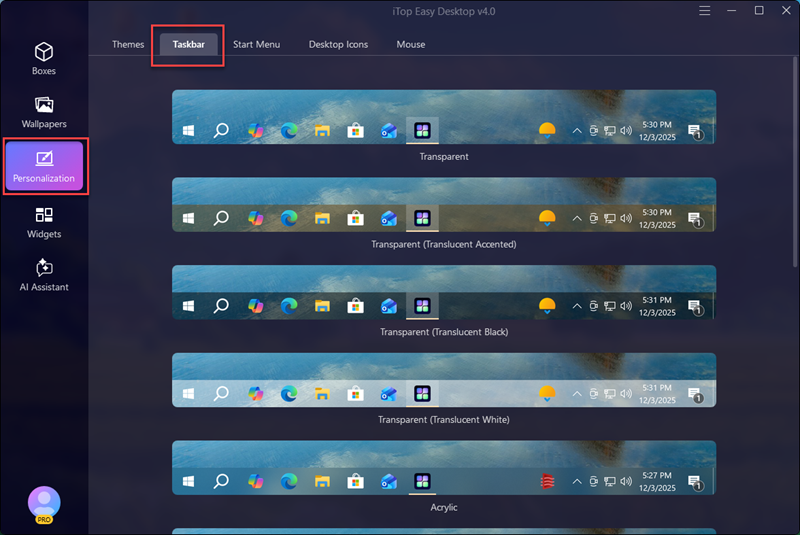
Step 3. Choose from the transparent styles. Pick Transparent if you need a fully transparent taskbar to get a better visibility of the wallpaper; use Transluce nt Accented to make the apps pinned to taskbar distinct; or select Translucent Black/White tailored to Dark or Light mode for Windows 11.
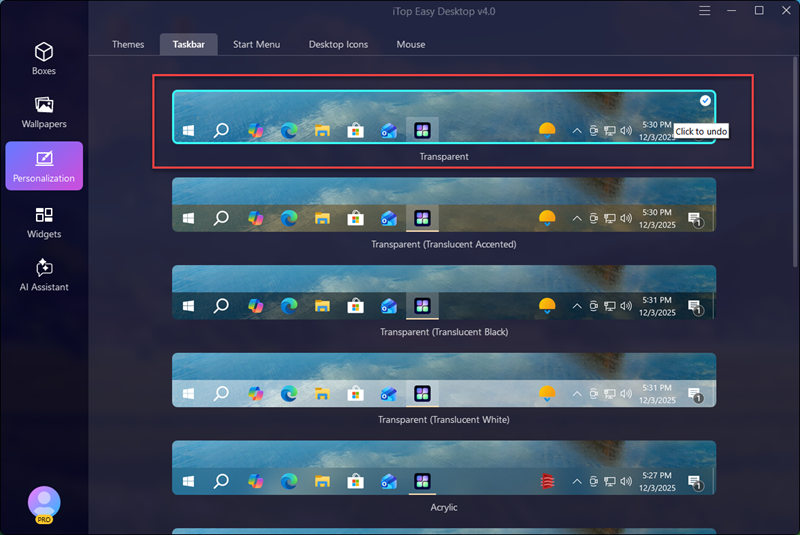
Step 4. Now, a check mark is shown on the selected style and your taskbar turns to be transparent instantly. You can also undo the transparent effect by re-clicking the style.

- iTop Easy Desktop - Keep Your Desktop Organized
-
- Box desktop icons to declutter your workspace
- Manage documents, games, media files, etc., at 1 click
- Add calendar, clock and other widgets to desktop
- Locate any file you want instantly with search box
Advanced users can perform manual adjustments in Registry Editor to ensure a transparent taskbar Windows 11 when the inbuilt “Transparent effects” not working in Settings.
There are two methods to make the taskbar transparent in Windows 11 using Registry Editor.
Method 1: Adjust the Value for Themes
Step 1. Search Registry Editor and launch it. You can also press Win+R and input “regedit” command to open it.
Step 2. Input the following path into the search address bar in Registry Editor.
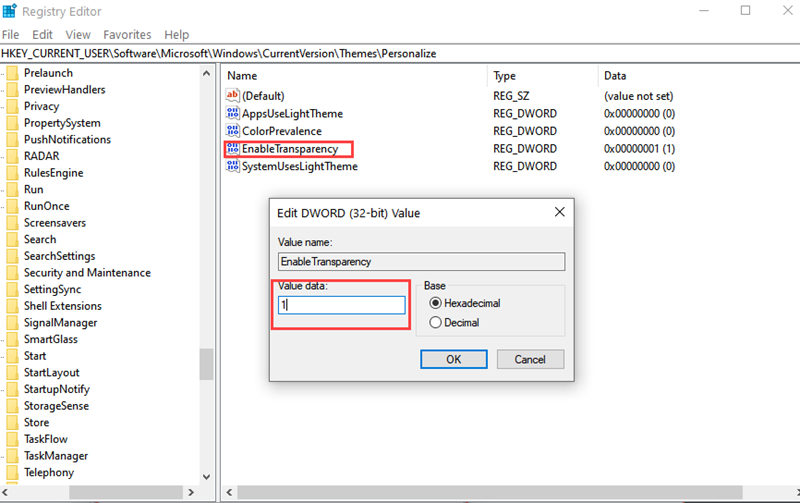
HKEY_CURRENT_USER\Software\Microsoft\Windows\CurrentVersion\Themes\Personalize
Step 3. Double click EnableTransparency. Change the value date to 1 and click OK to turn on “Transparency effects” for Windows 11.
Method 2: Create a New Transparency Value for Windows Explorer
Step 1. Get access to the Registry Editor at the start.
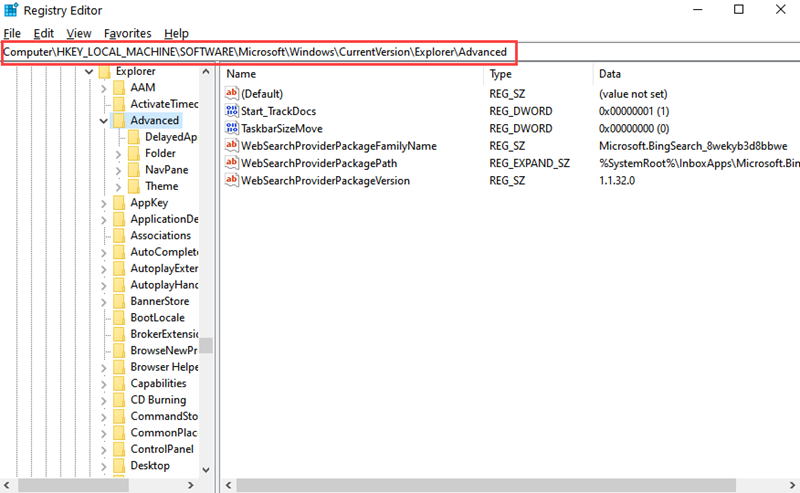
Step 2. Navigate to the following path in Registry Editor: HKEY_LOCAL_MACHINESOFTWAREMicrosoftWindowsCurrentVersionExplorerAdvanced
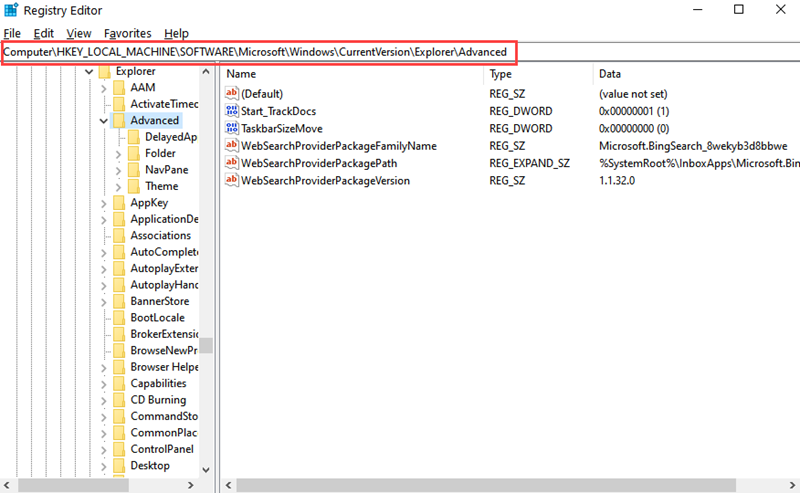
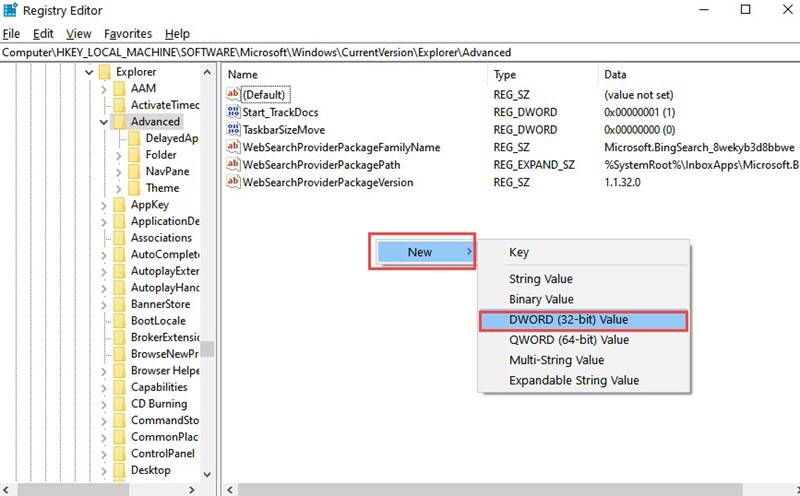
Step 3. Right-click any empty space in the right panel.
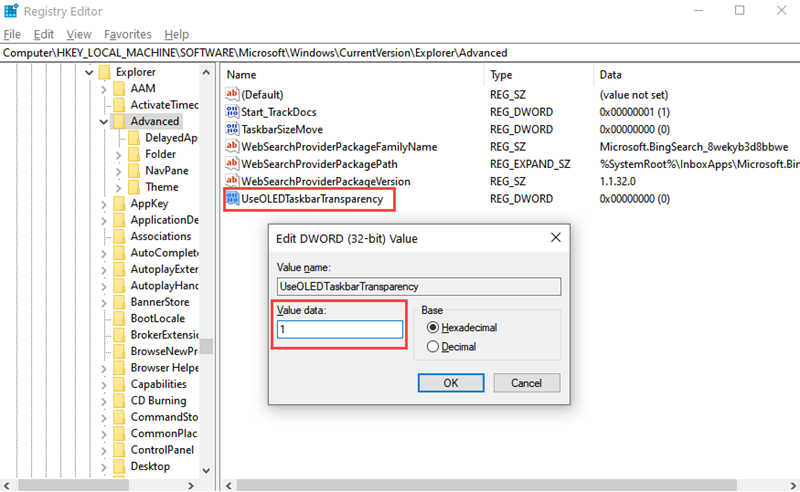
Step 4. Select New > OWORD (32-bit) Value to create a new value and rename it as UseOLEDTaskbarTransparency.
Step 5. Double click the value and set the value data as 1. Click OK.
Step 6. Restart your computer and check the transparent taskbar on your Windows 11.
Notices:
1.It may affect the system if you don’t edit the value in Registry Editor properly. Highly suggest making a backup of the Registry Editor before editing.
2.You can’t adjust the transparency level with Registry Editor as well. The taskbar is translucent, the same effect as you enable transparency in Settings.
TranslucentTB is another lightweight utility available to personalize the taskbar appearance in Windows 11 and 10, no activation required. It is primarily developed to make transparent taskbar ideal for those who would like to build a sleek and modern look on desktop.
TranslucentTB delivers full transparency control and color cusutomization for taskbar. It presets 5 taskbar looks and a color palette used to set a specific color and adjust the level of transparency. Besides transparent taskbar, it also enables you to make transparent Start Menu and Search panel.
How to make taskbar transparent in Windows 11 with TranslucentTB? The tutorial can lead you out.
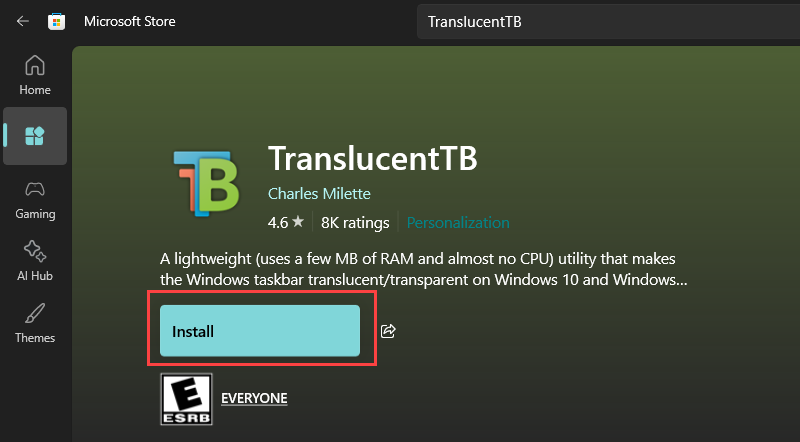
Step 1. Open Microsoft Store. Search TranslucentTB and install it.
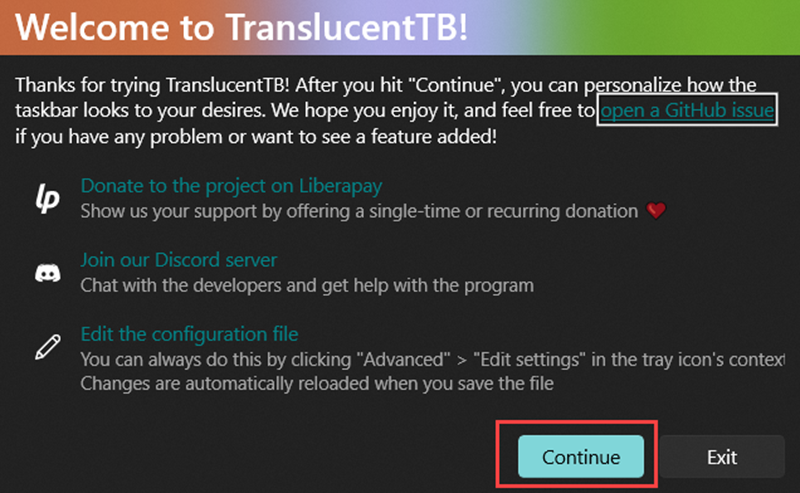
Step 2. After the installation completes, a pop-up appears, click “Continue” to add the utility to system tray. And now, you will find that the taskbar has turned transparent automatically.
Step 3. Find the TranslucentTB icon in system tray and right-click it to access advanced settings.
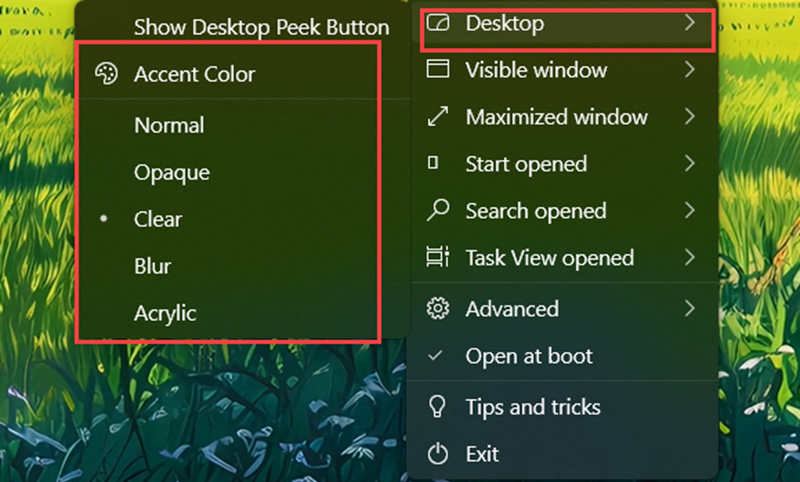
Step 4. Click on “Desktop” and there are several options to customize the taskbar.
Normal: Original taskbar. If you have enabled “Transparency effects”, it keeps the translucent look.
Opaque: Not transparent at all.
Blur: Blurred taskbar.
Clear: Fully or 100% transparent.
Acrylic: Crystal-look or glass-look transparency.
Accent Color: Adjust color and transparency level of taskbar.
Step 5. Choose from the options and make the taskbar appearance to suit your preference.
Conclusion
Transparent taskbar plays a significant role to design a clean and theme-matched desktop. Windows 11 provides the native transparency setting helping you to turn the taskbar into translucent without any software. For advanced settings, you still need a third-party application to make transparent taskbar Windows 11. iTop Easy Desktop includes pre-designed styles across a wide range of transparent looks while TranslucentTB empowers you to manually customize the levels and colors of transparency. Pick your favorite according to your needs.
- iTop Easy Desktop - Keep Your Desktop Organized
-
- Box desktop icons to declutter your workspace
- Manage documents, games, media files, etc., at 1 click
- Add calendar, clock and other widgets to desktop
- Locate any file you want instantly with search box
- Related Articles for Reference