-
iTop Easy Desktop - No.1 Desktop Organizer for Windows
-
Automatically organize and customize Windows desktop. Make your messy desktop look clean and professional within seconds.

How to Customize Desktop Icons: 3 Tested Free Methods
How to customize desktop icons? This blog introduces useful methods to help you with icon styling, plus the best tool for an enhanced desktop experience.
As we dive into 2026, it’s the perfect time to give your computer a fresh, modern look. Updating your desktop can boost productivity and make your workspace feel more personal. For instance, you can start with desktop icon customization, turning standard shortcuts into stylish, organized visuals. So, how to customize desktop icons? In this guide, we will show three free, tested methods to achieve a personalized desktop. Just follow along to learn how to transform your daily computing experience completely.
How to customize a desktop icon on a PC? The simplest way is to use Windows’ built-in system icon settings. It allows you to quickly change icons like This PC, Recycle Bin, and folders. The process is simple and beginner-friendly. Later, we will conclude the steps on how to make a custom desktop icon for your reference.
Windows primarily supports ICO files for icons, but you can also choose icons stored inside EXE or DLL files. For the best visual quality, especially on high-resolution or 4K screens, Windows recommends icons sized up to 256×256 pixels. Smaller sizes (32×32 or 48×48) are automatically handled by the system for different views; your desktop can stay sharp and consistent across layouts.
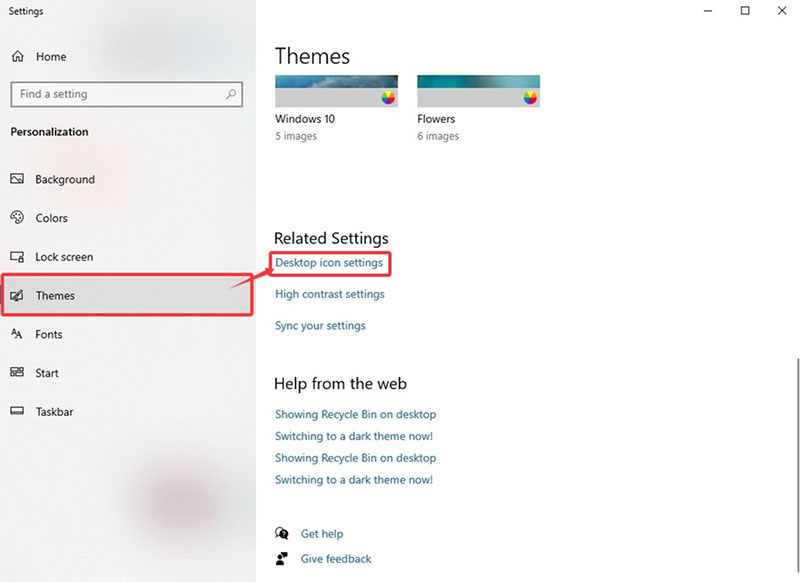
How to customize desktop icons on PCStep 1. Press Windows + I to open Settings, then navigate to Personalization > Themes. Scroll down and select Desktop icon settings under settings.
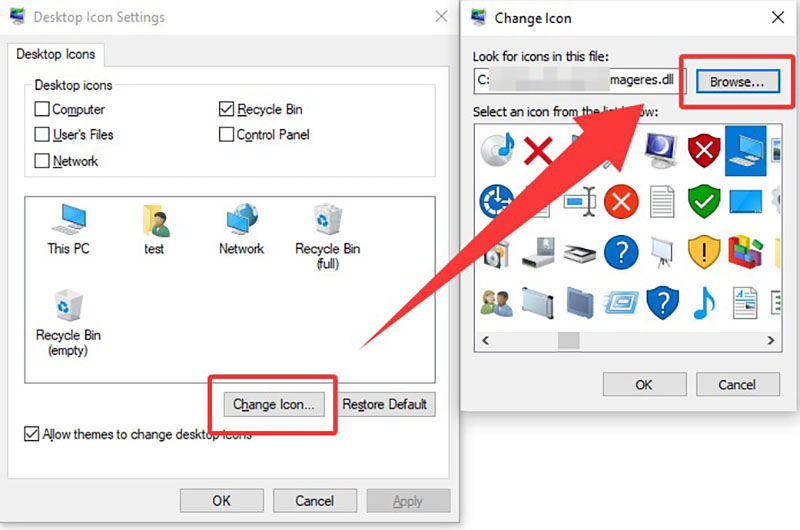
Step 2. Choose a system icon (This PC, Recycle Bin, etc.), click Change Icon, pick an icon from the list, or browse a DLL/ICO file.
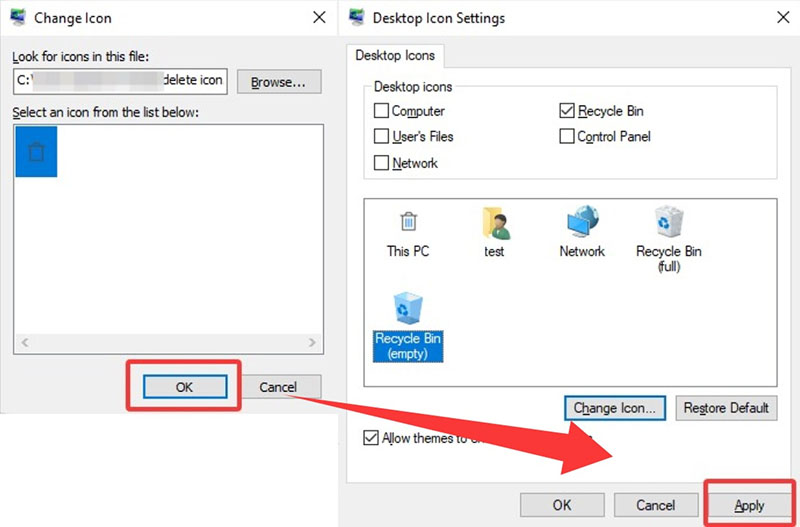
Step 3. Confirm your choice and apply the change to customize a desktop icon.
Pros:
Built-in and free feature without downloads
Quick access to a variety of system icons
Support high-resolution displays as well
Cons:
No further editing customization
Limited icon options
Can not apply to non-system apps
With the steps above, you should know how to customize a desktop icon easily. But what if you want to make your own icons and apply them to apps, folders, and shortcuts? It’s easy, but you will need to convert PNG images to ICO format first. So, how to make custom icons for Windows? There are plenty of free tools that allow you to do so. For instance, you can just upload a PNG to cloudconvert.com to create an ICO file. Websites like iconarchive.com also offer thousands of free icons, or you can make your own using image editors like GIMP or Photoshop.
How to customize desktop icons of your own
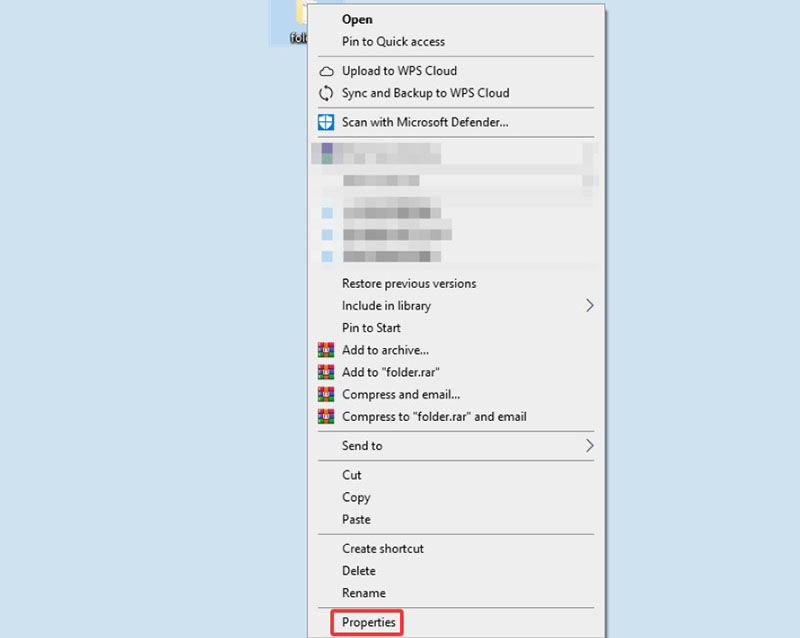
Step 1. Right-click the folder or shortcut you want to change and choose Properties.
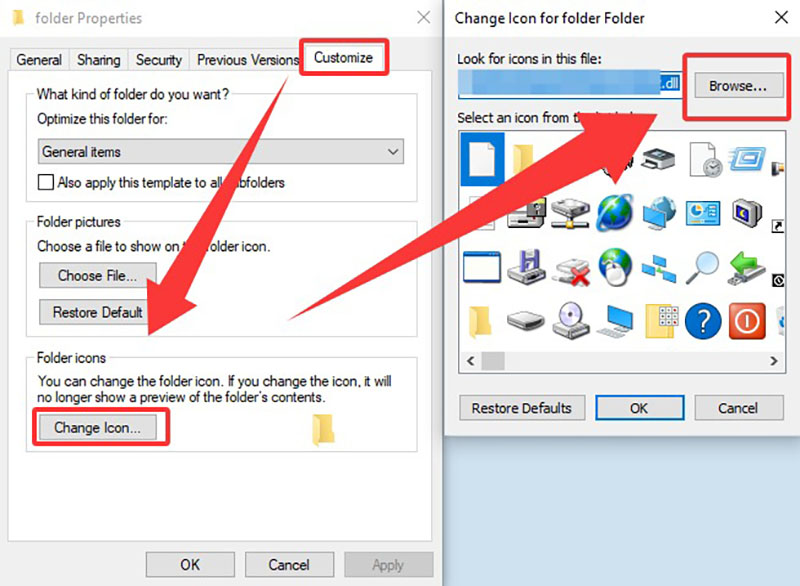
Step 2. For folders, open the Customize tab, then click Change Icon. Browse to your custom ICO file and select it.
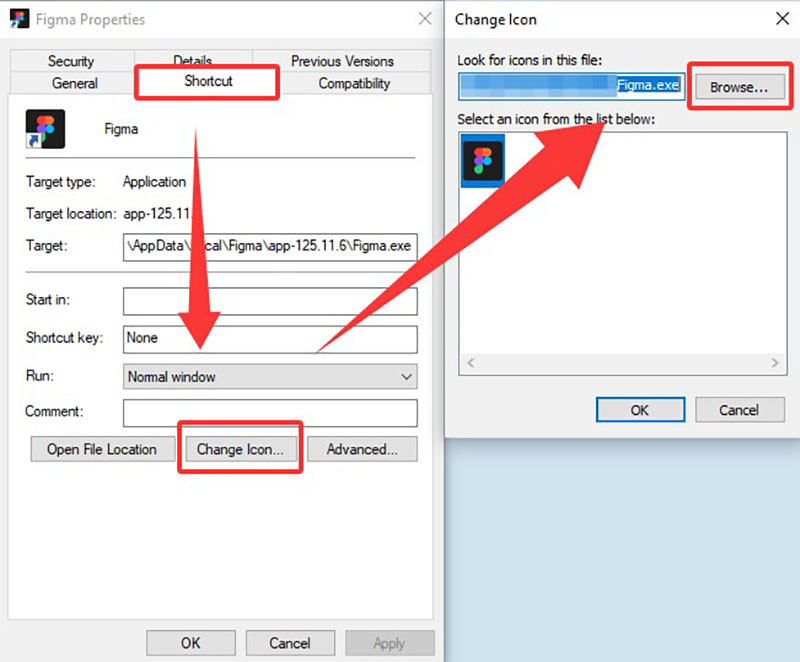
Step 3. For shortcuts, select the Shortcut tab and click Change Icon. Choose an icon from the available list or locate your own custom icon file, then click OK and Apply to save the changes.
That’s how to make your own desktop icons. Once applied, the new icon will immediately appear on your desktop.
Pros:
Support personal designs
Compatible with most apps and folders
Free conversion tools available online
Cons:
Need to convert image files to ICO format
Potential compatibility issues with non-standard sizes
How to make a custom desktop icon? The previous parts have shown specific steps. But if you feel the methods above are still a bit limited and time-consuming, there’s an effortless workaround, that is, iTop Easy Desktop. This free desktop organizer for Windows allows you to change icons in one click. You can customize icons to styles like Apple or Samsung instantly. The feature is completely free, and the process is intuitive and quick!
How to customize desktop icons with iTop Easy Desktop
Step 1. Launch iTop Easy Desktop on your PC.
Step 2. In the left sidebar, click Personalization, then select Desktop Icons from the top toolbar.
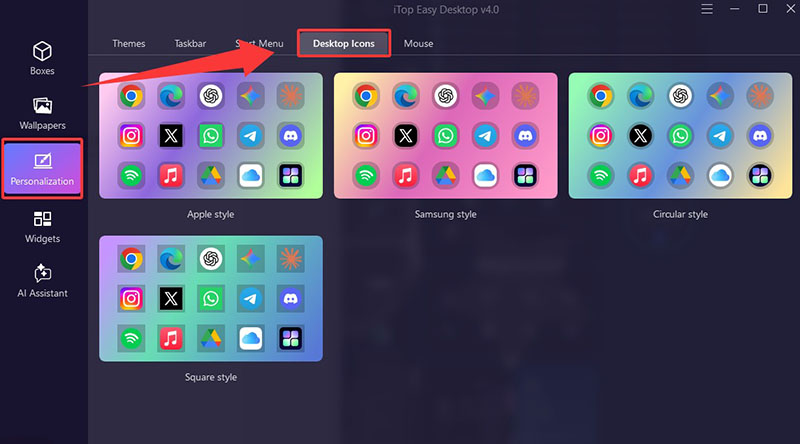
Step 3. Choose your preferred icon style and confirm your option.
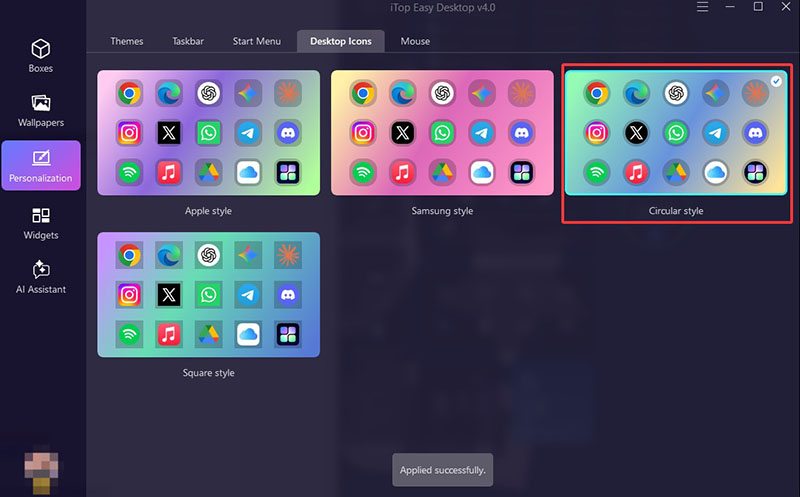
Step 4. Your selected desktop app style will be applied instantly.
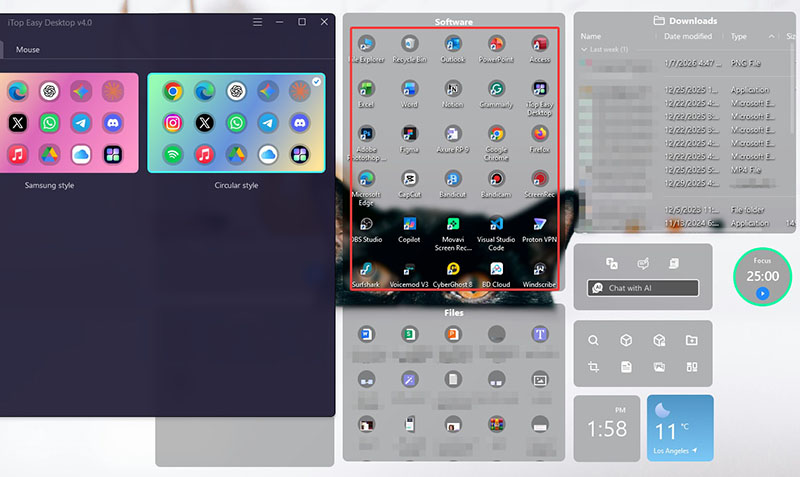
TIPS
iTop Easy Desktop also allows you to customize the font, just check out how to change computer font to learn more.Highlighted features of iTop Easy Desktop
Now you know how to customize desktop icons in Windows 11 using iTop Easy Desktop. Aside from icon customization, iTop Easy Desktop supports rich features for enhancing your overall desktop experience, including wallpaper management, organization tools, and widgets that boost productivity.
Desktop Wallpaper
iTop Easy Desktop comes with a rich library of high-definition wallpapers, including both static and live options. You can easily apply 4K wallpaper for PC to match your icon style and overall desktop theme, creating a more immersive and visually appealing setup.
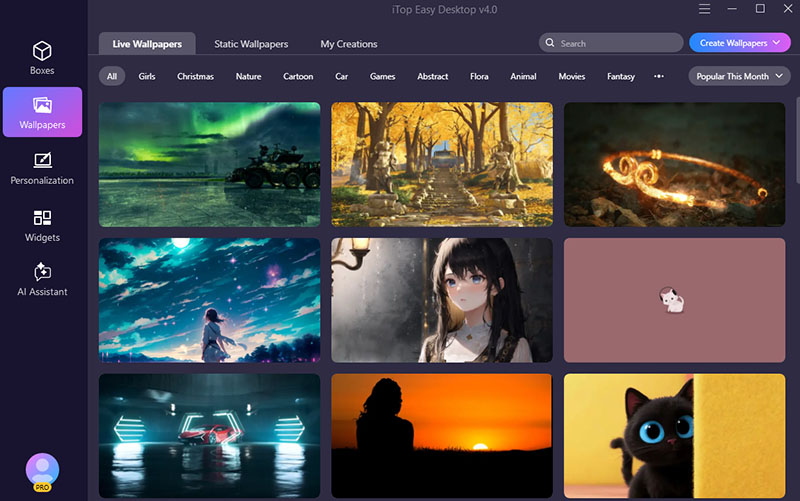
If you also want a consistent look beyond the desktop, you can pair this feature with guides on how to change lock screen wallpaper. This can ensure your entire Windows interface is unified overall.
Desktop Organization
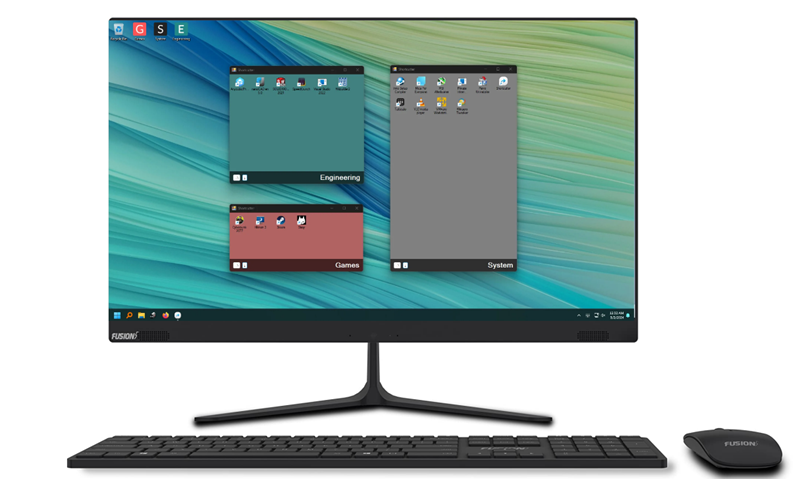
This feature automatically sorts your icons into customizable boxes, which declutters your space efficiently. It also supports quick search and private boxes for sensitive file locking. You can manage your desktop icons and maintain a tidy, productive environment easily.
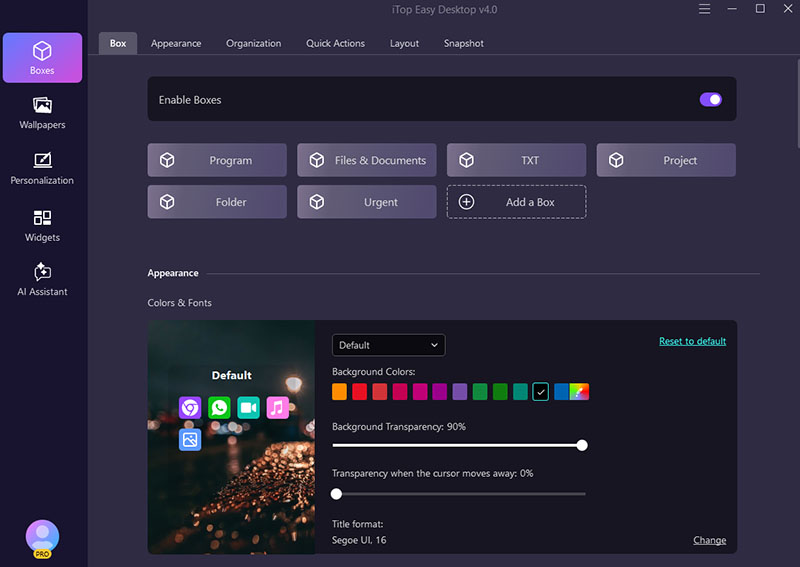
Desktop Widget
iTops Easy Desktop allows you to add functional widgets like iNotes, Schedule, Clock, iPomodoro, Weather, etc. These tools provide easy access to information and productivity assistance, which aim to help you stay organized and focused throughout your day.
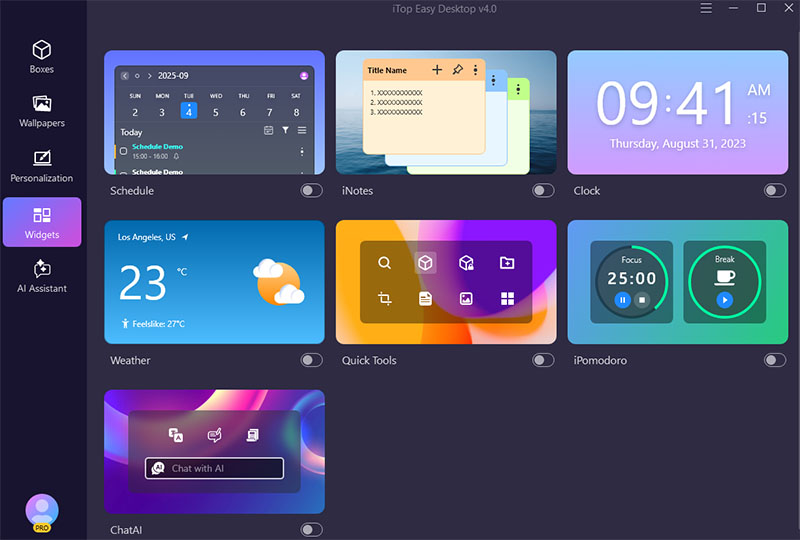
With wallpapers, icon customization, smart organization, and productivity widgets, iTop Easy Desktop offers a complete solution for upgrading your Windows experience. If you want to turn your desktop into a cleaner and more productive workspace, iTop Easy Desktop is your go-to choice!

- iTop Easy Desktop - Keep Your Desktop Organized
-
- Box desktop icons to declutter your workspace
- Manage documents, games, media files, etc., at 1 click
- Add calendar, clock and other widgets to desktop
- Locate any file you want instantly with search box
The Bottom Line
How to customize desktop icons? This blog has introduced three easy yet powerful ways to refresh your Windows experience. You can either use built-in system settings, customize icons manually, or choose an all-in-one app. Among these options, iTop Easy Desktop takes customization further by combining icon customization with 4K wallpapers, smart desktop organization, and useful widgets in one tool. If you are looking for a simple, efficient way to personalize and organize your workspace, iTop Easy Desktop is well worth trying. Get it and see it yourself!