-
iTop Easy Desktop - No.1 Desktop Organizer for Windows
-
Automatically organize and customize Windows desktop. Make your messy desktop look clean and professional within seconds.

How to Organize Playlists Like a Pro on Spotify, Apple Music & Beyond [Mobile & Desktop]
Struggling with messy music libraries? Our ultimate guide shows you how to organize playlists like a pro on Spotify, Apple Music mobile & desktop.
In the age of Spotify, Apple Music, and SoundCloud, our music libraries are vast, but our playlists are often a mess. With hundreds of songs thrown together, finding the right track for the right moment becomes a chore. Many music lovers are left wondering how to organize playlists effectively. This definitive guide will show you multiple methods to master your music library, transforming your chaotic collections into curated audio experiences on both mobile and desktop devices.
Finding chaos reigns in the music libraries of Spotify, Apple Music, and YouTube? A disorganized playlist collection can lead to frustration and wasted time. Here’s why taking control is essential:
Saving Time: Stop endless scrolling. A well-ordered system lets you find your "Evening Chill" or "Workout Pump" playlist instantly.
Improving Listening Quality: A thoughtfully sequenced playlist enhances the listening journey, creating a seamless flow from one song to the next.
Maximizing Music Discovery & Value: Organized playlists help you see the gaps and connections in your library, allowing you to get more value from your streaming subscription and discover new favorites within your own collection.
Let's start with one of the most popular platforms. Spotify offers a robust set of tools for playlist management, and mastering them is key to a tidy library. Learning how to organize music playlists on Spotify involves both sorting songs within a list and arranging the playlists themselves.
Sort and Organize Spotify Song Playlists on Mobile
Your smartphone is likely your primary listening device. Here’s how to bring order directly from your phone.
To Reorder Spotify Songs Within a Playlist
Sometimes, the default order isn't right. You can manually organize the perfect sequence.
Step 1: Open the Spotify app and navigate to the playlist you want to edit.
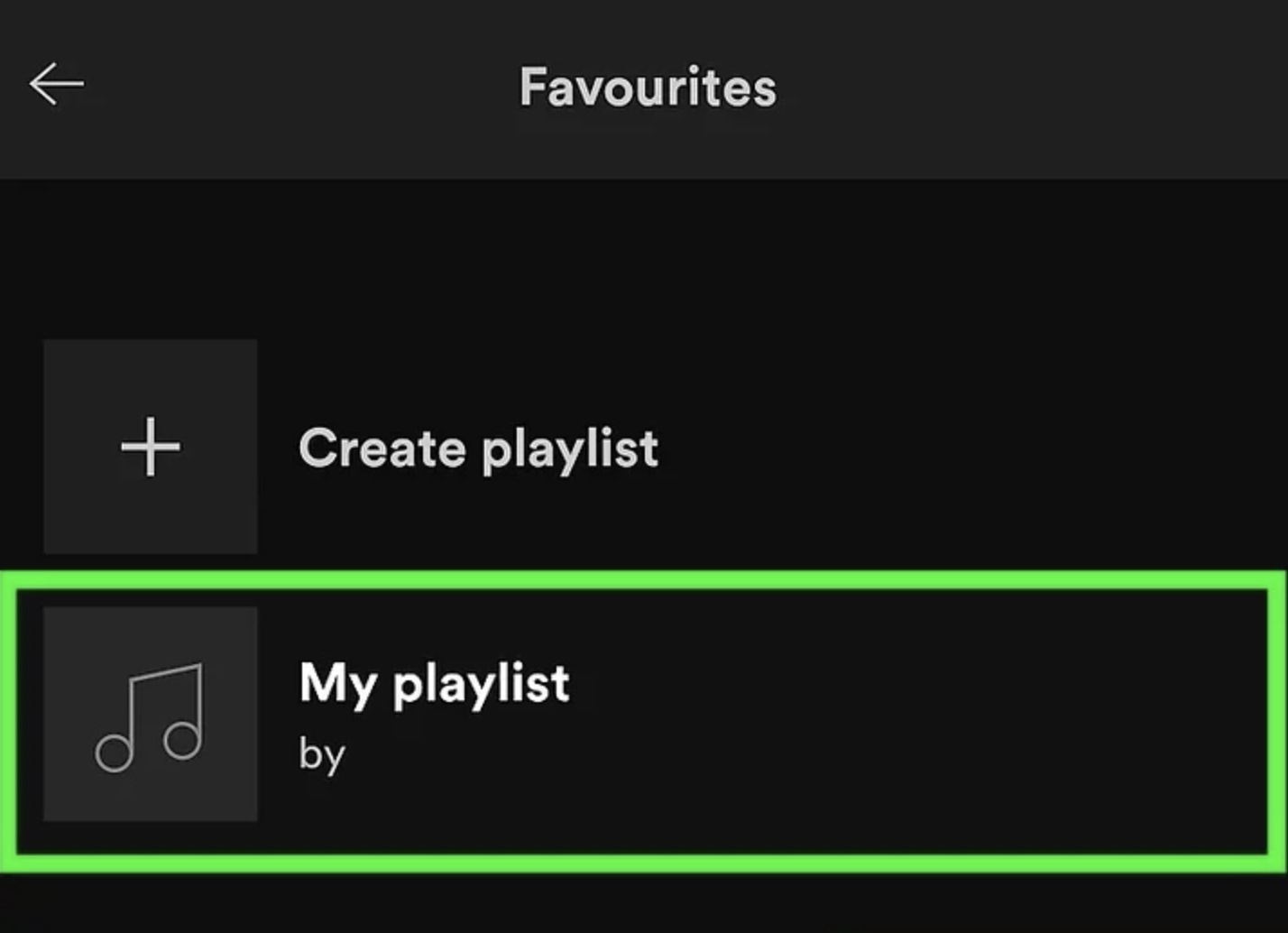
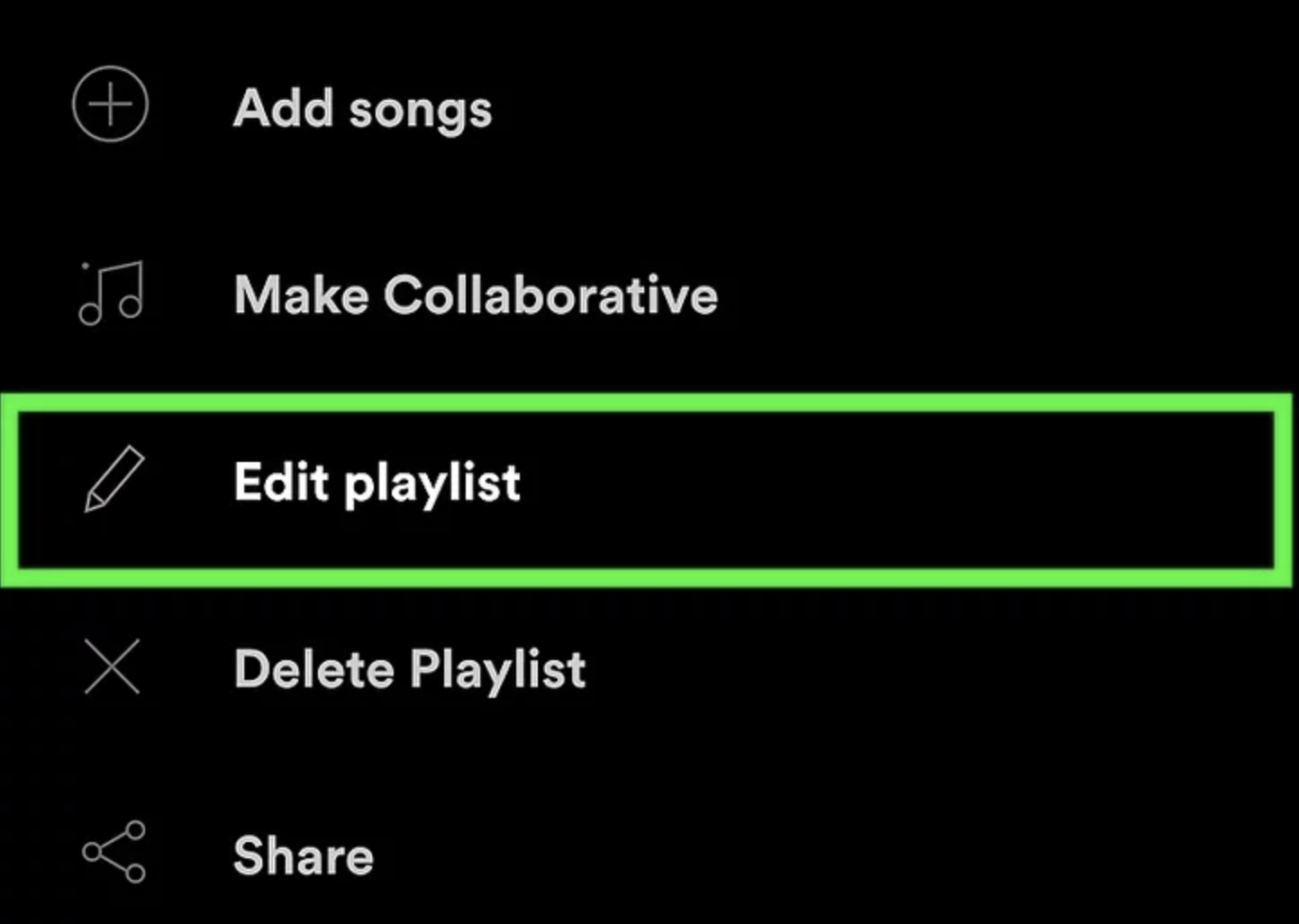
Step 2: Tap the three-dot menu (•••) in the top-right corner and select "Edit playlist."
Step 3: Press and hold the "hamburger" icon (≡) next to a song title, then drag it to your desired position.
To Sort Your Spotify Playlist List
As your collection grows, finding the right playlist can be tricky. You can learn how to sort playlists in your library view with the following steps.
Step 1: Go to "Your Library" at the bottom of the screen.
Step 2: Tap on "Playlists" and then select the "Filter" icon (usually a downward arrow or funnel symbol) in the top-right corner.
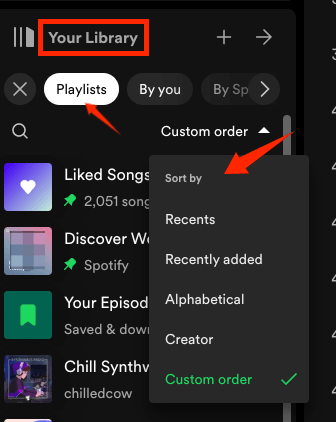
Step 3: Choose your preferred sorting method, such as "Recently played," "Alphabetical," or "Creator."
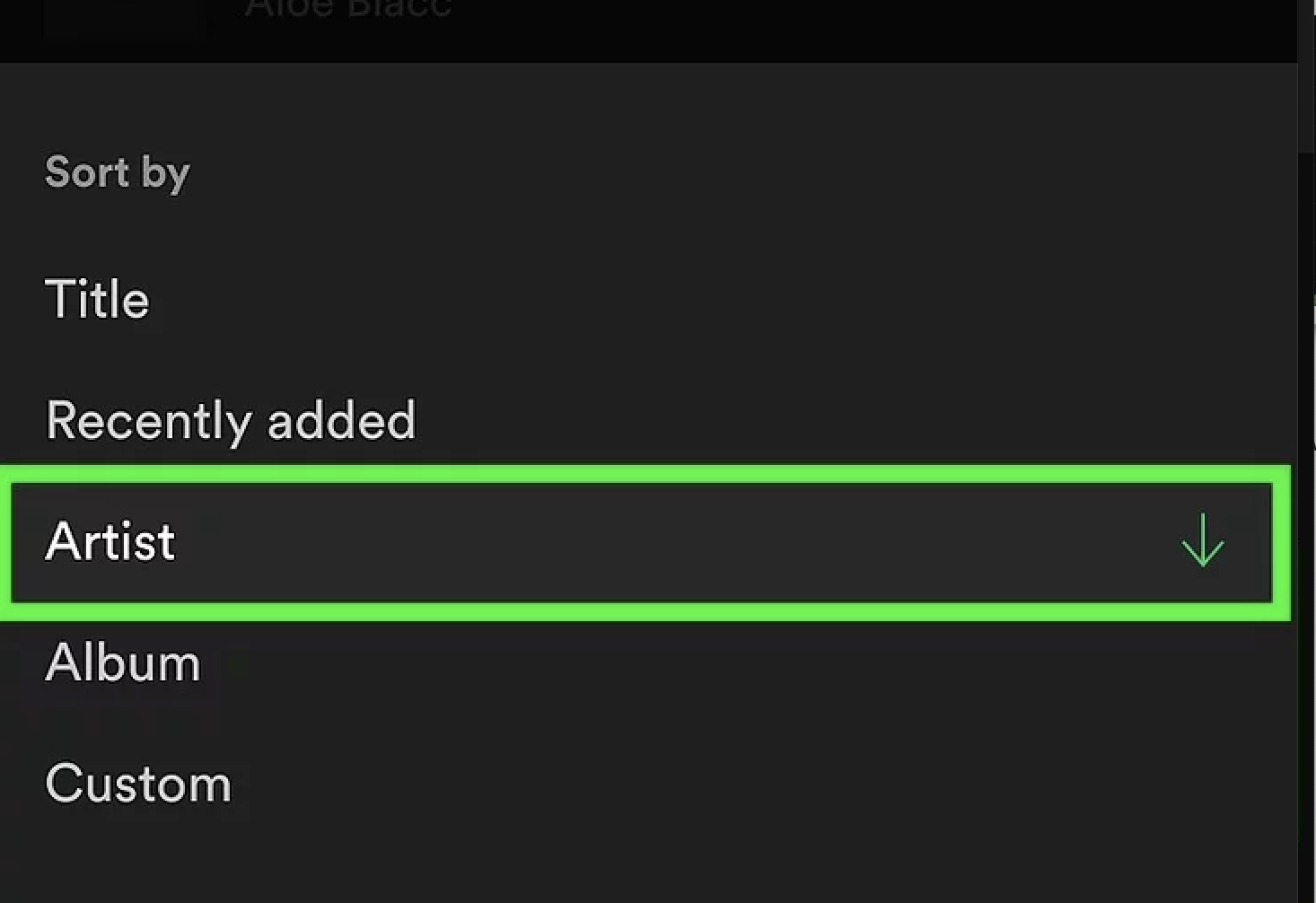
Organize and Manage Spotify Playlists on Desktop
The Spotify desktop app provides a larger canvas and more intuitive drag-and-drop controls, making it a powerful desktop organizer for your music.
To Customize the Song Order in a Playlist
Here's how to customize the order of your playlist songs:
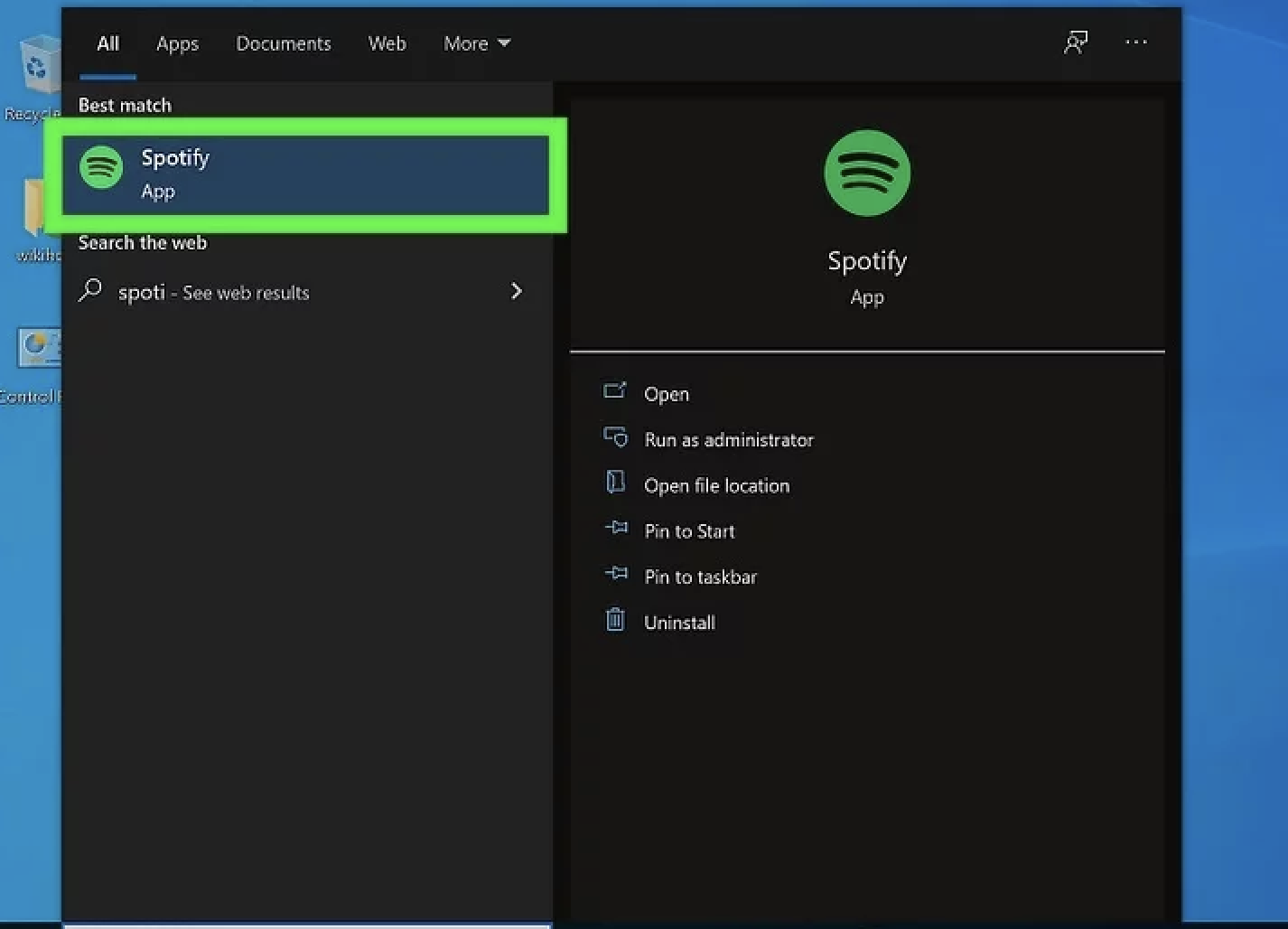
Step 1: Launch Spotify on your computer and select a playlist from the left sidebar.
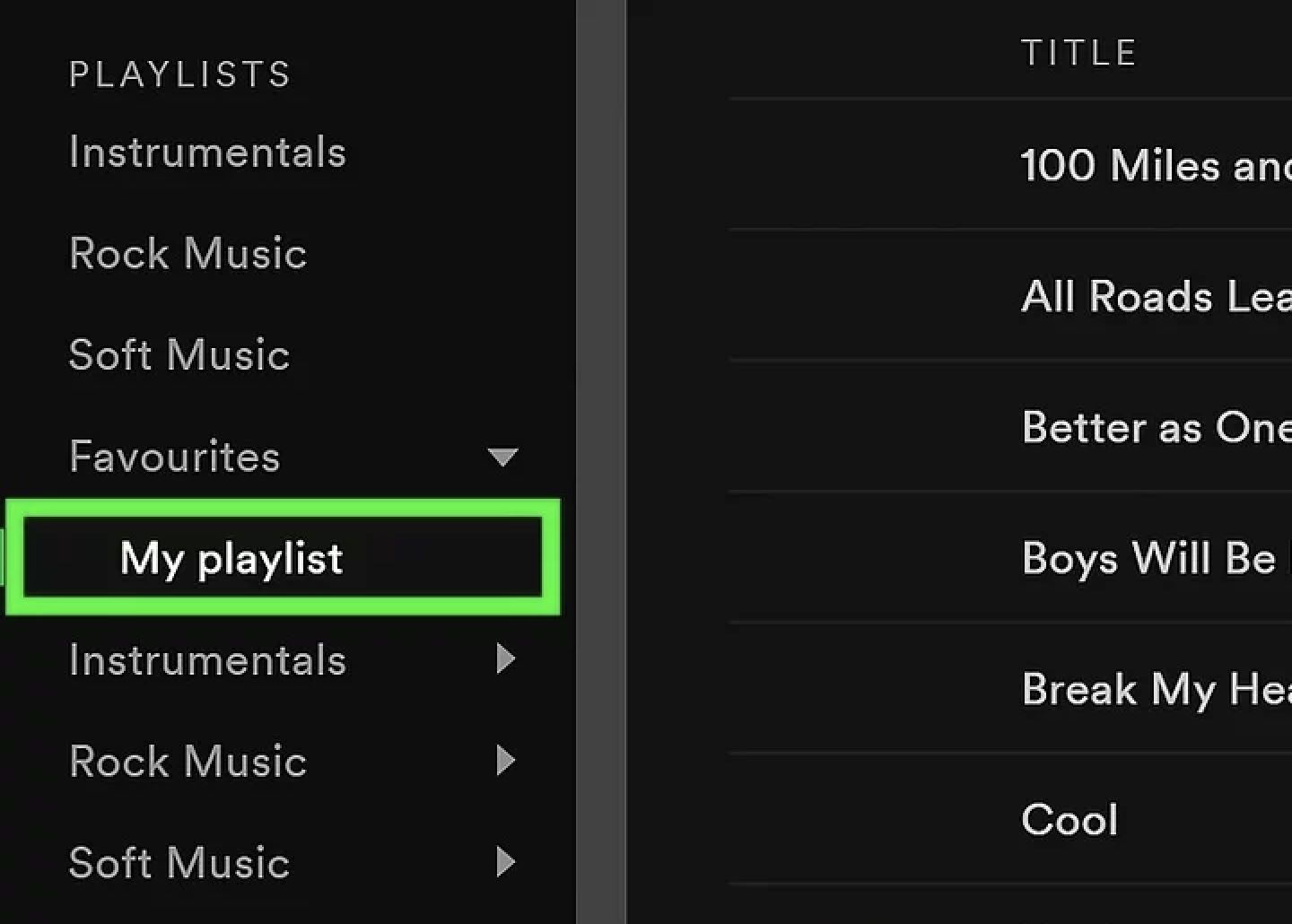
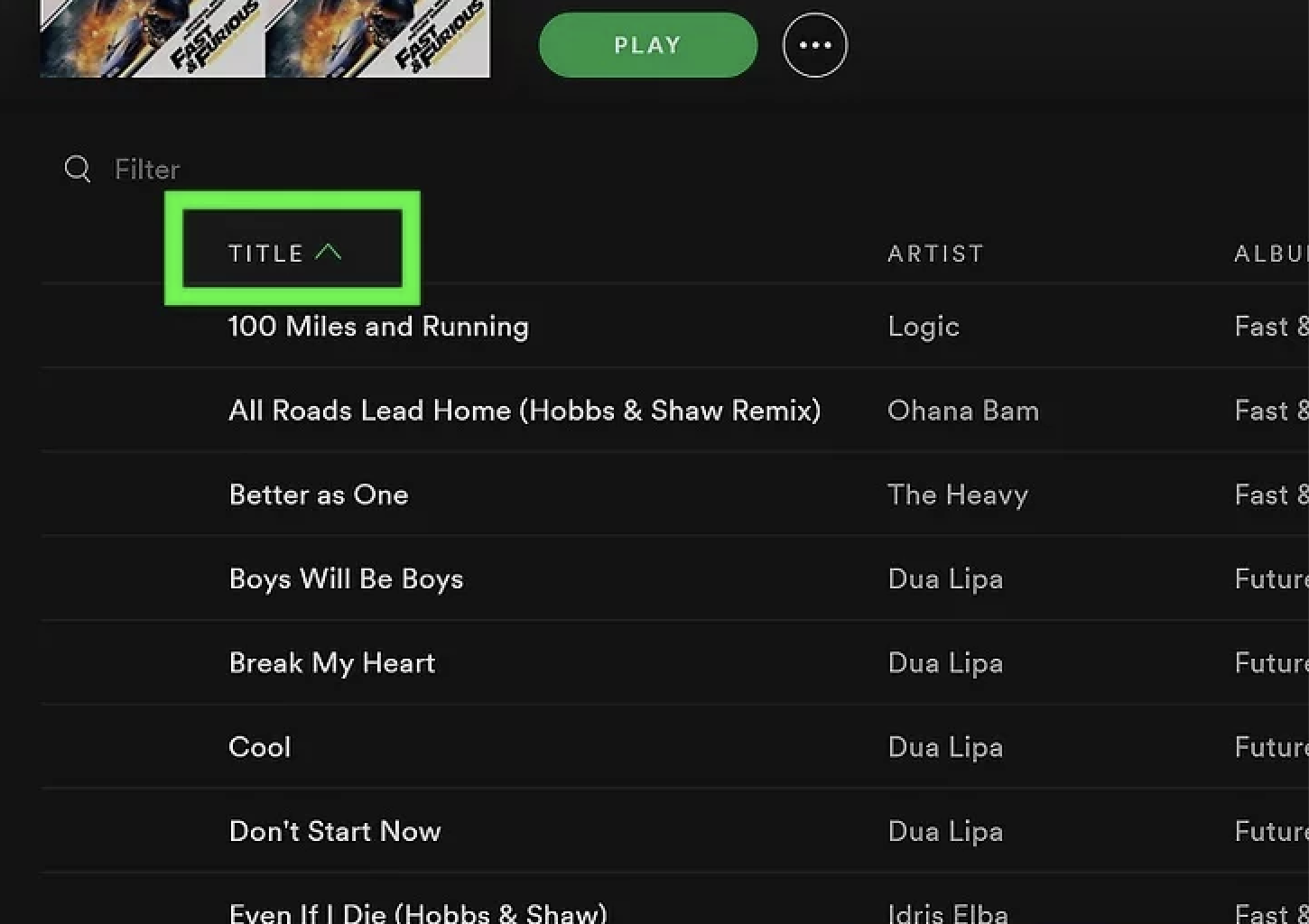
Step 2: In the main song list, simply click, hold, and drag any song up or down to a new position.
Step 3: Release the mouse button to drop the song into its new place.
To Arrange Playlists in Your Spotify Library
While you can't create folders on mobile, the desktop app is perfect for learning how to organize folders on desktop for your playlists.
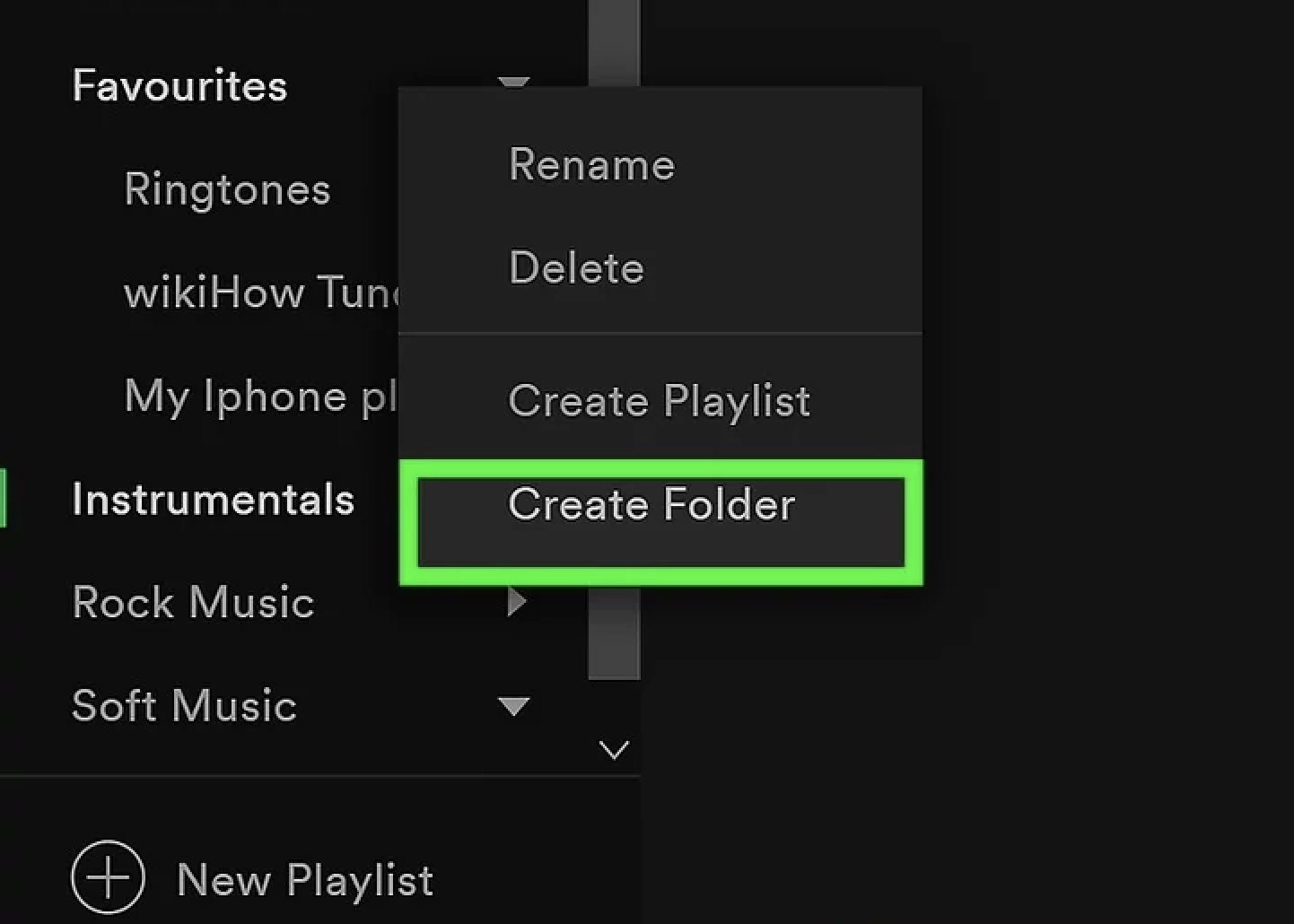
Step 1: Right-click on any playlist in the left sidebar of the desktop app.
Step 2: Select "Create Folder." Give the folder a descriptive name (e.g., "Moods," "Activities").
Step 3: Drag and drop other relevant playlists into this newly created folder to keep your sidebar neat.
For those in the Apple ecosystem, how to organize playlists Apple Music style requires a slightly different approach. Apple Music integrates deeply with its operating systems, offering powerful organization tools.
Organize Playlist Folders in Music on Your iPhone
Keeping your iPhone's Music app tidy is straightforward with playlist folders.
Step 1: Open the Music app and go to the "Library" tab. Tap "Playlists."
Step 2: Scroll to the very bottom and tap "New Folder..."
Step 3: Name your folder, then tap "Add Playlists..." to select existing playlists to populate it.
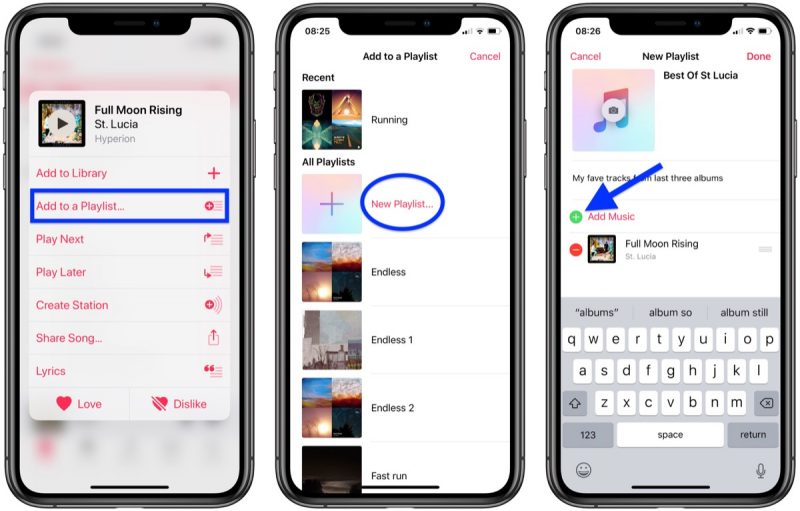
Rearrange Songs in Playlists Apple Music on Mac
The Music app on macOS is the ultimate tool for fine-tuning your how to organize a playlist efforts on Apple Music.
Step 1: Open the Music app on your Mac and select a playlist.
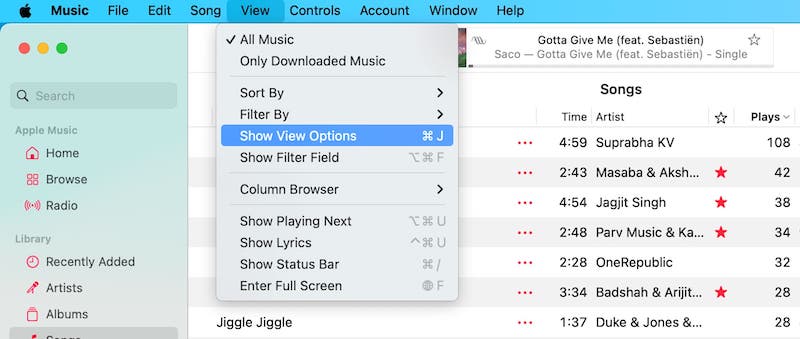
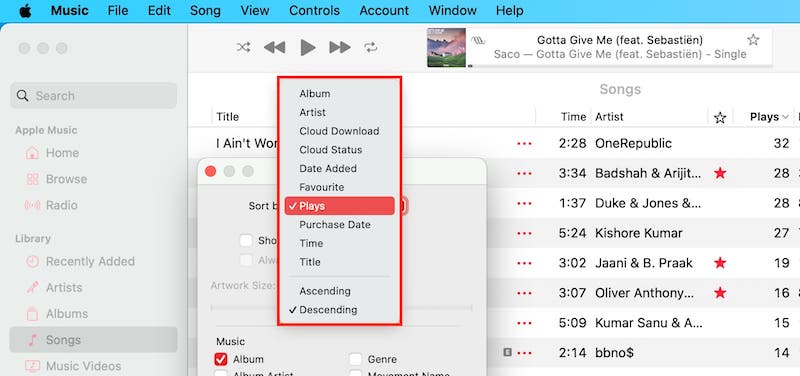
Step 2: Simply click, hold, and drag any song within the list to your preferred order. You can also use the "Sort" menu at the top of the column to order by title, artist, or date added.
Step 3: To create folders, go to "File" > "New" > "Playlist Folder" from the menu bar.
Beyond platform-specific steps, mastering the art of playlist curation relies on universal strategies. These tips will help you how to organize your playlists like a professional DJ, regardless of the app you use.
Define a Tight Theme (Mood or Activity):
The best way to organize music playlists is to give each one a clear, specific purpose. Instead of "Good Songs," create "90s Road Trip" or "Late Night Focus."
Add Clear Title, Art, and Description:
A compelling title and custom cover art make your playlist instantly recognizable. A brief description can set the scene for anyone who listens.
Use Playlist Folders If Necessary:
For power users with dozens of playlists, folders are indispensable. Group them by genre, decade, or occasion to maintain a clean library interface.
Create a “New Music Dump” Playlist:
Have a temporary playlist where you add all new discoveries. Once a month, review it and distribute the keepers to their appropriate thematic playlists.
Keep Playlist Concise & Update Regularly:
A 100-song playlist can be daunting. Aim for 30-50 songs to maintain a consistent vibe. Prune songs that no longer fit to keep the playlist fresh. By following these core strategies, you will master the art of how to organize music playlists effectively on any platform.
What about the music you own? Downloaded MP3s and FLAC files can create digital clutter on your hard drive. While streaming services have their own systems, knowing how to organize playlists in your local library is equally important and is a key part of learning how to organize files with desktop organizer for Windows effectively.
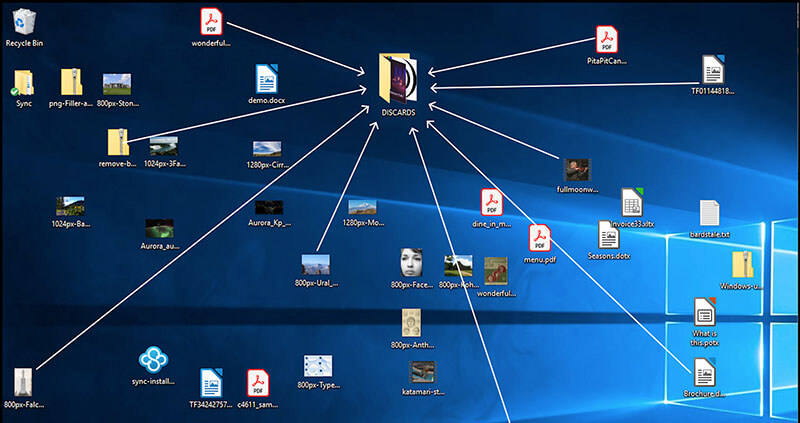
This is where knowing how to organize computer files becomes crucial. For this, we recommend iTop Easy Desktop, a free and powerful desktop organizer that turns your chaotic desktop into a clean, productive workspace.

- iTop Easy Desktop - Keep Your Desktop Organized
-
- Box desktop icons to declutter your workspace
- Manage documents, games, media files, etc., at 1 click
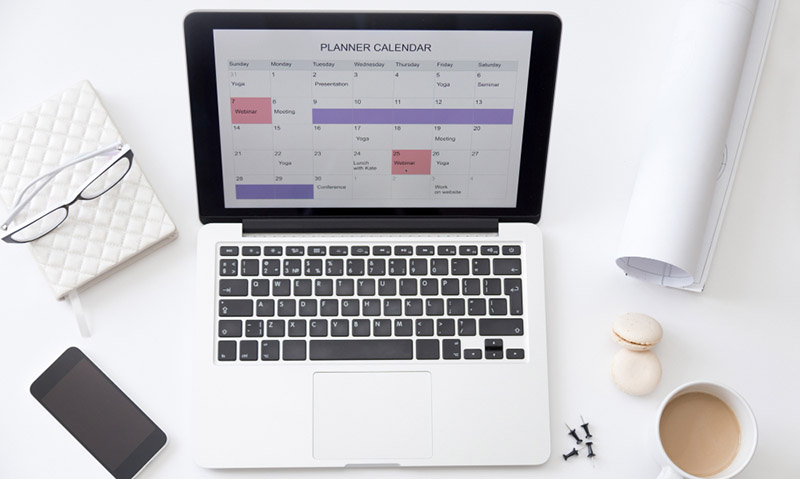
- Add calendar, clock and other widgets to desktop
- Locate any file you want instantly with search box
Why Choose iTop Easy Desktop to Organize Playlists:
Customize Boxes for Playlist Organization Free: Create personalized boxes with unique colors and names for your different music genres or projects, giving you full control over your local playlist folders.
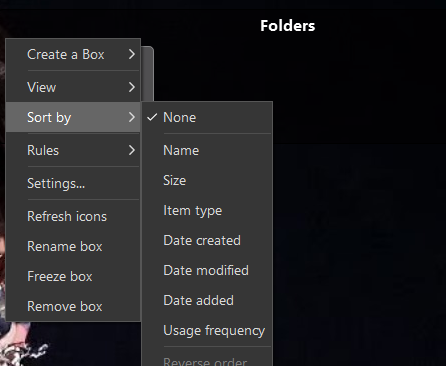
Smartly Sort Playlists by Multi Filters on Desktop: Automatically sort your music files and folders by name, date, size, or type. Set rules once, and the tool will keep everything organized, even as you add new files.
Quick Access & Hide to Boost Productivity: Instantly search and find any local playlist. With a double-click, you can hide all desktop icons to reduce visual clutter, perfect for focusing on work or enjoying a clean live wallpaper for PC.
Set Your Favorite Music Video as Live Wallpaper: Beyond organization, you can set high-quality live wallpapers or even use your own music videos as animated backgrounds, syncing your desktop's look with your audio mood. You can even integrate a desktop calendar widget for ultimate productivity.
How to Organize Playlist in Local Folders with iTop Easy Desktop
Step 1: Download, install, and launch iTop Easy Desktop. It will automatically scan and group your existing desktop icons.
Step 2: Right-click on your desktop and select "Easy Desktop" to create new boxes. Name one "Rock Playlists," another "Classical," etc.
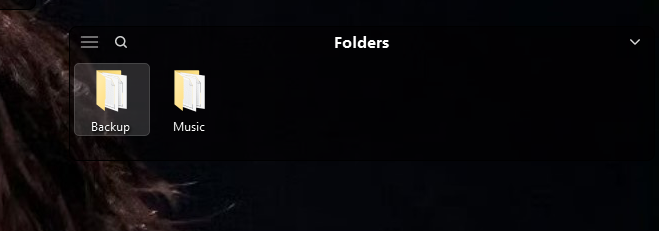
Alt:Create New Boxes
Step 3: Simply drag and drop your local music folders and files into their corresponding boxes. The software will keep them neatly sorted based on your rules.
The Bottom Line
Mastering how to organize playlists on streaming apps and local folders saves time, enhances your listening experience, and unlocks the full potential of your music library. Whether you're on mobile or desktop, a systematic approach is key. For those looking to extend this order to their entire computer, a tool like iTop Easy Desktop is the ultimate desktop organizer, transforming a messy screen into a streamlined command center. Download it today and experience a new level of digital harmony.
- iTop Easy Desktop - Keep Your Desktop Organized
-
- Box desktop icons to declutter your workspace
- Manage documents, games, media files, etc., at 1 click
- Add calendar, clock and other widgets to desktop
- Locate any file you want instantly with search box