-
iTop Easy Desktop - No.1 Desktop Organizer for Windows
-
Automatically organize and customize Windows desktop. Make your messy desktop look clean and professional within seconds.

How to Hide Taskbar on Windows 11 and 10
Explore all possible solutions of how to hide taskbar on Windows 11/10 for both beginners and pros. Achieve more screen space with hidden taskbar.
Windows taskbar is a fundamental element of the operating system, which provides quick access to the Start Menu, pinned applications, system tray icons, and the clock. It serves as the command center to navigate your PC and manage open windows. While its utility is undeniable, Windows offers a variety of customization options to tailor its appearance and behavior, helping you achieve a cleaner look and boost productivity. Hiding taskbar is one of the most popular adjustments to reclaim valuable screen space. This comprehensive guide focuses specifically on how to hide taskbar in windows 11 and 10, walking you through every effective method.
Taskbar a central part of the interface but most people still seek for available methods to hide it. Why? There are several compelling reasons to temporarily or permanently hide taskbar on PC.
Maximize screen space: On smaller screens like laptops or when using multiple windows side-by-side, every pixel counts. Hiding the taskbar gives your applications more room to breathe. This is particularly useful when you want to hide taskbar on desktop and focus solely on your open windows.
Create a cleaner look: A hidden taskbar contributes to a minimalist, uncluttered desktop aesthetic, free from visual noise.
Reduce visual distractions: To hide taskbar helps minimize distractions and improve concentration when you work on deep-focus tasks like writing, drawing, coding etc.
Improve full-screen experience: Whether you're gaming, watching a movie, or giving a presentation, an auto-hiding taskbar ensures an immersive, uninterrupted full-screen experience.
Both Windows 11 and Windows 10 include built-in setting that allows you to auto hide the taskbar without any third-party tool. This is the most straightforward method for users.
Here is the step-by-step guide on how to hide Windows taskbar automatically :
1. Right-click on an empty area of your taskbar.
2. Select Taskbar settings from the context menu.
3. In the settings window, scroll down and click on Taskbar behaviors to expand the section.
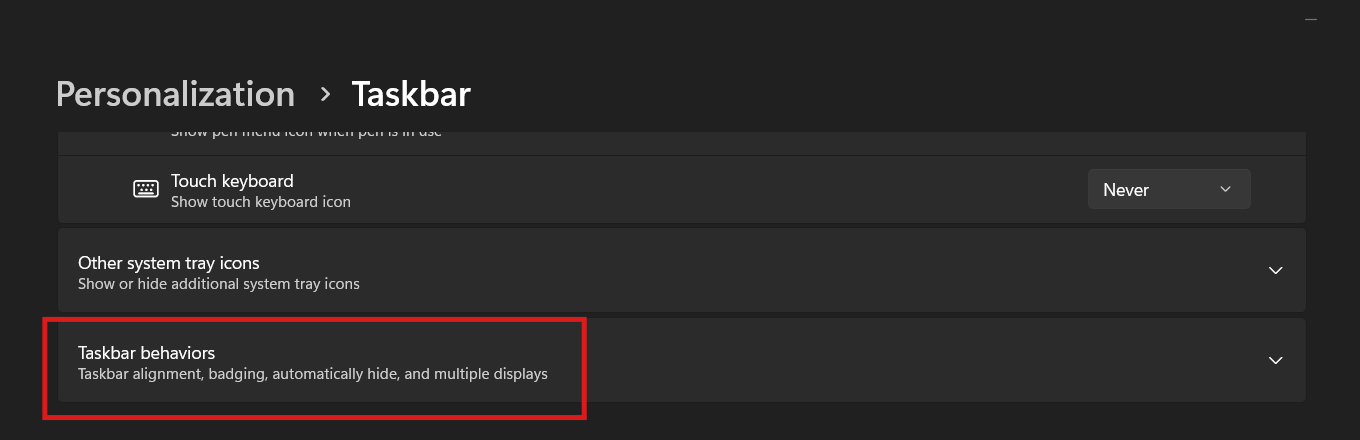
4. Check the box next to "Automatically hide the taskbar".
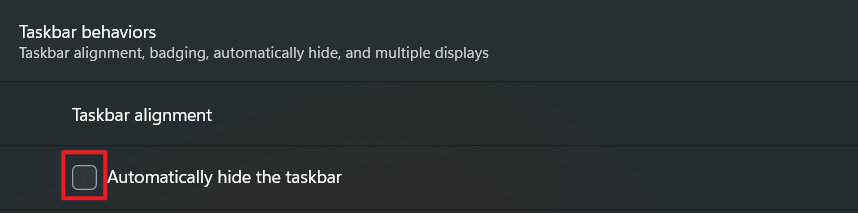
Once enabled, the taskbar will instantly slide out of view. To reveal it again, simply move your mouse cursor to the bottom edge of the screen (or wherever your taskbar is located). This method works system-wide, including on the desktop and within full-screen applications.
While the auto-hide setting is effective, some users prefer instant, on-demand control. You can set up a custom shortcut to hide taskbar instantly, which is perfect for gamers, video editors, or anyone who frequently switches between focused full-screen tasks and regular desktop use.
Here, we will show the guide of how to set up desktop shortcut and keyboard shortcut to hide taskbar.
Step 1. Click on the empty space and select New > Shortcut.
Step 2. Input the following command into the location box and click Next.
powershell -command "&{$p='HKCU:SOFTWARE\Microsoft\Windows\CurrentVersion\Explorer\StuckRects3';$v=(Get-ItemProperty -Path $p).Settings;$v[8]=3;&Set-ItemProperty -Path $p -Name Settings -Value $v;&Stop-Process -f -ProcessName explorer}"
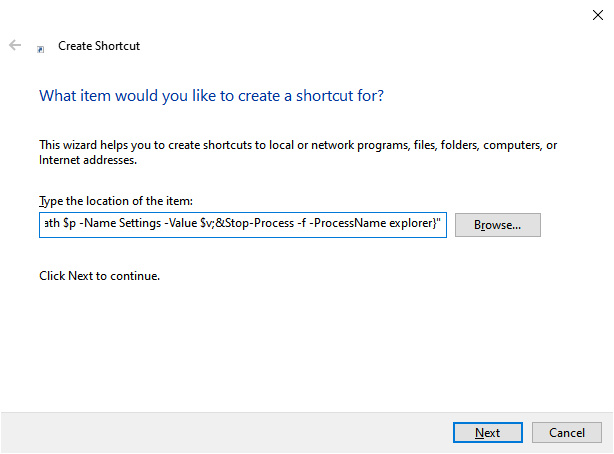
Step 3. Give a name of the shortcut, for example "Hide Taskbar". Click Finish.
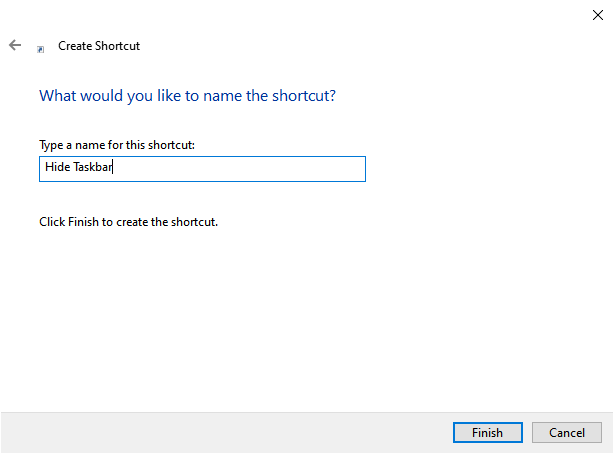
Step 4. Double click the shortcut and your taskbar will be hidden immediately.
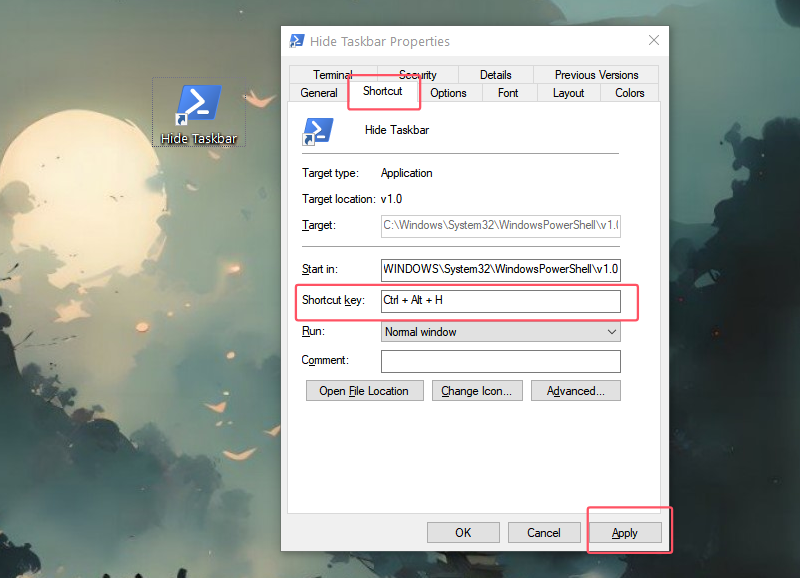
Step 5. For setting up a keyboard shortcut to hide the taskbar more conveniently, right click the "Hide Taskbar" shortcut and select Properties. Go to Shortcut and set a shortcut key, for example: Ctrl+Alt+H. Click Apply.
"Taskbar won't hide" is a common and frustrating issue that affects many Windows users . If you've enabled auto-hide but the taskbar remains stubbornly visible, especially during videos or games, there are several proven fixes you can try.
First, let's list the common reasons why the auto-hide feature might not be working properly :
App notifications: A flashing or highlighted app icon on the taskbar can prevent it from hiding.
Frozen system tray icons: A stalled background application can block the auto-hide function.
Temporary system glitches: Minor software bugs can interfere with taskbar behavior.
Outdated Windows version: Pending updates may contain fixes for known taskbar issues.
Here are the possible troubleshooting tips to fix taskbar won't hide :
Fix 1: Clear App Notifications.
Check your taskbar for any glowing or highlighted icons. Open the notification center (Windows + N) and clear all pending notifications. Interact with any apps that might be waiting for your attention.
Fix 2: Restart Windows Explorer.
This is one of the fastest ways to resolve temporary glitches. Open Task Manager (Ctrl + Shift + Esc), find Windows Explorer in the Processes list, right-click it, and select Restart . The taskbar will disappear and reappear, hopefully with the auto-hide now functioning.
Fix 3: Disable Notifications for Specific Apps.
If notifications are the culprit, you can turn them off. Go to Settings > System > Notifications & actions. Under "Notifications from apps and other senders", you can toggle off notifications for specific apps that are causing the issue.
Fix 4: Update Windows: Ensure your system is up-to-date.
Go to Settings > Windows Update and click Check for updates. Installing the latest updates can patch bugs that affect the taskbar.
It is equally important to know how to unhide the taskbar quickly when you need to launch pinned apps or access the system tray.
The default method: Simply move your mouse cursor to the edge of the screen where the taskbar is hidden (usually the bottom). It will instantly slide back into view.
Reversing the auto-hide setting: If you want to disable auto-hide permanently, right-click the taskbar, select Taskbar settings, go to Taskbar behaviors, and uncheck the Automatically hide the taskbar box.
While native Windows settings cover the basics, how to hide taskbar is just the beginning. For users seeking a more flexible and visually appealing solution, iTop Easy Desktop is an excellent choice. This all-in-one desktop organizer and customizer offers advanced features that go far beyond simple auto-hide.
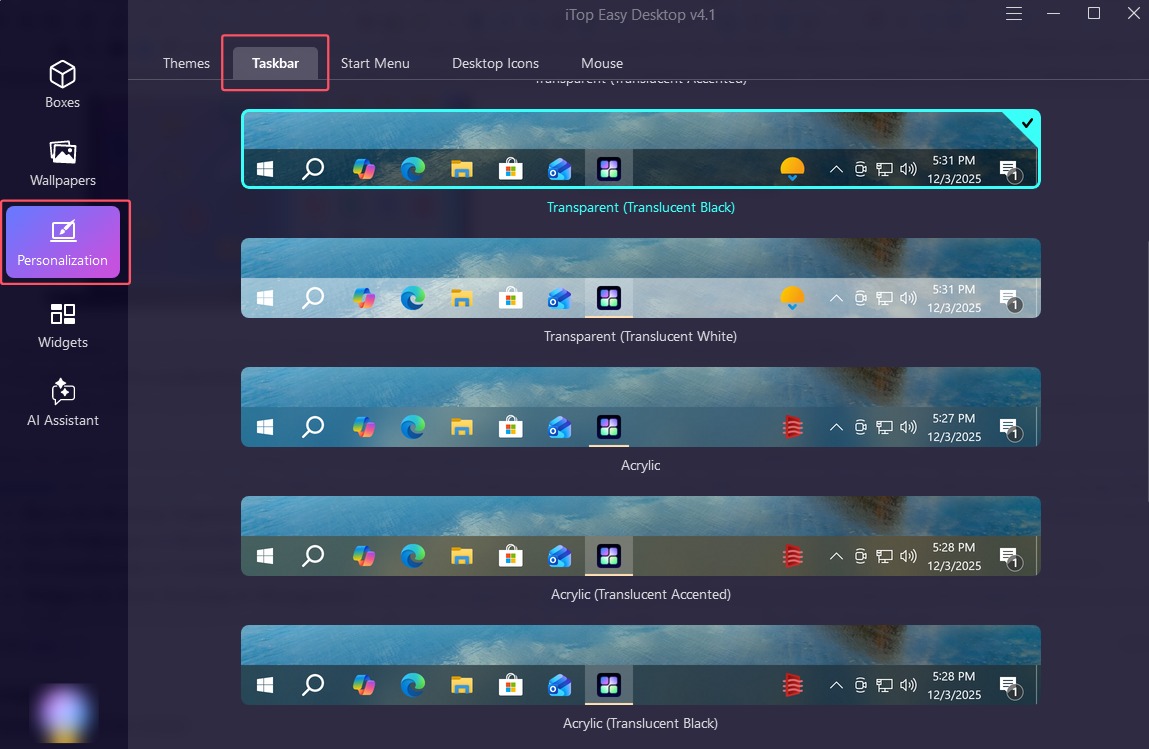
iTop Easy Desktop presets multiple styles that help you make the taskbar transparent with just one click. Here's a detailed guide on how to customize taskbar using iTop Easy Desktop.
1. Download and install iTop Easy Desktop from the official website.
2. Once installed, locate the iTop Easy Desktop icon in your system tray and double-click it to open the main interface.
3. Navigate to the Personalization section or find the taskbar customization settings.
4. Look for the taskbar style presets. You can typically choose from various levels of transparency, blur effects, or solid colors, applying them instantly to see the change.
After the guide, it's worth recommending iTop Easy Desktop again for its powerful features beyond just taskbar customization. iTop Easy Desktop acts as an all-on-one desktop organizer and customizer for Windows, offering a set of powerful features not only for increasing efficiency at work but also for achieving a unique design that lifts your mood .
Boxes for Desktop Organization: Create customizable boxes to automatically or manually sort your icons, files, and folders, keeping your desktop impeccably tidy.
Live Wallpapers to Beautify Desktop: Access a vast library of dynamic and static 4K wallpapers to bring your desktop to life.
Personalization to Customize Desktop: Fine-tune the appearance of your desktop, including taskbar, start menu, themes, icons and mouse cursors.
Widgets for Task Tracking & Management: Add useful widgets like calendar, clock, weather, sticky notes and other powerful widgets directly to your desktop .
AI Pet & Assistant for Immersive Experience: Enjoy a unique and interactive desktop companion, PawPal and let ChatAI assist you with summaries, writing, etc.

- iTop Easy Desktop - Keep Your Desktop Organized
-
- Box desktop icons to declutter your workspace
- Manage documents, games, media files, etc., at 1 click
- Add calendar, clock and other widgets to desktop
- Locate any file you want instantly with search box
The Bottom Line
Get available ways of how to hide taskbar on Windows 11 and 10, from the simple built-in auto-hide setting to creating professional shortcuts for instant control. You have also found possible fixes to solve the annoying "auto-hide taskbar not working" issue, ensuring an uninterrupted full-screen experience. If you need an advanced taskbar customizer and a complete desktop makeover, iTop Easy Desktop is a good choice. The program additionally empowers you to design a unique desktop on Windows with high efficiency, combining powerful organization with stunning visuals.