-
iTop Easy Desktop - No.1 Desktop Organizer for Windows
-
Automatically organize and customize Windows desktop. Make your messy desktop look clean and professional within seconds.

How to Unpin from Taskbar | Windows 11, 10 & macOS
Learn how to unpin from taskbar on Windows 11, 10, and macOS. Clean up your taskbar or Dock with our easy, step-by-step tutorial. Get a tidy desktop today!
Is your taskbar or Dock getting a little too crowded for comfort? We all love quick access to our favorite apps, but sometimes, it’s time for a clean-up. Whether you're on Windows or macOS, removing those icons you no longer need is a simple process. This quick guide will show you exactly how to unpin from taskbar (and the macOS Dock) in just a few clicks. Let’s declutter that space and get you a cleaner, more efficient desktop layout.
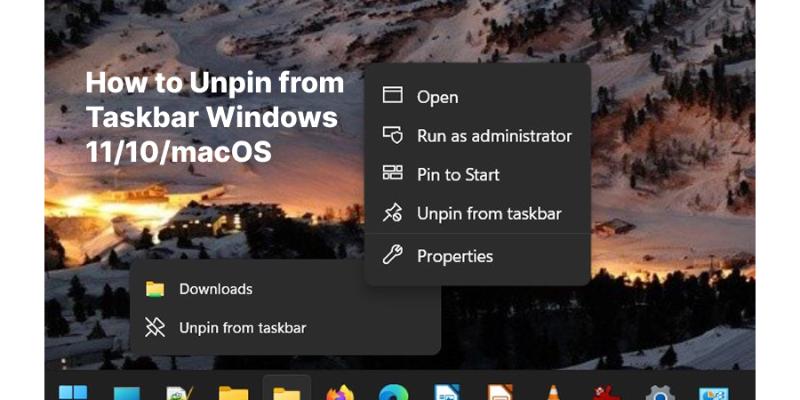
Windows 11 gives you a clean, centered taskbar, but the process of removing items is just as intuitive as ever. If you’re learning how to unpin from taskbar icons, you’ll find it’s a consistent experience. Maybe you want to unpin from taskbar windows 11 to make room for new, more frequently used programs. Here’s the fastest method.
Step 1. Locate the app icon you want to remove on your taskbar. You can easily identify pinned apps—they’ll stay there even after you close the program, unlike recently opened items which may appear temporarily.

Step 2. Right-click on the icon. A compact context menu will pop up right above your cursor. This menu contains useful options like opening a new window or jumping to recent files, but for organization, we're focusing on removal.
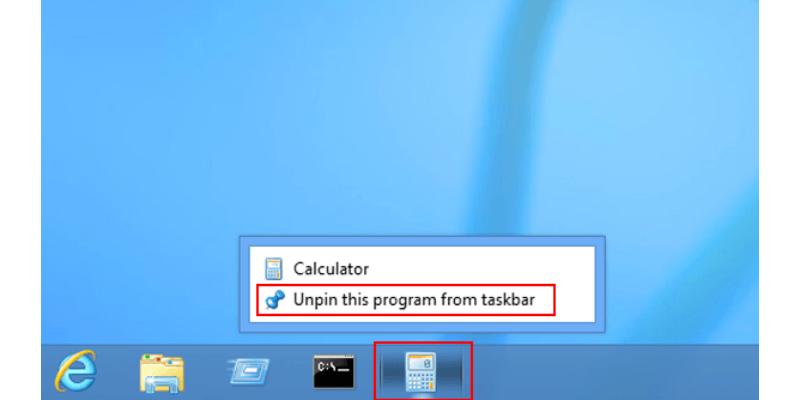
Step 3. In the menu, simply click “Unpin from taskbar.” The icon will immediately vanish from the bar. Don’t worry—this only removes the shortcut from your taskbar; the application itself is still safely installed on your PC. If you change your mind later, you can always re-pin it from the Start Menu.
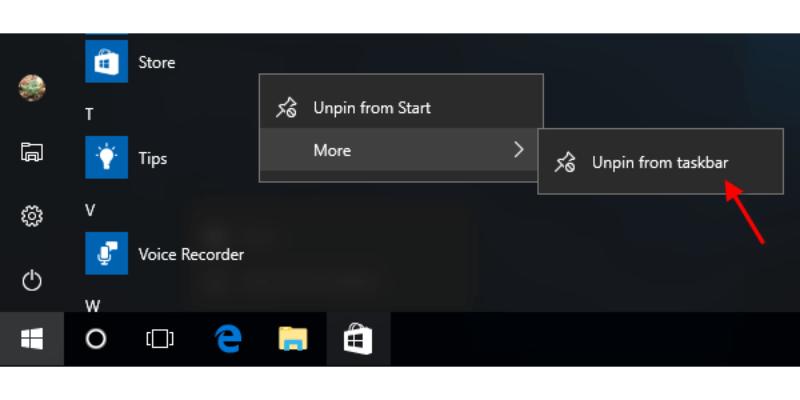
And that’s it! The app is still on your computer, just not taking up precious taskbar real estate anymore. If you ever wonder, "how do i unpin from taskbar later?" just remember this right-click trick.
The process in Windows 10 is virtually identical, keeping things consistent for users. Once you know the basic method for how to unpin from taskbar on one version, you can do it on the other. Whether you're cleaning up or just changing your workflow, knowing how to unpin taskbar items is essential. For specific cases, like wanting to unpin new outlook from taskbar, the steps are the same.
Step 1. Find the pinned application icon on your Windows 10 taskbar. Pinned icons are typically located to the right of the Start button and will remain visible regardless of whether the app is currently running.
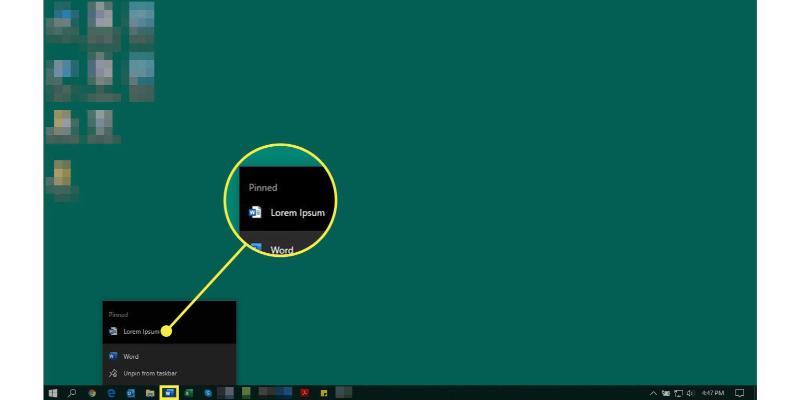
Step 2. Right-click on the target icon. This action will bring up its specific context menu, which lists various quick actions related to that application.

Step 3. From the list of options in the menu, click on “Unpin from taskbar.” The icon will instantly be removed from your taskbar. This is the universal solution whether you're wondering how do i unpin from taskbar a rarely used program or a newly installed one. Remember, this action is non-destructive and only removes the quick-access shortcut.
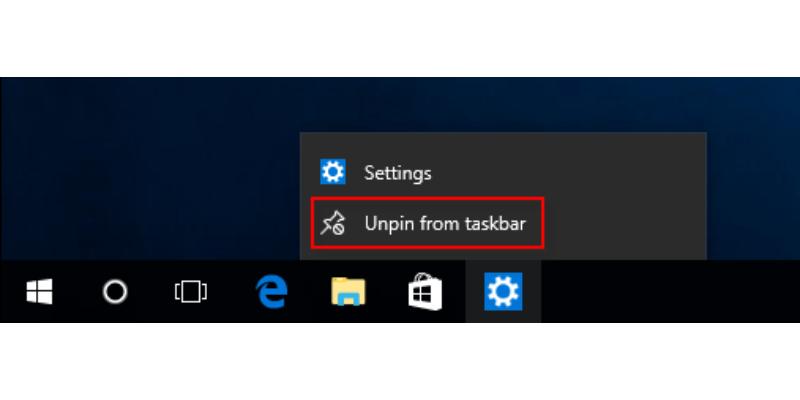
Poof! It’s gone. Remember, pinning and unpinning is reversible. If you change your mind, you can always learn how to pin to taskbar again later by right-clicking the app in your Start Menu.
On a Mac, we refer to the bar at the bottom as the Dock, but the idea is the same—it’s your hub for quick-launch apps. The core concept of how to unpin from taskbar translates directly here, even if the terminology differs. Removing items here is a breeze and helps keep your workspace minimal.
Step 1. Press and hold (or right-click) directly on the Dock icon of the application you'd like to take off. In the macOS world, learning how to unpin taskbar equivalents starts here—you'll see the icons slightly jiggle, indicating edit mode.
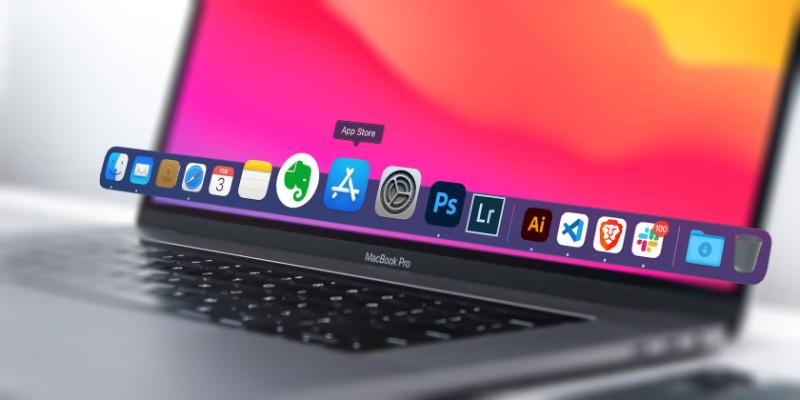
Step 2. While holding, drag the icon upwards and away from the Dock. You don’t need to drag it far; just pull it out onto your desktop area. This simple drag action is the core of how to unpin from taskbar functionality on a Mac.
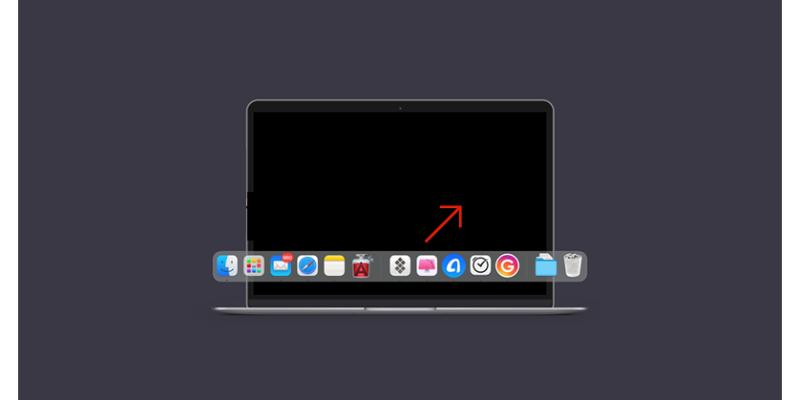
Step 3. Release the mouse button or lift your finger. You’ll see a playful “Poof” animation (with a small cloud effect) confirming the removal. This visual feedback assures you the shortcut is gone, though the app itself remains safely in your Applications folder.
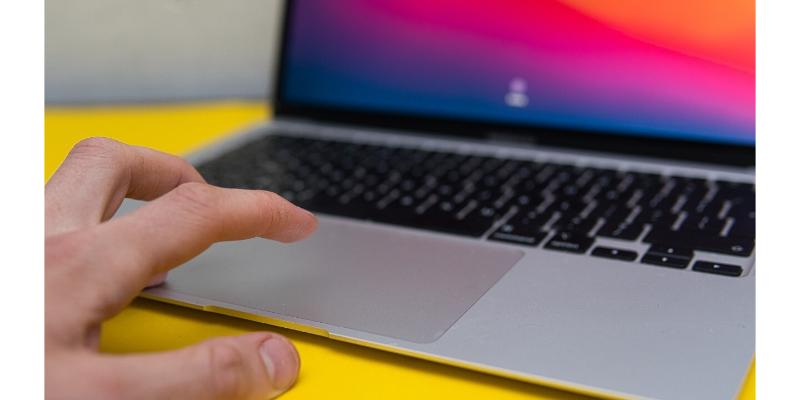
This action only removes the shortcut from the Dock; the application remains safely in your Applications folder. It’s a non-destructive way to declutter.
Clearing your taskbar is a great first step toward a cleaner digital workspace. But why stop there? If you truly want to master your desktop, a dedicated desktop organizer like iTop Easy Desktop can take your productivity to another level. It’s arguably the best desktop organizer for Windows users who crave order. It gives you complete control over how to unpin from taskbar items, but goes far beyond that— it doesn’t just help manage taskbar shortcuts; it revolutionizes your entire desktop. Want to try it? Here’s a simple start:
Step 1. Download and install iTop Easy Desktop from its official website.
Step 2. Upon launching, it will quickly scan and help you organize scattered files and icons.
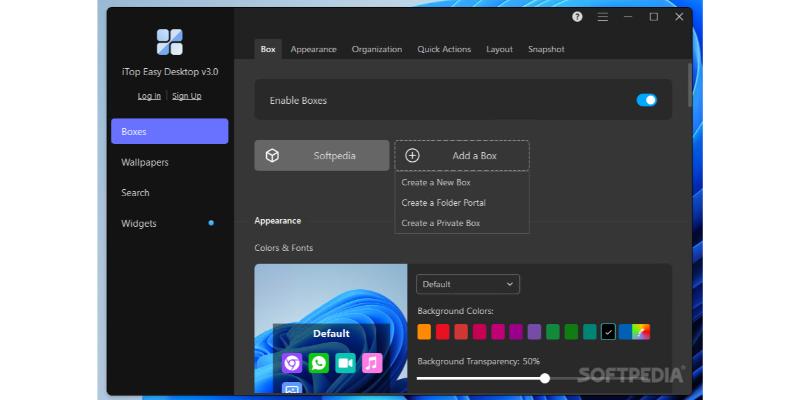
Step 3. Use its intuitive panels and categories to sort everything automatically. You can even create rules to keep future clutter at bay.
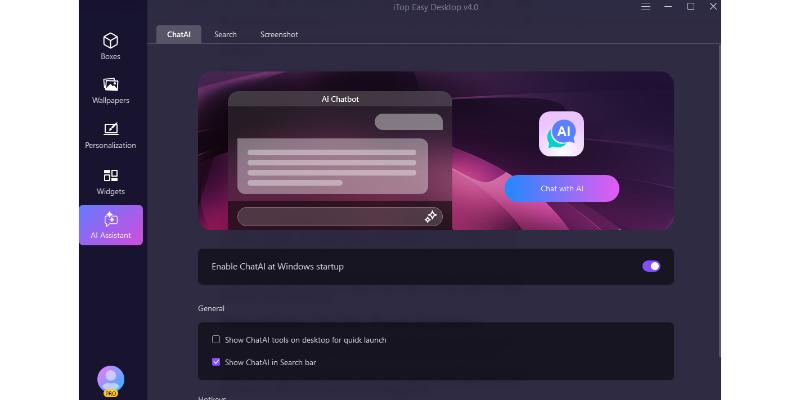
But it’s more than just an auto-cleaner. Let’s look at some standout features:
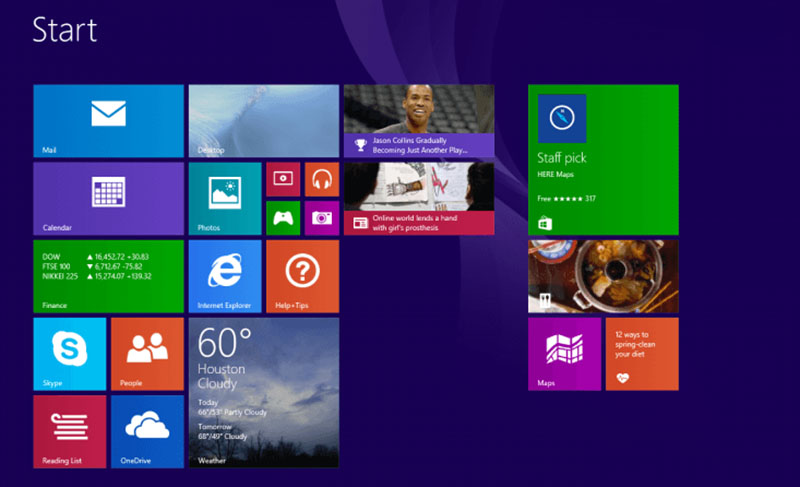
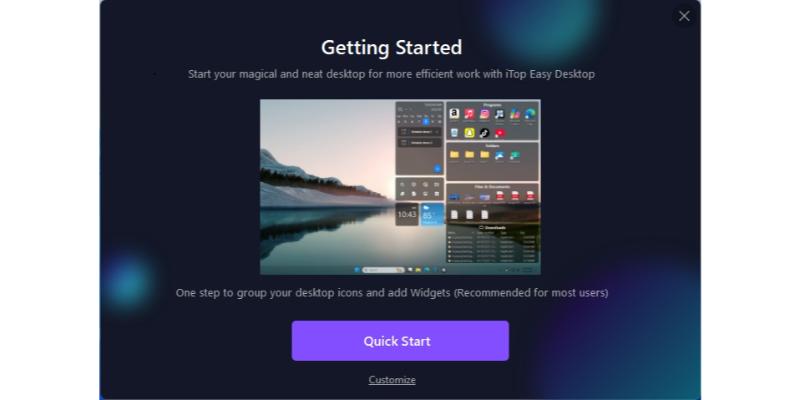
Customize Start Menu: Tired of the default Start layout? This tool lets you deeply customize your Start Menu, grouping apps and tools exactly how you like for faster access.
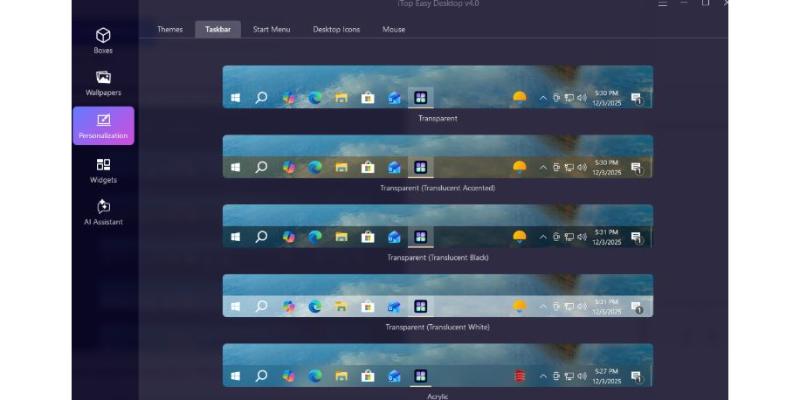
Change Desktop Icons: Easily swap out the icons for folders, drives, and system shortcuts with custom ones to match your aesthetic.
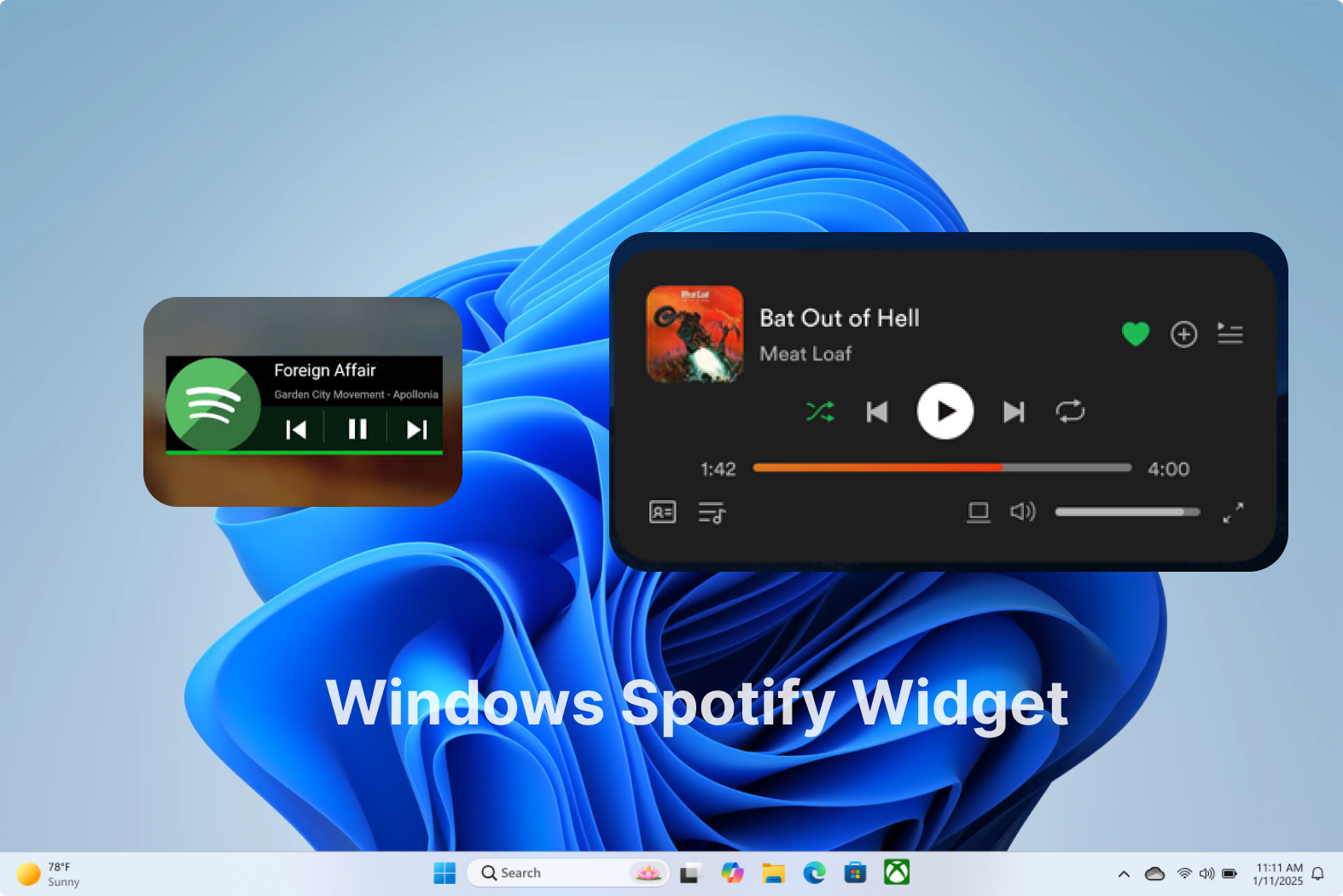
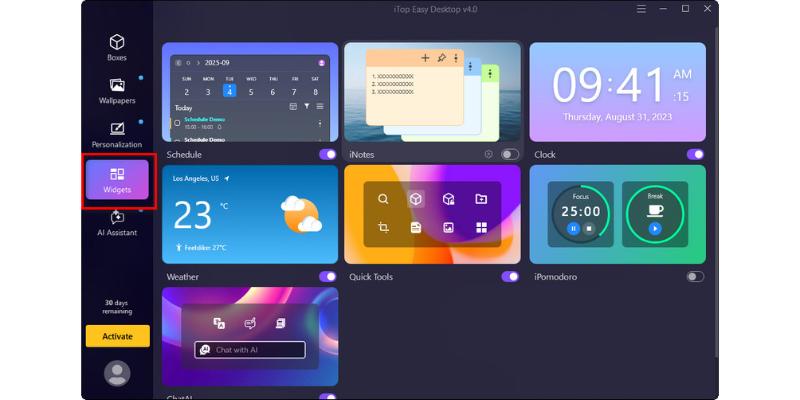
 Multiple Desktop Widgets: This is where it gets fun. Stay on top of your schedule with a sleek desktop calendar widget, or keep time in view with a handy clock widget Windows 11 style. Add weather, system monitors, and more to make your desktop truly yours.
In short, iTop Easy Desktop shifts the focus from simply learning how to unpin from taskbar items reactively to managing your entire desktop proactively. If you’re looking for how to permanently unpin from taskbar clutter and prevent messes from building up again, this tool is the answer. Transitioning from a basic clean-up to full desktop control is simple.
Ready for a truly organized desktop? Download iTop Easy Desktop now and transform your screen.

- iTop Easy Desktop - Keep Your Desktop Organized
-
- Box desktop icons to declutter your workspace
- Manage documents, games, media files, etc., at 1 click
- Add calendar, clock and other widgets to desktop
- Locate any file you want instantly with search box
Knowing how to unpin from taskbar (or Dock) is a basic but vital skill for keeping your digital workspace efficient, whether you're on Windows 11, 10, or macOS. It’s a quick fix for immediate clutter. However, for long-term peace of mind and a stunningly organized desktop, consider a powerful ally like iTop Easy Desktop. It automates organization, adds beautiful widgets, and gives you back control. So, unpin those unused icons today, and take the next step toward a perfectly managed desktop experience.
- Related Articles for Reference