-
iTop Easy Desktop - No.1 Desktop Organizer for Windows
-
Automatically organize and customize Windows desktop. Make your messy desktop look clean and professional within seconds.

Fix Windows Taskbar Not Working on Windows 11, Windows 10 Easily
Is your Windows taskbar not working? Fix the Windows taskbar not working, not loading, or hiding with proven methods and tools. Restore your PC fast now!
A Windows taskbar not working issue can quickly disrupt your entire workflow. From launching apps to switching between tasks, the taskbar plays a central role in Windows usability. Many users - especially those facing the Windows taskbar not working Windows 10 - report problems after updates, while others encounter situations where the Windows task bar not hiding at all during startup.
Fortunately, most of these problems are not permanent. With the right troubleshooting steps, you can restore full functionality and even improve your desktop experience. In this guide, we’ll walk through both quick fixes for Windows taskbar not loading, not showing, and more related issues, and advanced solutions to help you regain control of your system.
Before fixing anything, it’s important to identify how the Windows taskbar not working problem appears. Different symptoms often point to different root causes.
Taskbar frozen or unresponsive – clicks don’t work, apps won’t open
Windows taskbar not loading – taskbar missing after boot or login
Windows taskbar not showing – completely invisible on screen
Windows taskbar not hiding – auto-hide feature doesn’t function
Windows taskbar search not working – search box fails or crashes
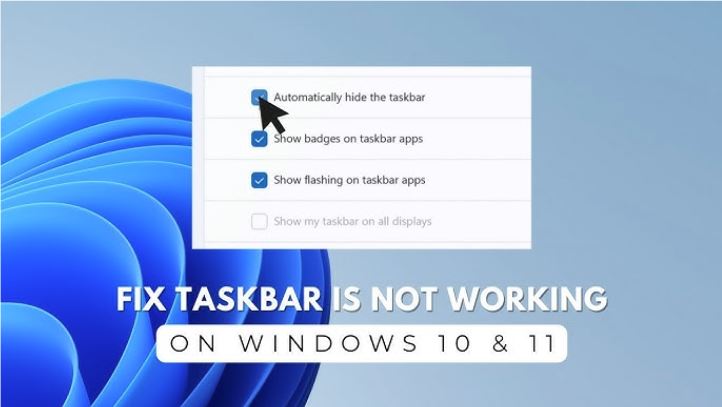
These variations may seem similar, but each requires a slightly different approach. Recognizing the exact issue helps you fix it faster and avoid unnecessary steps.
If you’re dealing with a Windows taskbar not working problem, understanding the cause can save you a lot of time. Most issues stem from system glitches or conflicts. Reasons may include:
Windows Explorer crashes
Since the taskbar is tied to Explorer, any crash can break it instantly.
Problematic Windows updates
Many Windows taskbar not working Windows 10 cases occur after incomplete or buggy updates.
Corrupted system files
Missing or damaged files can prevent the taskbar from loading properly.
Outdated or incompatible drivers
Especially graphics drivers, which affect UI rendering.
Third-party software conflicts
Customization tools or security software may interfere.
Startup process failures
This often leads to the Windows taskbar not loading or partial UI issues.
Pinpointing the cause allows you to apply more accurate and effective fixes.
When your Windows taskbar not working, starting with simple fixes is often the fastest solution. These steps require minimal effort but can resolve most temporary glitches.
Restart Windows Explorer (Most Effective First Step)
Open Task Manager > locate “Windows Explorer” > click Restart.
This refreshes the entire taskbar environment without rebooting your PC.
Reboot Your Computer
A full restart clears temporary system conflicts and resets background processes.
Sign Out and Back Into Your Account
This reloads your user profile, fixing minor configuration errors.
Check for Windows Updates
Go to Settings > Update & Security > install updates.
This is especially important for Windows taskbar not working Windows 10 cases. Windows 10 has stopped receiving support; it's time to upgrade to Windows 11.
Disable Startup Apps Temporarily
Some apps interfere with taskbar behavior. Disable them via Task Manager > Startup tab.
These quick solutions should always be your starting point before trying advanced fixes.
If the Windows task bar not loading or taskbar disappearing persists, deeper system-level fixes are required.
Run System File Checker (SFC Scan)
Open Command Prompt as admin > run sfc /scannow.
This scans and repairs corrupted system files affecting the taskbar.
Use DISM to Repair Windows Image
Run:
DISM /Online /Cleanup-Image /RestoreHealth
This fixes deeper system corruption that SFC alone cannot handle.
Re-register Taskbar Components via PowerShell
Use PowerShell commands to reinstall system apps and restore taskbar functionality.
Create a New User Profile
If the issue is profile-specific, a new account can bypass corrupted settings.
Perform a System Reset (Last Resort)
Reset Windows while keeping files to fix persistent Windows taskbar not working issues.
These advanced methods are more technical but highly effective for stubborn problems.
When the Windows taskbar search not working, finding apps and files becomes frustrating. Fortunately, several targeted fixes can restore it.
Restart Windows Search Service
Press Win + R > type services.msc > restart “Windows Search”.
Rebuild Search Index
Go to Indexing Options > Advanced > Rebuild.
This fixes broken indexing data.
Run Search Troubleshooter
Navigate to Settings > Troubleshoot > Search and Indexing.
Use PowerShell to Repair Search
Reinstall core search components if they are corrupted.
Check Background Processes
Restart Cortana or Search UI from Task Manager if frozen.
If your Windows taskbar not working, including search failure, these fixes can significantly improve usability.
A Windows taskbar not hiding issue can reduce screen space and disrupt your workflow. This problem is often caused by settings conflicts or background activity. You can try the following methods:
Enable Auto-Hide Correctly
Settings > Personalization > Taskbar > turn on auto-hide.
Toggle it off and on again to reset behavior.
Check Notification Interference
Apps with active alerts (like messaging apps) can prevent hiding.
Inspect System Tray Apps
Background apps may keep the taskbar visible unintentionally.
Fix Multi-Monitor Settings
Incorrect display configurations can cause hiding issues.
Restart Explorer or Windows
Refreshing the system often resolves temporary bugs.
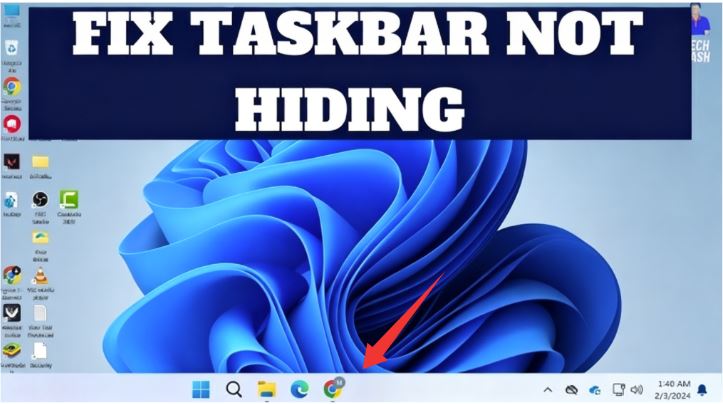
If your Windows taskbar not working is combined with hiding issues, it may indicate deeper UI instability. At this stage, relying solely on taskbar-based navigation becomes inefficient. This is where a smarter desktop management approach can help reduce dependency and improve workflow consistency.
Even after fixing a Windows taskbar not working issue, the problem can return unexpectedly. Instead of relying entirely on the taskbar, using an alternative desktop layer provides more stability.
Tools like iTop Easy Desktop function as a powerful desktop organizer, allowing you to access files and apps without depending on the taskbar. This is especially useful when facing Windows taskbar not loading or UI freezes.

- iTop Easy Desktop - Keep Your Desktop Organized
-
- Box desktop icons to declutter your workspace
- Manage documents, games, media files, etc., at 1 click
- Add calendar, clock and other widgets to desktop
- Locate any file you want instantly with search box
As a desktop organizer, it organizes icons into categories and offers quick-access panels, which reduces the need for taskbar navigation. Even if you encounter the Windows taskbar not showing, your workflow remains uninterrupted. This makes it an effective complementary solution rather than just a replacement.
After resolving the Windows taskbar not working, optimizing your desktop setup is the next smart step. Instead of going back to a cluttered interface, you can upgrade your workflow with smarter tools.
iTop Easy Desktop is a feature-rich desktop organizer for Windows designed to enhance both efficiency and usability. It helps you organize icons into structured and custom-named Boxes, making it easier to locate files without relying heavily on the taskbar.
More Advantages of iTop Easy Desktop:
Smart Desktop Icon Grouping (Reduce Taskbar Dependency)
Automatically organize icons into categories, making it easier to find apps and files without relying on the taskbar - especially helpful when Windows taskbar not working.
One-Click Hide/Show Desktop Content
Instantly hide or display all icons with a double click, providing a simple workaround for the Windows taskbar not hiding and keeping your workspace clean.
Quick Access Panel for Faster Search
Access frequently used apps and files quickly, reducing dependence on system search when the Windows taskbar search not working.
Customizable Desktop Layout
Flexible layout options help keep your desktop organized and prevent clutter or misclicks.
Lightweight and Stable (Windows 10/11 Compatible)
Runs smoothly with minimal resource usage and remains reliable even when issues like windows task bar not loading occur.
Widgets and Visual Enhancements
Supports tools like a calendar widget, a weather widget, a schedule widget, clock widget, and options like 4k wallpaper for PC for a more functional and personalized desktop.
The Bottom Line
That’s all about how to fix the Windows taskbar not working and related issues. You see, it’s usually fixable with the right combination of quick and advanced solutions. While built-in fixes restore functionality, enhancing your desktop with smarter desktop organizer tools ensures long-term stability, better organization, and a more efficient Windows experience.