-
iTop Easy Desktop - No.1 Desktop Organizer for Windows
-
Automatically organize and customize Windows desktop. Make your messy desktop look clean and professional within seconds.

How to Change Windows Theme - Complete Guide for Windows 10 and Windows 11
How to change Windows theme? Click to see how to change Windows theme for Windows 10 & 11, switch to any mode, and personalize your desktop easily. See now.
Personalizing your desktop is one of the easiest ways to improve both productivity and visual comfort. Whether you are looking for how to change Windows theme, switch your interface style, or fine-tune colors and backgrounds, Windows offers built-in options that are easy to access and use.
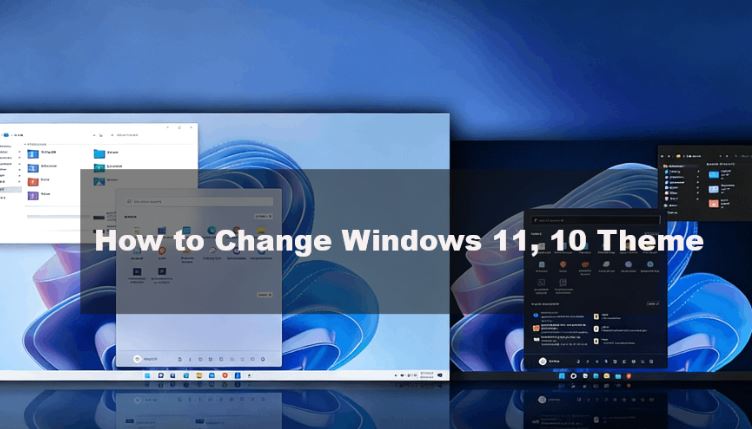
As some users search for how to change Windows theme to dark or how to change Windows 11 theme, customization has become a core part of the Windows experience. From basic theme changes to advanced desktop personalization, this guide will walk you through every essential method step by step, including a smarter one-click approach for users who want deeper control.
Before learning how to change Windows 11 themes or Windows 10 themes or more, it’s important to understand the difference between background, window colors, and full themes. These three options are often confused but serve different purposes.
Changing the desktop background only affects the image behind your icons. Adjusting window colors changes accent colors, borders, Start menu highlights, and taskbar tones.
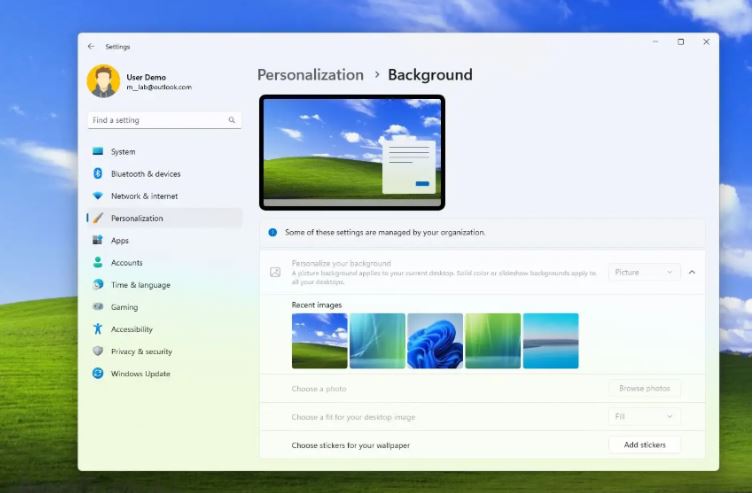
A full Windows theme, however, combines background images, colors, sounds, cursor styles, and sometimes fonts into one unified visual package. Understanding this distinction helps you choose whether you want a simple cosmetic tweak or a complete interface transformation.
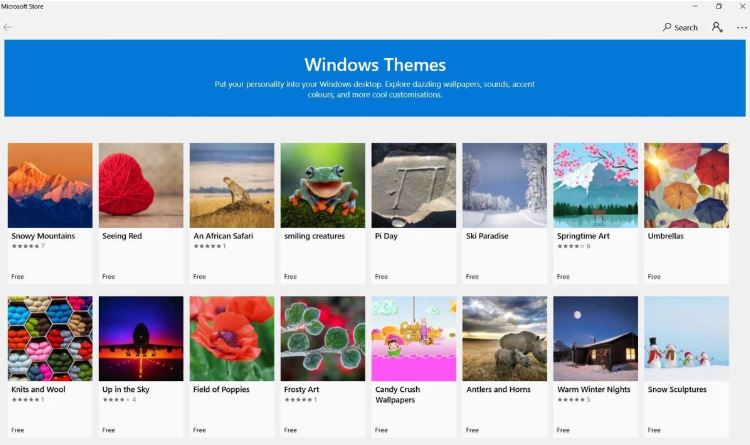
There are some built-in themes of Windows 10 and Windows 11, and you can get more themes in Microsoft Store. Next, let’s see how to change Windows to dark theme or other themes.
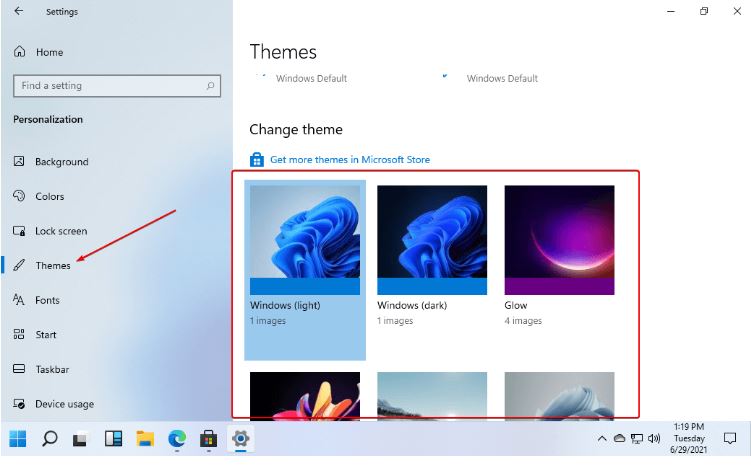
If you are using Windows 10, Microsoft provides built-in tools that make theme changes straightforward. Before jumping into the steps, you should know that themes in Windows 10 control background images, system colors, and sounds together.
Steps to change Windows 10 theme:
Step 1. Right-click on an empty area of your desktop
Step 2. Select Personalize from the menu > Click Themes in the left panel
Step 3. Choose a pre-installed theme or click Get more themes in the Microsoft Store
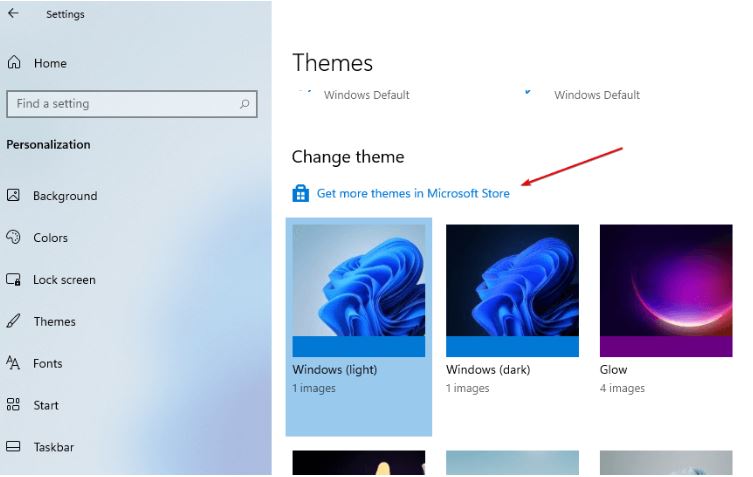
Step 4. Apply the theme instantly
These steps are the direct answer of how to change Windows theme from dark to light and vice versa.
Windows 11 builds on the personalization system introduced in Windows 10 while refining it with a more modern and visually consistent design. Users can still manage backgrounds, window colors, and light or dark modes separately. Windows 11 places greater emphasis on cohesive theme presets that bring these elements together more harmoniously.
For users exploring how to change Windows theme to dark, Windows 11 applies dark styling more evenly throughout system menus, settings pages, and native apps, while preserving full manual control for advanced customization. This balance between streamlined presets and granular settings makes it easier to understand how to change Windows 11 theme without limiting flexibility.
Steps to change Windows 11 theme:
Step 1. Open Settings, navigate to Personalization
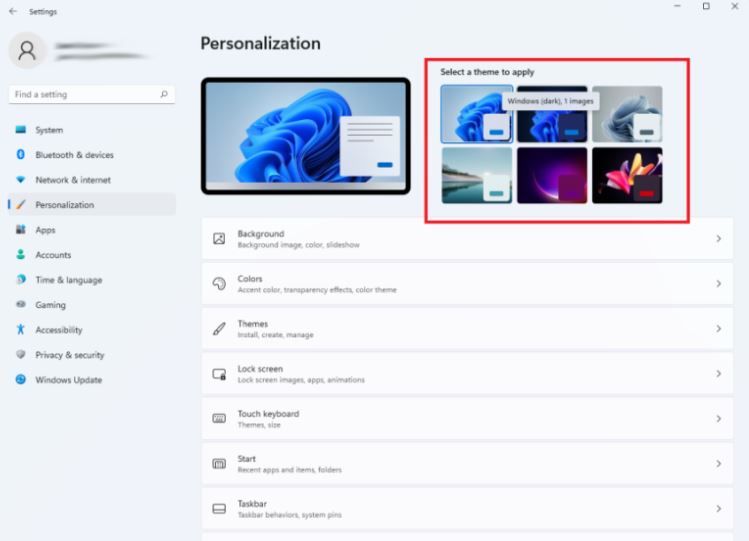
Step 2. Pick a default theme or download new ones. From here, you can choose to change the theme from dark to light, from light to dark, or to any mode you prefer.
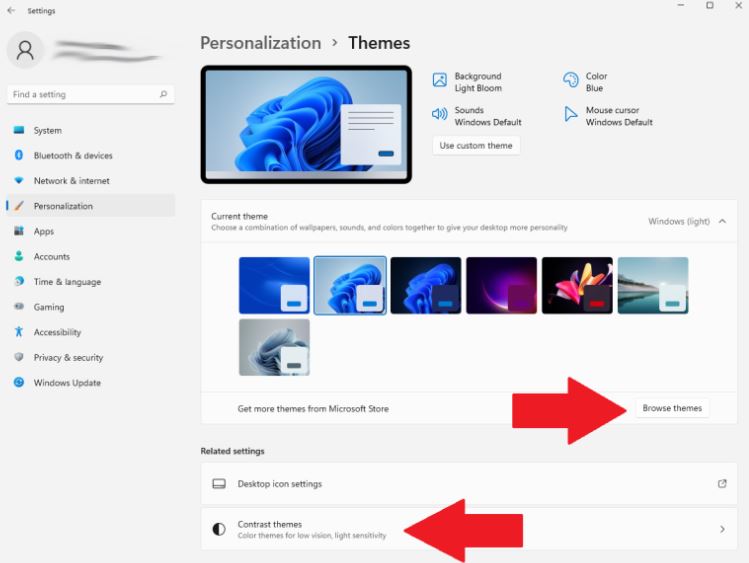
Step 3. Apply changes immediately
This approach works well for users who want to learn how to change Windows theme using native tools without third-party software.
Sometimes users want to revert to a simpler look or remove a theme entirely. Knowing how to remove theme from Windows 10 or 11 helps reset your system appearance without reinstalling the OS.
Before removing a theme, keep in mind that Windows does not delete themes completely but allows you to switch back to the default styles.
Steps to remove a theme from Windows:
Step 1. Open Settings, go to Personalization > Themes
Step 2. Select Windows Default or Windows Light
Step 3. Apply the default theme
This method effectively answers both how to remove theme from Windows and how to undo unwanted visual changes.
Lots of users not only want to understand the basics of how to change Windows themes, but also want deeper customization beyond default settings. Windows allows users to fine-tune color modes, visual effects, and accessibility options for better comfort.
You can manually switch between light and dark modes, adjust transparency effects, and control accent colors. Advanced personalization options include:
Changing app mode and system mode separately
Selecting custom accent colors
Enabling or disabling transparency effects
Customizing sounds and cursor styles
While Windows settings are flexible, managing all these options individually can become time-consuming, especially for users who frequently switch styles. Another easy and quick way to customize your Windows desktop is by using a free desktop organization tool like iTop Easy Desktop.

- iTop Easy Desktop - Keep Your Desktop Organized
-
- Box desktop icons to declutter your workspace
- Manage documents, games, media files, etc., at 1 click
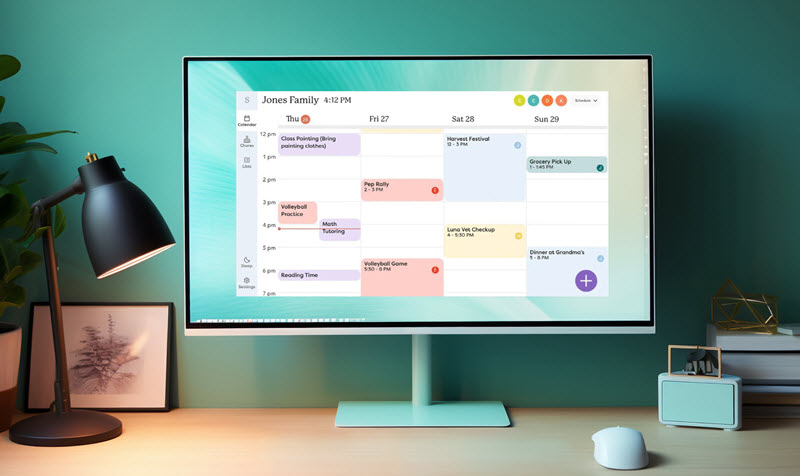
- Add calendar, clock and other widgets to desktop
- Locate any file you want instantly with search box
This is where tools like iTop Easy Desktop stand out. Instead of manually adjusting multiple Windows settings, iTop Easy Desktop offers an integrated solution that combines desktop organization and theme personalization in one place.
It provides Boxes for icon grouping, Wallpapers for visual consistency, Widgets for quick access, and a powerful Personalization module with 5 ready-made themes. This makes changing Windows themes faster, cleaner, and more efficient.
For users who want speed and simplicity, one-click theme switching is a major advantage. Instead of navigating through multiple system menus, iTop Easy Desktop streamlines the entire process.
Steps to change the Windows theme with iTop Easy Desktop:
Step 1. Download and install iTop Easy Desktop
Step 2. Launch the application and select the Personalization section
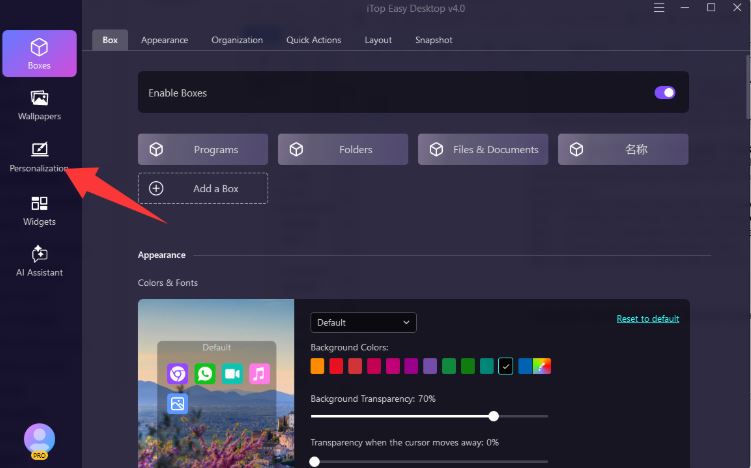
Step 3. Choose from predefined theme styles
Step 4. Apply the theme instantly with one click
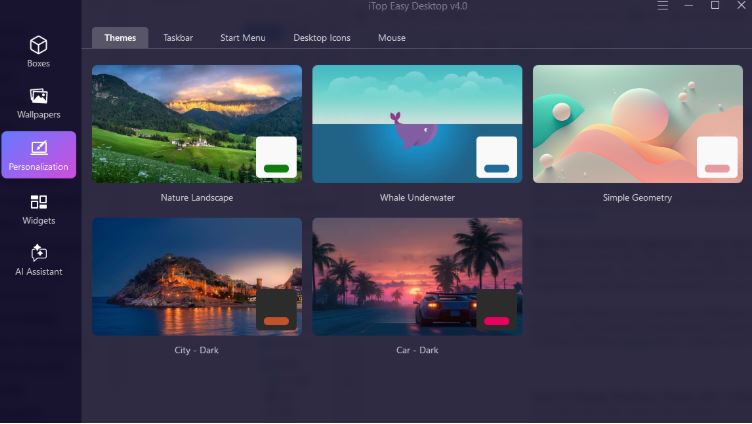
Beyond themes, visual customization includes backgrounds, window colors, and interface details. With iTop Easy Desktop, visual customization goes far beyond changing Windows themes. The tool allows users to switch the appearance of the taskbar, Start menu, desktop icons, and even mouse cursor presentation with a single click, creating a unified look that stays consistent across the entire interface.
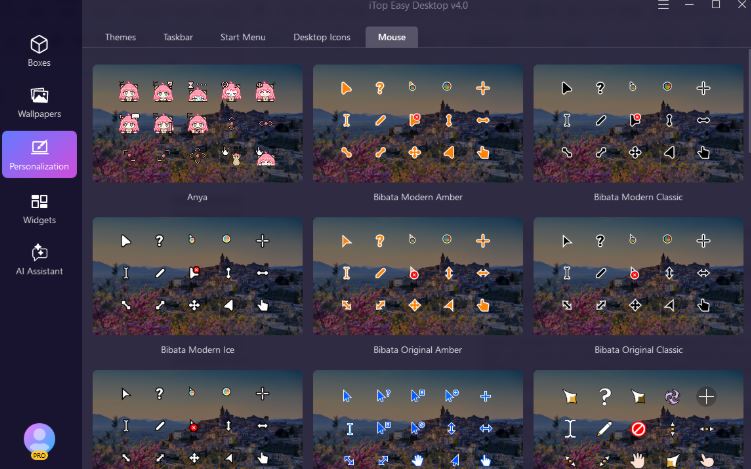
In addition to advanced visual switching, iTop Easy Desktop offers several standout features that enhance both aesthetics and productivity:
Wallpaper Management: Access a curated wallpaper library, including static and dynamic options, and synchronize wallpapers with theme styles for a more immersive desktop appearance.
Boxes (Desktop Organization): Group desktop icons into customizable boxes, keeping files, apps, and shortcuts neatly organized while preserving a clean visual layout.
Widgets & Smart Tools: Add functional widgets such as quick notes, clocks, or shortcuts to improve daily workflow without cluttering the desktop.
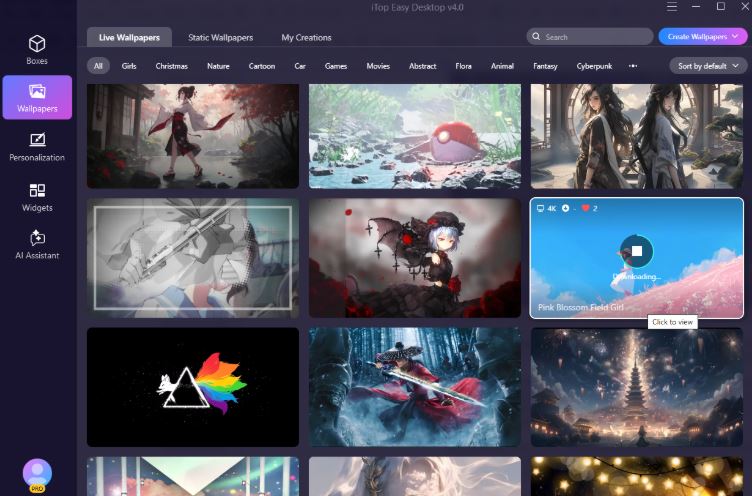
By combining deep visual customization with smart desktop organization, iTop Easy Desktop transforms theme personalization from a simple appearance change into a complete desktop experience upgrade.
The Bottom Line
Learning how to change Windows theme is about more than aesthetics; it’s about comfort, efficiency, and control. While Windows settings offer solid customization tools, advanced users can benefit more from integrated solutions like iTop Easy Desktop, which provides faster theme switching and deeper personalization without complexity.