-
iTop Easy Desktop - No.1 Desktop Organizer for Windows
-
Automatically organize and customize Windows desktop. Make your messy desktop look clean and professional within seconds.

How to Make Chrome Dark Mode: Complete Step-by-Step Guide
How to make Chrome dark mode on Windows 10, 11? Check the easy setup guide to turn on dark mode on Chrome on any of your devices. See 4 methods now.
Many users prefer browsing with a darker interface, especially during nighttime or long work sessions. If you’ve been searching for how to make Chrome dark mode, you are coming to the right page, since the good news is that Chrome offers several simple ways to enable this feature, and more ways out there.
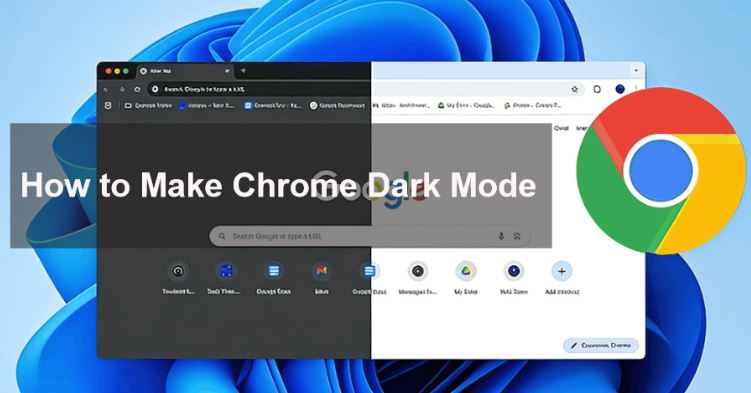
How to turn on dark mode on Chrome is easy. Whether through system settings, browser themes, or other customization tools, it’s easy to activate dark mode once you know where to look. In this guide, you will see how to make Google Chrome dark mode step by step using different methods so you can choose the one that works best for your device.
Chrome dark mode is a feature that changes the browser’s interface and supported websites to darker colors, reducing eye strain and improving comfort in low-light environments.
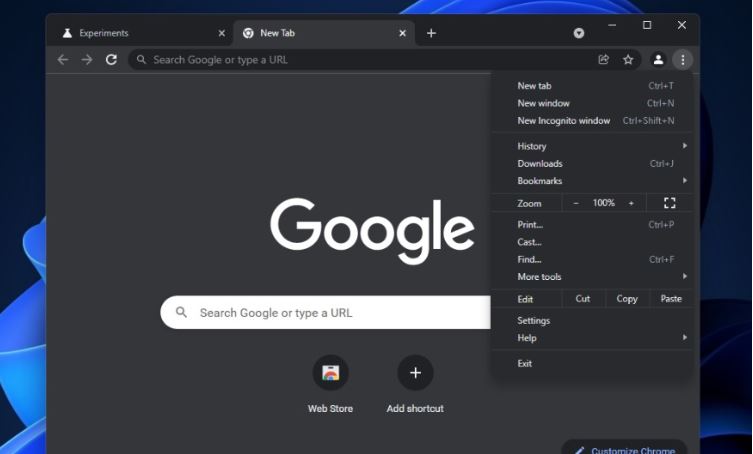
For users who spend long hours online, learning how to enable dark mode on Chrome can significantly reduce visual fatigue. Dark mode can also improve contrast when browsing in low-light environments, making text easier to read without causing glare. Another benefit is battery efficiency - on devices with OLED displays, darker pixels consume less power.
One of the easiest ways to activate dark mode in Chrome is by changing your operating system’s theme. Chrome automatically follows system appearance settings, meaning once the OS switches to dark mode, the browser interface updates as well. This approach works particularly well for users who want a consistent dark appearance across all applications.
If you’re searching for how to make Chrome dark mode Windows 10 or how to make Chrome dark mode Windows 11, using system settings is usually the most straightforward option. The steps below apply to both versions of Windows and can also work similarly on macOS.
On Desktop:
Step 1. Open the Settings menu on your computer.
Step 2. On Windows, Personalization > Colors. On Mac, select Appearance.
Step 3. Under the “Choose your mode” section, select Dark.
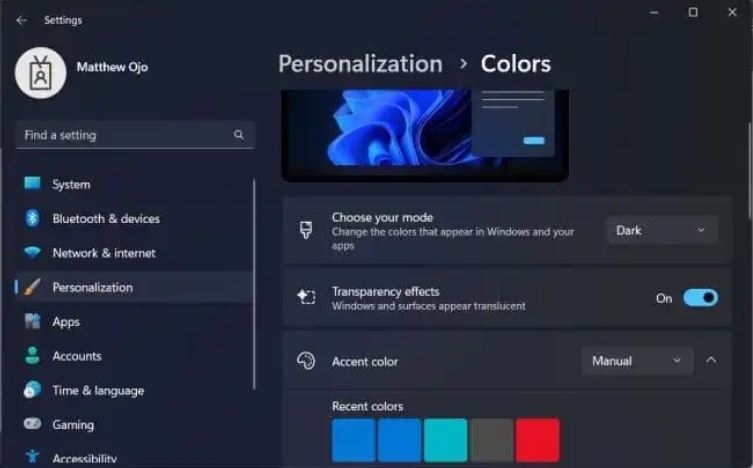
Step 4. Restart or reopen Chrome if it doesn’t automatically update.
After these steps, Chrome will automatically switch to dark mode. This is one of the simplest solutions for people searching for how to turn on dark mode on Chrome, because it synchronizes the browser with the rest of the operating system.
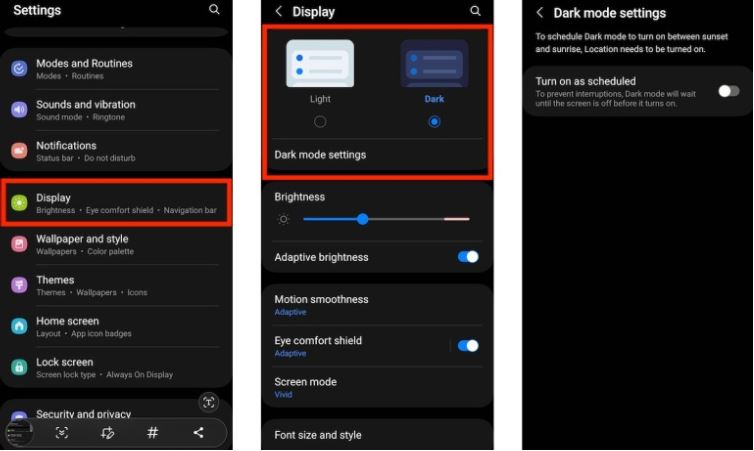
On Android:
Settings > Display > Dark or System Default.
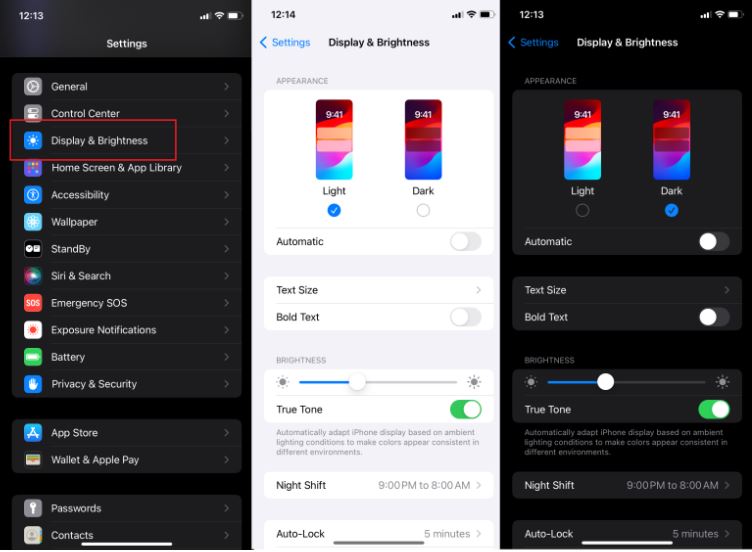
On iOS:
Go to Settings > Find Display & Brightness > Appearance > Select Dark.
Another way to activate dark mode is directly inside Chrome. Instead of changing your entire system appearance, you can apply a dark theme through the browser itself. This method is helpful for users who want Chrome to be dark while keeping the rest of their operating system unchanged.
This is a flexible approach offered by the Chrome theme. It allows users to customize the browser’s look using themes available in the Chrome Web Store. These themes adjust the color of tabs, toolbars, and menus to create a darker browsing environment.
How to set Chrome to dark mode through browser settings, check the steps below.
Step 1. Open Google Chrome > Click the 3-dot menu from the top-right corner.
Step 2. Select Settings, then navigate to Appearance.
Step 3. Click Theme to open the Chrome Web Store.
Step 4. Choose a dark theme and click Add to Chrome.
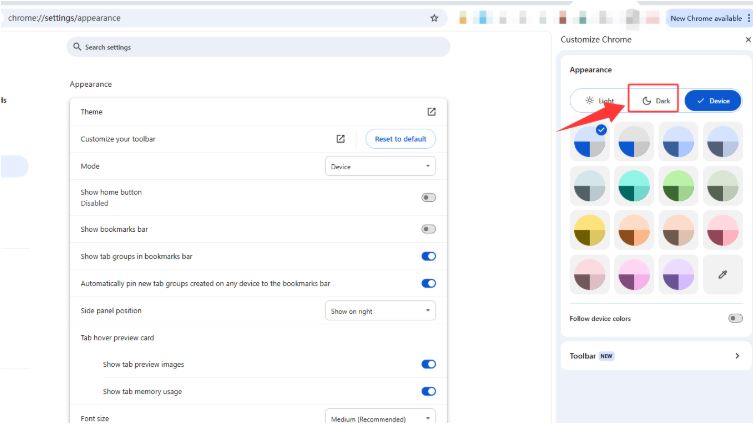 Once installed, the theme will instantly change Chrome’s interface to a darker style. Like this:
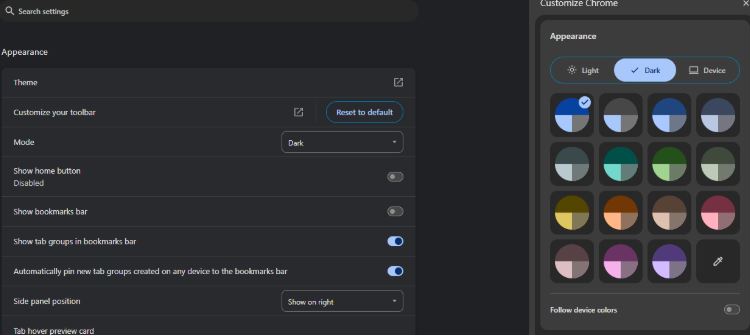
This method is another practical answer to how to make Chrome dark mode, especially if you enjoy customizing your browser’s appearance with different themes.
While the previous methods mainly change the browser interface, some users also want websites themselves to appear in dark mode. Not every site supports dark themes by default, but Chrome provides an experimental feature that can force dark styling on webpages.
This advanced option is useful if you’re trying to fully understand how to make chrome dark mode across all browsing environments. However, since it relies on experimental settings, it may occasionally cause visual glitches on certain websites.
Here’s how to activate forced dark mode:
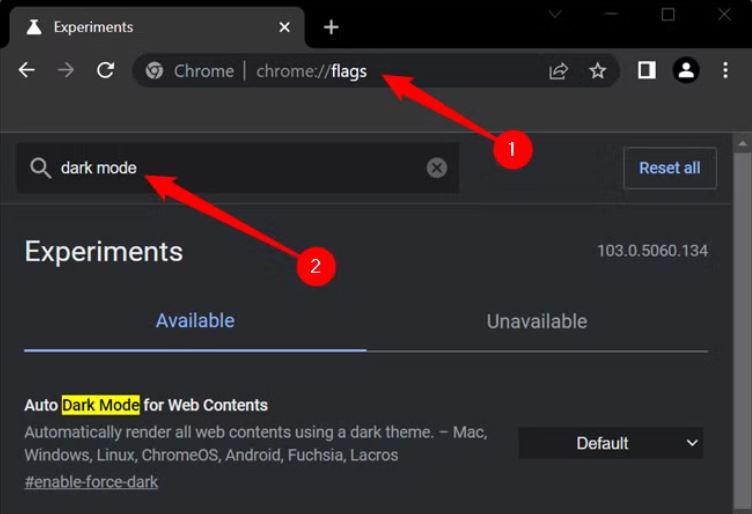
Step 1. In Chrome, open a tab and type chrome://flags in the address bar.
Step 2. Search for Force Dark Mode for Web Contents.
Step 3. Change the setting from Default to Enabled.
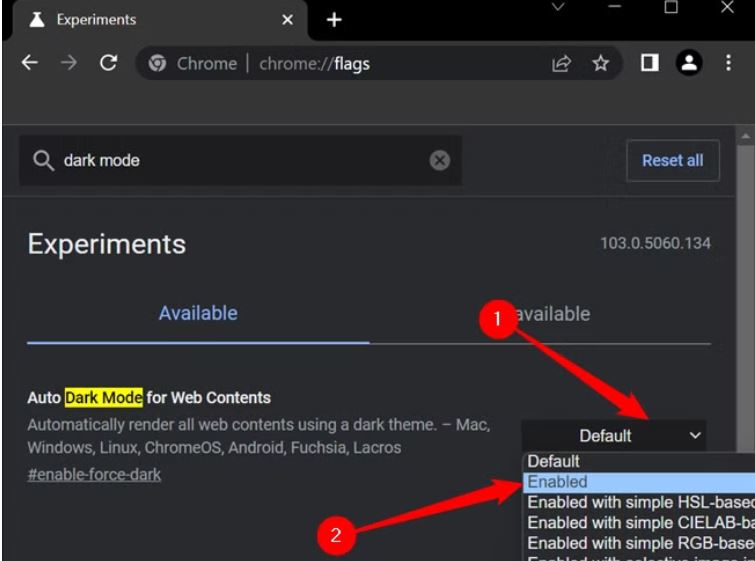
Step 4. Restart Chrome to apply the change.
After restarting, Chrome will attempt to convert website colors into darker tones automatically. Although this is a powerful solution for users exploring how to enable dark mode on Chrome, it’s best suited for advanced users because some pages may not display perfectly.
The methods above work well, but they often require manual configuration or system adjustments. If you want a simpler and more automated solution, desktop customization tools can help manage themes and appearance settings in one place. One convenient option is iTop Easy Desktop.
iTop Easy Desktop is one of the best desktop organizer software for PC that is designed to improve desktop productivity while offering visual customization features. Instead of manually adjusting browser or system settings, you can simply switch your desktop theme to dark, and Chrome will automatically follow the change. It's that simple. No need to search settings or scroll down, just switch with one click.
For users searching for how to make Chrome dark mode, this method simplifies the process because it integrates system appearance control with desktop management tools. It also helps keep your workspace organized and visually consistent.

- iTop Easy Desktop - Make Your Desktop Look Amazing
-
- Control desktop taskbar to better fit your workflow
- Change the look of start menu for your preference
- Choose from themes to make consistent interface
- Enjoy personalized desktop icons and mouse cursors
How iTop Easy Desktop Automatically Turns Chrome into Dark Mode
When you switch the desktop theme to dark in iTop Easy Desktop, Windows changes its appearance settings accordingly. Since Chrome automatically follows system themes, the browser instantly switches to dark mode without additional configuration.
Follow these steps to make it:
Step 1. Download and install iTop Easy Desktop on your Windows computer.
Step 2. Open the application and navigate to the Personation.
Step 3. Select a Dark Theme option.
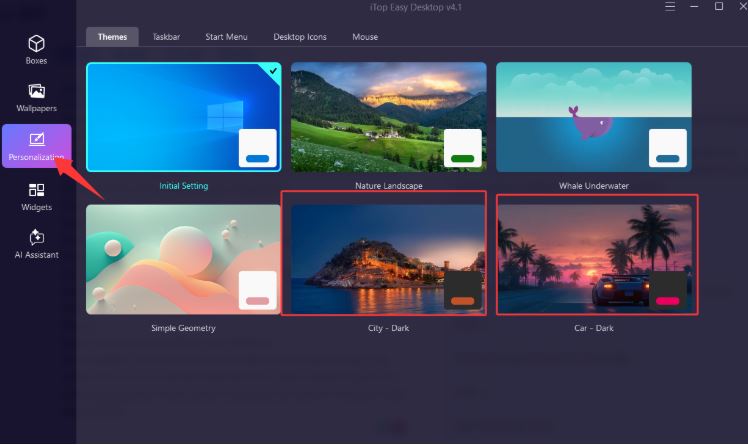
Step 4. It will auto apply the theme. Once applied, Chrome will automatically switch to dark mode.
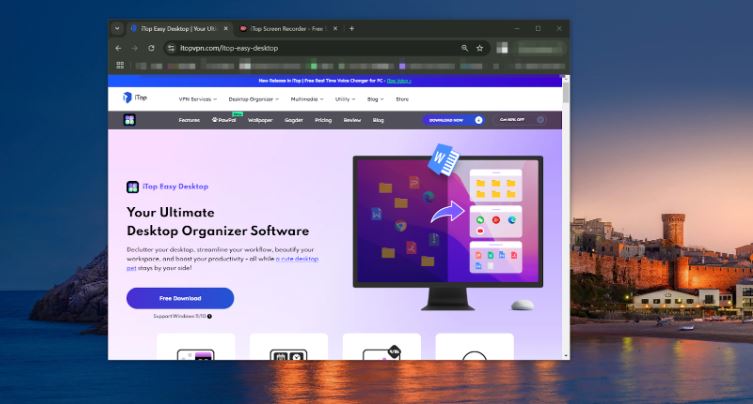
This makes the tool a convenient alternative for users researching how to make Chrome dark mode, since it removes the need for browser-level adjustments.
What’s More from iTop Easy Desktop?
iTop Easy Desktop is a desktop management tool that helps users organize icons, customize their workspace, and enhance productivity on Windows. It allows you to create categorized Boxes for icons, apply themes, set 4K live wallpapers, and personalize your desktop environment without complicated configuration.
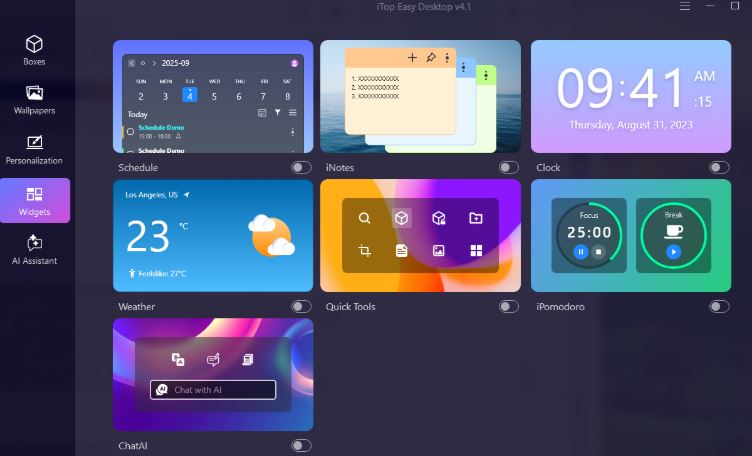
Beyond appearance settings, the software also includes useful desktop widgets and customization features. For example, users can add tools such as a desktop calendar widget, note widget, weather widget, clock widget, or more. Your screen, all is up to you.
Choosing the right approach depends on your preferences and how you use your device. If you want a simple system-wide solution, enabling dark mode in your operating system is usually the easiest way to learn how to turn on dark mode on Chrome. Users who prefer more customization might enjoy applying Chrome themes directly within the browser.
Advanced users can experiment with forced dark mode to convert website colors automatically. Meanwhile, desktop management tools offer an integrated solution that combines theme control with productivity features.
In a word, the best method for how to make Chrome dark mode is the one that fits your workflow and provides the most comfortable browsing experience.
The Bottom Line
Dark mode is one of the easiest ways to improve comfort while browsing the web. By adjusting system settings, applying Chrome themes, or using advanced options, you can quickly learn how to make Chrome dark mode and enjoy a more eye-friendly browsing environment. Each method offers its own advantages; select one and try now.

- iTop Easy Desktop
Next-Gen Desktop Customizer -
- 1-click organize 100+ icons
- 5000+ 4K and live wallpapers
- Interact with AI desktop pet