-
iTop Easy Desktop - No.1 Desktop Organizer for Windows
-
Automatically organize and customize Windows desktop. Make your messy desktop look clean and professional within seconds.

How to Lock a Folder on Windows 11 Without Complicated Software
Can you lock a folder on Windows? Learn how to lock a folder on Windows 11 or 10. 4 Methods here to lock Windows folders easily. See each one now.
Many Windows users want to know how to lock a folder, especially when storing personal photos, work documents, financial records, or gaming accounts on shared PCs. Questions like "Can you lock a folder on Windows? " are becoming increasingly common as privacy concerns continue to grow among Windows 10 and Windows 11 users.
As Windows 10 is no longer supported, more and more people want to know how to lock a folder on Windows 11 without using overly complicated encryption software. Whether you want to hide private files or simply organize sensitive folders more securely, there are now several practical ways to protect your data while improving your desktop workflow.
Although Windows does not include a dedicated one-click folder lock feature, there are still several ways to protect sensitive files. Users searching for how to lock a folder often rely on hidden folders, NTFS permissions, encrypted ZIP archives, or third-party software.
If you are wondering, can you lock a folder on Windows, the answer is yes - but the method you choose depends on your security needs, convenience preferences, and how often you access those files on your computer.
Before installing third-party tools, many users first explore Windows’ built-in folder protection options. These methods are useful for people learning how to lock a folder on my computer without additional software. While they may not provide enterprise-level protection, they can still help lock Windows folders and improve privacy for everyday use.
Method 1 - Hide a Folder in Windows 11
One of the easiest ways to lock Windows folder visibility is by hiding it from File Explorer.
Steps:
1. Right-click the folder.
2. Select “Properties.”
3. Check the “Hidden” option.
4. Click “Apply” and “OK.”
5. Disable “Hidden items” in File Explorer View settings.
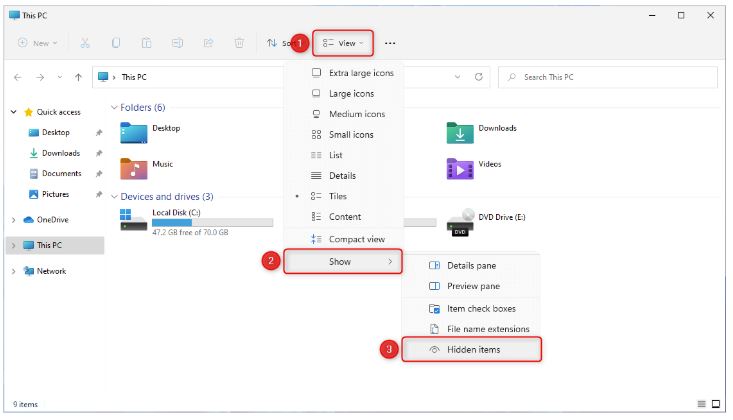
This method is simple for users wondering how to lock a folder in Windows 11 quickly. However, hidden folders are not password-protected, so experienced users can still access them easily.
Method 2 - Lock a Folder with NTFS Permissions
Windows also allows you to restrict access to a folder through NTFS permissions.
Steps:
1. Right-click the folder.
2. Open “Properties.”
3. Go to the “Security” tab.
4. Click “Edit.”
5. Remove or deny access for selected accounts.
6. Save the changes.
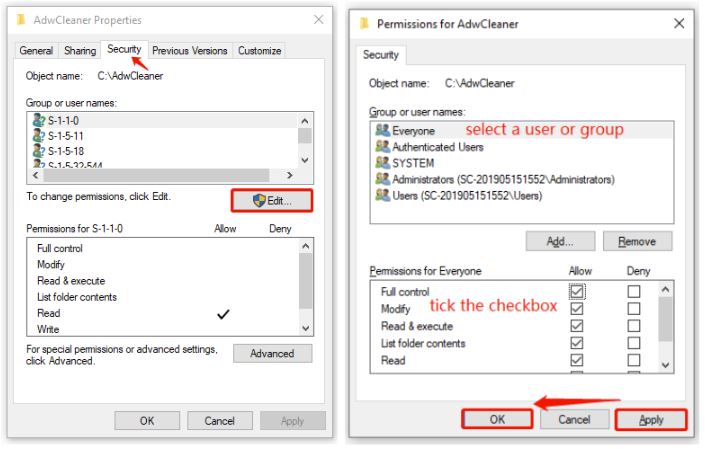
This method is more suitable for shared family or office computers. It is commonly used by people searching for how to lock a folder on Windows 11 using native Windows settings. However, the setup can feel technical for beginners.
Method 3 - Use Encrypted ZIP Folders
Another popular option is creating password-protected archives with software like WinRAR or 7-Zip.
Steps:
1. Right-click the folder.
2. Select “Add to archive.”
3. Set a password.
4. Enable AES encryption.
5. Delete the original unprotected folder.
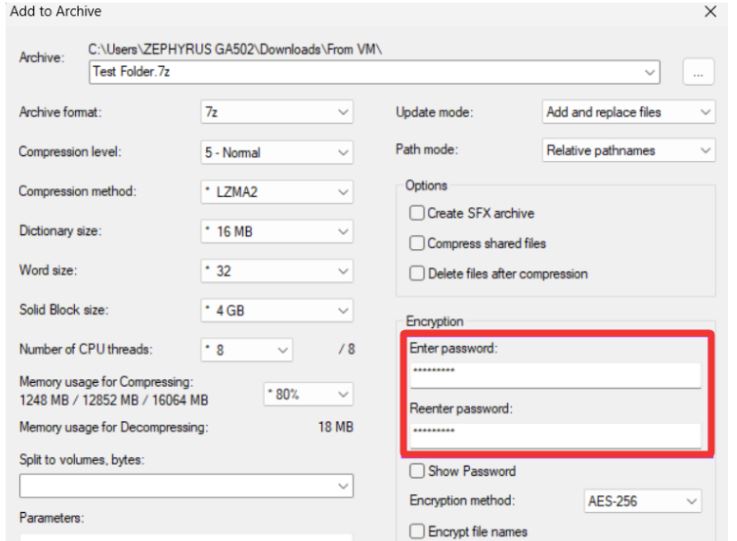
For how to lock a folder with password protection, this approach offers better security than simple folder hiding. Still, constantly compressing and extracting files can become inconvenient for daily use.
Besides security, many users also want a cleaner desktop environment while managing private files. Using a good desktop organizer, like iTop Easy Desktop, can make folder management much more efficient, alongside folder privacy protection.
Although many users search for how to lock a folder using built-in Windows tools, traditional methods are not always practical for everyday workflow management. Hidden folders provide only basic privacy, NTFS permissions can feel complicated for non-technical users, and ZIP encryption often slows down file access. And more limitations include:
Complex setup processes
Some methods require multiple system settings and permissions adjustments.
Repeated password input
Encrypted archives often need constant extraction and re-locking.
Slow file access
Opening protected folders may interrupt daily workflow efficiency.
Poor desktop organization
Traditional tools focus only on security, not workspace management.
Limited visual management
Hidden folders and compressed files are difficult to organize visually.
Not ideal for high-frequency use
Users who regularly access private files may find these methods inconvenient.
Over time, these methods may become frustrating, especially for users who frequently work with sensitive folders on Windows 11. Because of these limitations, many Windows users now prefer modern desktop workspace tools that combine folder protection, organization, and productivity features in a single system. That is where tools like iTop Easy Desktop work for.
Modern users often want more than just basic folder protection. They also want faster access, cleaner desktops, and easier workspace management. This is where iTop Easy Desktop becomes different from traditional folder lock software.

- iTop Easy Desktop - Keep Your Desktop Organized
-
- Box desktop icons to declutter your workspace
- Manage documents, games, media files, etc., at 1 click
- Add calendar, clock and other widgets to desktop
- Locate any file you want instantly with search box
Rather than acting only as a Folder security tool, iTop Easy Desktop functions as a visual workspace manager and desktop organizer for Windows users. It combines folder protection, desktop organization, and productivity features into one system. For people searching for how to lock a folder in Windows 11 while maintaining a clean workspace, this approach feels far more practical.
What is a Private Box in iTop Easy Desktop?
Private Box is one of the most useful features inside iTop Easy Desktop. It allows users to create password-protected desktop spaces for folders and sensitive files.
Password-Protected Folder Hub
Users can protect not only one folder but also multiple folders with passwords for their customized Private Box to prevent unauthorized access.
Hide Sensitive Files from the Desktop
Important files remain hidden from other users sharing the same computer.
Fast Access Without Repeated Compression
Unlike ZIP archives, folders remain quickly accessible without constant extraction.
Better for Shared Devices
Ideal for office PCs, gaming setups, and family computers.
How to lock a folder on Windows 11 efficiently? Using Private Box provides a smoother experience than the traditional Windows methods. Instead of navigating multiple settings menus, users can manage protected folders directly from the desktop workspace.
How to Lock a Folder with iTop Easy Desktop Private Box
If you frequently access sensitive folders, Private Box offers a faster and more modern solution for how to lock a folder compared to Windows-native methods. Then, how to lock a folder with the iTop Easy Desktop Private Box feature? Follow the steps:
Step 1. Download and install iTop Easy Desktop on your PC.
Step 2. Launch the software and enable the Boxes feature.
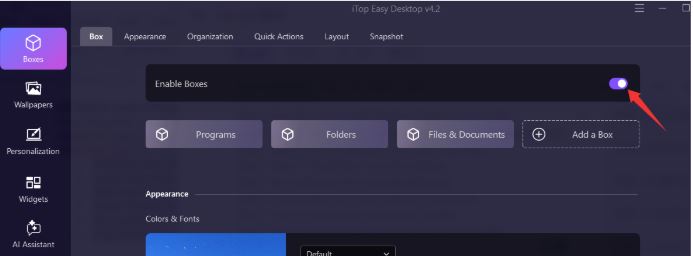
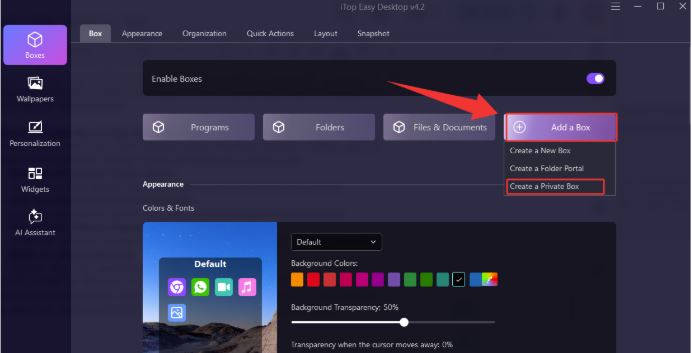
Step 3. Select Add a Box > Create a Private Box.
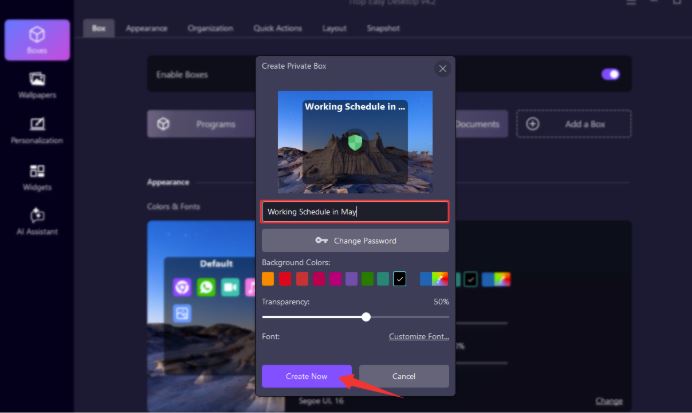
Step 4. Set a password for your protected Box. You can name it.
Step 5. Drag folders or other files into the Private Box workspace.
Step 6. On your desktop screen, you will see the named Private Box. To access it, double-click and enter your password. You can lock or hide the box whenever needed.
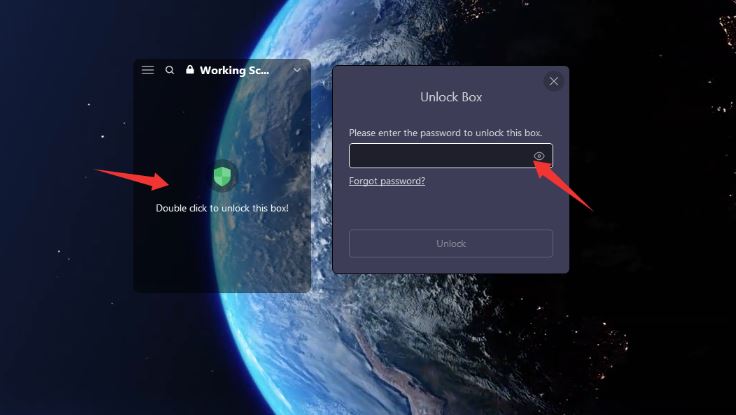
This method is particularly useful for users wondering how to lock a folder on my computer without dealing with complicated permission systems. It combines folder security with visual workspace management, making it ideal for Windows 11 users who value both productivity and privacy.
Traditional methods for how to lock a folder mainly focus on basic security. While they can hide or encrypt files, they usually do not improve desktop productivity or file management efficiency, while iTop Easy Desktop can. Here is a comparison:
Feature |
Traditional Methods |
iTop Easy Desktop |
Password Protection |
Yes |
Yes |
Visual Folder Management |
No |
Yes |
Workspace Organization |
No |
Yes |
Fast Folder Access |
Medium |
High |
Desktop Integration |
Weak |
Strong |
Automatic Sorting |
No |
Yes |
User-Friendly Workflow |
Limited |
Excellent |
iTop Easy Desktop provides a more complete experience. Instead of treating folder security as a separate task, it integrates privacy protection directly into the desktop workflow. This creates a more modern, organized, and efficient way to manage sensitive files on Windows 11 systems.
Other Useful Features of iTop Easy Desktop
iTop Easy Desktop is more than just a folder lock solution. It becomes a complete desktop organizer for Windows focused on productivity and workspace management.
It works as a practical desktop organizer for Windows, helping users organize folders, shortcuts, and apps into clean desktop Boxes.
Users can improve workflow with a built-in calendar widget and customizable clock widget support.
Organized desktop layouts pair well with high-quality 4k wallpaper backgrounds for a cleaner and more modern Windows experience.
The software can automatically sort desktop items into categories, reducing clutter and improving workspace efficiency.
Users can quickly hide desktop content during meetings, presentations, streaming sessions, or gaming for better privacy and focus.
The Bottom Line
If you only occasionally need to hide files, built-in Windows methods may be enough. However, users searching for how to lock a folder more efficiently often want stronger privacy, faster access, and better desktop organization together. iTop Easy Desktop’s Private Box feature offers a smarter solution for how to lock a folder on Windows 11 while also improving productivity, workspace management, and overall desktop experience.