-
iTop Easy Desktop - No.1 Desktop Organizer for Windows
-
Automatically organize and customize Windows desktop. Make your messy desktop look clean and professional within seconds.

Download Mouse Cursors: Easy Ways to Customize Your Cursor on Windows
Need to download mouse cursors for gaming, work, or daily use? Find 5 safe and free ways to change cursor styles easily without complex setup or risky files.
A plain white arrow on a bright screen gets the job done, but it rarely feels personal. Over time, that default cursor can start to look dull. It stands out in the wrong way and makes the whole desktop feel less cohesive.
That’s where it makes sense to download mouse cursors and switch things up. With a few clicks, you can replace the standard pointer with styles that match your taste, be it minimal, animated, gaming-inspired, or even fully themed sets. In this post, check out where to safely find cursor packs and how cursor customization works on Windows.
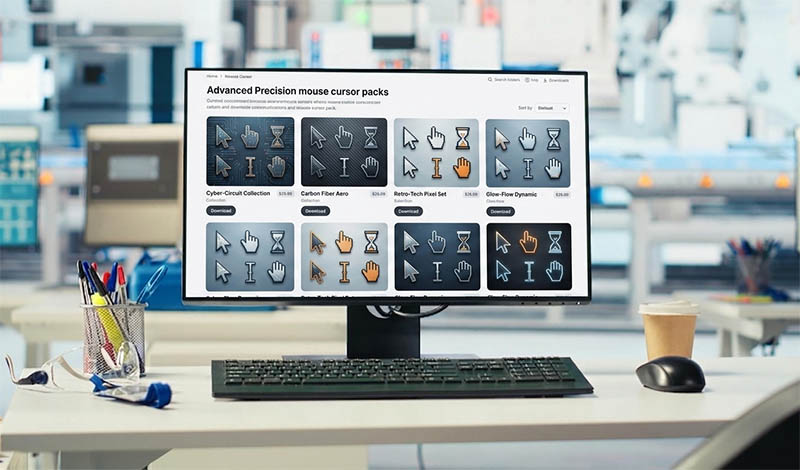
Here’s a quick breakdown of the five methods to help you decide which option fits your setup best before you complete a mouse cursor download or explore customization tools. Each option supports a different level of control, from quick browser-based changes to customization workflows.
Method |
Best for |
Setup Effort |
Key Strength |
Limitation |
Sweezy Cursors |
Browser-based customization |
Easy |
Instant animated cursor switching |
Works mainly in Chrome |
iTop Easy Desktop |
All-in-one desktop setup |
Easy |
Combines cursors,wallpaper, and layout tools |
Windows only |
Cursors-4U |
Classic cursor collections |
Huge archive of downloadable cursors |
Ads |
|
VSThemes |
Modern themed cursor packs |
Moderate |
|
Manual Windows setup required |
RW Designer |
|
Moderate |
|
Outdated website design |
A proper mouse cursor download experience should not require complicated installation steps or raise concerns about unsafe files. Below are the top 5 trustworthy resources.
Method 1. Sweezy Cursors
Sweezy Cursors is a browser-based customization tool that lets users switch their pointer style with just a few clicks. It runs as a Chrome extension and offers a large collection of animated and themed cool mouse cursor download. From gaming-inspired designs to playful aesthetic sets, it’s built for cool mouse cursor lovers who want a more visually interesting experience while browsing.
Pros:
Huge library of animated and themed cursor styles.
Quick setup with one-click activation inside the browser.
Free access to most cursor packs.
Cons:
Works mainly inside Chrome, not system-wide.
Animated cursors may feel heavy on older devices.

Method 2. iTop Easy Desktop (Recommended)
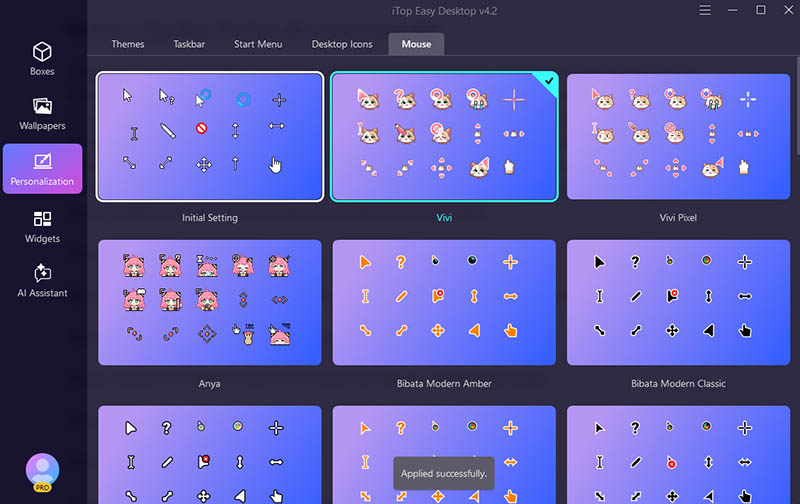
iTop Easy Desktop is a Windows customization tool that brings structure and visual style into one place. Instead of jumping between settings or searching random sites, users can handle cursor personalization, layout changes, wallpapers, and icons from a single interface. iTop Easy Desktop comes with a wide variety of customizable Windows cursor themes, such as Bibata-style pointers, animated cursor sets, vibrant colorful designs, and other creative options. It’s a versatile tool for those who want a smoother mouse cursor download experience without dealing with manual system tweaks or unsafe third-party files.

- iTop Easy Desktop - Make Your Desktop Look Amazing
-
- Control desktop taskbar to better fit your workflow
- Change the look of start menu for your preference
- Choose from themes to make consistent interface
- Enjoy personalized desktop icons and mouse cursors
Pros:
Blends cursor customization with wallpapers, icons, and desktop layout tools in one place.
One-click application makes personalization fast and straightforward.
Helps reduce the need to search for external files or unsafe downloads.
Cons:
Only available on Windows systems.
Cursor selection is more limited compared to dedicated cursor libraries.
Method 3. Cursors-4U
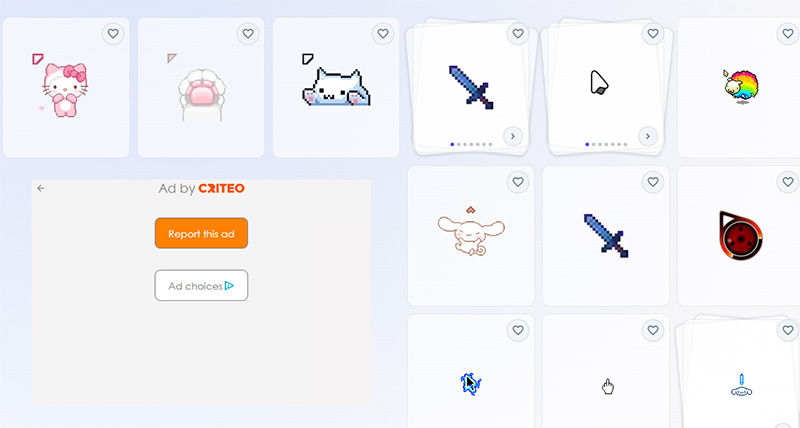
Cursors-4U has been around for years as one of the most recognizable places to find custom pointer styles. It’s often mentioned by those who need a quick way to free download mouse cursors without installing extra software. The platform hosts a huge collection of cursor sets, covering from retro designs to animated icons and game-inspired styles. Its long history also makes it a familiar place to download visual customization packs.
Cursors-4U remains a straightforward option when you need a fast mouse cursor download experience without signing up or installing additional tools, especially if you’re comfortable browsing a more traditional-style resource library.
Pros:
Extremely large collection with thousands of cursor styles across different themes.
Simple file-based downloads in .cur and .ani formats.
Cons:
The website design feels outdated compared to modern platforms.
Pop-ups and ads may interrupt browsing at times.
Method 4. VSThemes
VSThemes is a customization platform that focuses on wallpapers, icons, and a dedicated section for cursor packs. It has become a useful destination for people who want a more polished look while searching for free download mouse cursors options that go beyond basic designs. The cursor library includes modern minimalist styles, animated sets, and themed packs designed to match different desktop aesthetics. Inside the platform, cursor packs are usually well-structured and come as complete sets covering all pointer states, so the visual style stays consistent across different actions.
Pros:
High-quality cursor packs with modern and visually consistent designs.
Wide range of styles, including minimalist, animated, and themed sets.
Cons:
Manual installation is required through Windows mouse settings.
Some highly detailed cursors may feel slightly heavy on low-end systems.
Method 5. RW Designer Cursor Library
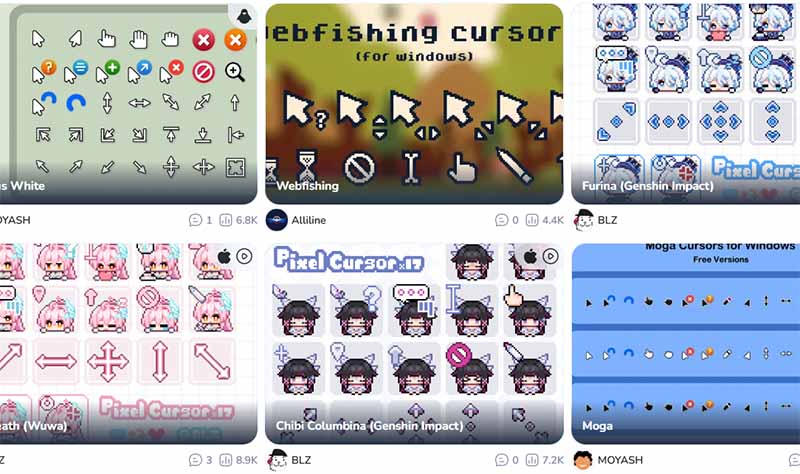
RW Designer is both a mouse cursor download free library and a lightweight editor built around Windows pointer customization. It’s often used to tweak or build personal styles instead of relying only on ready-made packs. The platform offers a large collection of community-uploaded cursor sets, including static designs and animated formats, all accessible directly through browser preview before saving. Beyond browsing, it also includes a dedicated cursor editor that lets users adjust or create .cur and .ani files.
Pros:
Free access to a large library of user-created cursor packs
Built-in editor for creating and modifying custom cursors
Strong support for both static and animated pointer formats
Cons:
Website and tools feel visually outdated compared to modern platforms.
The quality of cursor packs varies since content is user-submitted.
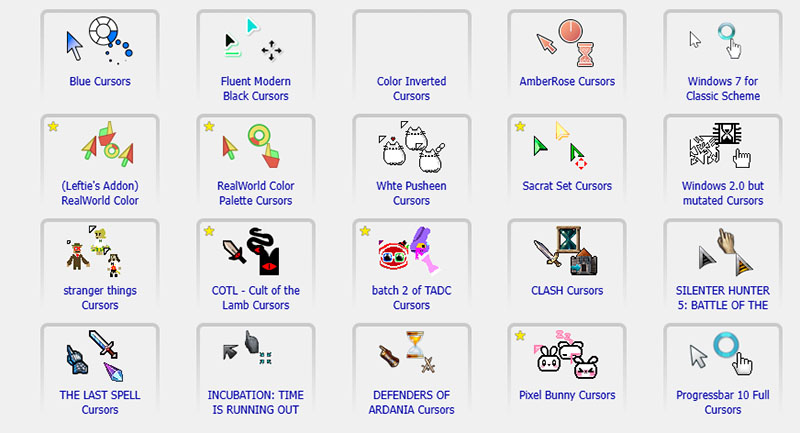
After trying different platforms like Sweezy, Cursors-4U, VSThemes, and RW Designer, one thing becomes clear: most options still require a bit of manual setup once the files are saved. So if you’ve already completed the process to download mouse cursors, the next step is getting them properly applied inside Windows. This section walks through both the traditional method and a simpler alternative.
#1: Apply Downloaded Mouse Cursors via Windows Settings
After learning how to download custom cursors from websites like RW Designer or Cursors-4U, use the following steps to apply new mouse cursors via Windows Settings.
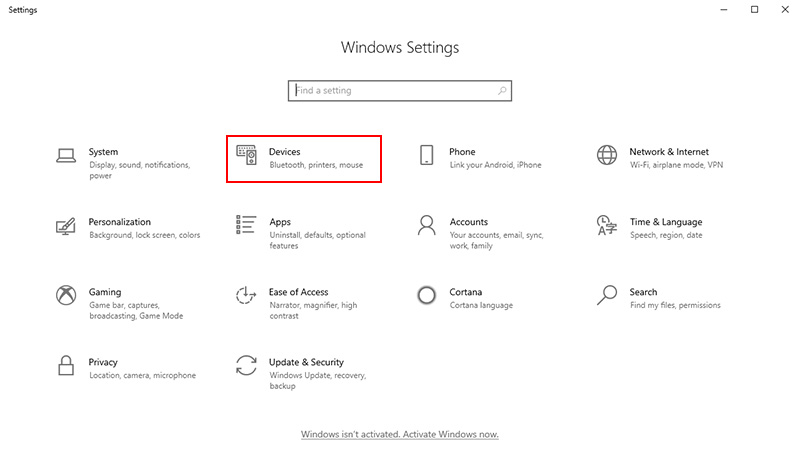
Step 1. Open the Windows Settings, go to Bluetooth & Device (or Devices on Windows 10), and select Mouse.
Step 2. Go to Related settings > Additional mouse options, click the “Pointers” tab, where system cursor schemes are managed.
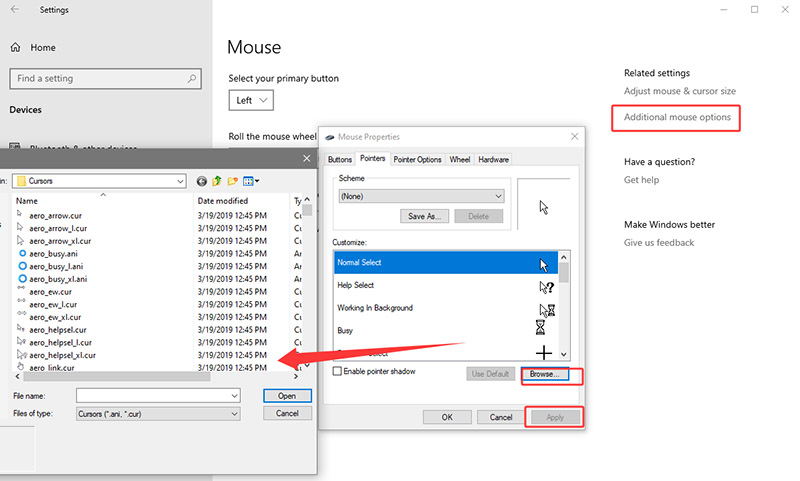
Step 3. Click “Browse,” locate the downloaded cursor files, assign each pointer type, then click “Apply” to save the new one.
#2: Apply Mouse Cursors Using iTop Easy Desktop (No Manual Setup)
This approach is simple to handle how to download a mouse cursor and apply them without manual setup. Learn how to change mouse cursor in a few clicks on Windows with iTop Easy Desktop.
Step 1. Download and install iTop Easy Desktop on your PC, then launch the application after setup is complete.
Step 2. Open the Personalization section and navigate to mouse-related customization options, where different styles are displayed for preview.
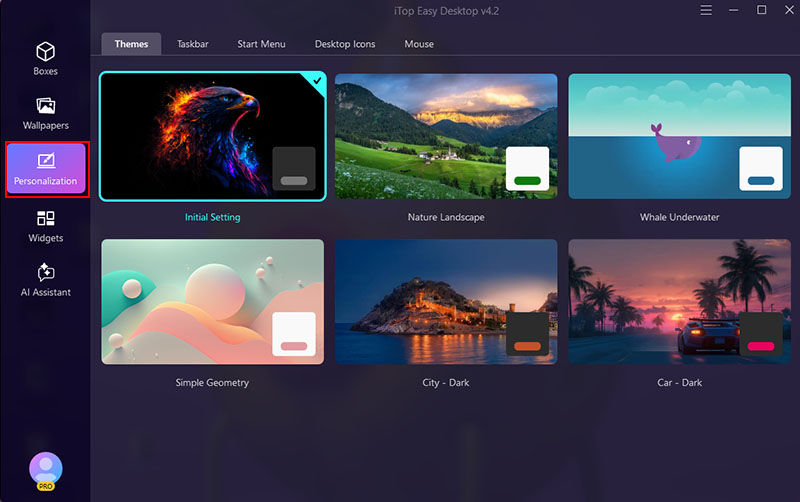 Step 3. Select a cursor style you like and apply it with a single click. The change updates instantly, with no need to manually adjust system files or restart Windows.
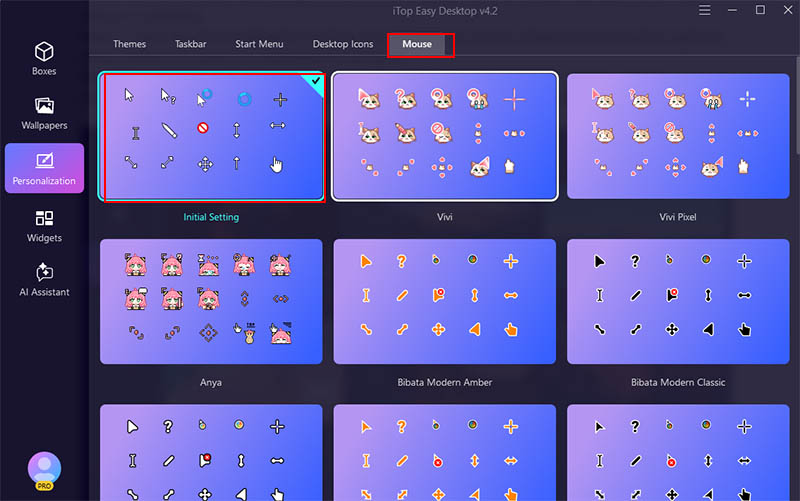
After going through different ways to download mouse cursors, you’d know that most methods focus only on cursor files, while everything else still needs separate tools or manual setup. iTop Easy Desktop takes a broader approach. Beyond allowing users to download mouse cursors, it turns the desktop itself into a more structured and visually consistent workspace. Compared with the other four methods, its biggest advantage is the lack of manual configuration and the fact that everything sits inside one integrated system.
Key features of iTop Easy Desktop:Smart Desktop Grouping: iTop Easy Desktop automatically organizes desktop icons into clearly labeled zones to achieve a clutter-free workspace with minimal effort.
Auto File Organization: The tool can sort files, folders, and apps into structured categories and reduce manual dragging and repetitive desktop cleanup tasks.
Flexible Drag-and-Drop Customization: The desktop organizer lets users freely move and arrange icons, folders, and boxes anywhere on the desktop to create a clean, personalized workspace layout.
Shortcut Management System: iTop Easy Desktop builds quick-access shortcuts for boxe access and creation, etc. to improve efficiency.
Personalized Desktop Themes & Layouts: Just apply unified visual themes across wallpapers, icons, desktop calender widget, and many other widgets to create a consistent and more polished desktop appearance.
iTop Easy Desktop connects mouse cursor packs with desktop personalization for daily productivity. That combination makes it suitable for achieving greater control over desktop appearance while maintaining a cleaner and more organized workspace.
The Bottom Line
Customizing a mouse cursor is just one part of improving a Windows setup. While there are different platforms to download mouse cursors, the overall experience often stops there. iTop Easy Desktop goes further by combining visual customization with real desktop organization, reducing clutter and simplifying routine actions. Download and install iTop Easy Desktop for a straightforward step toward a cleaner, more personalized workspace
- Related Articles for Reference
-
-
Best Windows Taskbar Customizer Tools: 5 Top Apps to Personalize Your Taskbar
-
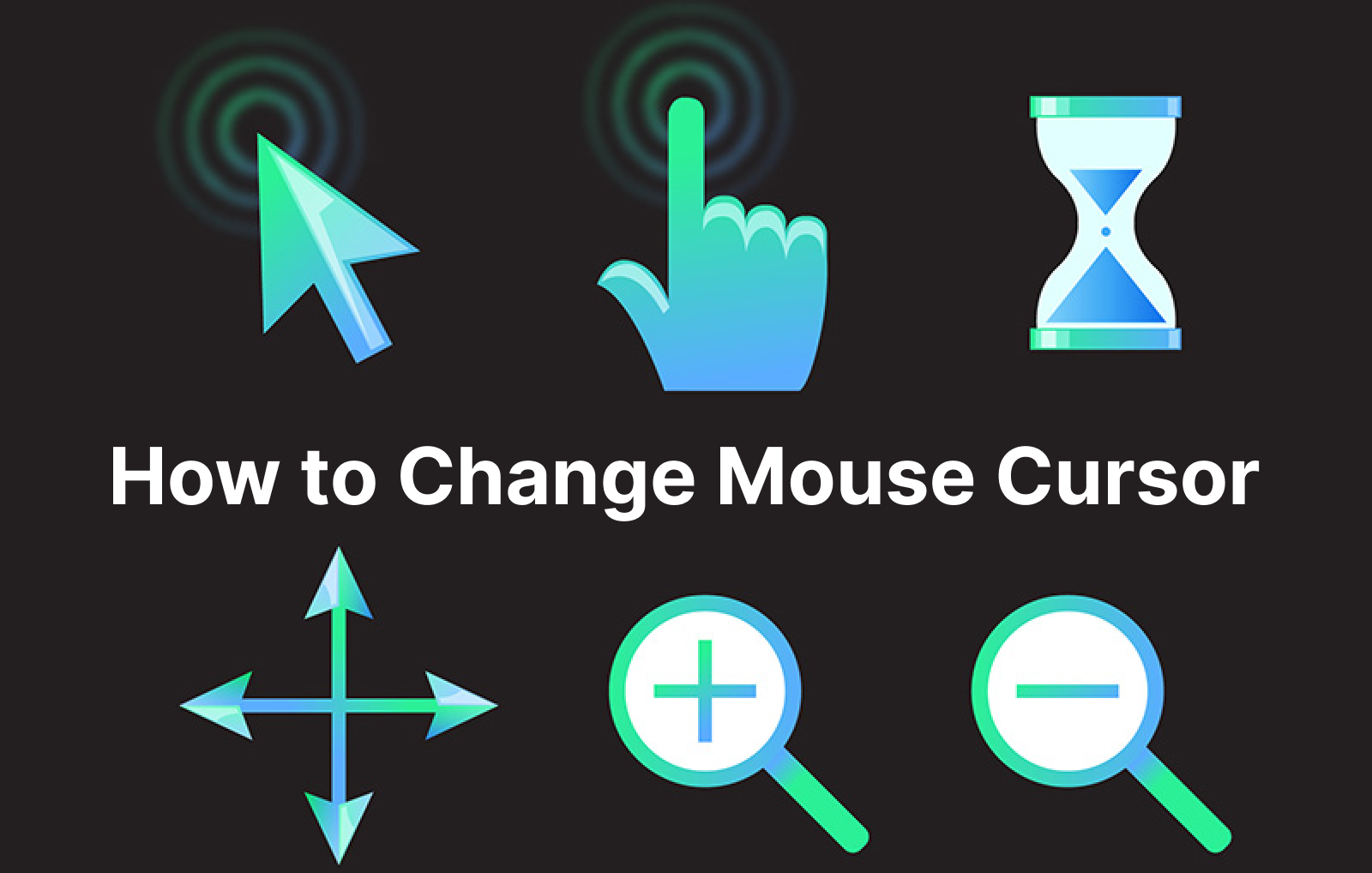
How to Change Mouse Cursor Color, Size, and Theme on Windows/Mac (Free Customization)
-
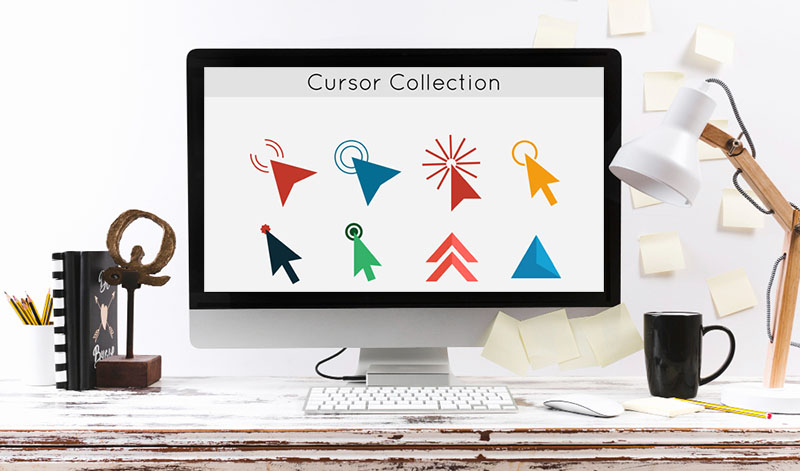
Best Mouse Cursor Packs: 6 Free & Custom Cursor Sets to Download in 2026
-
50+ Virtual Desktop Pets: Best PC Desktop Pet List for Joy and Healing
-



