-
iTop Easy Desktop - No.1 Desktop Organizer for Windows
-
Automatically organize and customize Windows desktop. Make your messy desktop look clean and professional within seconds.

Windows 11 Quick Access | Your Ultimate Guide for Faster File Management
Stop hunting for files. Learn how Windows 11 Quick Access highlights the files and folders you need most, saving time and keeping your workflow smoother.
When you use Windows 11 every day, you’ve probably had this moment: you know a file is on your computer, but you still end up clicking through three or four folders to find it. It’s not hard, just unnecessarily slow, and over time, that friction adds up. Microsoft actually anticipated this problem. That’s where Windows 11 Quick Access comes in. It’s a small feature, easy to overlook, but designed to quietly bring the folders and files you reach for most right to the front. In this post, we’ll look at how Quick Access works, what it does well, where it can be annoying, and how to make it actually feel helpful.
At its core, Windows 11 Quick Access is simply File Explorer’s way of remembering where you actually go, not where Microsoft thinks you should go. You’ll see it sitting at the top of the left sidebar in File Explorer, quietly collecting shortcuts as you work. By default, it shows folders you’ve pinned on purpose, locations you open again and again, and a rolling list of recent files. Nothing fancy, but surprisingly practical.
Behind the scenes, Quick Access Windows 11 relies on basic patterns, how often you open a folder, what you touched most recently, and what habits repeat over time. It’s less a feature you “set up” and more one that adapts as you use your PC.
Once you stop treating Windows 11 Quick Access as a passive list and start guiding it a little, it shifts from “background feature” to something that quietly saves time every single day. Below are the main Quick Access functions and how to use them on Windows 11.
How to Pin & Unpin Certain Folders in Windows 11 Quick Access
Certain folders come up in your routine again and again? Pinning them is less about organization and more about reducing friction.
Step 1. Open File Explorer and navigate to a folder you access frequently during normal work or daily tasks.
Step 2. Right-click the folder and select Pin to Quick access in Windows 11.
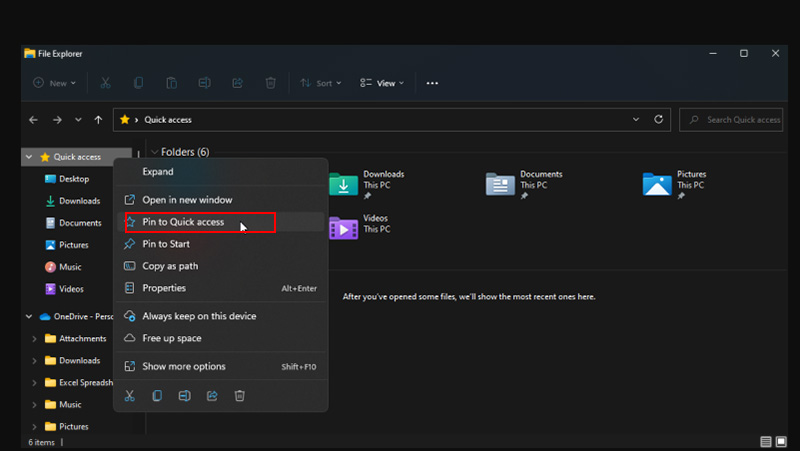
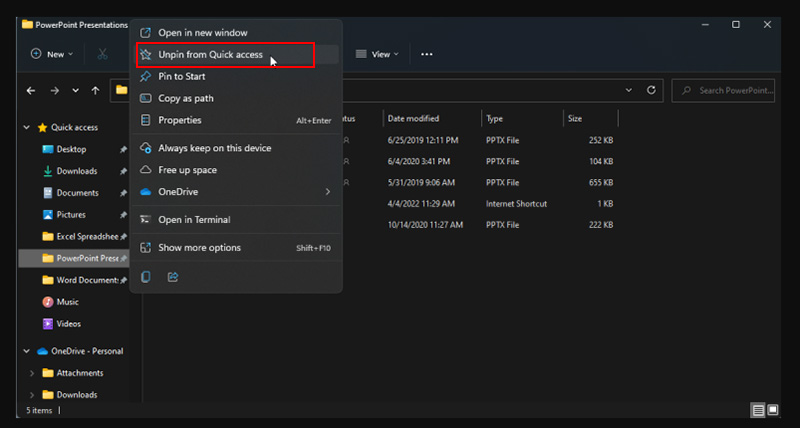
Step 3. When a folder is no longer relevant, right-click it in the sidebar and select Unpin from Quick Access.
How to Clear History or Hide Recent Files for Privacy
Quick Access can feel helpful until it shows files you’d rather not have visible. This is especially noticeable on shared computers, work machines, or during screen sharing. Use the following steps to clear history or recent files in Windows 11 Quick Access.
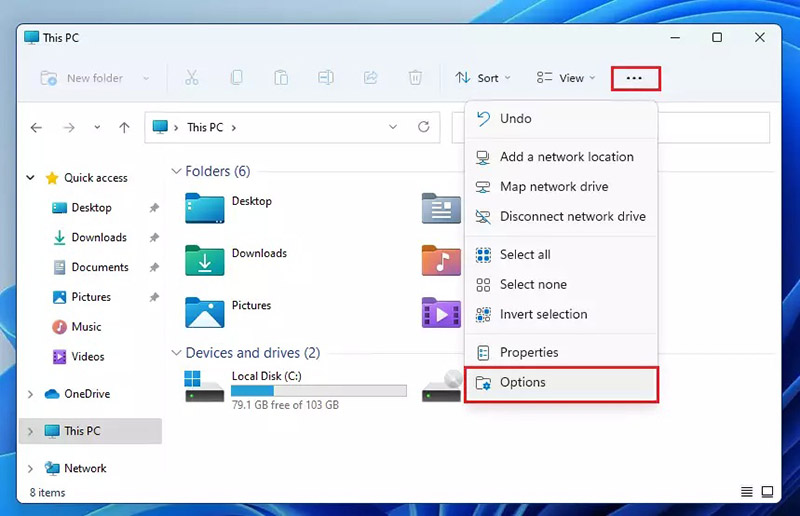
Step 1. Open File Explorer in Windows 11 and click the three-dot menu in the top-right corner of the window.
Step 2. Select Options, then scroll to the Privacy section at the bottom.
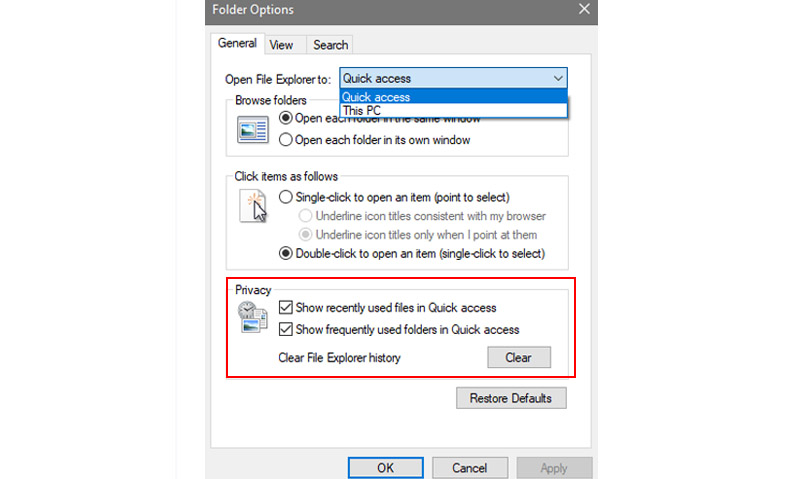
Step 3. Click Clear to remove File Explorer history, or uncheck “Show recently used files in Quick access” to disable tracking.
How to Quickly Open File Explorer and Navigate to Quick Access
If you still open File Explorer through the taskbar every time, you’re adding small delays that compound. Here’s how to open File Explorer and Quick Access quickly.
Step 1. Press Win + E anywhere to open File Explorer instantly.
Step 2. Click the three dots in the File Explorer toolbar, find and choose Options.
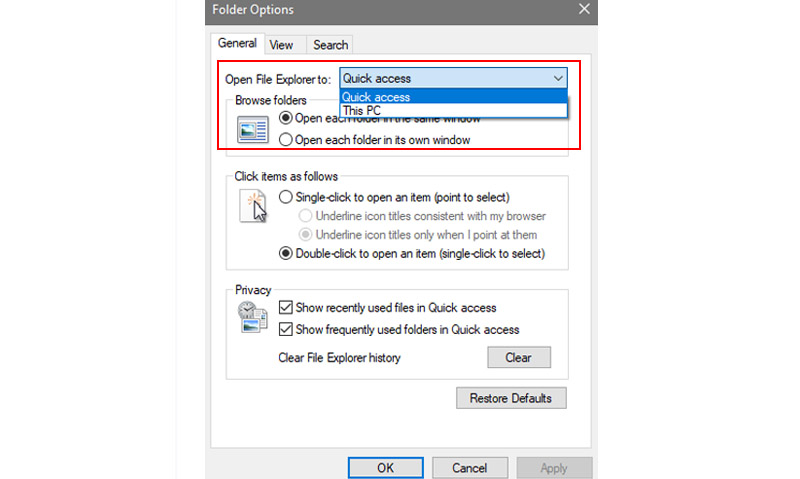
Step 3. In the Folder Options window, go to the General tab and locate the "Open File Explorer to:" dropdown menu. Switch to Home (Quick Access), then click Apply or OK.
Reorder Folders in Windows 11 Quick Access
Reordering folders makes the list align with your own mental map instead of Windows’ assumptions. You can reorder folders within three steps in Windows 11 Quick Access.
Step 1. Click and hold any pinned folder in the Windows Quick Access sidebar.
Step 2. Drag it up or down until the order feels natural for your workflow.
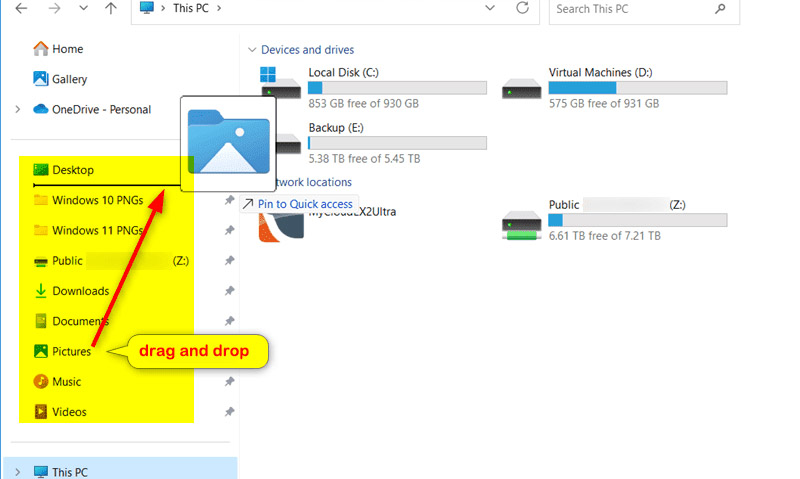
Step 3. Release the mouse to lock in the new position.
Once you’ve spent some time tweaking Windows 11 quick access, its strengths become clear, but so do its boundaries. Quick Access doesn’t help much with a crowded desktop, where files pile up visually and attention gets pulled in every direction. There’s no real visual grouping, no smart way to separate work from personal folders at a glance, and very little automation beyond basic tracking. It’s not a failure of Windows, just a reminder that built-in tools are designed for general use, not deeper organization. A more powerful desktop management tool is needed.
That’s why a lightweight tool like iTop Easy Desktop makes sense, not as a replacement, but as an enhancer tool that fills in the gaps Windows leaves open.
One of the first things you notice is the built-in quick search bar. Unlike traditional browsing, it lets you type once and surface files instantly, even when you can’t remember where they’re stored. Alongside that, its core feature, Boxes, lets you create custom boxes to organize your desktop by category, project, or activity. The desktop organizer for Windows can quickly separate and access files, keeping your workspace tidy while improving focus and workflow efficiency in just a few clicks.
If you’ve ever wanted to enable Quick Access Windows 11 behavior at the desktop level, this is how it comes together with iTop Easy Desktop.
Step 1. Install and launch iTop Easy Desktop, the quick search and file access panel becomes available immediately.
Step 2. Go to AI Assistant and click Search, enable Search at Windows startup, then use the search bar to access any file directly.
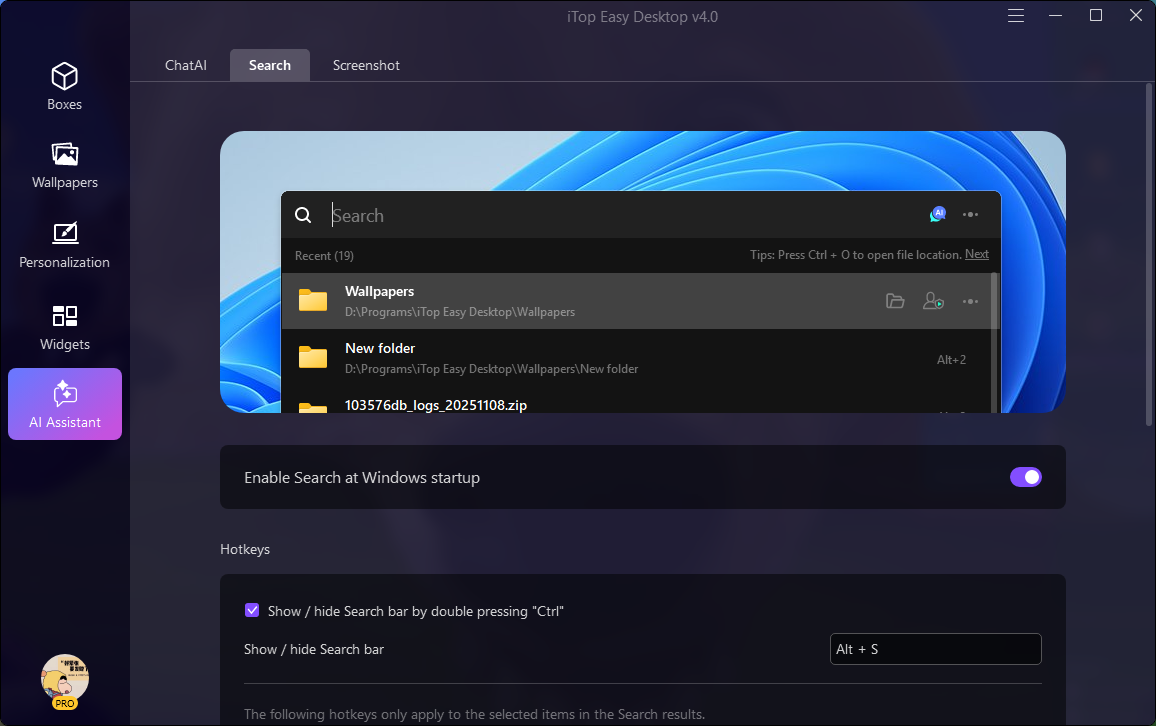
Step 3. Click Boxes > Enable Boxes, and Add a Box on the desktop and assign files by category to turn clutter into clearly defined zones.
Highlights of iTop Easy Desktop
Smart Quick Access to Any Files: It provides you with a built-in search bar, allowing you to quickly find any file you need by entering its name on your cluttered desktop.
One-Click Automatic Desktop Management: With a single action, scattered desktop files are sorted into Boxes, so that visual noise is reduced without forcing you to reorganize everything manually on desktop.
Personalized Boxes to Categorize Files: iTop Easy Desktop allows you to create Boxes based on projects, file types, or daily use, with customized background colors and transparency. Each Box acts like a visual folder you can adjust as your workflow changes.
Easy Access with Folder Portal: The tool offers easy access to any folder instantly from your desktop without opening File Explorer.
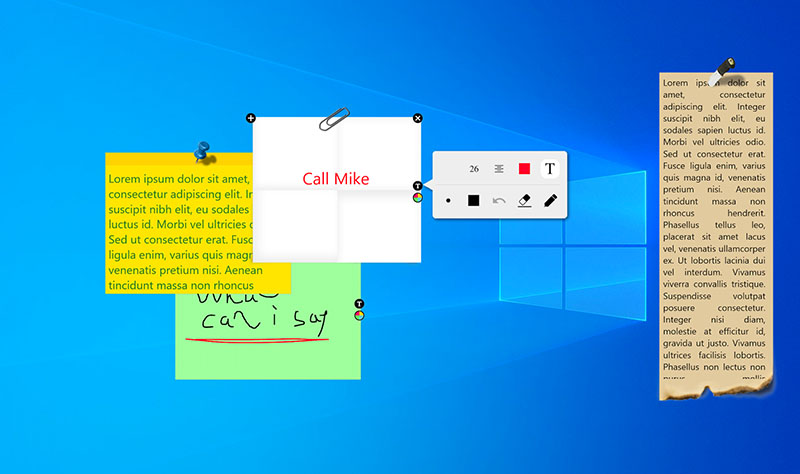
Add Widgets to Improve Efficiency: Simple but useful widgets like clock widget Windows 11, iNotes, Schedule, Weather, ChatAI, live alongside files, to keep tools and information in the same visual space you already work in.

- iTop Easy Desktop - Keep Your Desktop Organized
-
- Box desktop icons to declutter your workspace
- Manage documents, games, media files, etc., at 1 click
- Add calendar, clock and other widgets to desktop
- Locate any file you want instantly with search box
Conclusion
In the end, Windows 11 Quick Access does exactly what it promises. It shortens the path to folders you already know you need. But once files start overflowing onto the desktop, that convenience hits a ceiling. You can tweak settings or even try to remove Quick Access Windows 11 entries to keep things tidy, yet the bigger issue remains: too many files, not enough structure.
That’s where iTop Easy Desktop earns its place. It brings quick search and smart Boxes feature for desktop organization without fighting how Windows works. Feeling like your screen is cluttered beyond what your workflow needs? It’s worth giving iTop Easy Desktop a try.