-
iTop Easy Desktop - No.1 Desktop Organizer for Windows
-
Automatically organize and customize Windows desktop. Make your messy desktop look clean and professional within seconds.

Video to Live Wallpaper: Convert Videos on PC, Mac, iOS & Android
How to turn video into live wallpaper on PC, Mac, iOS, or Android? This guide explains simple tools and steps to turn video to live wallpaper. Check now.
Customizing device screens has become increasingly popular. Instead of static backgrounds, many people now prefer animated visuals, which is why video to live wallpaper solutions are growing in popularity. A short cinematic clip, a relaxing nature scene, or a looping animation can instantly transform a plain screen into something visually dynamic.
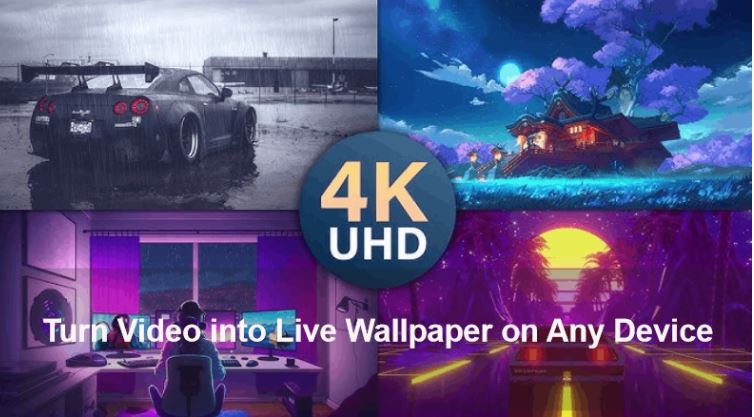
Then, how to turn video into live wallpaper? The good news is that the process is now easier than ever. With modern tools and apps, you can quickly convert video to live wallpaper across different platforms, including Windows, Mac, iOS, and Android. Let's step in how to convert video to live wallpaper PC and any device.
A video live wallpaper is a moving background created from a video file that plays continuously on a screen. Instead of displaying a static image, the device shows a looping video that runs quietly in the background while you work or use apps.
When users convert video to live wallpaper, the video is typically optimized to loop smoothly and consume minimal system resources. These wallpapers can include cinematic clips, animated artwork, nature footage, or personal videos. As hardware and software continue to improve, running a video to live wallpaper has become much more efficient across modern devices.
For desktop users, Windows offers the most flexibility when it comes to customization. However, the system does not include a built-in feature to convert video to live wallpaper pc, so third-party tools are typically required. The good news is that several modern desktop utilities now make the process extremely simple and efficient. One of the easiest tools to achieve a video to live wallpaper setup on Windows is by using iTop Easy Desktop.

- iTop Easy Desktop - Explore Aesthetic Wallpapers for PC
-
- Free download wallpapers across a wide range of styles
- Animate your desktop with free HD/4K live wallpapers
- Create custom wallpapers from images/videos with ease
- Apply and change desktop backgrounds in one click
iTop Easy Desktop is a popular and free desktop optimizer that combines wallpaper customization with desktop organization features, which makes it more than just a visual tool. It works as both a wallpaper manager and a desktop organizer for Windows, allowing users to maintain a clean and visually appealing workspace.
It excels in two key features for converting video to live wallpaper. First, it offers a wide variety of high-definition 4K live wallpapers to choose from. Whether it's natural scenery, portraits, or anime, you're sure to find something you like. Second, it supports a high degree of customization, allowing you to upload any live image or video from your local storage to achieve the video-to-live wallpaper conversion.
Core Wallpaper Features:
Supports MP4, MKV, MOV, and other popular formats
Smooth looping playback for video to live wallpaper backgrounds
Optimized performance with low CPU usage (almost negligible)
Supports HD and 4k wallpaper videos
Easy wallpaper switching and customization
Steps to Convert Video to Live Wallpaper on Windows:
Step 1. Install iTop Easy Desktop on your PC.
Step 2. Launch the program and open it.
Step 3. Go to Wallpapers > Live Wallpapers. Here you can quickly select categories and preview the rich selection of built-in live wallpapers.
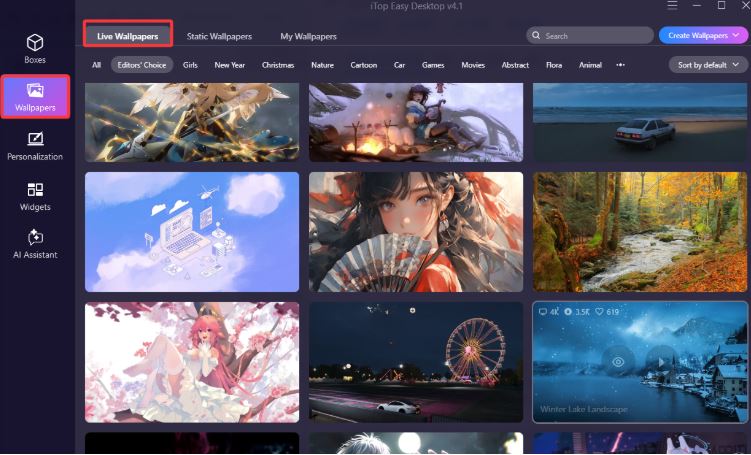
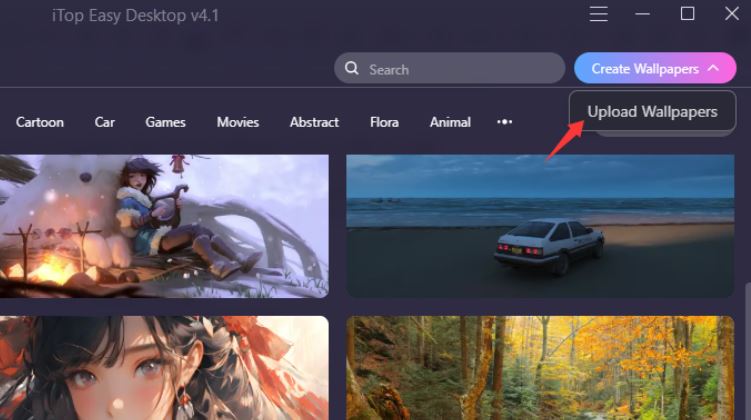
Step 4. If you want to use your local image or video as the live wallpaper, select "Upload Wallpapers" in the upper-right corner.
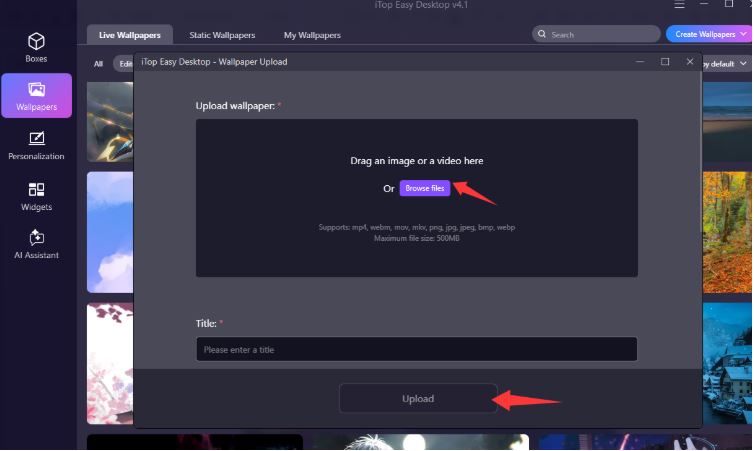
Step 5. Browse and upload the live wallpaper or video from your computer. It's that simple.
Pros:
Beginner-friendly setup
Low system resource usage
Combines wallpaper and desktop management
Cons:
Requires installation
Beyond simply helping users learn how to make video into live wallpaper, the software also includes productivity features that improve the desktop experience. Users can add widgets such as a desktop calendar widget or check the time quickly using a clock widget. For users interested in organizing icons efficiently, features like its Boxes and AI assistant provide additional help.
Compared to Windows, macOS does not natively support full video to live wallpaper functionality for custom videos. However, with the help of specialized apps like Backdrop, users can easily create a smooth and visually impressive animated desktop environment.
Backdrop is designed specifically for macOS and focuses on simplicity and performance. Unlike traditional methods that require complex setup or command-line tools, Backdrop allows users to instantly apply video wallpapers with just a few clicks. It also includes a built-in library of high-quality loops and supports importing personal video files.
Steps to Convert Video to Live Wallpaper on Mac (Using Backdrop):
Step 1. Download and install Backdrop on your Mac
Step 2. Open the app and browse the Discover library
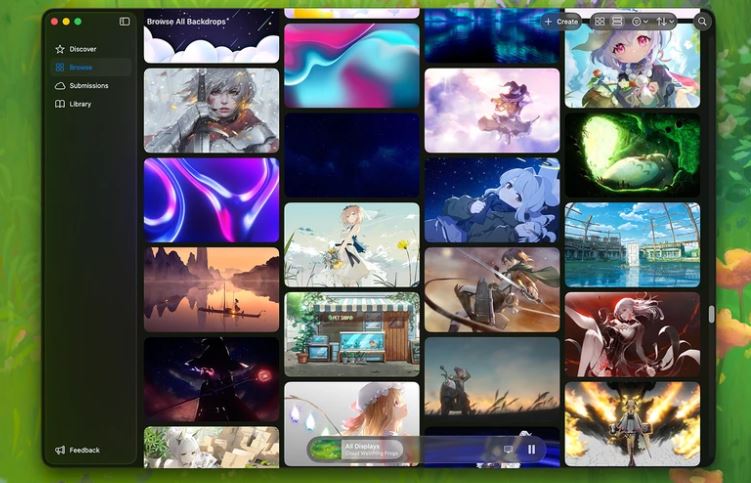
Step 3. Or go to Create. Import your own video (MP4, MOV, etc.)
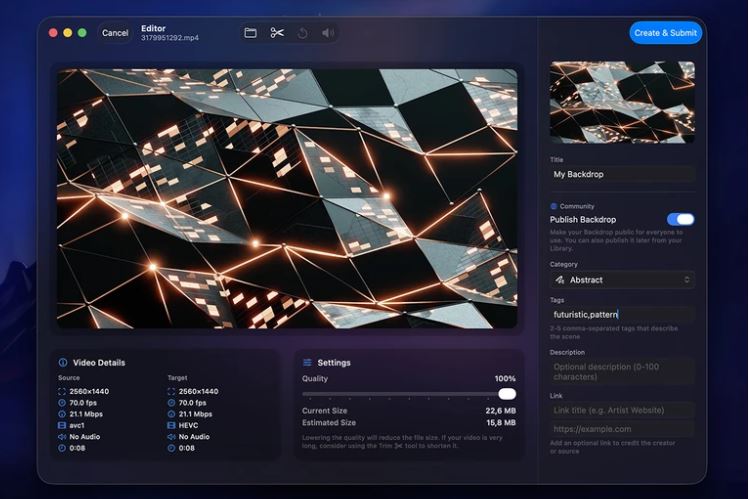
Step 4. Trim or adjust playback settings if needed
Step 5. Click “Apply” to set it as your wallpaper
Pros:
One-click setup with no technical steps
Supports both built-in and custom videos
Includes editing tools (trim, speed adjustment, effects)
Multi-monitor support and customizable playback
Smart energy optimization (pauses when needed)
Cons:
Requires third-party software
Some advanced features depend on system compatibility
On iOS devices, Apple handles animated wallpapers differently compared with desktops. Instead of directly playing a video as a background, iPhones rely on Live Photos to simulate motion. Because of this design, users who want a video to live wallpaper effect must first convert a video into a Live Photo format.
This method is commonly used by people searching for how to turn video into live wallpaper on iPhones. While it does not create a continuously playing wallpaper, it still produces a similar animated effect when the screen is pressed.
Steps to Turn Video into Live Wallpaper on iOS:
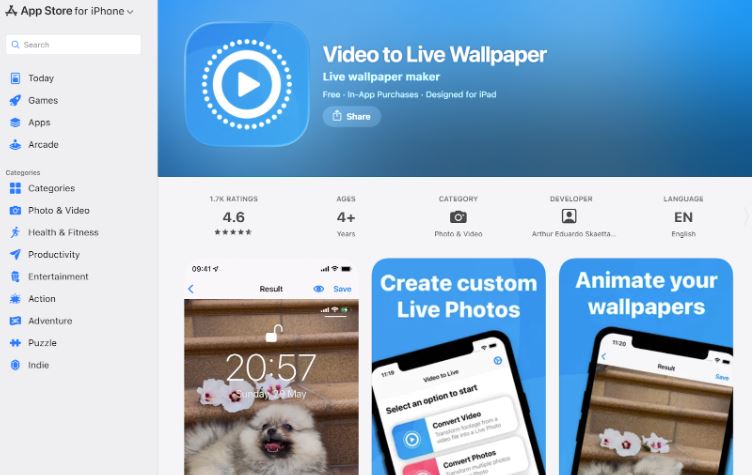
Step 1. Download and install an app to convert the video into a Live Photo, Video to Live Wallpaper is a good choice. You can get it from the App Store.
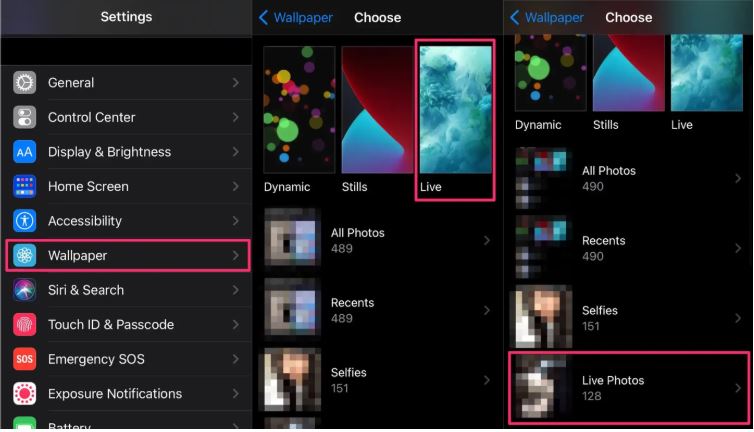
Step 2. Save the Live Photo to your Photos library.
Step 3. Open Settings → Wallpaper.
Step 4. Choose the Live Photo and apply it to the lock screen.
Advantages:
Uses native iOS features
Easy once the conversion is complete
Disadvantages:
Motion works only on the lock screen
Requires touch to activate animation
Even with these restrictions, it remains a common way to create a video to live wallpaper experience on iPhones.
Android offers one of the most flexible environments for animated wallpapers. Unlike some other platforms, Android allows third-party apps to directly display videos as wallpapers. This makes it much easier to build a full video to live wallpaper experience without complicated workarounds.
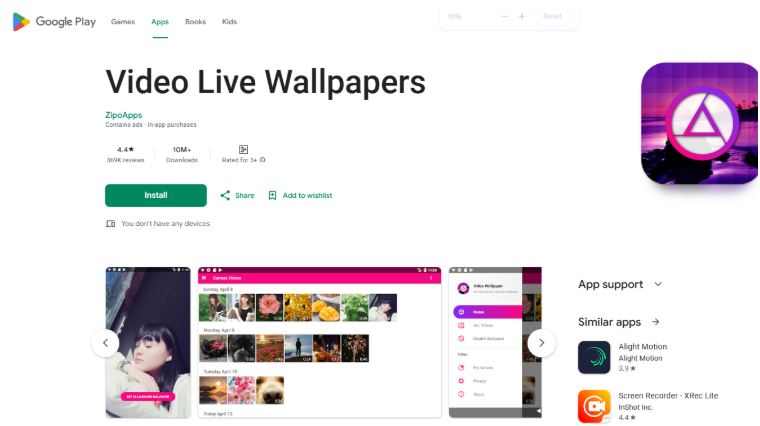
One popular convert app is Video Live Wallpapers, an Android application specifically designed to convert video to live wallpaper quickly. The app allows users to import videos from their device storage and turn them into animated wallpapers for the home screen or lock screen. Users can crop videos, adjust playback behavior, and optimize the wallpaper for different screen sizes.
Steps to Convert Video to Live Wallpaper on Android:
Step 1. Install the Video Live Wallpapers app from Google Play.
Step 2. Open the app and select a video from your gallery.
Step 3. Adjust cropping, resolution, or scaling.
Step 4. Enable looping playback.
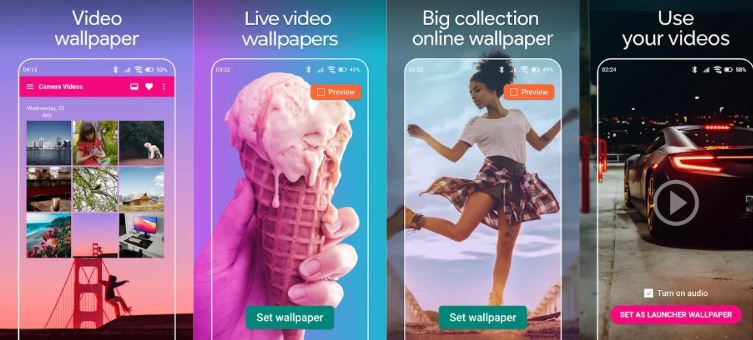
Step 5. Apply the video as your wallpaper.
Pros:
Very easy setup process
Strong customization options
Wide compatibility across Android devices
Cons:
May increase battery consumption
Performance depends on device hardware
Because of Android’s flexibility, many users consider it one of the easiest platforms to convert video to live wallpaper.
Each platform handles animated wallpapers differently, understanding these differences helps you set video to live wallpaper on any of your devices.
Device |
Ease of Setup |
Customization |
System Limits |
Windows |
Very Easy |
High |
Minimal |
Mac |
Moderate |
Medium |
Some limitations |
iOS |
Easy |
Low |
Lock screen only |
Android |
Easy |
High |
Device dependent |
Overall, Windows and Android provide the most flexible environments for video to live wallpaper, while iOS focuses on a simplified but more restricted approach.
While modern devices handle animated backgrounds much better than before, optimizing performance ensures a smoother video to live wallpaper experience. Large video files or inefficient apps can sometimes increase resource usage.
To keep things running smoothly, consider these tips:
Use shorter video clips with seamless loops
Choose 1080p instead of extremely high resolutions
Disable audio in wallpaper videos
Avoid running too many background programs
Use optimized wallpaper tools designed for desktops or phones
These simple adjustments help maintain a stable video to live wallpaper setup without slowing down your device.
The Bottom Line
Animated backgrounds are a creative way to personalize digital devices. Whether on desktop or mobile, it’s now possible to set up a video to live wallpaper using a variety of tools and apps. By choosing the right method for your device and optimizing video settings, you can transform ordinary screens into dynamic visual environments while maintaining smooth performance. Try now.
- Related Articles for Reference