-
iTop Easy Desktop - No.1 Desktop Organizer for Windows
-
Automatically organize and customize Windows desktop. Make your messy desktop look clean and professional within seconds.

How to Add Google Calendar to Desktop for Fast Event Viewing
Learn how to add Google Calendar to desktop within seconds in several easy ways. Make your Google Calendar visible on screen and stay on track with the guide.
If you live by your calendar, having it a click away on your desktop can make your day run smoother. Instead of keeping the Google Chrome browser tab open or reaching for your phone, you can glance at your upcoming meetings and reminders on Google Calendar right from your computer screen. It’s a small change to put Google Calendar to your desktop but it saves time and keeps your focus where it should be. Here’s how to add Google Calendar to desktop, so your schedule feels like part of your workspace, not something you have to chase down every time.
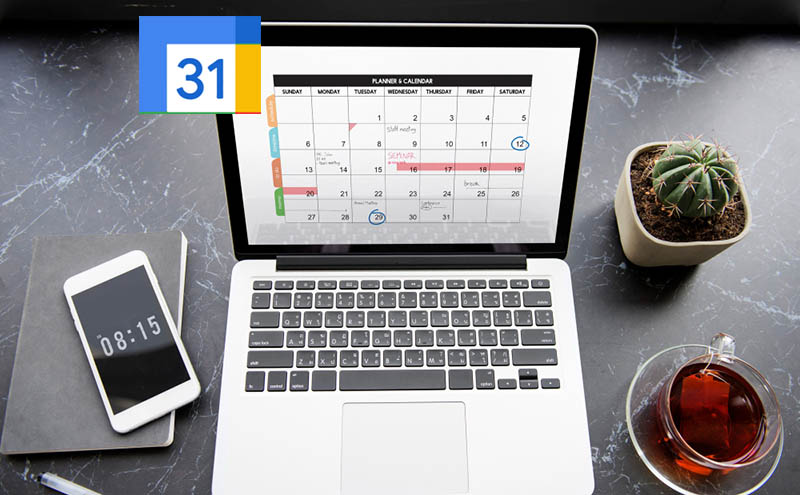
If you spend your day jumping between tabs for the schedule, you’ll know how easy it is for your Google Calendar to get buried under everything else. If you’ve been wondering how to add Google Calendar to desktop, or searching for tips on how to put Google Calendar on desktop, luckily, Chrome offers a built-in way to turn Google Calendar into a desktop schedule maker for free so you can keep it just a click away, no downloads, no third-party tools required.
Use the following steps to learn how to put Google Calendar on my desktop. It’s quick to set up, safe, and gives you an always-ready workspace.
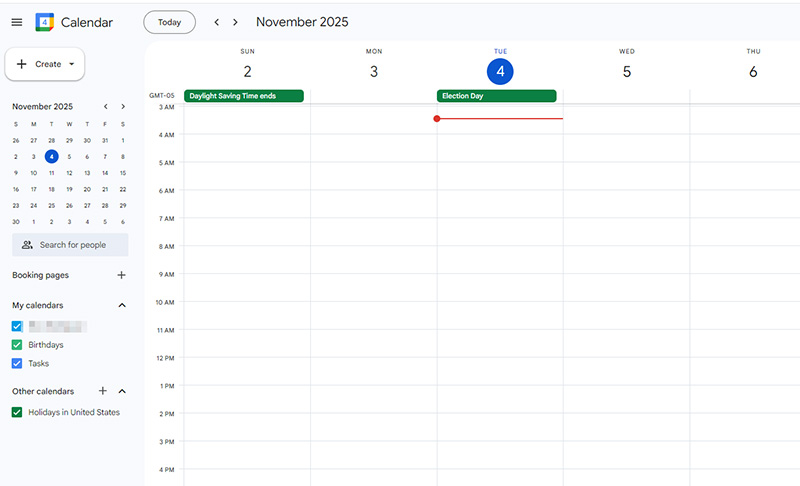
Step 1. Go to calendar.google.com official website in Chrome to access Google Calendar online and sign in with your Google account if you haven’t.
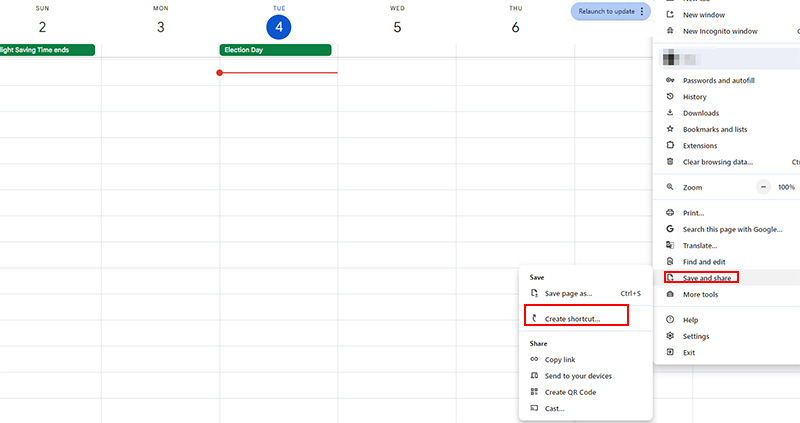
Step 2. Click the three-dot menu in the upper-right corner of Chrome browser to get more options. Browse, locate, and click “Save and share” > “Create shortcut” from the list of drop-down options.
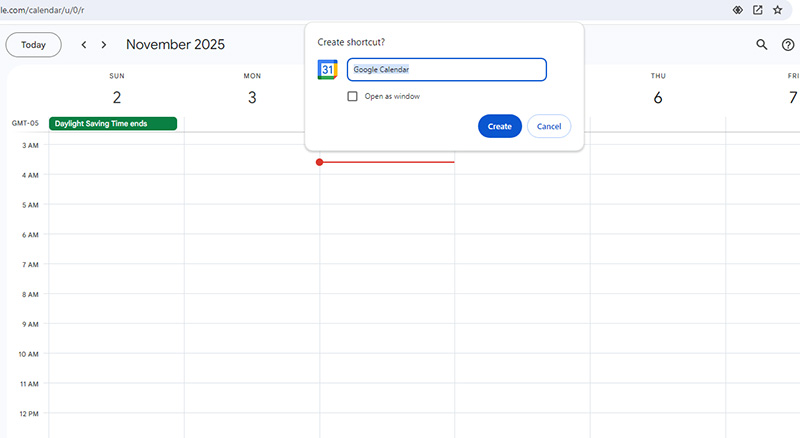
Step 3. A Google Calendar pop-up will appear, then tick the “Open as window” and click “Create”. Put the name of the calendar. The steps on how to display Google Calendar on desktop may differ based on Chrome version you are using.
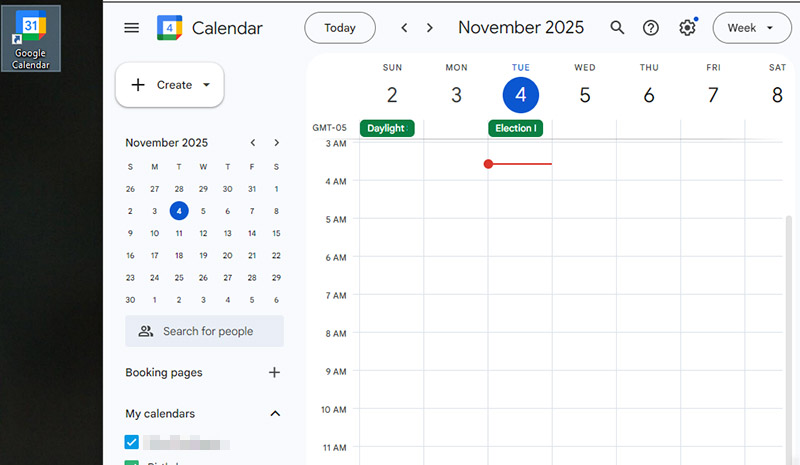
Step 4. Now you should see the Google Calendar app in the desktop and the Google Calendar window also opens. From now on, open the Google Calendar app and your calendar will appear in its own clean, distraction-free window.
Pros
Quick access to Google Calendar straight from your desktop.
Works natively inside Chrome, requiring no extra apps or installations.
Keeps your schedule in a tidy, focused window of higher efficiency.
Cons
Need to open the window to view your schedule on Google Calendar.
The events don’t show directly on the desktop.
Offline mode is only available in Chrome.
There’s another quick way to access your schedule in Google Calendar without opening your browser every time. The trick is to create a desktop shortcut for Google Calendar, needless of extra apps and complicated setup. Here’s how to add Google Calendar to desktop in just a few clicks.
Step 1. Right-click any blank place on your desktop and select New > Shortcut to open the Create Shortcut window for local programs, files, and folders.
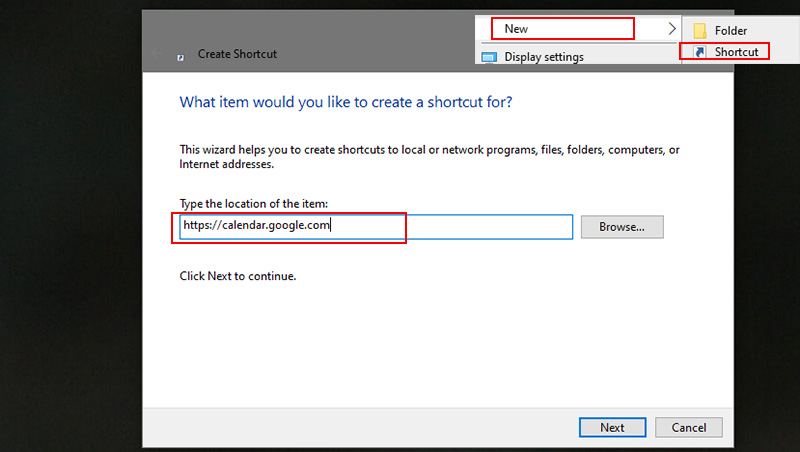
Step 2. In the location of the item field, enter this URL: https://calendar.google.com, then click Next to move to the next step.
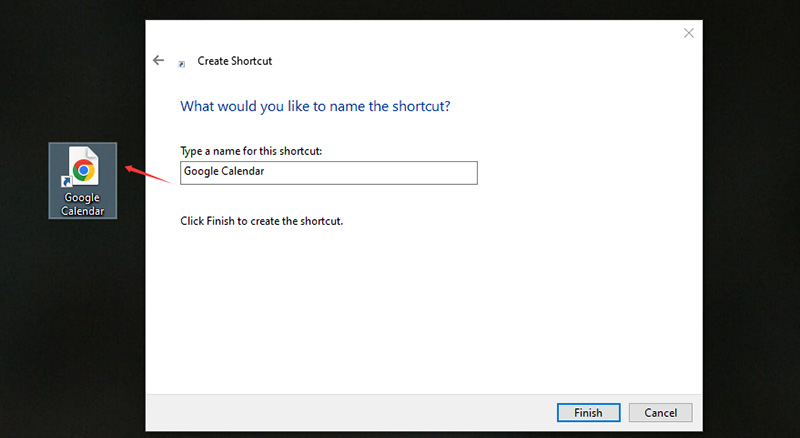
Step 3. Type a name for the Google Calendar shortcut, for example, Google Calendar, and click Finish. Now, the Google Calendar shortcut appears on the desktop. Just double-click the shortcut to open the Google Calendar via your browser. That’s how to put Google Calendar on desktop without installing anything.
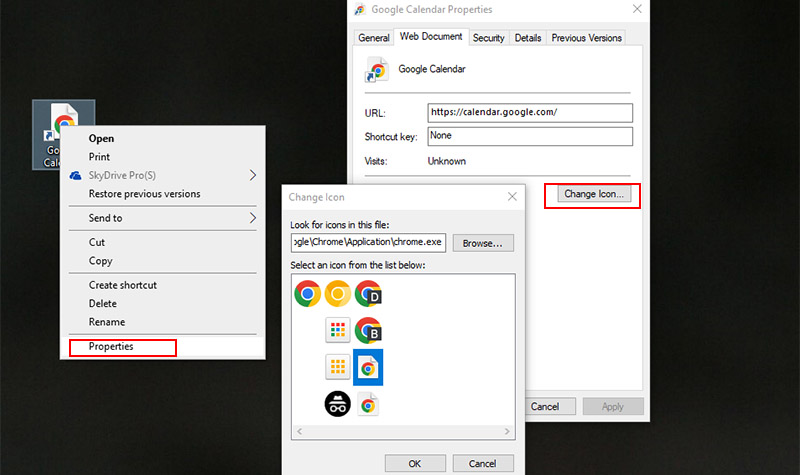
Step 4. (Optional) Right-click the new Google Calendar shortcut, select Properties, and click Change Icon to choose a calendar icon, and click OK to finish.
Pros:
Quick and easy solution.
Similar to a standalone calendar app.
Works directly across Windows and Mac via browser.
Cons:
Requires a browser window to run.
No offline access.
Limited customization for multiple calendars.
If you prefer a smarter, more organized setup where shortcuts, widgets, and calendars all live neatly on your desktop, try using a more powerful desktop organizer for Windows. It’s more handy and feature-rich when you want to know how to put Google Calendar on my desktop with more flexibility.
A shortcut works fine, but a more helpful desktop organizer like iTop Easy Desktop gives an optimized setup where shortcuts, widgets, and calendars all live neatly on your desktop. The program makes it incredibly simple to manage your daily routine and keep Google Calendar, together with other important apps, files, documents well organized right in front of you. With its built-in Schedule widget, you can easily add Google Calendar to desktop and view your upcoming events at a glance.
Here’s how to add Google Calendar to desktop Windows 11/Windows 10 step by step with iTop Easy Desktop.
Step 1. Free download iTop Easy Desktop on your PC and install the program.
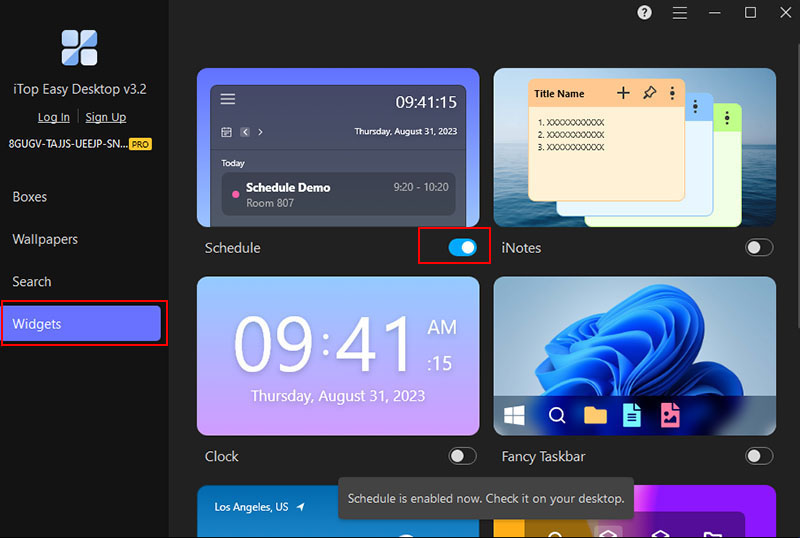
Step 2. Launch iTop Easy Dekstop, and click the Widgets button on the right side of the interface. In the list of widgets, locate and enable the Schedule widget to make it appear on your desktop.
Step 3. Click the three horizontal lines to get more settings options. From the drop-down list, select “Add new” to activate the Add account window.
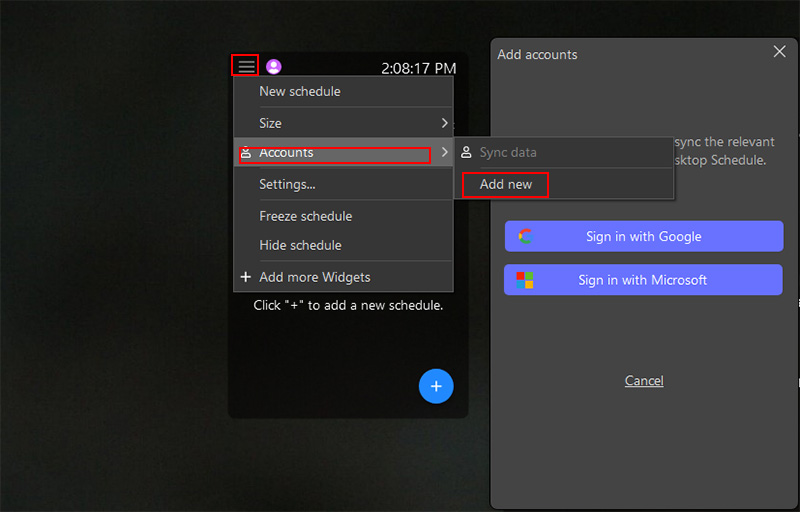
Step 4. Click “Sign in with Google” and finish the pop-up authorization process. After authorization, your Google Calendar data will be synced. You can delete your Google account any time via the Account settings.
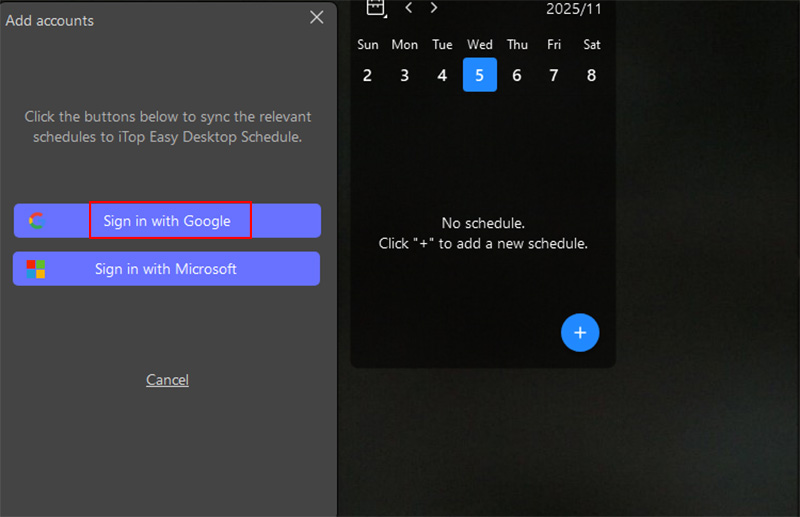
That’s all it takes to display Google Calendar on desktop. But iTop Easy Desktop isn’t just about scheduling. It’s a full-fledged desktop organizer designed for users who want a more organized, dynamic, and appealing screen.
Quick Search
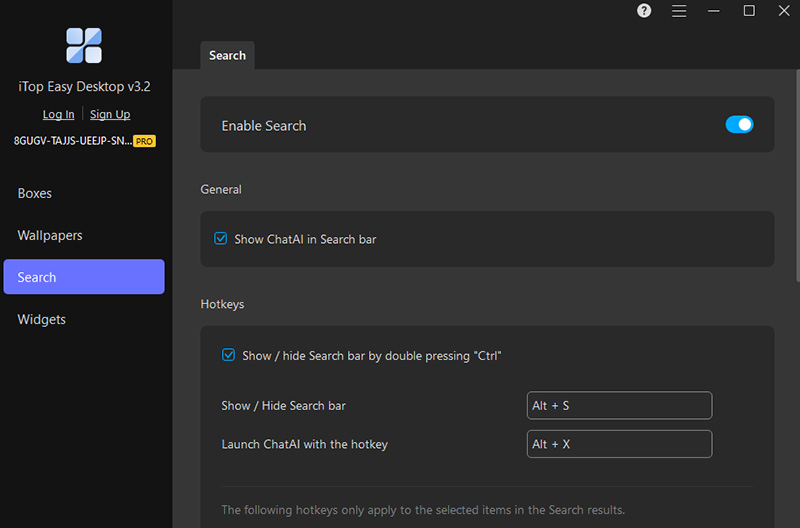
iTop Easy Dekstop has a quick search feature to let you instantly find files, folders, documents, or apps across your computer without wasting time browsing through cluttered directories. You can also show ChatAI in Search bar and set hotkeys to show or hide the Search bar.
Live Wallpapers
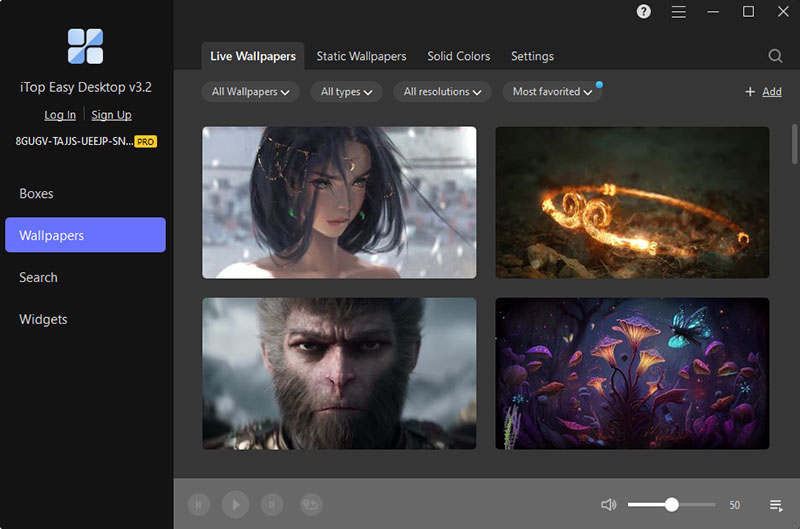
Feel free to add motion and energy to your desktop with animated backgrounds that change the look and feel of your workspace via iTop Easy Desktop. There’s a huge library of 4K UHD wallpaper in different types, such as games, movies, cartoon, anime, animals, landscapes, etc.
Customizable boxes
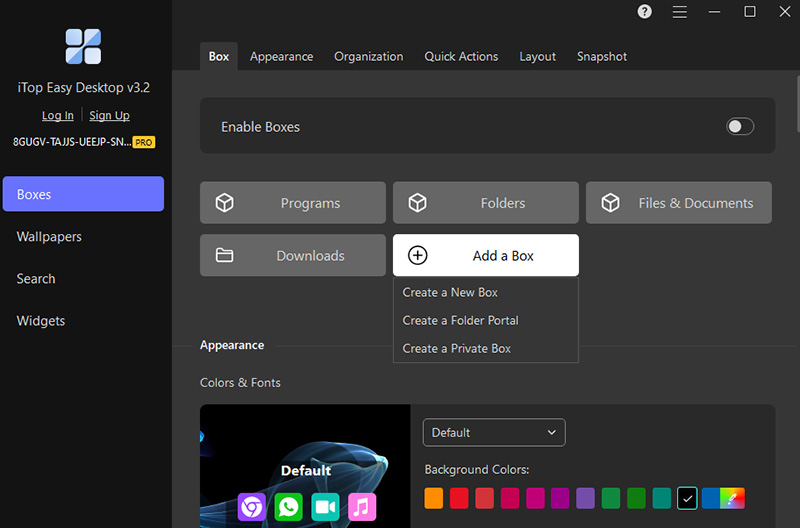
The program organizes scattered files, folders, documents, images, apps, downloads, etc. into neat, manageable Boxes. You can organize desktop and personalize each box with different colors, names, transparency, tab styles, icon tints.
Useful Widgets
iTop Easy Desktop comes with lots of widgets to maximize your effectiveness, namely Schedule, iNotes, Clock, Fancy Taskbar, Weather, and more.
Want to know how to add Google Calendar widget to desktop and how to organize desktop icons while keeping everything neat and functional now? iTop Easy Desktop is exactly what you need for the task. Free download the program and take it for a spin.

- iTop Easy Desktop - Keep Your Desktop Organized
-
- Box desktop icons to declutter your workspace
- Manage documents, games, media files, etc., at 1 click
- Add calendar, clock and other widgets to desktop
- Locate any file you want instantly with search box
The Bottom Line
Knowing how to add Google Calendar to desktop is really about making work and life a little smoother. Once your schedule sits right on your desktop, everything from team calls to weekend plans stays in plain sight. But a cluttered desktop can easily ruin that sense of order. That’s why iTop Easy Desktop is worth a try. Such a tool helps you easily put your Google Calendar and other schedules into the desktop, group icons, clear the mess, and turn the workspace into something that actually feels calm. It’s a small tweak, yet having Google Calendar on your desktop makes your morning routine feel easier and your desktop look tidier.