-
iTop Easy Desktop - No.1 Desktop Organizer for Windows
-
Automatically organize and customize Windows desktop. Make your messy desktop look clean and professional within seconds.

Best Desktop Stock Widget for Windows & Mac: Track Stocks Easily
Get the best desktop stock widget for Windows and macOS to track prices, get a quick market overview, and monitor everything at a glance in real time easily.
Keeping an eye on market movements shouldn’t require breaking your workflow. A well-placed desktop widget lets you track price changes, trends, and key indicators at a glance. There’s no need to keep refreshing browser tabs or switching between apps. Whether you’re casually following a few stocks or actively monitoring the market throughout the day, having real-time data visible on your screen can make decision-making feel more immediate and intuitive. Here’s how to bring the best desktop stock widget straight to your screen without relying on a browser.

Swish offers a way to keep everything visible without constantly opening trading platforms or browser tabs. It works as a desktop widget for stock market monitoring, placing real-time data directly on your screen so you can glance at movements while working. It’s often considered one of the best desktop stock widget options for Windows.
Unlike cluttered finance dashboards, Swish keeps things minimal. You can follow selected tickers, adjust how information appears, and keep your workspace clean. Swish is a reliable desktop widget for stock market tracking in day-to-day use, due to the balance of simplicity and control, which is exactly what defines the best desktop stock widget experience.
How to Add a Stock Widget Using Swish
Step 1. Grab the stock desktop widget download from Microsoft Store, install Swish on your Windows PC, and launch the application after setup.

Step 2. Click Add Widget to add a new widget and enter the stock symbols or financial instruments you want to track. Customize the layout and display style to match your workflow.

Step 3. Place the widget anywhere on your desktop and pin it in position. Your selected data will update automatically in real time.

Key Features of Swish Stock Desktop Widget
Track multiple stocks and financial instruments in real time directly from your desktop.
Flexible widget placement across one or multiple monitors with adjustable size and transparency.
Customize fonts, colors, and layout for better visibility in different setups.
Choose different time ranges to quickly review short-term or recent price movement.
Option to simulate holdings and view gains or losses as prices change.
Clean layout with the ability to simplify the view for distraction-free monitoring.
Efficient performance with low CPU and memory usage, suitable for most Windows systems.
Ongoing updates that improve stability and add new capabilities over time.
Mac users also have built-in options as Windows when it comes to adding a stock widget directly onto the desktop. With the right setup, you can create a clean, always-visible workspace that keeps market data within reach. The goal is simple: find the best desktop stock widget that shows real-time prices without clutter or constant app switching.
The Mac Stocks widget is customizable, supporting different sizes and layouts, including single-stock or full watchlist views. Real-time and after-hours prices are supported for major markets, and data syncs smoothly across Apple devices.
How to Use the Stock Desktop Widget for macOS
Step 1. Right-click on your desktop and select “Edit Widgets”, or open the Notification Center by clicking the date/time in the menu bar and choosing “Edit Widgets” at the bottom.
Step 2. Use the search bar to type “Stocks” or browse through the available widget list until you locate it.

Step 3. Drag the Stocks widget onto your desktop or Notification Center, or simply click it to add it automatically.

Step 4. Right-click the widget and select “Edit Widget”. From there, choose which watchlist to display, such as My Symbols, Tech, or Market Indexes, and adjust the layout if needed.

While the best desktop stock widget for macOS is workable, such a tool often requires extra steps and offers limited advanced customization. iTop Easy Desktop delivers a smoother, more flexible free desktop stock ticker widget experience, making it much easier to build and manage stock widget setup efficiently.
Ever felt limited by default stock desktop tools, or like your screen is getting messy with too many stock widgets and apps everywhere? This is where iTop Easy Desktop makes a difference. iTop Easy Desktop can build and customize your workspace with a more refined experience than most built-in options. It’s designed to simplify how you organize everything on the desktop, while still giving you the freedom to create what feels like the best desktop stock widget for your needs.
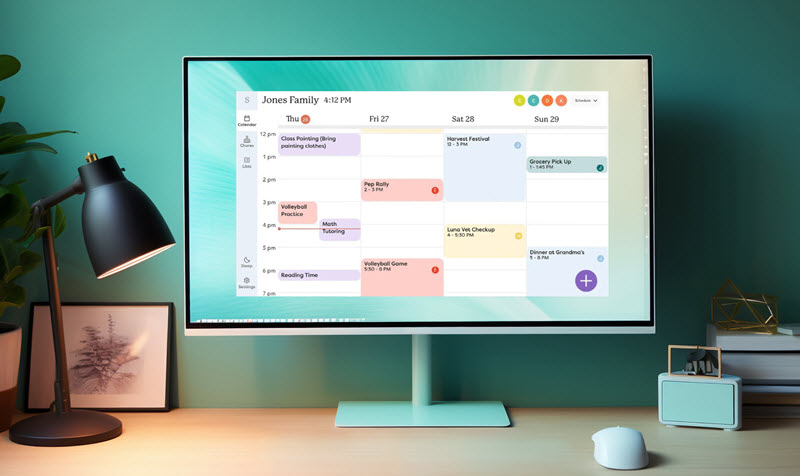
At the same time, the desktop organizer adds more helpful widgets to your desktop and turns stock widgets into part of a complete productivity setup by combining real-time tracking with tools like schedules, notes, clock widget Windows 11, and task management. So you stay focused on market updates while keeping the desktop organized, efficient, and easier to control in daily work.
How to Organize and Add More Widgets
Step 1. Free download and install iTop Easy Desktop on your Windows PC in just a few steps.
Step 2. Launch the program and click Widgets, browse the widget panel to explore available tools, such as Schedule, iNotes, Clock, Quick Tools, etc.

Step 3. Click Boxes and choose Enable Boxes to automatically group icons, apps, and documents into well-organized boxes. Select Add a Box > Create a New Box to further manage stock desktop widgets in your desktop in a streamlined way.

Step 4. Go to Widgets, select Quick Tools, click the settings icon, and customize the settings, also the appearance for easy stock widgets access and management on your desktop.

Beyond widgets, iTop Easy Desktop also comes with a few key features.
Multiple Wallpapers: iTop Easy Desktop has a large library of live/static 4K wallpapers in various styles for separate work, entertainment, and personal space visually.

Change Desktop Icons: The desktop organizer customizes icons to into a cleaner layout by restyling icons into Apple Style, Circular Style, Square Style, etc., so files are easier to recognize and access at a glance.

Smart Organization: Apps, folders, videos, documents, and widgets on the desktop can be grouped and aligned automatically into personalized boxes, which reduces clutter and saves time when navigating your desktop.

For a more polished and flexible setup, trying iTop Easy Desktop is a practical next step. The best desktop organizer combines useful widgets with desktop organization features for a clean workspace. Stock widgets and other tools can be used more efficiently without clutter on the desktop.

- iTop Easy Desktop
Next-Gen Desktop Customizer -
- 1-click organize 100+ icons
- 5000+ 4K and live wallpapers
- Interact with AI desktop pet
The Bottom Line
Finding the right stock desktop widgets often comes down to balance, something that works smoothly without limiting how you personalize your space. While both Windows and macOS have basic options, they rarely bring the flexibility most users expect from the best desktop stock widget experience. iTop Easy Desktop takes a different approach here. The program includes simple controls, clean organization, and customizable widgets in a way that feels intuitive from the start. iTop Easy Desktop is an easy choice worth trying if you want a desktop that not only looks better but also works smarter.