-
iTop Easy Desktop - No.1 Desktop Organizer for Windows
-
Automatically organize and customize Windows desktop. Make your messy desktop look clean and professional within seconds.

How to Make A Live Wallpaper on Windows/Mac/iPhone/Android?
How to make a live wallpaper? There are many tools, like Steam, video to live wallpaper converter, helping create dynamic backgrounds on any device easily.
Rather than a still image, live wallpaper is a preferred choice for both computers and mobile devices. It adds an animated touch to your desktop and makes the screen look more fantastic. Why not create a live wallpaper that reacts to your personality, interesting or current mode?
How to make a live wallpaper? It is not a difficult task when you find a right tool. From Steam to video to wallpaper converter, you can easily and quickly customize stunning animated backgrounds for computer desktop and mobile screen.
Wallpaper Engine on Steam delivers a customizable solution to create your own live wallpapers on PC. It specializes in turning static images (incl. 2D and 3D scenes) into animated backgrounds as well as twerking the effects to cater to your preferences. It is one of the best live wallpaper editors for PC.
How to create a live wallpaper on PC with Wallpaper Engine?
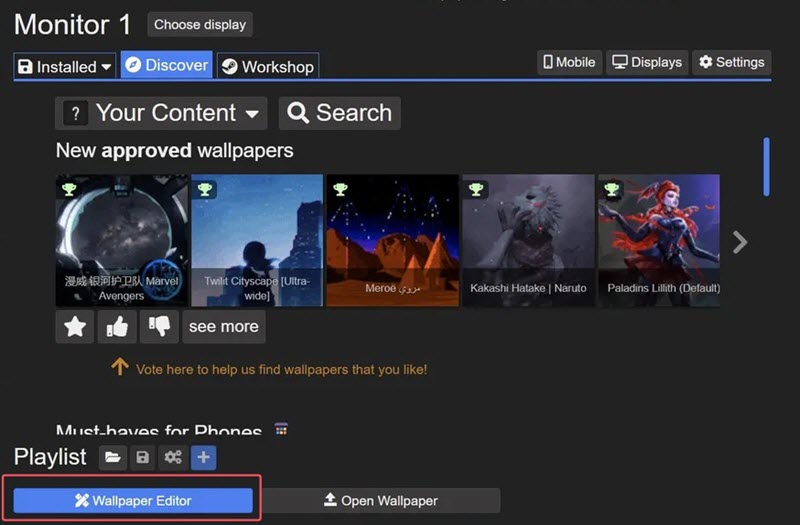
Step 1. Download and install Wallpaper Engine via Steam. Click “Wallpaper Editor” to launch the program.
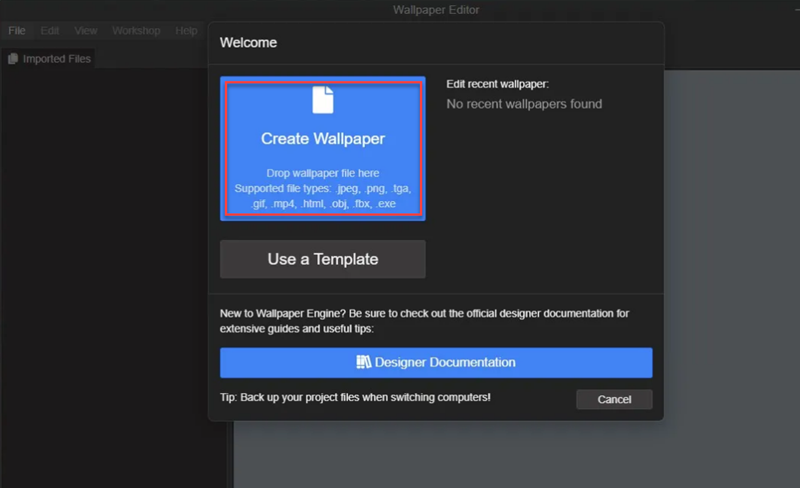
Step 2. Click “Create Wallpaper” and choose the existing image you want to convert to live wallpaper. You can also use a template.
Step 3. Name your project, select a scheme color and choose a resolution that fits your monitor. Click OK to save the settings.
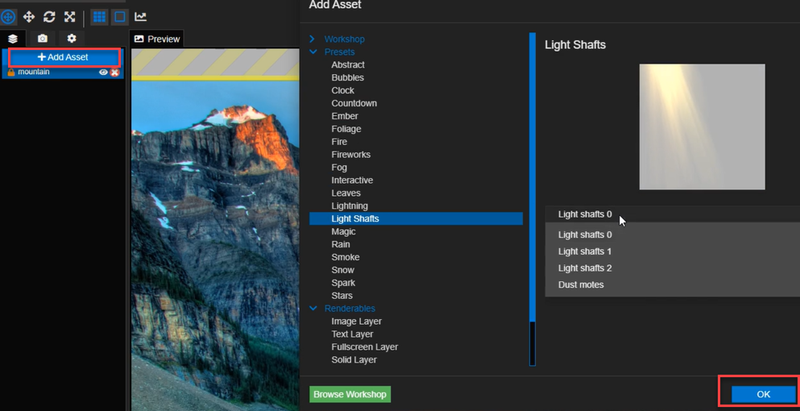
Step 4. In the main panel, click “Add Asset” under “Layers” tab to add desired elements, from animations to text, image and sound layers.
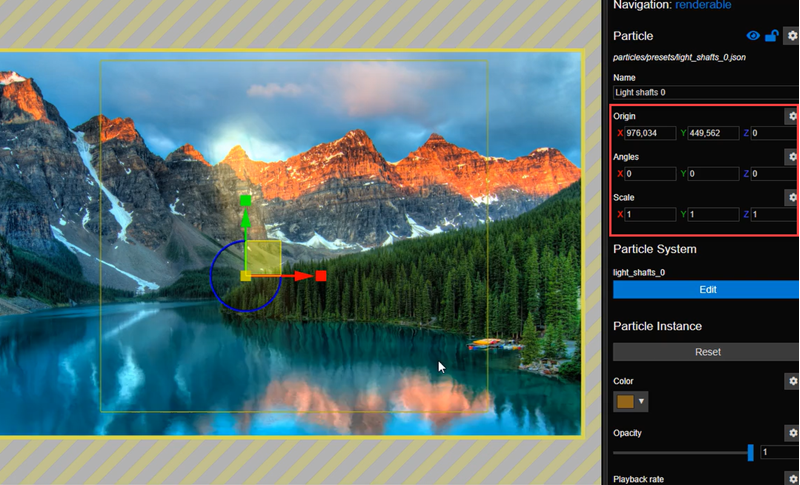
Step 5. Under the “Properties” on the right side, modify the position (Origin), rotation (Angle) and size (Scale) of the added assets for better viewing experience.
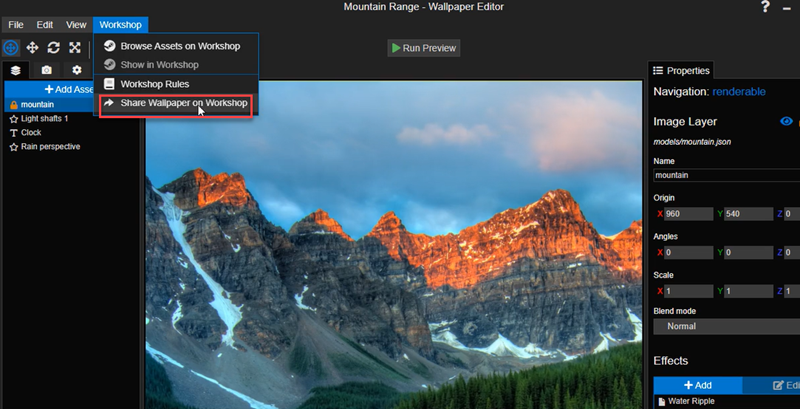
Step 6. Once you finish the customization, go to Workshop > Share Wallpaper on Workshop. Hit the “Publish” button in the pop-up to publish it on Steam.
Wallpaper Engine is perfect for games, artists and content creators to design creative live wallpapers for desktop. But, if you need a more beginner-friendly live wallpaper generator, iTop Easy Desktop can do you a big favor.
iTop Easy Desktop is an all-on-one desktop organizer and wallpaper app for PC. It has a library that embraces a variety of collections of live and static wallpapers. You can browse wallpapers from different types and resolutions that suit your display. It also allows you to add a video in MP4/WebM/OGV as a live wallpaper. And, its easy-to-navigate interface lets you quickly make and set a live wallpaper for your desktop on PC without any guesswork.

- iTop Easy Desktop - Explore Aesthetic Wallpapers for PC
-
- Free download wallpapers across a wide range of styles
- Animate your desktop with free HD/4K live wallpapers
- Create custom wallpapers from images/videos with ease
- Apply and change desktop backgrounds in one click
How to make a live wallpaper on PC with iTop Easy Desktop?
Step 1. Download and install iTop Easy Desktop on your Windows computer.
Step 2. Go to the Wallpapers Tab.
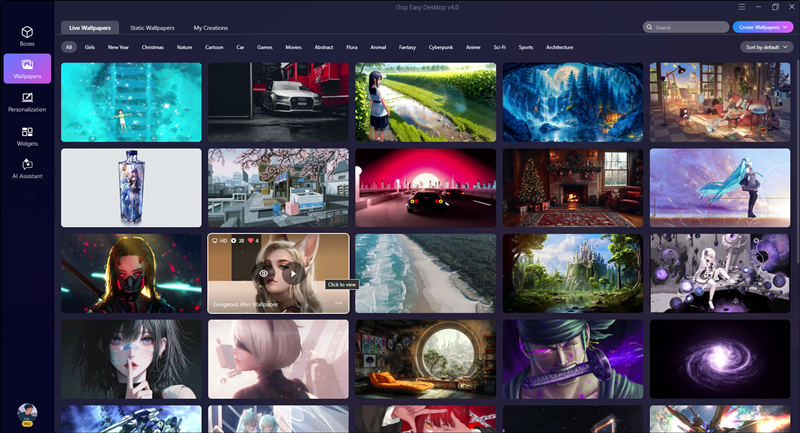
Step 3. Make a selection according to your preference.
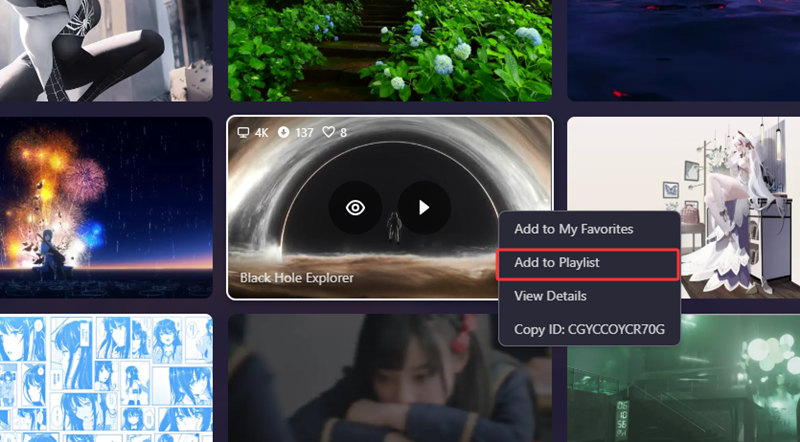
Step 4. Right click on the live wallpaper you select and select “Add to Playlist”. Now, the live wallpaper is automatically played on your desktop.
Apple adds an amazing feature to create live wallpapers on your phone since it released the model iPhone 6s. You can directly set a live photo as live wallpaper for home and lock screen without any installation. Here, follow the tutorial to make a live wallpaper from a live photo on iPhone.
How to create live wallpaper iPhone?
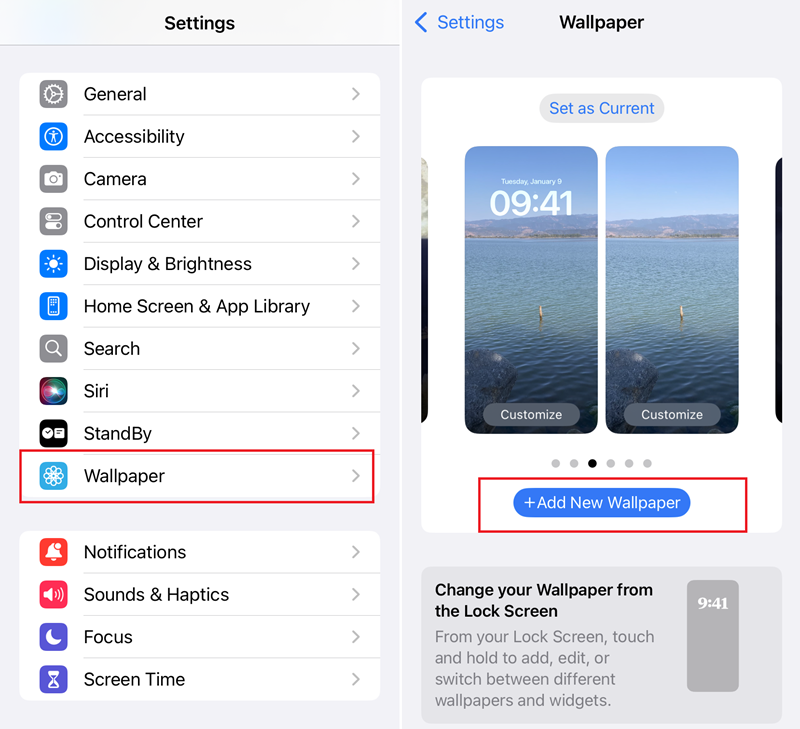
Step 1. Go to Settings > Wallpaper. Top on “Add New Wallpaper”.
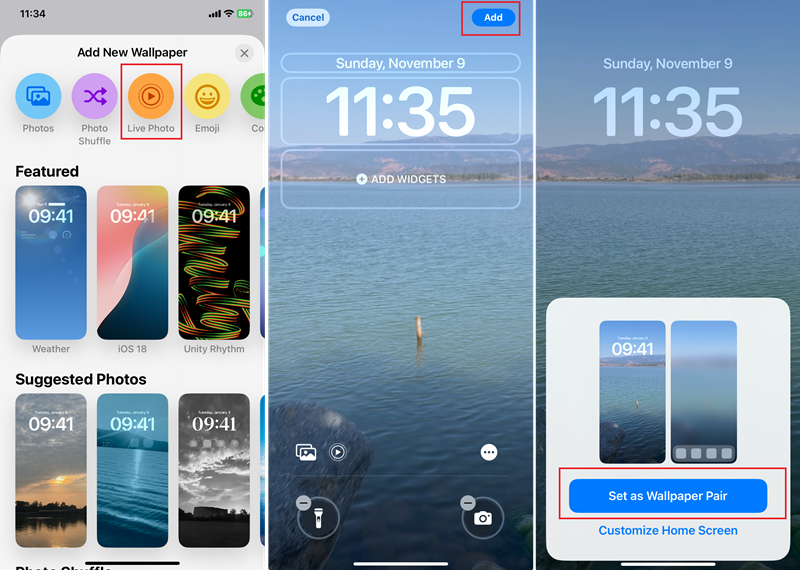
Step 2. On the top and the screen, you can see a list of available categories. Select Live Photo and choose the live photo you want to make as wallpaper from the gallery.
Step 3. Customize the layout of the wallpaper if needed. After that, click Add.
Step 4. Tap on Set as Wallpaper Pair to make the live wallpaper for your iPhone.
Tips:
1.The live wallpaper is only applied to the lock screen and it won’t move on home screen.
2.About how to set video as live wallpaper iPhone, there are multiple great apps that help turn a video clip or GIF file into a live wallpaper - for example, intoLive, Giphy - with no hassle.
3.TikTok allows you to save a video as live photo to your gallery. Select a video on TikTok, tap on the share icon and select Live photo. Then, you can use the above guide to set the saved TikTok video as live wallpaper on your iPhone.
Unfortunately, most Android devices don't offer a direct way to set up a live wallpaper and you'll need a third-party app. Video (.GIF;.MP4) to Wallpaper is a simple app that converts any video in MP4/MOV or GIF to dynamic background for mobile devices. Install the app from Google Play Store and create a custom live wallpaper on Android with the steps below.
How to make a live wallpaper on Android?
Step 1. Open the app and tap on the “+” icon on the bottom right corner.
Step 2. On the “Add Wallpaper” pop-up, click “CHOOSE” button to select a video from internal storage. Give a name of the live wallpaper you will make later. Tap on “OK”.
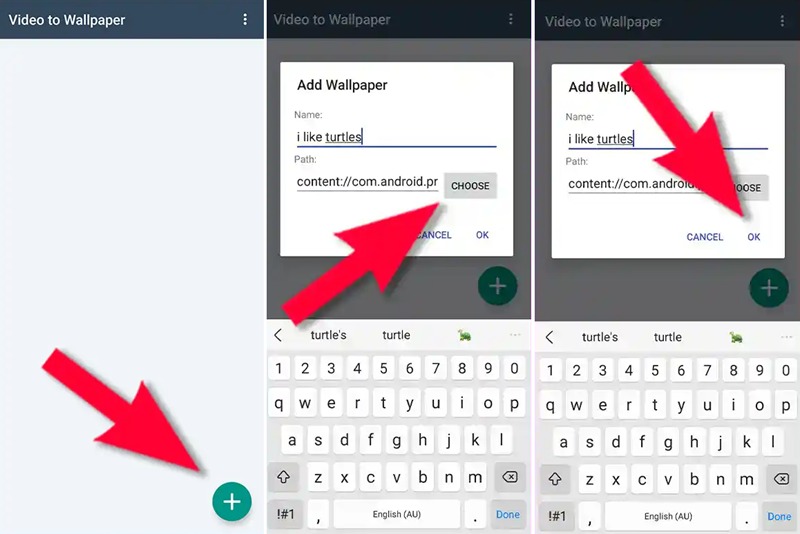
Step 3. After the selected video is shown, tap on “APPLY”.
Step 4. A pop-up window telling you to select “Video to Wallpaper” in next view appears. Click OK.
Step 5. Locate “Video to Wallpaper” and select it.
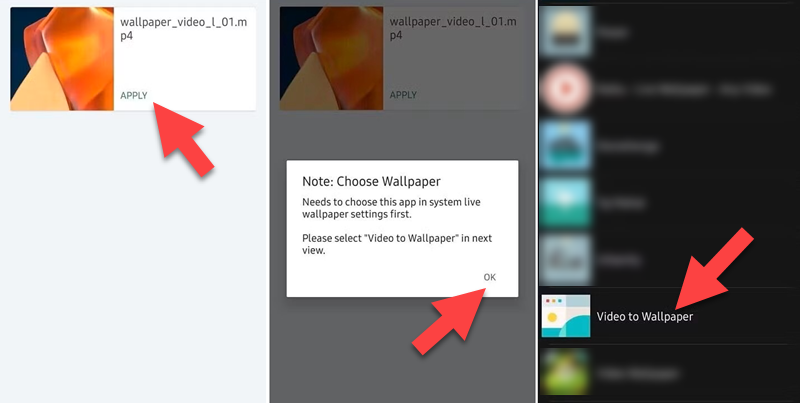
Step 6. Tap on “Set wallpaper” and choose set it as wallpaper for Home screen or Home screen and lock screen. Now, your wallpaper is live on your Android device.
Notice: The free version of the video to wallpaper converter app only allows you to make a live wallpaper at one time. You can either delete the former wallpaper to set up a new one for free or pay for a Pro version for unlimited creation.
macOS includes a set of wallpapers in video format what you can set as dynamic backgrounds for your desktop. But if you need to make a custom live wallpaper, the how-to guide can let you manually set any video as live wallpaper on Mac.
How to make a live wallpaper on Mac?
Before everything, you should prepare a .MOV video for live wallpaper creation.
Step 1. Open Finder > Go > Go to Folder.
Step 2. Copy and paste the path into the search box to locate the folder: /Library/Application Support/com.apple.idleassetsd/Customer. Next, select 4KSDR240FPS where stores the default live wallpapers. If you haven’t downloaded any dynamic desktop background, the folder is empty.
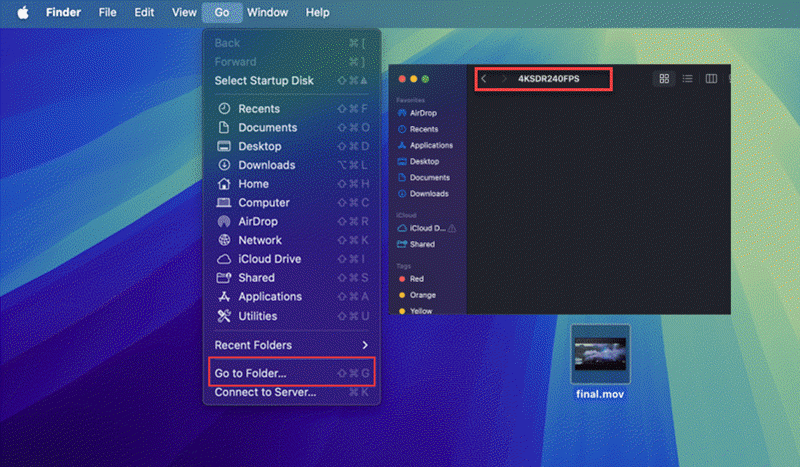
Step 3. Open System Settings > Wallpaper and download a provided live wallpaper. Once the wallpaper is downloaded, you can a .mov file in the 4KSDR240FPS folder.
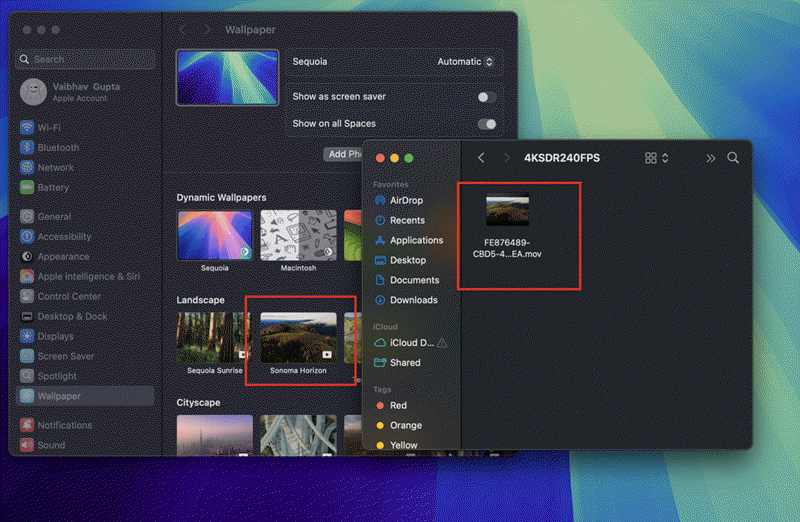
Step 4. Copy the filename of the downloaded wallpaper and rename your video with the copied filename.
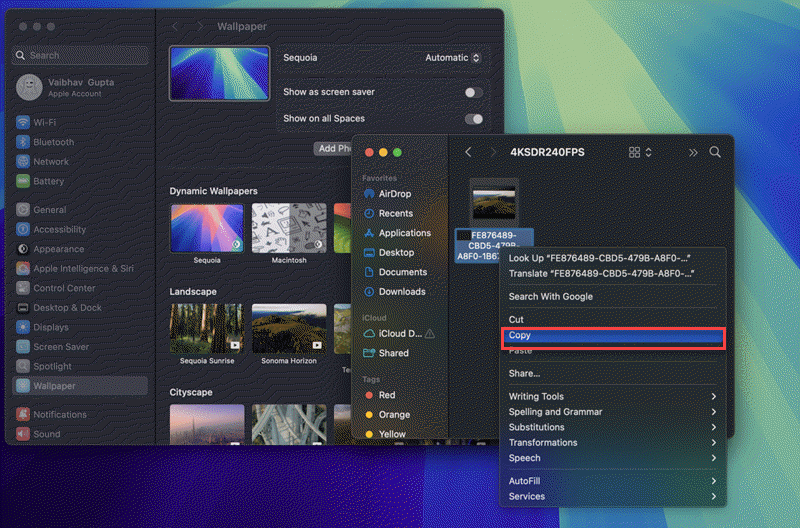
Step 5. Drag and drop the renamed video to the 4KSDR240FPS folder to replace the original wallpaper.
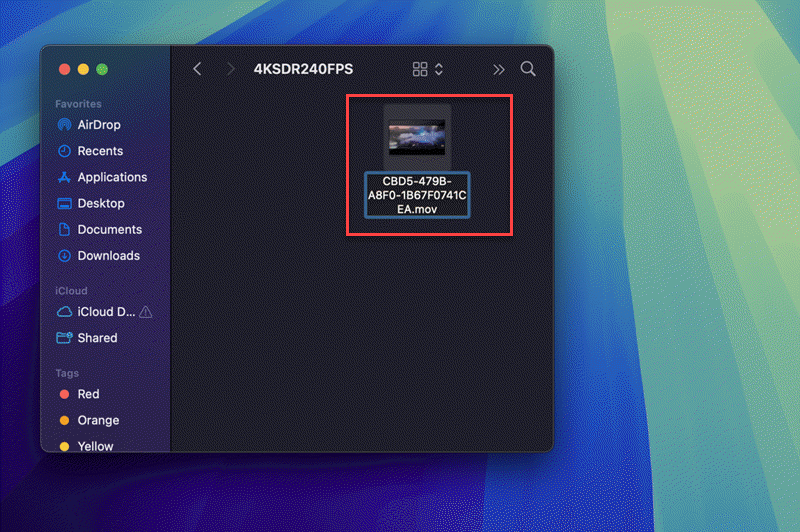
Step 6. Go to System Settings > Wallpaper. Apply the wallpaper with the same name. Now, your video is set up as a live wallpaper for Mac.
Conclusion
Live wallpaper ensures a vibrant and engaging desktop. Some people create unique live wallpapers to make their desktop more personalized. How to make a live wallpaper? Wallpaper Engine on Steam helps Windows users customize the background with animations and effects while iTop Easy Desktop gives a straightforward way to set videos as live wallpapers on PC. Also, live wallpaper generator AI tools and video to live wallpaper online free tools allow beginners to quickly create animated desktop backgrounds on any device with no effort.
- iTop Easy Desktop - Explore Aesthetic Wallpapers for PC
-
- Free download wallpapers across a wide range of styles
- Animate your desktop with free HD/4K live wallpapers
- Create custom wallpapers from images/videos with ease
- Apply and change desktop backgrounds in one click