Recover any lost data or deleted hidden files within 1 minute!
For Windows 11/10/8/7

How to recover data from formatted Laptop in easy & 100% success rate? This post will introduce you to how to retrieve files from a formatted laptop.
Disk formatting! A scarce action that may help you recover from an unfixable issue, or causes you to lose all your data. Many people fear formatting their computer, some are helplessly watching their files disappear and vanishing permanently.

Don’t panic when you find you formatted your laptop – due to the nature of the laptop (requires durability, working in extreme conditions, and various status quo), your productivity tool is still likely to break (files corrupt, slow in performance). Sometimes formatting your laptop is an effective means of repairing your PC in case of emergency. If you have to format your laptop disks and lost your files, this post will introduce you to how to recover data from a formatted laptop with one click.
Before we get ready to repair/ recover the lost files and data from a formatted laptop, we should better dig into the reasons which lead you to format your laptop & laptop disk. So that we can do better analysis & recovery of lost files and data.

Formatted laptop while creating a new partition.
Formatted laptop while reinstalling Windows or other operating systems.
Some computer virus and malicious software corrupt your PC’s data structure, which force you to format your laptop drive.
Windows fatal error, like a blue screen, may cause you to format your laptop.
A physical hard drive crash (sudden power failure, shaking, bad sector) may require you to format your laptop to take it back to work.
Corrupted Windows system files & functions sometimes need to format your laptop completely.
First, keep that in mind – formatting your laptop doesn’t mean all your files will disappear or vanish – in some way, it can be described as “hidden”. The mechanic of laptop formatting is based on certain operations & modifications to the file system & listing, rather than destroying, and eliminating your data.

So don’t panic if your mis operated or formatted your laptop. If the format is processing, do not try to interrupt the procedure – it will cause worse consequences if you try to forcefully terminate the process and crush your laptop hard disk’s file system (or flash memories like SSD, NVME, SD, and other eternal storage), which causes further problems while we try to restore them. Also, make sure DO NOT disconnect your laptop hard disk, external storage, or any storage device while formatting, it can physically damage your device and your data could possibly be lost permanently.

While you accidentally formatted your laptop, the File History could be a handy tool to help you to recover data from your formatted laptop. The reason why File History can do that is that to use File History, you will need to back up your file on external storage – so that your data will not be influenced by your formatting.

Step 1. Start File History by backing up your files. By clicking the “Add a drive” button, you can select external storage to back up your files. Thus, external storage with ample empty space is strongly suggested in order to keep all personal files backed up on the disk.

You’d better have this backup disk keep connected to your computer, do lesser changes and modify the data stored on the disk. After you select & set up the backup disk, the File History will tell you the function has turned on.
Step 2. After you backup your data with File History, once you formatted your laptop, return to File History’s screen and then click on “Restore personal files” from the menu on the left. File History will list all files which recently modified/moved. At the bottom of the window. Back and forward buttons on the bottom allow you to move between snapshots, offering access to different versions of your files.

Problems of using File History to recover data from formatted laptop:
You will need to back up your data first before you use it to recover – If you accidentally formatted your laptop without backing up beforehand, you might not be able to recover data from formatted laptop.
You will need an external storage to back up your files and data – if the data you need to back up is huge, then a bigger external storage is required for backing up your data.
3,000,000+ Downloads
from 100+ countries & regions
For Windows 11/10/8/7
If you accidentally formatted your laptop without backing up your laptop – which most possibly happens in a real-case scenario. You will need data recovery software to recover data from your formatted laptop since the data on the partition are “erased”.
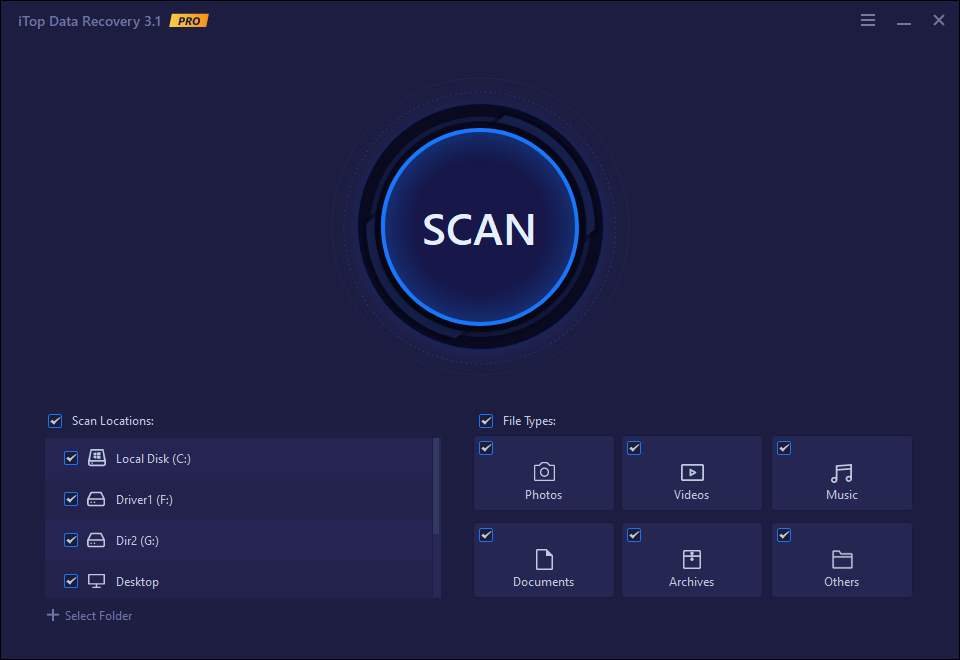
In this case, the iTop Data Recovery can be the saver of your data - The iTop Data Recovery will just dig out everything on a formatted laptop. And you can one-click to recover your file. if you are bothered with accidentally formatting and need to recover files stored on your laptop, the iTop Data Recovery is the best choice, without a doubt.
The highlights of iTop Data Recovery
Recover files in all formats
Fast security, maximum capability to prevent data loss
One-stop solution, easy to use
Steps to recover data from iTop Data Recovery
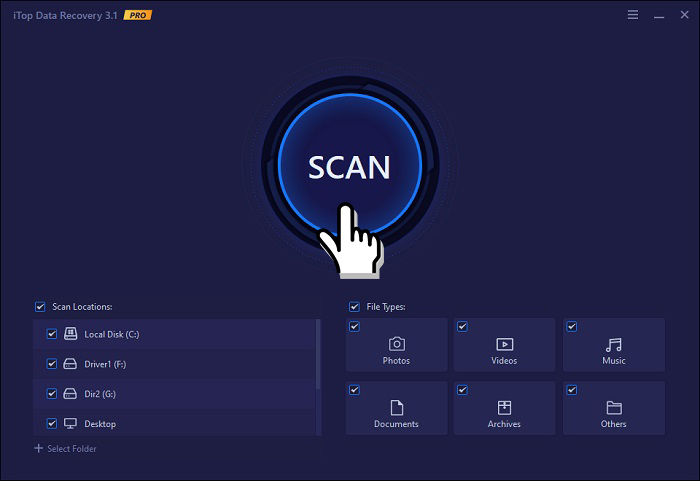
Step 1. Download, install and get a premium service, you can have a quick recovery of your formatted laptop.
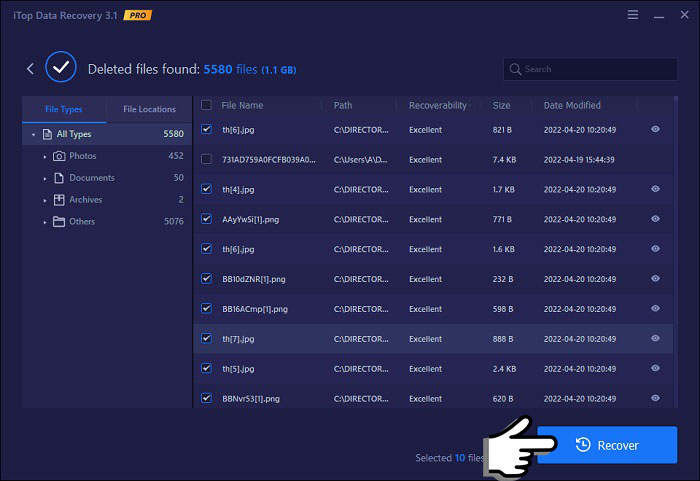
Step 2. Then click the “Scan” button, the iTop Data Recovery will start to scan your laptop and all formatted files will be fully listed.
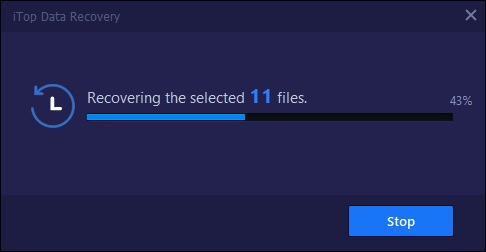
Step 3. Find the file you need to recover, click “Recover” and then you can recover the files after permanent formatting. (Need to upgrade to a premium version)
How to recover data from the formatted laptop? Using the iTop Data Recovery can be the best solution of how to recover data from a formatted laptop. If you have such a need, try to iTop Data Recovery!
Subscribe to Our Newsletter
Subscribe to our newsletter to stay updated every moment.

Subscribe to Our Newsletter
Subscribe to our newsletter to stay updated every moment.
© 2026 iTop. All rights reserved.