iTop VPN offers 3200+ VPN servers in 100+ locations worldwide to help you access various sites privately and safely, along with dedicated IP, dynamic and static IP, and Double VPN.
Facing Valorant not opening or launching on Windows 11? Learn how to fix Valorant won’t open on PC with 10 proven fixes. Stop worrying about it now.
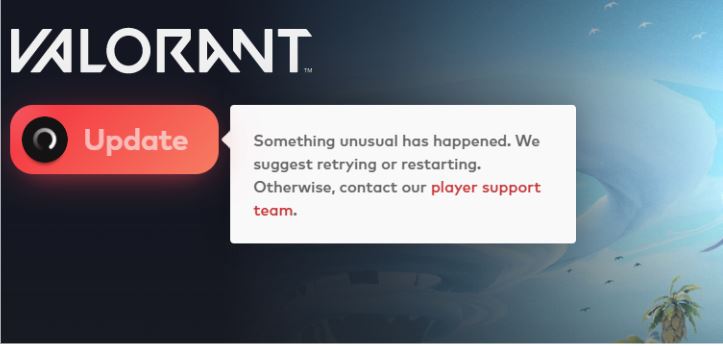
If you’ve ever clicked the Valorant game icon and nothing happened, you’re not alone. Issues like Valorant not opening or Valorant not launching are extremely common among PC players. In fact, discussions like “Valorant won't open Reddit” threads show many users experiencing a silent failure - no error message, no loading screen, just nothing happening at all.
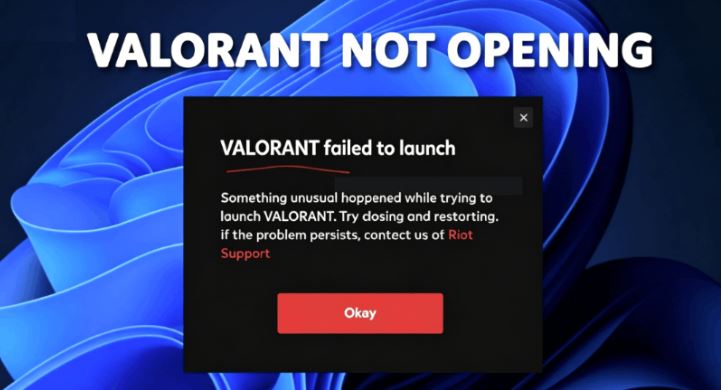
The situation becomes even more confusing when players face Valorant not working on Windows 11, especially after system updates or driver changes. Whether you're dealing with Valorant not opening Windows 11 or struggling with startup crashes, this guide breaks everything down into clear categories and step-by-step fixes so you can finally fix Valorant won't open on PC.
Before applying any fix, understanding the difference between these issues can save you a lot of time. Many users assume they are the same, but they actually occur at different stages.
Valorant not opening: Nothing happens when you click the icon
Valorant not launching: Game starts but fails during loading
Valorant not working: Game opens but crashes or freezes
This distinction is important because each stage has different causes and solutions.
Before fixing Valorant not opening Windows 11, it’s helpful to understand what’s actually causing the issue. Most problems fall into a few key categories:
Riot Vanguard not running properly
The anti-cheat system must be active. If it fails, Valorant not opening is almost guaranteed.
Windows 11 security restrictions (TPM / Secure Boot)
Missing these features can block the game entirely.
Driver or system incompatibility
Outdated GPU drivers or missing updates can lead to Valorant not launching.
Background software conflicts
Apps like overlays or security tools can interfere with startup.
Firewall or antivirus blocking the game
This is a common reason for Valorant won’t open on PC.
Corrupted game or client files
Broken files often result in Valorant not loading into the game.
Network instability or routing issues
This can silently prevent the game from connecting to servers.
If you're dealing with Valorant not opening or even cases like Valorant won't open on my laptop, it’s best to start with these quick and practical fixes. These methods target the most common and easy-to-resolve causes, and in many situations, they can completely fix Valorant not opening without going deeper.
1. Run Valorant as Administrator
One of the simplest yet most effective fixes for Valorant not opening is running the game with administrator privileges. Without proper permissions, Windows may block essential background processes, especially those tied to system-level components like anti-cheat.
This is particularly useful if you're experiencing that Valorant won't open on PC without any error message.
Steps:
1. Right-click the Valorant shortcut or executable file
2. Select “Run as administrator”
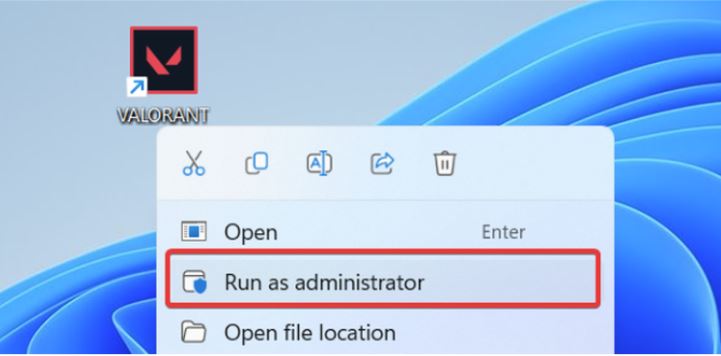
3. If prompted, click “Yes” to allow permissions
Check if the game launches normally.
If this works, you can set it permanently in Properties → Compatibility → “Run as administrator.”
2. Restart Your PC (Reset Vanguard Initialization)
A full system restart is more powerful than it sounds. Riot’s anti-cheat system initializes during boot, and if it fails even once, Valorant not opening Windows 11 is likely to occur. Restarting ensures all related services are properly loaded again. So, restart your PC and launch the game again.
This method is especially effective for random cases of Valorant not opening after system sleep or updates.
3. End Riot Processes and Relaunch Client
Sometimes, background Riot processes remain stuck after a crash or improper shutdown. This can directly lead to Valorant not launching or the game refusing to open entirely. Manually resetting these processes can clear the issue.
Steps:
1. Press Ctrl + Shift + Esc to open Task Manager
2. Look for Riot Client and related processes
3. Right-click each one → End Task
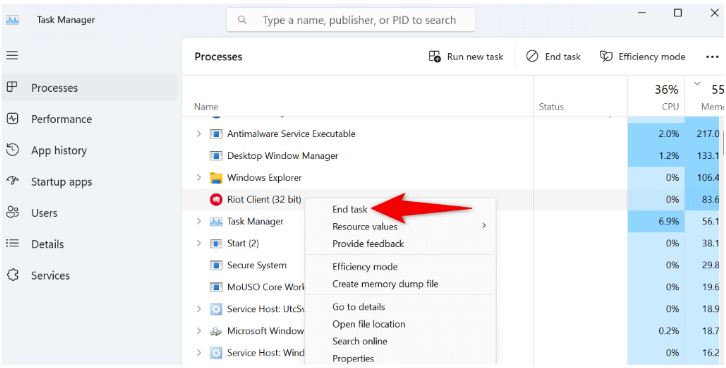
4. Relaunch Riot Client and start the game
This fix is commonly reported in Valorant won’t open Reddit discussions.
4. Check Server Status
Before assuming something is wrong with your PC, it’s worth confirming whether the issue is server-related. If servers are down or unstable, you may encounter Valorant not loading into game or startup failures.
Steps:
1. Visit Riot’s official server status page
2. Check your region’s current status
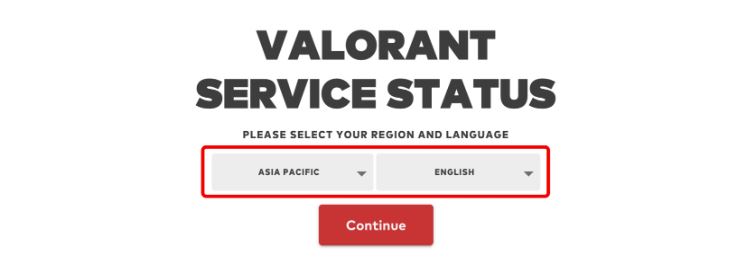
3. Look for maintenance or outage alerts
4. Wait until services are restored
This avoids unnecessary troubleshooting when the problem is external.
5. Temporarily Disable Antivirus or Firewall
Security software can mistakenly flag Valorant or its components as threats, leading to Valorant not opening or silent launch failures. Testing with antivirus disabled can quickly confirm if this is the cause.
Steps:
1. Open your antivirus software
2. Temporarily disable real-time protection
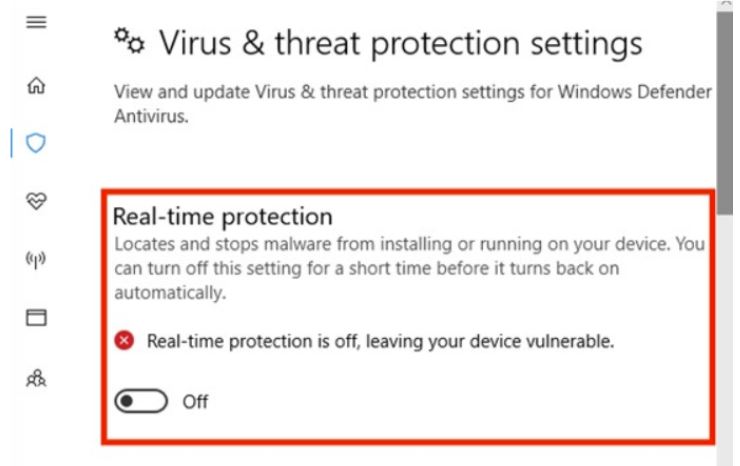
3. Turn off firewall protection (if applicable)
4. Relaunch Valorant
If successful, add Valorant to the exception list
This is a frequent cause behind Valorant won't open Windows 11 issues.
If the basic methods didn’t solve your problem, it’s time to apply deeper fixes. These solutions target system-level issues behind Valorant not launching, especially when the game starts but fails midway or crashes.
1. Enable TPM 2.0 and Secure Boot
Windows 11 enforces stricter security requirements, and Valorant relies on them. If TPM 2.0 or Secure Boot is disabled, Valorant not opening windows 11 becomes very common.
Steps:
1. Restart your PC and enter BIOS (usually F2/DEL)
2. Locate TPM settings → Enable TPM 2.0
3. Enable Secure Boot
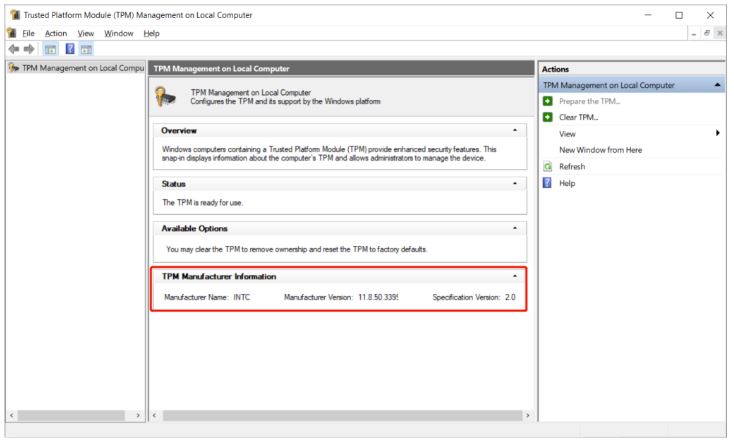
4. Save changes and exit BIOS
5. Restart and launch the game
This fix is very helpful for resolving system-level compatibility issues.
2. Reinstall Riot Vanguard
Riot Vanguard is critical for launching the game. If it’s corrupted or not installed properly, Valorant not opening will occur every time.
A clean reinstall ensures everything works correctly.
Steps:
1. Open Control Panel → Programs
2. Uninstall Riot Vanguard
3. Restart your PC
4. Launch Valorant (Vanguard will reinstall automatically)
5. Restart again if prompted
This is one of the most effective fixes for persistent startup issues.
3. Perform a Clean Boot
A clean boot helps identify whether third-party applications are causing conflicts. Many cases of Valorant not launching are actually due to hidden background software interference.
Steps:
1. Press Win + R → type “msconfig”
2. Go to Services tab → check “Hide Microsoft services”
3. Click “Disable all”
4. Go to Startup → open Task Manager → disable all items
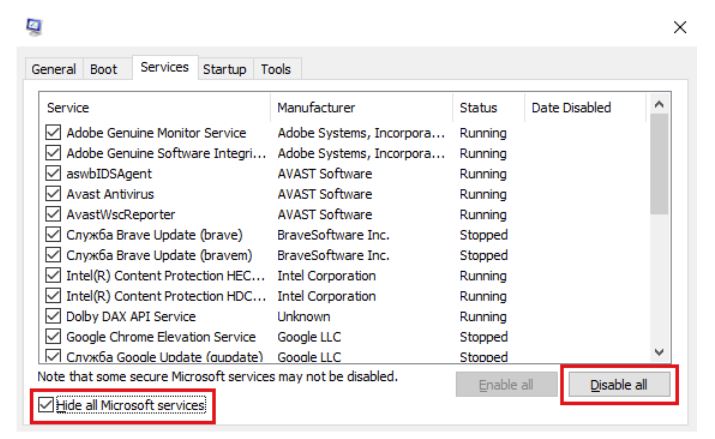
5. Restart your PC
If Valorant opens normally afterward, you can re-enable services one by one to find the culprit.
4. Update GPU Drivers and Windows
Outdated drivers are a common but overlooked cause of Valorant not opening or startup crashes. Compatibility issues often arise after Windows updates.
Steps:
1. Open Device Manager
2. Expand Display Adapters
3. Right-click your GPU → Update driver
4. Also, go to Windows Update → install all updates
5. Restart your PC
Keeping your system up-to-date ensures smooth launching and gameplay.
5. Use a VPN to Fix Valorant Not Launching (Key Solution)
If you’ve tried everything and still face Valorant not opening, the issue may not be your system at all - it could be your network routing. Many users experiencing Valorant won't open on pc are actually dealing with unstable ISP connections or poor routing to game servers.
A VPN works by redirecting your connection through optimized servers, which can significantly improve stability and fix silent launch failures. This is especially useful for players experiencing Valorant not loading into game, situations where the game shows no error but refuses to start, or cases where Valorant won't open on my laptop despite having stable hardware and internet performance.
Why This Works:
Fixes unstable ISP routing paths
Reduces packet loss and connection drops
Bypasses regional restrictions
Stabilizes communication with Riot servers
Among the available options, iTop VPN is a practical solution for players dealing with Valorant not opening, especially when the issue is related to unstable connections or server communication problems.


It offers 3200+ optimized VPN servers, fast connection speeds, and a simple interface that’s beginner-friendly. Features like multiple global server locations and support for dedicated IP connections can help improve connection consistency and reduce startup-related issues. This can be particularly helpful for situations where Valorant opens to a loading screen, gets stuck during verification, or refuses to launch without any error message.
There is also a free VPN version available for users who want to test whether the issue is network-related before upgrading.
Step-by-Step Guide:
Step 1. Download and install iTop VPN on your Windows PC.
Step 2. Open the app and sign in or use the free version.
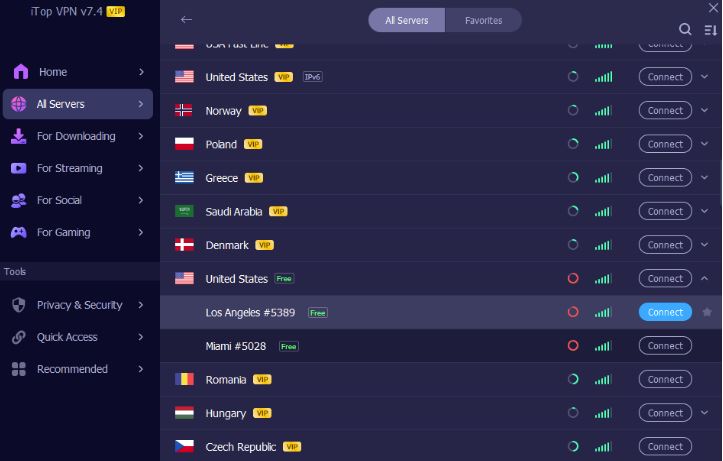
Step 3. Choose a nearby gaming-friendly region such as Japan, Korea, or Singapore. Click “Connect”.
Step 4. Wait for the VPN connection to establish
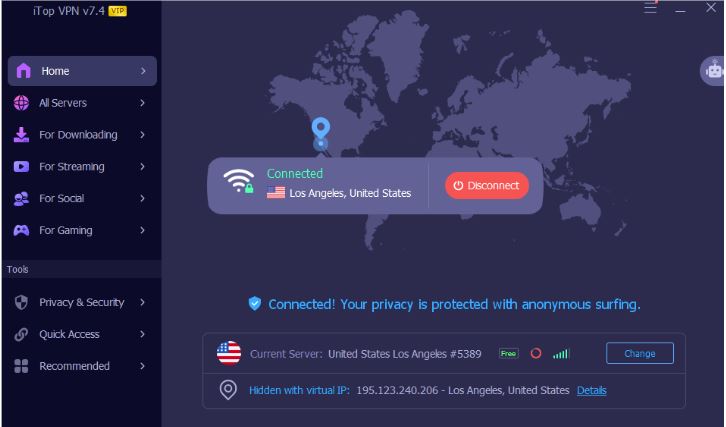
Step 5. Launch Riot Client and start Valorant
If the issue remains, switch to another server location and test again.
If your game opens but doesn’t run properly, you’re dealing with runtime issues. These fixes target crashes, freezes, and instability.
Fix 1. Clear AppData Cache
Remove temporary files to fix corruption issues.
Fix 2. Close Background Applications
Disable overlays, recording tools, or conflicting apps.
Fix 3. Repair or Reinstall the Game
Fixes missing or broken files.
Fix 4. Check System Requirements
Ensure your hardware meets minimum specs.
Fix 5. Update Windows System
Prevent compatibility issues.
These steps help fully fix Valorant not opening and prevent future errors.
If you're still stuck with Valorant won't open Windows 11, consider these final solutions:
1. Full Reinstallation
Remove Valorant, Riot Client, and Vanguard completely before reinstalling.
2. Reset Windows System
Use as a last resort for deep system conflicts.
3. Contact Official Support
Get advanced diagnostics if the issue persists.
Conclusion
Facing Valorant not opening can be frustrating, but most issues are fixable with the right approach. By identifying whether you're dealing with Valorant not launching or runtime problems, you can apply targeted solutions instead of guessing.
Start with basic fixes, move into advanced methods, and use iTop VPN if network issues are suspected. With this VPN for gaming free, you can reliably fix Valorant wont open on PC and get back into the game without unnecessary trial and error.

10+ free servers in US, UK...
3200+ extensive servers
Dedicated IP addresses
Ad blocker and Proxy service
For Windows 11/10/8/7
Subscribe to Our Newsletter
Subscribe to our newsletter to stay updated every moment.

Subscribe to Our Newsletter
Subscribe to our newsletter to stay updated every moment.
© 2026 iTop. All rights reserved.