
iTop VPN offers 3200+ VPN servers in 100+ locations worldwide to help you access various sites privately and safely, along with dedicated IP, dynamic and static IP, and Double VPN.
Learn how to resolve "server IP address could not be found" error with proven solutions. Fix DNS issues and restore your internet connection quickly.
Encountering the "server IP address could not be found" error can be incredibly frustrating when you're trying to access websites or online services. This error occurs when your computer cannot translate a domain name into its corresponding IP address, essentially blocking your access to the internet. The error can manifest in various forms, affecting different websites and services unexpectedly. This comprehensive guide will walk you through the underlying causes of this connectivity issue and provide you with practical, step-by-step solutions to restore your internet access quickly and effectively.
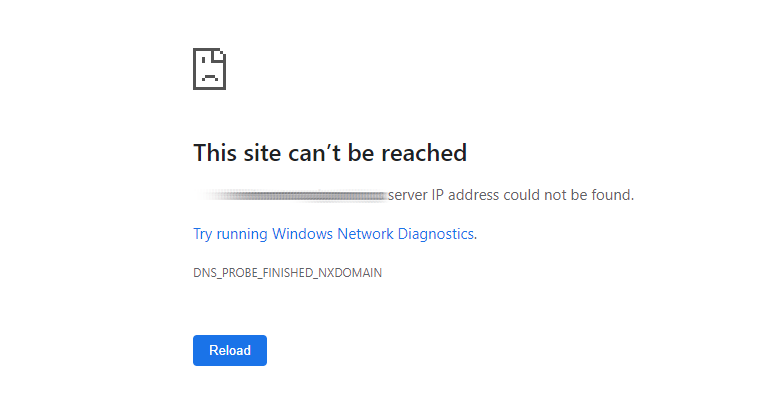
The "server IP address could not be found" error typically stems from DNS (Domain Name System) resolution failures on Windows systems. When you type a website address into your browser, your computer must convert that human-readable domain name into a numerical IP address that servers can understand. This translation process relies heavily on DNS servers, which act as the Internet's phone book.
Several factors can disrupt this crucial process. Network connectivity issues represent the most common culprit, where unstable or interrupted internet connections prevent your computer from reaching DNS servers. Corrupted DNS cache files stored locally on your device can also cause problems, as outdated or incorrect entries may point to wrong IP addresses or non-existent servers.
Firewall and antivirus software sometimes interfere with DNS requests, blocking legitimate traffic they perceive as threats. Additionally, misconfigured network settings, particularly incorrect DNS server addresses, can lead to resolution failures. VPN connections may also contribute to the problem when they route traffic through servers with poor DNS performance or when the VPN client experiences connectivity issues.
Browser-related problems, including corrupted cache files, outdated cookies, or conflicting extensions, can trigger DNS resolution errors. Sometimes, the issue originates from your Internet Service Provider's DNS servers, which may be experiencing downtime or technical difficulties. Understanding these root causes helps you apply the most appropriate solution for your specific situation.
Resolving DNS resolution errors requires a systematic approach, starting with basic troubleshooting steps before moving to more advanced solutions. Here are proven methods to fix the server IP could not be found error:
Start by verifying your internet connection stability. Test your connection by trying to access multiple websites or running a speed test. If other devices on your network can access the internet normally, the problem likely lies with your specific device's configuration rather than your internet service provider.
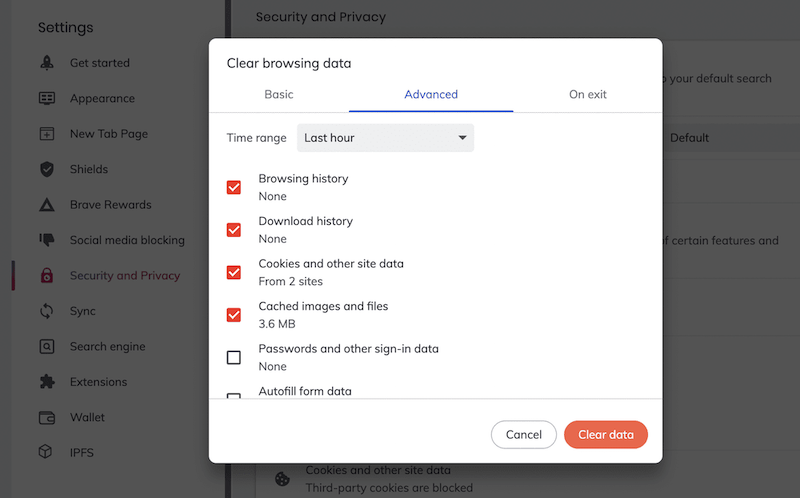
Browser cache corruption frequently causes DNS resolution problems. Clear your browser's cache, cookies, and browsing history completely. In Chrome, navigate to Settings > Privacy and Security > Clear browsing data, then select "All time" as the time range. For Firefox, go to Settings > Privacy & Security > Clear Data. This process removes potentially corrupted DNS entries stored locally.
If you're using a VPN service, disconnect and reconnect to a different server location. VPN servers sometimes experience DNS resolution issues or connectivity problems. Try connecting to servers in different geographic regions to identify whether the problem affects specific server locations. Some VPN providers offer specialized servers optimized for DNS performance.
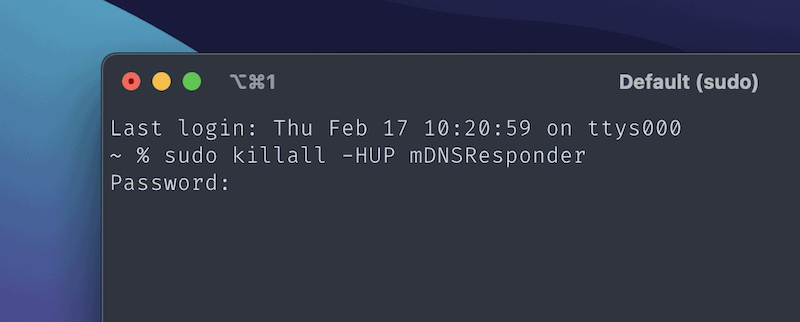
Windows stores DNS information locally to speed up future requests, but this cache can become corrupted. Open Command Prompt as administrator and run the following commands sequentially:
ipconfig /flushdns
ipconfig /registerdns
ipconfig /release
ipconfig /renew
These commands clear your DNS cache, re-register DNS entries, and refresh your network configuration.
Replace your current DNS servers with reliable alternatives like Google DNS (8.8.8.8 and 8.8.4.4) or Cloudflare DNS (1.1.1.1 and 1.0.0.1). Access your network adapter settings through Control Panel > Network and Internet > Network Connections. Right-click your active connection, select Properties, then Internet Protocol Version 4 (TCP/IPv4), and enter the new DNS server addresses.
If other solutions fail, reset your network configuration completely. In Windows, open Settings > Network & Internet > Status > Network Reset. This action removes all network adapters and reinstalls them with default settings, potentially resolving configuration conflicts that cause DNS errors.
Sometimes, the "Server IP address could not be found" error is specific to the browser or device you're using. Try accessing the problematic website on another browser (like Firefox, Edge, or Safari) or using another device on the same network. This simple test helps isolate whether the issue is tied to your system settings, browser extensions, or device-level configurations.
Knowing how to fix server IP address could not be found errors becomes essential when standard troubleshooting methods don't resolve the issue immediately.
Additional Tip: Test on a Different Network If you continue encountering the "Server IP address could not be found" error, try accessing the same website on a different network—such as switching from Wi-Fi to mobile data or connecting through a different hotspot. This helps determine whether the issue is related to your local network configuration or ISP. In some cases, specific routers or network firewalls may block DNS traffic, triggering the same DNS resolution error.
When basic troubleshooting fails to resolve the DNS resolution problem, consider implementing additional advanced solutions. Alternative DNS providers like OpenDNS (208.67.222.222 and 208.67.220.220) or Yandex DNS (77.88.8.8 and 77.88.8.1) may offer better performance and reliability than your default servers.
Network adapter driver updates can resolve compatibility issues that interfere with DNS resolution. Visit your computer manufacturer's website or network adapter manufacturer's support page to download the latest drivers. Additionally, temporarily disabling Windows Firewall and antivirus software can help identify whether security programs are blocking DNS requests.
Registry cleaning tools can address deeper system configuration issues, though these should be used cautiously with proper backups. Consider contacting your Internet Service Provider if multiple devices experience similar problems, as the issue may originate from their DNS infrastructure.
iTop VPN offers a reliable solution for users experiencing persistent DNS resolution issues. This free VPN service allows you to change your IP address with a single click, potentially bypassing regional DNS server problems. iTop VPN provides access to servers in multiple countries, ensuring you can find a stable connection that resolves www googleadservices com's server IP address could not be found and www google com's server IP address could not be found errors effectively.

DNS leak protection
The free VPN service includes built-in DNS leak protection and optimized servers for streaming and browsing, making it an excellent choice for users seeking both privacy and reliability.
Free VPN servers
No subscription, no server connection? iTop VPN is not the situation. Its free version allows you to connect free VPN servers in US, UK, Japan and other countries without sign up.
Kill switch
Toggle on kill switch feature to make sure that when your VPN drops unexpectedly, it will automatically stop all internet traffic.
Dedicated IP
When a shared IP is detected and will be banned by some websites, connect the dedicated IP in several countries which is unique for you.
Download iTop VPN to enjoy more advanced features, like ad block, split tunneling, dynamic IP, static IP, and more.
Conclusion
Understanding how to resolve server IP address could not be found error empowers you to troubleshoot connectivity issues independently. These systematic solutions address the most common causes of DNS resolution failures, from simple cache clearing to advanced network configuration changes. For persistent problems or users seeking enhanced privacy and connectivity options, iTop VPN provides a comprehensive solution that combines IP address flexibility with robust DNS resolution capabilities.
100+ global countries
3200+ worldwide servers
Dedicated IP addresses
Dynamic IP and static IP

Subscribe to Our Newsletter
Subscribe to our newsletter to stay updated every moment.

Subscribe to Our Newsletter
Subscribe to our newsletter to stay updated every moment.
© 2026 iTop. All rights reserved.