iTop VPN offers 3200+ VPN servers in 100+ locations worldwide to help you access various sites privately and safely, along with dedicated IP, dynamic and static IP, and Double VPN.
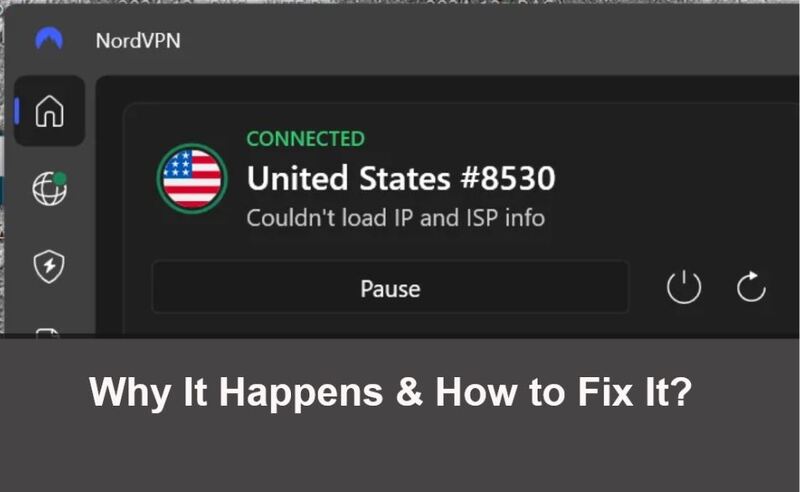
NordVPN couldn’t load IP and ISP info - What does it mean? Why it happens, and how to fix it. Get quick fixes and the best alternatives for a fast reconnect.
If you’ve encountered the “NordVPN couldn’t load IP and ISP info” message, you’re not alone. Many NordVPN users have reported this issue on Reddit and tech forums, where the app suddenly fails to display their IP address or ISP after connecting. This error can appear alongside “connection failed” messages or even when using advanced settings like “couldn’t load IP and ISP info NordVPN split tunnel”, leaving users confused about whether NordVPN is working correctly.
Understanding this issue requires knowing how NordVPN communicates with its servers and verifies your connection details. In this guide, you will learn what “couldn’t load IP and ISP info NordVPN” actually means, why it happens, and 8 ways to fix it.
When you see the “NordVPN couldn’t load IP and ISP info” notification, it simply means the app cannot retrieve your virtual IP address or ISP data after connecting to a VPN server. Normally, NordVPN shows your masked IP, country, and the network provider to confirm a successful secure connection.
However, this error doesn’t always mean your VPN isn’t working. Sometimes, the connection to the VPN server succeeds, but NordVPN fails to display your IP information due to a background service glitch, temporary network issue, or outdated application files. In short, the app can’t fetch your new IP info from its internal API, which leads to this message even though your browsing might still be protected.
Before diving into fixes, let's see why Nord couldn’t load IP and ISP info errors appear. Often, it’s a minor app or connection hiccup.
Here are the main possible reasons:
VPN Connection Failed: NordVPN cannot detect new IP information if the VPN connection fails or is attempting to connect.
Unstable Internet Connection: Your Wi-Fi or Ethernet may drop or fluctuate during connection.
NordVPN Server Timeout: Some servers, especially in distant regions, might be overloaded.
Background Service Failure: The NordVPN service (like nordvpn-service.exe) fails to start properly.
Firewall or Antivirus Interference: Security tools can block NordVPN’s access to its verification servers.
Outdated App Version or Cache Corruption: Old installations may prevent the app from displaying accurate IP data.
Split Tunnel Configuration Error: Misconfigured split tunneling can trigger “couldn’t load IP and ISP info NordVPN split tunnel” when the app can’t correctly route traffic.
When these issues occur simultaneously, users may also wonder: Is NordVPN down? We’ll explore that shortly, but first, let’s fix the problem.
If you keep seeing “NordVPN couldn’t load IP and ISP info”, don’t worry - most users can resolve it in a few steps. Whether you’re using a VPN on Windows, macOS, Android, or iOS, these methods apply universally.
Here’s how to fix it:
Open NordVPN and ensure it shows “Connected.”
If not, reconnect using Quick Connect or manually select a different location from a free VPN server list.
On Windows, open Task Manager → end all “NordVPN” processes → restart the app.
On macOS, quit the app and type sudo killall NordVPN in Terminal, then reopen it.
Windows: run ipconfig /flushdns.
macOS: execute sudo dscacheutil -flushcache; sudo killall -HUP mDNSResponder.
This clears outdated DNS caches that may block VPN authentication.
Uninstall the app and reinstall the latest version from the official NordVPN website.
A fresh install removes corrupted files that may cause couldn’t load IP and ISP info NordVPN errors.
Some antivirus tools block NordVPN background services. Disable them briefly, reconnect, then whitelist NordVPN.
If using split tunneling, ensure that NordVPN is allowed for the apps you want to secure. Misconfiguration can cause “couldn’t load IP and ISP info NordVPN split tunnel” issues.
In Settings → Auto-connect → switch between NordLynx and OpenVPN protocols. This can resolve compatibility problems.
Simple, but often effective. Rebooting refreshes IP assignments and re-establishes stable VPN communication.
If none of these work, check if NordVPN is experiencing downtime. To determine if the problem is caused by NordVPN’s server outage, visit their official status page or their social channels. If its servers are indeed down, you won’t be able to connect at all until the issue is resolved by its team.
Sometimes, the “Nord couldn’t load IP and ISP info” issue stems from NordVPN’s own side. Visit NordVPN’s status page or social media to see if their servers are down. If so, simply wait until the service resumes.
When the “NordVPN couldn’t load IP and ISP info” message appears, many users immediately wonder if NordVPN is down. In most cases, this error doesn’t mean the entire VPN service is offline. Actually, it simply indicates that the NordVPN app cannot display your connection details (like your masked IP and ISP name).
However, this indeed can cause confusion because you might appear to be connected, yet the app shows no IP information. In such situations, two outcomes are possible:
Situation 1: The VPN connection actually failed, meaning your traffic is not encrypted or routed through a NordVPN server. You can confirm this by visiting an IP-checking site; if it shows your real location, the VPN isn’t working.
Situation 2: The VPN is active, but the interface failed to update, meaning your data is still protected even though the app can’t show your new IP or ISP info.
If you’ve tried all fixes and still experience the NordVPN couldn’t load IP and ISP info problem, it might be worth exploring reliable alternatives. The following VPNs offer excellent stability and wide server coverage.
iTop VPN is one of the most practical alternatives to NordVPN, offering a user-friendly interface and stable performance on all platforms. Unlike NordVPN, iTop VPN offers flexible access; you can enjoy fast streaming, gaming, and high security without logging in. It also offers 3200+ global nodes, including servers in India, the US, UK, UAE, France, Malaysia, etc., ensuring faster connections in regions where NordVPN servers may lag.
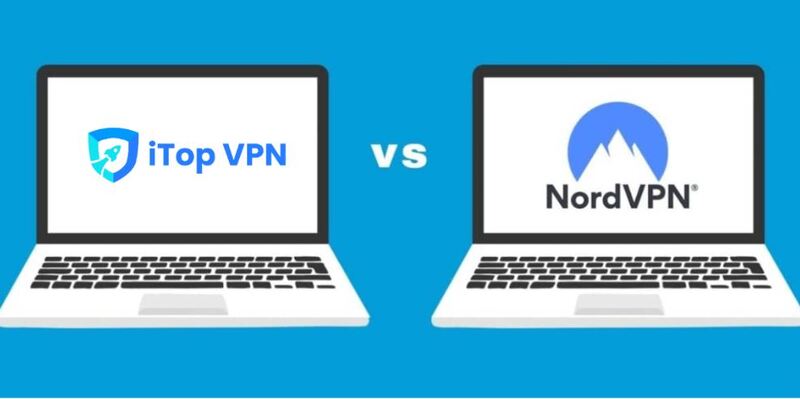
Like NordVPN, iTop VPN offers a wide range of advanced features, such as a dedicated IP, a kill switch, AES-256, split tunneling, an ad blocker, DNS protection, and most of all, double VPN. Besides, it also provides a completely free VPN plan for beginners, alongside affordable premium upgrades.
When comparing ExpressVPN vs NordVPN, both offer strong security and global coverage, but ExpressVPN is known for its superior connection consistency and fewer interface bugs. If you’re constantly facing the “couldn’t load IP and ISP info NordVPN” problem, ExpressVPN can provide a more stable user experience, especially for streaming or gaming.
ExpressVPN also supports high-speed protocols and unlimited bandwidth, with a proven record of bypassing geo-restrictions worldwide. Whether you need it to buy TikTok coins cheaply or for advanced tasks like using a dedicated IP, it’s a robust choice when NordVPN struggles to stay connected.
The Bottom Line
The “NordVPN couldn’t load IP and ISP info” error seems frustrating, but in most cases, it’s a minor issue related to connection delays, app cache, or system permissions. By following the fixes above, you can quickly restore normal functionality. And if the problem persists, switch to a more stable alternative like iTop VPN or ExpressVPN. If you don't want to spend more when you have subscribed to NordVPN, you can try out the reliable free VPN - iTop VPN.

10+ free servers in US, UK...
3200+ extensive servers
Dedicated IP addresses
Ad blocker and Proxy service
For Windows 11/10/8/7
Subscribe to Our Newsletter
Subscribe to our newsletter to stay updated every moment.

Subscribe to Our Newsletter
Subscribe to our newsletter to stay updated every moment.
© 2026 iTop. All rights reserved.