iTop VPN offers 3200+ VPN servers in 100+ locations worldwide to help you access various sites privately and safely, along with dedicated IP, dynamic and static IP, and Double VPN.
Is BandLab not working? Discover the top reasons & easy fixes. Understand how using a VPN can help resolve connectivity problems and help.
Is BandLab not working again? Few things are as frustrating for a musician or podcaster as hitting a technical wall right in the middle of a creative flow. When BandLab not working becomes a reality, it can bring music creation to a screeching halt, disrupt crucial collaborations with your team, and seriously delay your release schedule. This interruption is more than an inconvenience; it's a block on your artistry. This piece focuses on identifying the typical reasons for these interruptions and offering you a straightforward, actionable roadmap to get you back to creating music without missing a beat.
BandLab is a cloud-based, mighty digital audio workstation (DAW) that has democratized music creation. It allows users to create, edit, and collaborate on music projects directly from their web browser or mobile app. Its core features are multi-track recording, a massive virtual instrument library, and thousands of royalty-free loops and sound effects.
For solo musicians, learners, and podcast producers, BandLab offers an essential platform that is freely accessible, breaking down conventional obstacles to music creation and allowing anyone with a concept to realize it and share it with a worldwide audience.

Understanding the root cause is the first step to fixing any problem. The issue of BandLab not working can stem from a variety of sources, ranging from your local setup to their global servers. By systematically checking these common areas, you can quickly identify the culprit.
Internet Connection Issues: BandLab is a cloud-native platform. An unstable, slow, or unreliable internet connection is the most frequent reason for features failing to load, projects not saving, or BandLab collaboration not working.
BandLab Server Status: Sometimes, the problem is not on your end. The question “Are BandLab servers down?” is a common one for a reason. Server outages or maintenance can make the service inaccessible for everyone.
App Version and Compatibility: Using an outdated version of the BandLab app can lead to bugs and glitches. Similarly, compatibility issues with your device's operating system can cause BandLab not working on PC.
Device and Hardware Issues: Insufficient RAM, an overloaded CPU, or problematic audio drivers can prevent BandLab from running smoothly, leading to crashes and freezes.
Account Anomalies: Rarely, corruption in your user profile or cache stored on BandLab's servers could lead to strange behavior and access problems.
Incorrect Operations: Accidentally disabling certain features or changing critical settings might be the simple reason why is BandLab not working today for you specifically.
The adverse effects of these disruptions are clear: lost ideas, wasted time, and broken creative momentum. Fortunately, for every problem, there is a solution. Here’s how to tackle the issues outlined above:
First, check your internet connection. Restart your router and try a different network if possible.
Second, verify the BandLab server status by visiting their official social media channels or downtime tracking websites. If the BandLab website not working is a widespread issue, you'll likely see reports from other users.
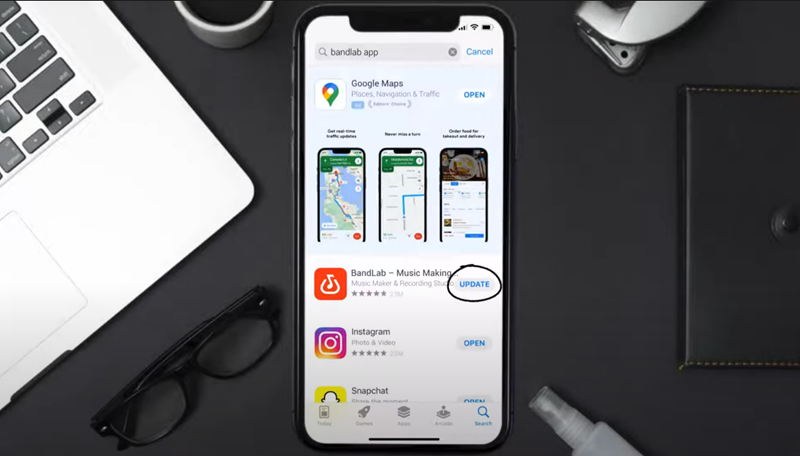
Third, ensure your app and operating system are up to date. Check for updates in your app store or on BandLab's website.
Fourth, clear your browser's cache and cookies if using the web version, or reinstall the desktop/mobile app to eliminate any corrupted local data.
Finally, review your account settings and ensure you haven’t inadvertently changed any critical permissions.
Often, the core of the problem why is BandLab not working boils down to an unstable network connection. This is where a quality VPN comes into its own, not just for privacy, but for stability and connectivity.

iTop VPN is a premier solution designed to create a robust and secure internet environment, perfectly suited for the demands of cloud-based audio work on BandLab. It tackles connectivity issues head-on with high-quality VPN servers in regions where BandLab thrives, including specific options for users seeking a vpn for malaysia free of restrictions or a reliable vpn for bangladesh. It offers unlimited bandwidth to handle large audio uploads and downloads, and employs military-grade encryption to ensure your unfinished masterpieces remain private.
Premium Servers Around the World: iTop VPN's global network ensures fast, stable connections to BandLab. For unrivaled reliability, upgrade to a dedicated ip vpn for an exclusive static IP and uninterrupted creativity.
Stable and Fast Internet Connections: By preventing ISP throttling - where your internet provider slows down certain types of traffic - iTop VPN can maintain the consistent speed needed for real-time collaboration and streaming high-quality audio.
Safeguard Your Music Creation: Advanced encryption protocols secure your connection on public Wi-Fi, ensuring your login credentials and unpublished work are safe from eavesdroppers while you create from a café or library.
Multi-Device Support: Whether you're on a Windows PC, Mac, or mobile device, iTop VPN has you covered, allowing you to secure your connection on every device you use to access BandLab.
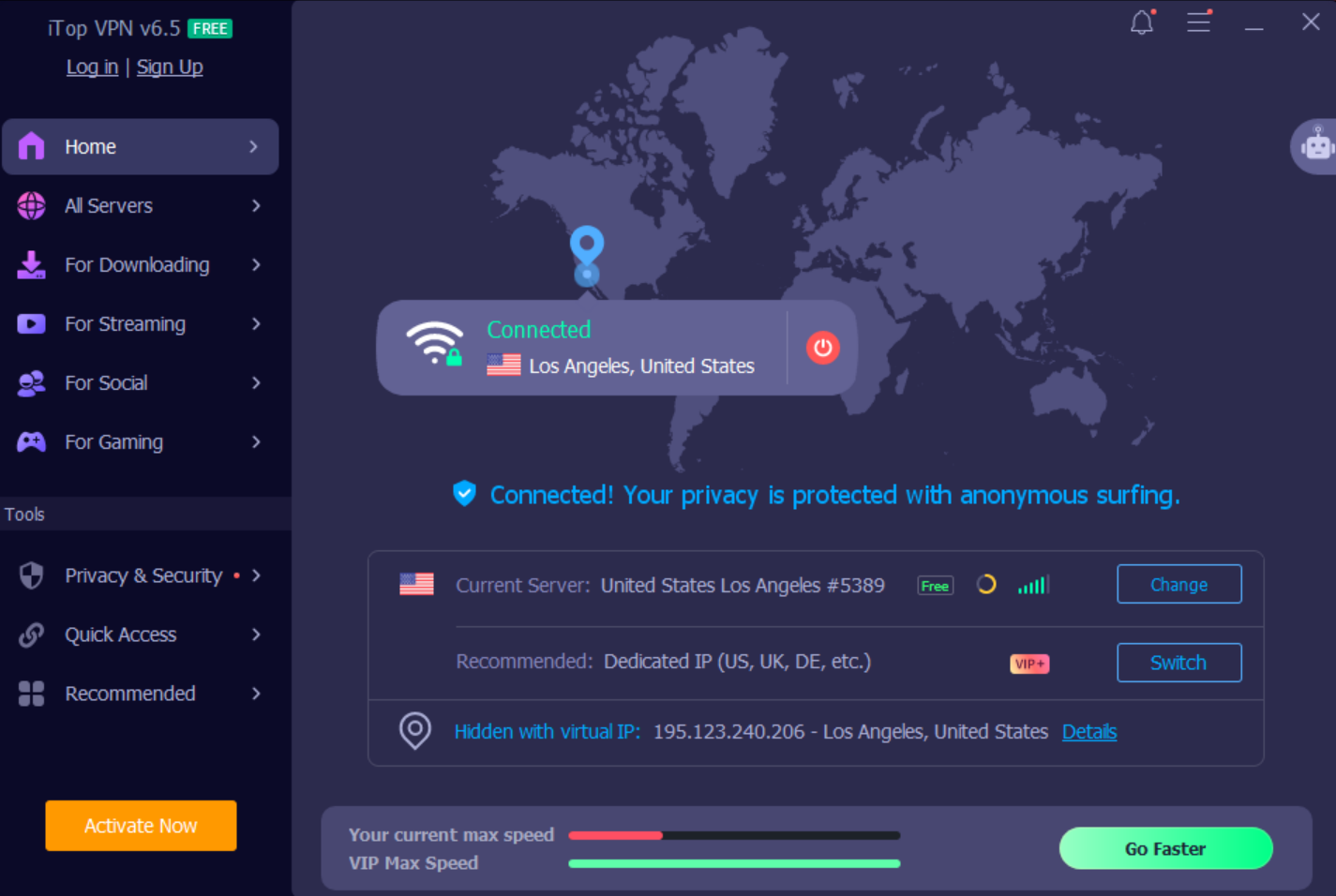
Getting started with iTop VPN to fix BandLab not working on PC is a straightforward process:
Step 1: Download and install the iTop VPN application on your device from their official website.
Step 2: Launch the application and log in to your account. If you're new, you can start with a generous vpn 7 day trial or explore their free VPN options to test the service.
Step 3: Connect to an optimal server. You can choose a server manually close to your location for the best speed and lowest latency.
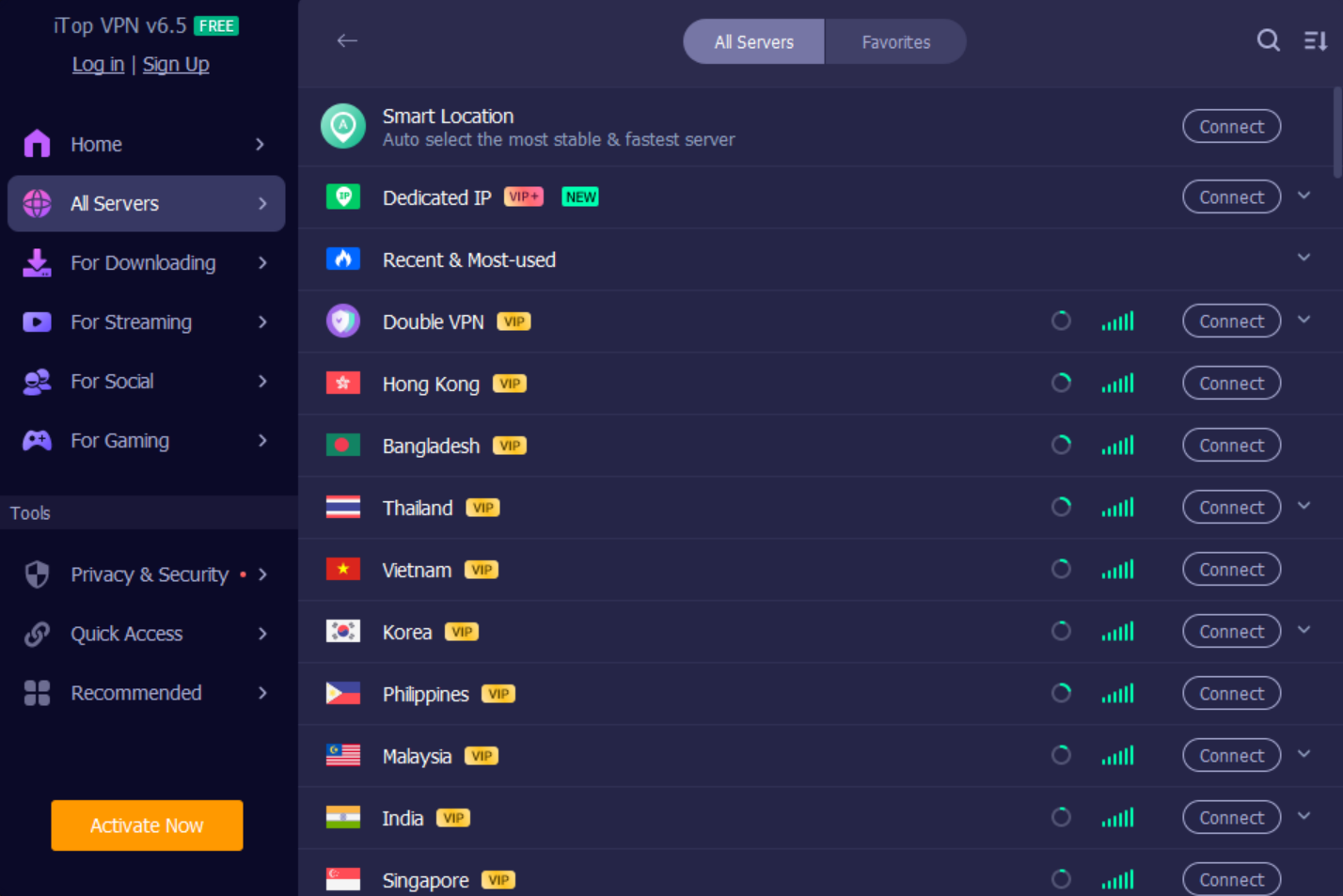
Once connected, open BandLab and enjoy a stable, secure creation session.
A proactive approach can save you from most headaches. Here are some practical tips to minimize the chances of encountering the BandLab not working error:
Always back up your work: While BandLab saves to the cloud, regularly exporting your multi-track sessions to your local drive or another cloud service provides a safety net against any potential data loss.
Regularly check software and system status: Enable automatic updates for your OS and the BandLab app to ensure you always have the latest bug fixes and compatibility improvements.
Monitor device storage space and hardware health: Ensure your device has enough free space for temporary files and that your audio drivers are updated to prevent crashes caused by system strain.
Pay attention to official updates: Follow BandLab on social media or check their blog for announcements about planned maintenance or known issues, so you're never caught off guard.
Conclusion
Dealing with a malfunctioning BandLab can disrupt your creative process, but most issues are solvable with the right knowledge. From checking your basic connection to using a powerful tool like iTop VPN for an unparalleled stable and secure experience, you have multiple paths to a solution. Don't let technical glitches silence your music. Download iTop VPN today and ensure your digital studio is always open and BandLab not working is a problem of the past.
10+ dedicated social app servers
Unblock your favorite apps
Encrypt and protect data

Subscribe to Our Newsletter
Subscribe to our newsletter to stay updated every moment.

Subscribe to Our Newsletter
Subscribe to our newsletter to stay updated every moment.
© 2026 iTop. All rights reserved.