
iTop VPN offers 3200+ VPN servers in 100+ locations worldwide to help you access various sites privately and safely, along with dedicated IP, dynamic and static IP, and Double VPN.
How to set a static IP in Ubuntu with or without Netplan? Here are 5 methods for you. Choose the easiest method for Ubuntu set static IP now.
In an Ubuntu server or desktop environment, Ubuntu set static IP is a key step to ensure network stability and remote access reliability. By default, Ubuntu uses dynamic IP, and each reboot may obtain a different IP address, which is not ideal for server hosting, remote management, or specific network configurations. Therefore, configuring a fixed IP address can avoid connection problems caused by IP changes and improve the controllability and security of the network.

Whether you want to assign a fixed address to a local network device or ensure that the IP address does not change during remote access, it is important to know how to set a static IP in Ubuntu. This article will detail the Ubuntu set static IP address methods in different Ubuntu versions to help you choose the best solution based on your specific needs.
In Ubuntu, there are several ways to set a static IP:
1. Use Netplan to configure a static IP
2. Use NetworkManager
3. Use the ip command
4. Assign a static IP through a router
5. Use VPN to quickly obtain a static IP (recommended)
Comparison of Ubuntu Set Static IP Methods:
Before getting into each method, let’s take a quick look at these methods:
| Methods | Use Case | Permanent? | Friendly? |
| Netplan Configuration | Servers, long-term use | Yes | Requires manual editing |
| NetworkManager GUI | Desktop users | Yes | Limited use |
| IP Command (Temporary) | Temporary IP change | No | Lost after reboot |
| Router Static IP | Assign static IP to multiple devices | Yes | Requires router access |
| VPN Static IP | Remote work, accessing restricted content | Yes | Easy for everyone |
Each method has its own advantages. Now, let's take a look at the specific usage tutorials of each method one by one.
This method is applicable to Ubuntu 18.04 and above, both server and desktop versions, and requires the use of some Ubuntu set static IP command line. To change IP address on Ubuntu server, you can do as follows:
Step 1. Find the network interface name

An output Sample (assuming the network card name is "ens33"):

Step 2. Edit the Netplan configuration file (usually located in the /etc/netplan/ directory)

Add the following content (modify according to actual situation):
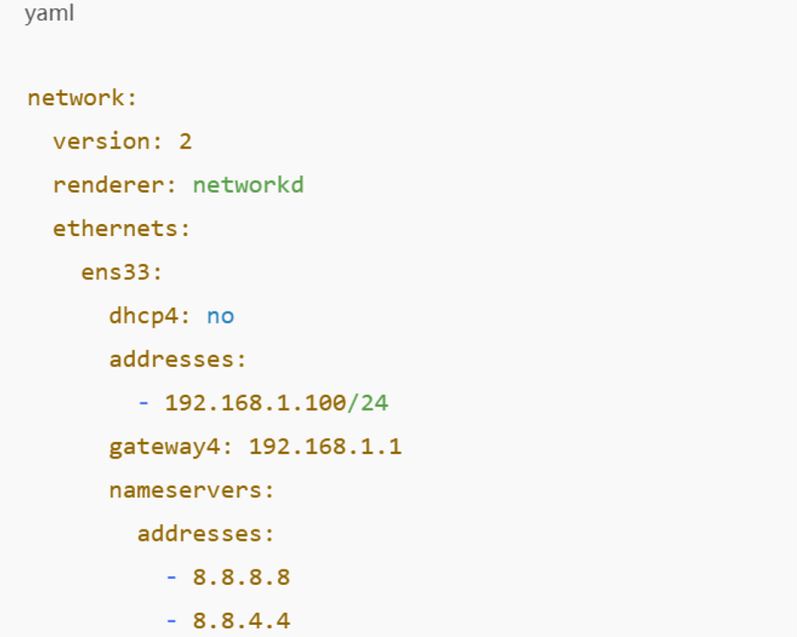
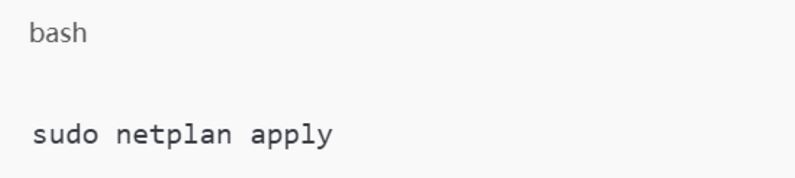
Step 3. Application the configuration
Step 4. Verify that the static IP is effective or not
Pros: Suitable for servers, stable configuration, no loss after restart.
Cons: Need to manually edit the configuration file, which may be complicated for novices.
Contrary to Method 1, this method can achieve Ubuntu set static IP without netplan, which is mainly applicable to the desktop version.
Step 1. Open network settings
- Go to "Settings" → "Network"
- Select the network to be modified (wired or Wi-Fi)
- Click the "IPv4" option
Step 2. Manually set the IP address
- Method: Select "Manual"
- Address: Enter `192.168.1.100` (adjust according to the actual network)
- Gateway: Enter `192.168.1.1`
- DNS server: Enter `8.8.8.8, 8.8.4.4`
- Click Save and restart the network connection
Pros: The graphical interface is simple to operate and suitable for desktop users.
Cons: Some server versions do not have GUI.
Method 3 is suitable for temporarily modifying the IP, but it will be restored after restarting. Enter the command shown in the following figure through the IP command:

Pros: Suitable for testing or temporary IP changes.
Cons: Invalid after reboot, not suitable for long-term use.
This method is to obtain a fixed IP through router settings.
Step 1. Log in to the router management page
Step 2. Bind the device and assign it a fixed IP
Step 3. Save and restart the router
Pros: Applicable to multiple devices, no manual configuration of Ubuntu is required.
Cons: Requires access to router management permissions.
Can VPN provide static IP? Yes, a VPN can provide static IP, but its principle is different.
The principle of this method is that: a VPN assigns a fixed public IP address and transfers the user's traffic through the VPN server so that all network requests are sent from this fixed IP. Unlike dynamic IP VPN, the user's exit IP does not change every time the static IP VPN is connected. Some VPNs, such as iTop VPN and NordVPN, also provide dedicated Static IP, but they require additional fees.
Remote Work
Many companies require employees to use fixed IPs to access internal servers or VPN gateways to prevent unauthorized devices from accessing. With static VPN IPs, remote workers can always access corporate resources with the same IP without triggering security alerts or IP restrictions.
Hosting Private Servers
If you need to build a website, SSH server, remote desktop, etc. on a home network or cloud server, a public static IP is essential. Using a VPN static IP instead of the dynamic IP assigned by the ISP can ensure that external devices can access your server through the same IP at any time without the need for additional configuration such as DDNS.

Accessing IP-Restricted Websites
Many financial institutions (such as banks, stock trading platforms) or SaaS services restrict IP for security reasons. Using a static IP with VPN can ensure that the IP address is consistent every time you log in, avoiding triggering additional authentication or access restrictions due to IP changes.
Avoiding Frequent Verification Requests
Some websites (such as Google, PayPal, and social media) trigger CAPTCHA or two-factor authentication (2FA) due to frequent IP changes. Using a VPN's dedicated static IP can reduce login issues caused by IP changes and improve account availability.
Avoiding Blacklisted Shared IPs
Many cheap or free VPNs share IP addresses that may be abused by a large number of users, causing some websites to blacklist these IPs (such as Netflix and Amazon restricting access). By using a dedicated static IP, your IP belongs only to you and will not be blocked due to the behavior of other users, and you can access IP-protected content normally.
As you can see, if you want to have a fixed, anonymous static IP in a public network environment, choosing a reliable VPN is the best choice! Among the many VPN options that provide static IP, iTop VPN, a reliable free VPN, is a good choice. It not only provides a dedicated static IP to ensure that users use the same public network address every time they connect, but also has high stability, fast connection, and strong encryption to ensure data security.
In addition, iTop VPN has a global network of 3200+ VPN servers from more than 100 countries, allowing users to freely choose their ideal IP location. Compared with other VPNs, iTop VPN also provides flexible free and paid plans, allowing users to get a stable static IP experience under different needs.
So, how to use iTop VPN to quickly get a static IP? You can follow the steps below:
Step 1. Download and install iTop VPN.
Step 2. After free registration and login, click Privacy & Security in the left navigation bar.
Step 3. Select IP Configure, and check Static IP.
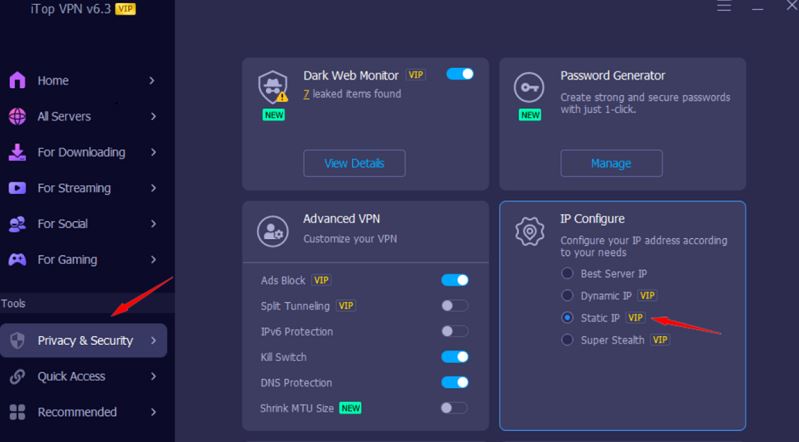
In summary, Ubuntu set static IP address is a key setting to ensure network stability, remote access, and server configuration. The above is all about setting static IP in Ubuntu. 5 methods help you easily set a static IP in Ubuntu through different principles and settings. Please choose the method that best suits your usage based on your needs and the convenience of the method settings.


How to Get Cheap Valorant Points: Cheapest Valorant Points Country List Below

Best 10 HDToday Alternatives & HDToday Proxy | Watch Movies Online for Free [2026]

How to Get Cheap Strava Subscription? | Strava VPN & 3 Fixes

How to Get Discord Nitro Cheaper in 7 Ways: Included Using a Discord Nitro VPN
10+ free servers in US, UK...
3200+ extensive servers
Dedicated IP addresses
Ad blocker and Proxy service
For Windows 11/10/8/7
Subscribe to Our Newsletter
Subscribe to our newsletter to stay updated every moment.

Subscribe to Our Newsletter
Subscribe to our newsletter to stay updated every moment.
© 2026 iTop. All rights reserved.