iTop VPN offers 3200+ VPN servers in 100+ locations worldwide to help you access various sites privately and safely, along with dedicated IP, dynamic and static IP, and Double VPN.
What precise location on iPhone mean, how to turn on precise location on iPhone, and turn it off. Check everything about the significant location iPhone.
Apple’s location services are designed to make everyday apps more useful, but they also raise privacy concerns. Features like precise location iPhone allow apps to pinpoint your exact position, while significant location iPhone quietly records places you visit frequently to improve system intelligence. Understanding how these features work is the first step toward smarter privacy control.
At the same time, many users are actively searching for how to turn on precise location on iPhone for navigation or delivery apps, while still wanting to limit unnecessary tracking. Knowing when to enable or disable precise location helps you balance convenience, accuracy, and personal privacy.
Precise Location on iPhone is a feature that allows apps to access your exact GPS coordinates rather than an approximate area. Simply to say, this will let apps use your location data and track you accurately. iOS gives apps access to your location only once, while running, or permanently.
When the precise location iPhone is enabled, apps like Maps, ride-hailing, and weather services can deliver more accurate results. This setting works alongside broader location features such as significant location iPhone, which stores frequently visited places for system-level optimization.
Many users enable precise location because some apps simply do not work properly without it. Navigation, food delivery, fitness tracking, and emergency services all rely on accurate location data. Apple makes the process straightforward and app-specific, giving users control without overwhelming complexity.
Step 1: Open Settings on your iPhone and tap Privacy & Security.
Step 2: Select Location Services and make sure it is turned on.
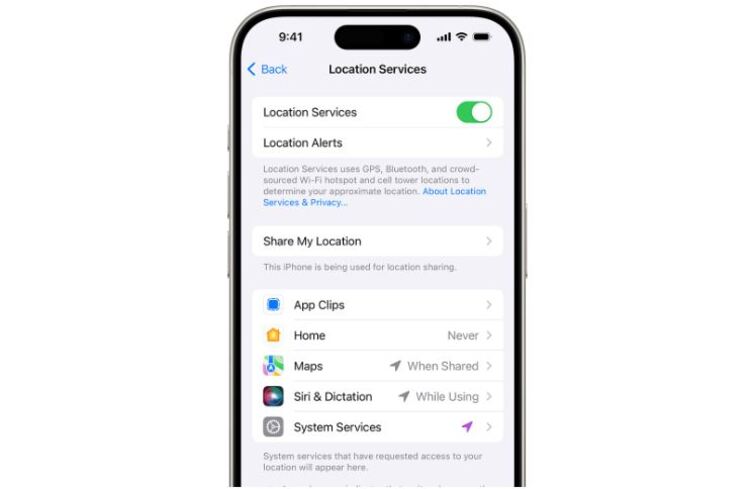
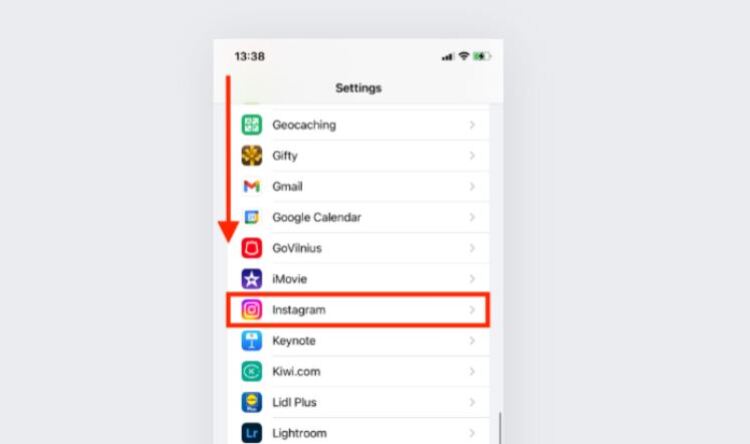
Step 3: Scroll down and choose the app you want to configure.
Step 4: Set location access to While Using the App or Always.
Step 5: Toggle on Precise Location.
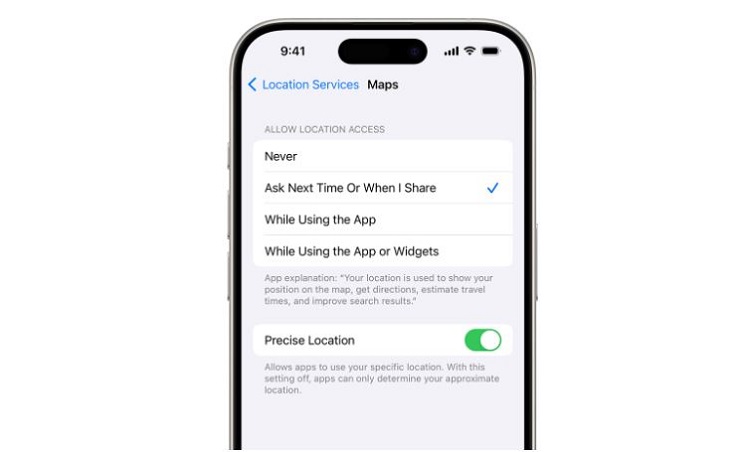
That’s how to turn on precise location on iPhone clearly and safely. Once enabled, the precise location setting iPhone applies only to the selected app, not your entire system.
Some users decide to limit location accuracy to reduce tracking or protect privacy. Social media, shopping, or casual apps often do not need exact GPS data. Knowing how to turn off precise location iPhone helps minimize unnecessary data sharing while keeping core features intact.
Step 1: Go to Settings → Privacy & Security → Location Services.
Step 2: Select the app you want to adjust.
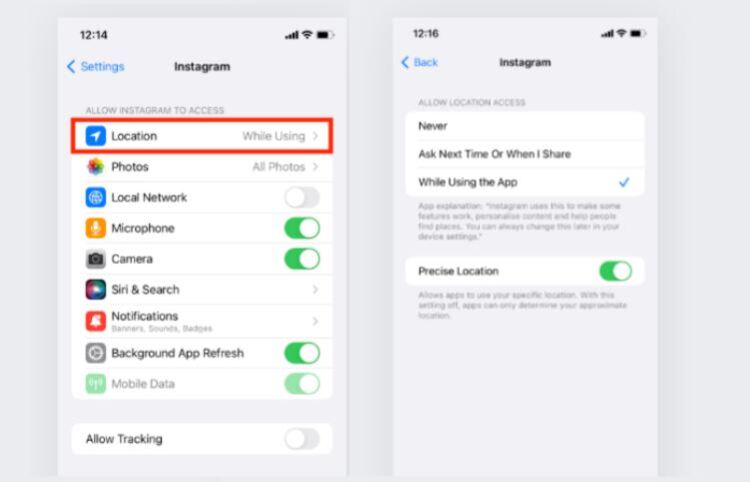
Step 3: Select Location, and then turn off Precise Location while keeping approximate access enabled.
This process shows how to turn precise location off without disabling location services entirely. It is one of the easiest ways to control precise location iPhone usage on an app-by-app basis.
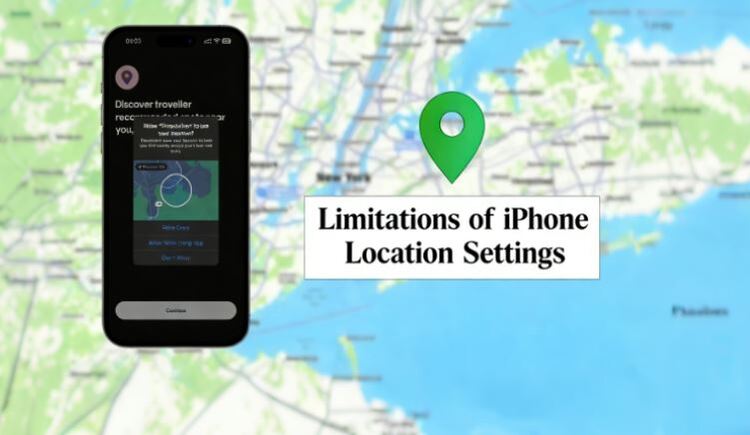
iOS offers strong location controls, but they are not a complete privacy solution on their own. Many users assume that disabling precise location fully hides their whereabouts, which is not always the case.
Apps can still infer location from IP addresses
Wi-Fi networks may reveal the approximate location
Mobile carriers can track regional movement
Significant location iPhone data may still exist at the system level
These limitations mean that even careful management of precise location iPhone settings may not fully prevent location-based tracking. What's worse, nowadays, no business is immune to data leaks, so you can’t be sure who may access your data. This is why using a VPN for iOS on your iPhone is a smart way to keep it protected.
Simply adjusting the precise location setting on the iPhone does not stop all forms of location-based tracking. A VPN helps close this gap by protecting data beyond Apple’s built-in location controls. A VPN brings you:
IP Address Masking
A VPN hides your real IP address and replaces it with one from a remote server, making it difficult for websites and apps to infer your physical location.
Encrypted Internet Traffic
All data passing through a VPN tunnel is encrypted, preventing internet service providers and public Wi-Fi operators from monitoring location-related activity.
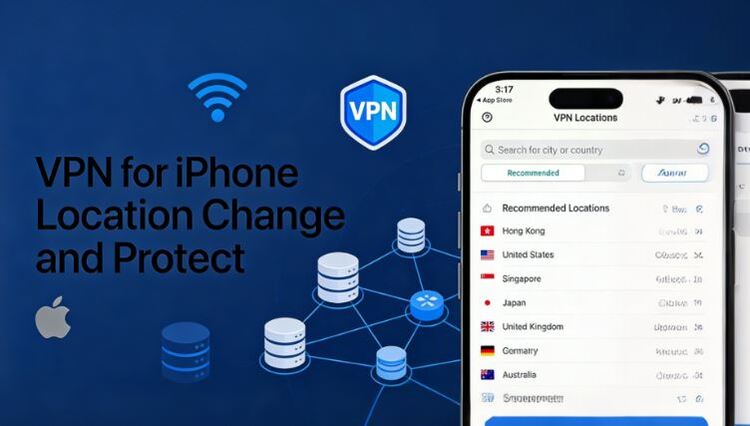
System-Wide Coverage
Unlike app-based permissions, a VPN protects traffic from all apps on your iPhone, including background services and in-app browsers.
Safer Use on Public Wi-Fi
When connected to public hotspots, a VPN reduces the risk of location exposure caused by unsecured or monitored networks.
Reduced Long-Term Location Profiling
By limiting consistent IP-based tracking, VPNs make it harder for advertisers and data brokers to build long-term location profiles over time.
You May Like: Free VPN for iOS & Android >>
After learning how to turn on precise location on iPhone and when to limit it, the next step is choosing a VPN that aligns with your privacy goals. The following iOS VPNs are well-suited for iPhone users who want better control over location exposure.
iTop VPN offers a balanced approach for iOS users who want flexibility without sacrificing performance.
It provides access to a broad network of servers worldwide, 3200+ servers in more than 100 countries, and is clearly outlined in its official VPN server list. This makes it easy to choose locations strategically while managing precise location iphone risks.
iTop VPN supports strong encryption, AES-256 encryption, split tunneling, kill switch, double VPN, dedicated IP, zero log policy, and provides stable connections. It offers a totally free VPN plan for temporary users, and those who have no budget, as well as offering user-friendly paid plans that start at an affordable entry price, and advanced users can upgrade with no worries.
Pro Tip: Protect your privacy on all fronts by combining location management with iTop AI Cleaner to clear out leftover cache and tracking clutter.
NordVPN is known for its massive global infrastructure, operating 7400+ servers across more than 118 countries. This wide coverage is useful for users who travel frequently or access region-specific services, including areas like India, Singapore, Canada, Japan, etc.
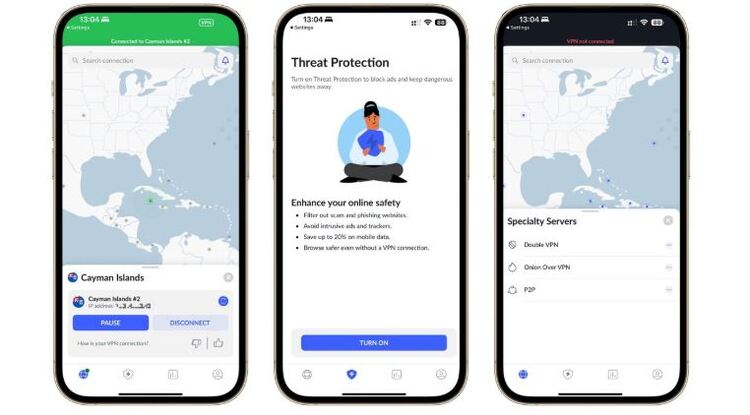
Its iOS app includes advanced security features such as Threat Protection and Double VPN, which encrypt traffic twice for added privacy. While pricing is higher than entry-level VPNs, long-term subscriptions lower the monthly cost and appeal to users prioritizing security alongside precise location iPhone management.
Surfshark is ideal for budget-conscious users who want strong privacy without complexity. It allows unlimited device connections under one account, making it suitable for families with multiple iPhones and iPads. Its 4500+ server network covers 100+ countries, including strong performance in Southeast Asia, such as Malaysia.
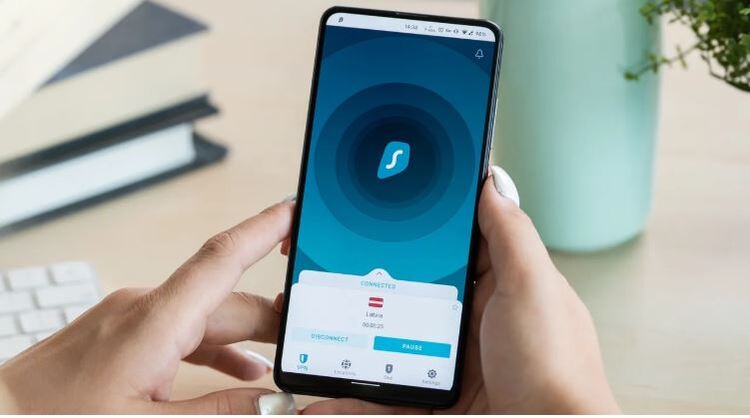
On iOS, Surfshark includes CleanWeb, which blocks ads and trackers at the DNS level. This complements precise location iPhone controls by stopping tracking mechanisms before they can collect location-related signals. Surfshark Starter starts at about $2 for 2 years; its low-cost plans make it an attractive entry-level option.
The Bottom Line
Managing precise location iPhone settings is essential for balancing app functionality and privacy, but system controls alone have limits. By understanding when to enable or disable precise location and pairing iOS settings with a reliable VPN, you can significantly reduce unwanted location exposure while maintaining a smooth iPhone experience. Protect your iPhone and customize your location settings based on your needs.
100+ global countries
3200+ worldwide servers
Dedicated IP addresses
Dynamic IP and static IP

Subscribe to Our Newsletter
Subscribe to our newsletter to stay updated every moment.

Subscribe to Our Newsletter
Subscribe to our newsletter to stay updated every moment.
© 2026 iTop. All rights reserved.