iTop VPN offers 3200+ VPN servers in 100+ locations worldwide to help you access various sites privately and safely, along with dedicated IP, dynamic and static IP, and Double VPN.
Learn why your iPhone VPN keeps turning on and off and how to fix it. Follow step-by-step solutions and get the best VPN for iOS for a seamless experience.
Many iPhone users have reported issues where their iPhone VPN keeps turning off and on, as seen in this Apple Support Community discussion. One user shared that their iPhone 12 Pro running iOS 17.1 constantly showed the VPN icon switching on and off, asking if updating iOS would solve it.
If your VPN keeps turning on and off iPhone, you’re not alone. This recurring problem is frustrating because it interrupts browsing and streaming, and may even affect your iPhone privacy protection. Whether your VPN keeps turning on iPhone occasionally or your iPhone VPN keeps turning on and off every few minutes, this article will help you learn the reasons and stabilize your connection.
VPN keeps turning on on my iPhone? Why it happens? After reviewing user feedback from Apple’s official community and Reddit, the following text breaks down the most common causes of iPhone VPN keeps turning on and off.
1. Outdated VPN App
An old VPN client may not be fully compatible with the latest iOS, causing instability.
Or, sometimes the problem stems from iOS itself. Certain updates of your iOS system may introduce glitches that affect VPN stability. Check Apple Support updates or community discussions to see if others are experiencing the same issue, and consider updating or rolling back.
2. Network Settings Changes
Even small network configuration changes, like resetting network settings or switching between Wi-Fi and cellular, can trigger VPN to reconnect to maintain encryption. These changes can result in repeated on/off cycles or short interruptions.
3. Trusted Network and On-Demand Rules
If you’ve enabled Trusted Network, your VPN will disable itself when connecting to pre-approved Wi-Fi networks and enable automatically when switching to unknown ones. Similarly, On-Demand rules may trigger VPN activation based on domain requests or network conditions.
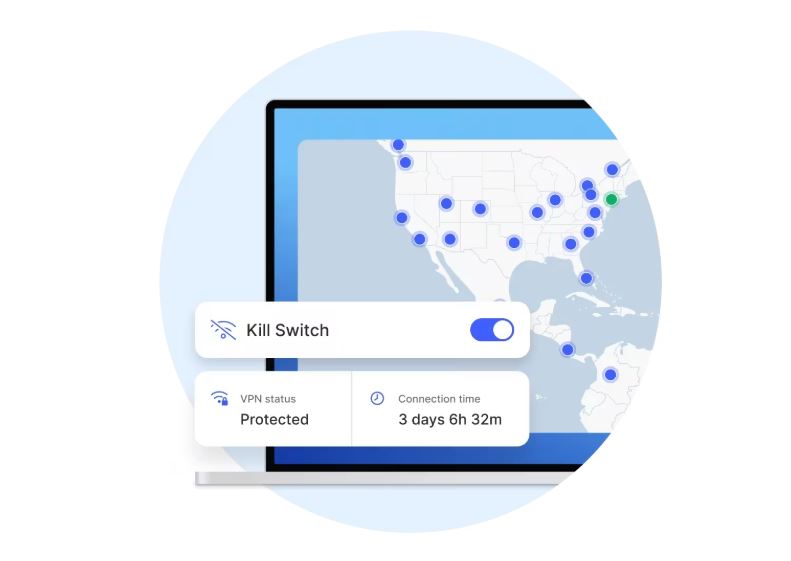
4. Kill Switch Activation
A Kill Switch stops all traffic when the VPN drops unexpectedly, then reconnects as soon as a secure tunnel is available. Frequent drops make it look like the VPN is constantly toggling.
5. Unstable or Switching Networks
Weak Wi-Fi signal, network congestion, or frequent switching between Wi-Fi and mobile data can cause the VPN to reconnect repeatedly.
6. VPN Protocol or Server Issues
Some protocols (like IKEv2 or L2TP) drop easily on poor networks. Overloaded servers may also timeout and force reconnections.
7. iOS System Limitations or Bugs
iOS sometimes suspends background VPN processes to save battery. Certain iOS versions have known bugs that prevent consistent VPN connections.
8. Background Refresh and Power Saving
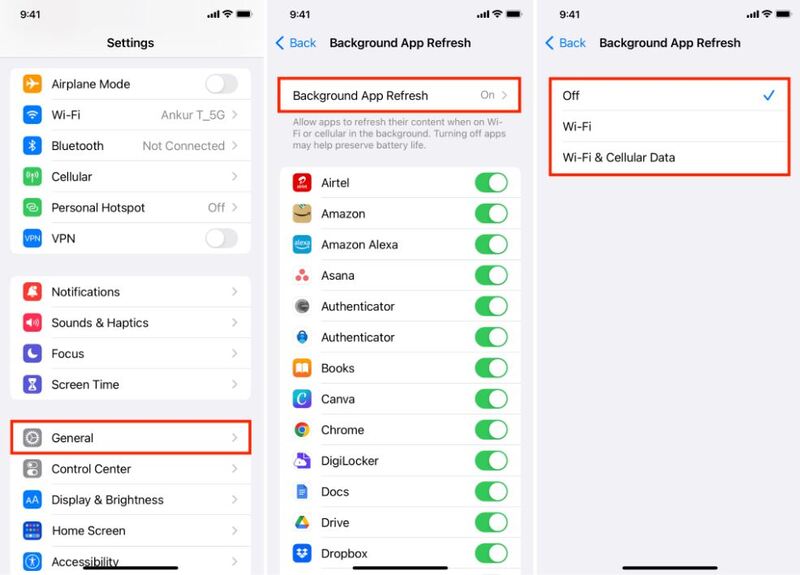
Low Power Mode or disabled background refresh can pause network activity and force VPN reconnection when the screen wakes.
9. Poor App Compatibility
Some third-party VPN apps are not well optimized for new iOS releases, leading to frequent disconnections and auto-reconnect cycles.
10. Server-Side Issues
If the VPN provider’s servers are unstable, your connection might drop and reconnect repeatedly. Switching to a different VPN server location or considering switching to another VPN for iOS can quickly confirm if this is the cause.
Now that you know why your VPN keeps turning on and off iPhone, let’s fix it step by step. Follow these steps to stabilize your VPN connection.
Step 1: Basic Checks
1.1 Restart your device and network
Restart your iPhone and router to rule out temporary network issues. Alternatively, try switching between cellular and Wi-Fi to confirm if the issue only occurs under specific network conditions.
1.2 Check your VPN app version
Open the App Store and update your VPN app to the latest version.
Update iOS to the latest version to avoid compatibility issues.
Step 2: Network and Settings Checks
2.1 Reset Network Settings
Path: Settings > General > Transfer or Restore iPhone > Restore > Reset Network Settings.
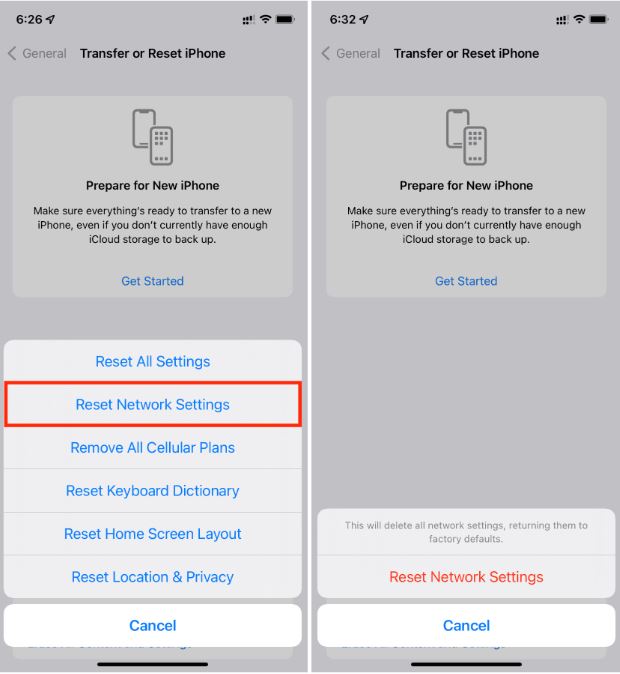
Note: This will clear your Wi-Fi, VPN, and APN settings. Reconfigure them before testing.
2.2 Check Trusted Networks and On-Demand Connections
Open your VPN app and check whether "Trusted Network" or "On-Demand" is enabled. If they are frequently triggered, disable these features to test stability.
Step 3: VPN Configuration and Protocol Optimization
3.1 Switching Protocols and Servers
Try switching from IKEv2 to OpenVPN or WireGuard to test whether it's more stable. It's recommended to also choose a server that's close to the network and has low load to avoid congestion.
3.2 Check the Kill Switch
If the Kill Switch is enabled, test it by disabling it to confirm whether frequent triggering is causing the VPN to reconnect.
Step 4: System and Background Optimization
4.1 Allow Background Apps
Path: Settings > General > Background App Refresh > Turn on the VPN app.
4.2 Turn Off Power Saving or Automatic Switching
Turn off Low Power Mode to prevent the system from pausing network activity. If you have automatic network switching enabled (Smart Wi-Fi, Low Data Mode), turn it off before testing.
Step 5: Final Action
5.1 Reinstall the VPN App
Delete the VPN app on your iPhone, reinstall it, and reconfigure your account and server.
5.2 Switch VPN Providers
If you're still experiencing instability after trying the above methods, consider switching to a more stable VPN (such as iTop VPN, ExpressVPN, or NordVPN) to see if this improves the issue.
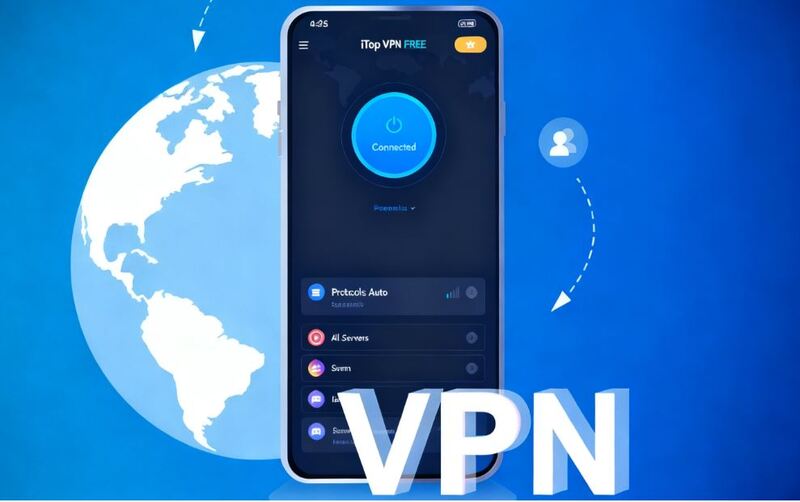
Switching to another reliable VPN for iOS is smart when your iPhone VPN keeps turning on and off even after troubleshooting. Among the options available, iTop VPN stands out for its balance of speed, security, and iOS optimization.
It uses advanced encryption standards - AES-256 on encryption, and insists on a 0-log policy. With 3200+ high-speed VPN servers across 100+ countries, iTop VPN ensures smooth streaming, stable connections, and low latency for browsing, gaming, or accessing geo-restricted content.

For iPhone users, selecting an iOS VPN involves more than just encryption and speed; key considerations should also include more. Such as the app’s compatibility with the latest iOS versions, its ability to maintain stable connections even when switching networks, and features like auto-connect, kill switch, dedicated IP, split tunneling, etc. iTop VPN for iOS combines these points effectively, providing a reliable option that balances security, speed, and ease of use.
For iPhone users, selecting a VPN involves more than just encryption and speed. Key considerations include the app’s compatibility with the latest iOS versions, its ability to maintain stable connections even when switching networks, and features such as auto-connect, kill switch, dedicated IP, and split tunneling. iTop VPN addresses these points effectively, providing a reliable option that balances security, speed, and ease of use.
More Advanced Features:
Dedicated IP VPN: Provides a unique IP address for consistent, secure logins, ideal for iPhone devices.
High-speed servers: Optimized for fast streaming and browsing without interruptions.
Kill Switch & auto-connect: Ensures your data remains encrypted even if the VPN drops temporarily.
Server locations worldwide: Access content from 100+ regions, including India, the UK, USA, UAE, Malaysia, etc.
Free VPN version: Test iTop VPN before committing to a paid plan via its free VPN option.
Easy-to-use interface: Optimized for iOS, it is easy for iPhone users to connect or switch servers with just one tap.
1. My iPhone 15 VPN keeps turning on, why?
The iPhone 15 is a relatively new device, so VPN may toggle due to On-Demand settings, network changes, or iOS power management. Disabling On-Demand or checking network settings can help.
2. My iPhone 7 VPN keeps turning on and off, why?
Older iPhones like iPhone 7 may struggle with newer VPN protocols or limited resources, causing frequent disconnects. Switching to a lighter protocol or updating the app can improve stability.
3. Is Kill Switch causing my VPN to reconnect?
It might be. Disable the Kill Switch briefly to test whether this stops the frequent reconnects.
4. Will switching servers help?
Yes, connecting to a closer or less congested server usually improves stability.
5. Should I reinstall my VPN app?
Reinstalling can clear corrupted settings and restore a fresh connection profile. If other methods don’t work, reinstalling your VPN app may be the easiest and quickest solution. Why not have a try? Uninstalling is also a way to free up iPhone storage without a professional storage optimizer like iTop AI Cleaner.
When your VPN keeps turning on and off iPhone, the causes are various, which could be anything from network changes to outdated apps. By following the troubleshooting steps above, you can regain a stable, secure connection for streaming, browsing, or even buying TikTok coins cheaply and safely. If all else fails, switching to a better VPN provider like iTop VPN can make a big difference.
10+ dedicated social app servers
Unblock your favorite apps
Encrypt and protect data

Subscribe to Our Newsletter
Subscribe to our newsletter to stay updated every moment.

Subscribe to Our Newsletter
Subscribe to our newsletter to stay updated every moment.
© 2026 iTop. All rights reserved.