iTop VPN offers 3200+ VPN servers in 100+ locations worldwide to help you access various sites privately and safely, along with dedicated IP, dynamic and static IP, and Double VPN.
Why is my Discord lagging? Stop struggling with Discord stream laggy issue, getting 14 proven ways to fix Discord streaming lagging easily. Fix it now.
Why is my Discord lagging during important moments? If you’ve ever tried to share your screen or stream gameplay on Discord, you’ve probably run into frustrating issues like Discord streaming lagging. These problems can ruin your experience, especially when you’re gaming or presenting content live.
Fortunately, most of Discord stream laggy issues are fixable. Whether your Discord stream laggy situation is caused by poor network routing, hardware limits, or incorrect settings, there are proven ways to solve it. This guide walks you through practical fixes and advanced solutions to help you enjoy smooth streaming again.
Before fixing anything, it helps to understand why these issues happen. Many users dealing with Discord stream laggy problems assume it’s just slow internet, but that’s rarely the only reason. In reality, lag usually comes from a mix of network inefficiencies, system limitations, and configuration issues.
Common causes include:
Unstable internet connection: High latency, jitter, or packet loss leads to Discord streaming lagging
Low upload bandwidth: Streaming requires a strong upload speed, not just download
ISP throttling: Some providers slow down real-time traffic like Discord
Hardware limitations: CPU/GPU overload when streaming games
Incorrect Discord settings: Wrong server region or encoding settings
Background apps: Bandwidth and RAM are being consumed elsewhere
Game performance issues: If the game lags, the Discord stream lagging game becomes unavoidable
Once you understand the root causes, applying the right fixes becomes much easier. The following methods cover everything from quick network tweaks to deeper system optimizations. If your Discord stream laggy issue keeps coming back, combining multiple solutions below often delivers the best results.
1. Check Your Internet Speed and Stability
Run a speed test and focus on upload speed, not just download. Discord streaming relies heavily on upload bandwidth. If your upload is unstable or below 5 Mbps, Discord streaming lag becomes very likely. Also check latency (ping) and jitter, as inconsistent connections often cause sudden drops.
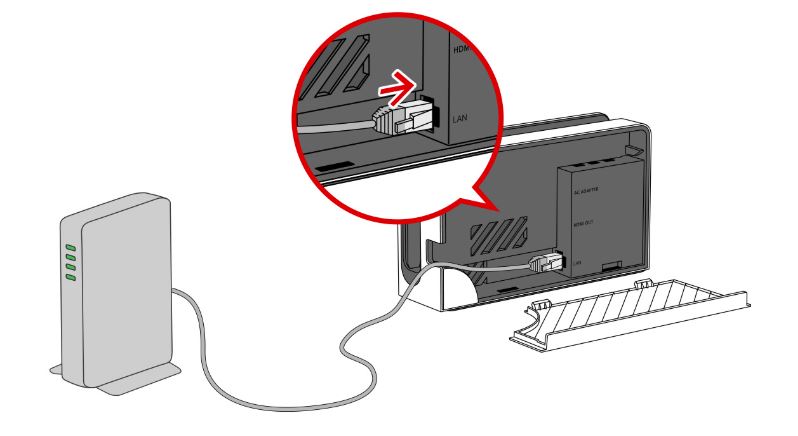
2. Switch to a Wired Connection
Wi-Fi is convenient but often unstable due to interference, walls, and signal congestion. Switching to Ethernet provides a direct, stable connection, which can significantly reduce packet loss and improve overall streaming quality.
3. Restart Your Router and Modem
Over time, routers accumulate cache and routing inefficiencies. Restarting your router clears temporary issues and refreshes your connection. This simple step can surprisingly fix many Discord stream laggy problems.
4. Lower Stream Resolution and FPS
Streaming at 1080p/60FPS looks great, but consumes a lot of bandwidth and system resources. If your hardware or network can’t handle it, switch to 720p/30FPS. This adjustment alone can instantly fix the “Discord streaming is lagging” issue.
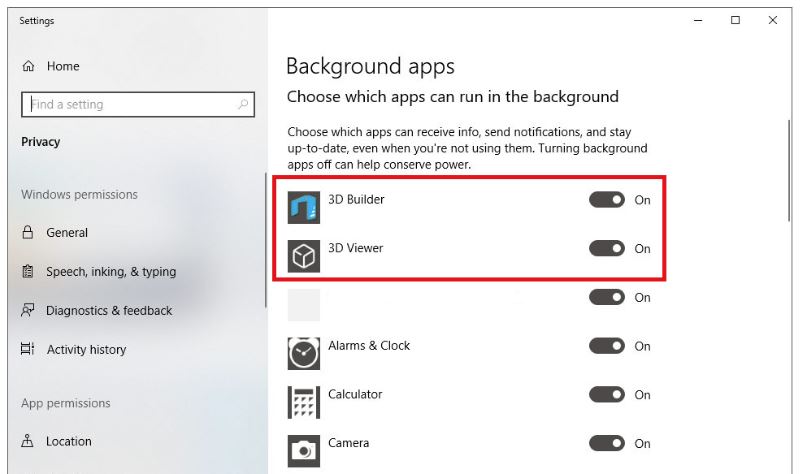
5. Close Background Applications
When you realize "my Discord stream is laggy”, it's time to check if your device is running too many programs.
Applications like Chrome, Steam, or cloud sync tools can silently use bandwidth and CPU resources. Even a few open tabs can cause the Discord stream to be laggy in certain situations. Use Task Manager to close unnecessary apps before streaming.
6. Disable or Toggle Hardware Acceleration
Hardware acceleration can improve performance on some systems but cause instability on others. If you notice Discord stream laggy behavior, try turning it off in Discord settings. On some PCs, this reduces GPU overload during streaming.
7. Run Discord as Administrator
Running Discord with admin privileges ensures it gets higher priority access to system resources. This is especially helpful when streaming games that are also resource-intensive.
8. Update GPU and Audio Drivers
Outdated drivers can lead to encoding issues, poor rendering, and audio sync problems. Keeping your GPU and audio drivers updated ensures smoother streaming and reduces Discord streaming lagging risks.
9. Disable Discord Overlay
The overlay feature can conflict with certain games, especially high-performance titles. Disabling it can prevent Discord stream lagging game scenarios and improve frame stability.
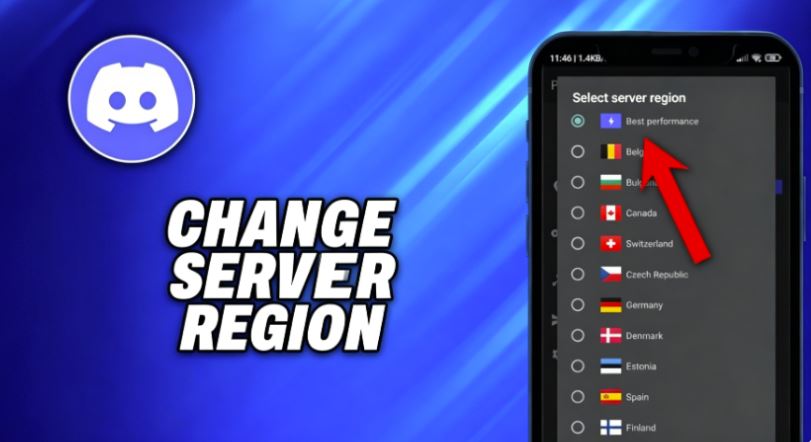
10. Change Discord Server Region
If you’re connected to a distant or overloaded server, latency increases. Switching to a closer or less congested region can significantly reduce lag and improve stream quality.
11. Disable QoS (Quality of Service)
QoS settings prioritize certain traffic but can sometimes interfere with Discord. Disabling QoS in Discord settings may result in more stable performance.
12. Flush DNS and Reset Network Settings
Network configurations can become outdated or corrupted. Flushing DNS clears cached routing data and can fix connection inconsistencies contributing to Discord stream laggy issues.
13. Optimize In-Game Performance
If you’re streaming a game, your system is handling two heavy tasks at once. Lowering in-game graphics settings, disabling unnecessary effects, and limiting FPS can free up resources for Discord, reducing lag.
If you still notice Discord stream laggy issues after trying all these methods, it likely points to deeper network routing problems, which is where a VPN for Discord becomes highly effective.
When basic fixes aren’t enough, using a VPN for Discord streaming can be a game-changer. This approach addresses deeper network routing issues that typical fixes cannot solve.
A VPN reroutes your connection through optimized servers, which can reduce latency and bypass ISP throttling. This is especially helpful if your connection path is inefficient or congested. Many users notice that Discord stream laggy issues disappear after switching to a better network route via VPN.
Why VPN Helps with Discord Streaming Lagging
A VPN improves performance in several ways. First, it avoids congested network paths by redirecting your traffic. Second, it prevents ISP throttling, which is a hidden cause of Discord streaming lagging. Third, it stabilizes your connection, reducing jitter and packet loss.
For users connecting across regions, such as from India, a VPN can significantly improve Discord performance by choosing a more optimal route.
To effectively fix Discord stream laggy issues, a VPN must offer specific features. Not all VPNs are optimized for real-time communication.
Best Features for Discord Streaming:
Low-latency servers for faster response time
High-speed bandwidth with no throttling
Stable UDP support for voice and video
Massive global VPN servers for flexible routing
No bandwidth limits for uninterrupted streaming
Among multiple VPN services, iTop VPN stands out as a practical solution for fixing Discord stream laggy problems.

Why iTop VPN is a Strong Choice
This is a speed VPN for both PC and mobile, which offers both premium and free VPN options, making it accessible for beginners while still powerful enough for advanced users. It offers free VPN service for Windows, Mac, iOS, and Android.
It also provides optimized routes specifically for streaming and gaming, which can significantly reduce Discord streaming lagging. For users who need stable performance, features like dedicated IP help maintain consistent connection quality.
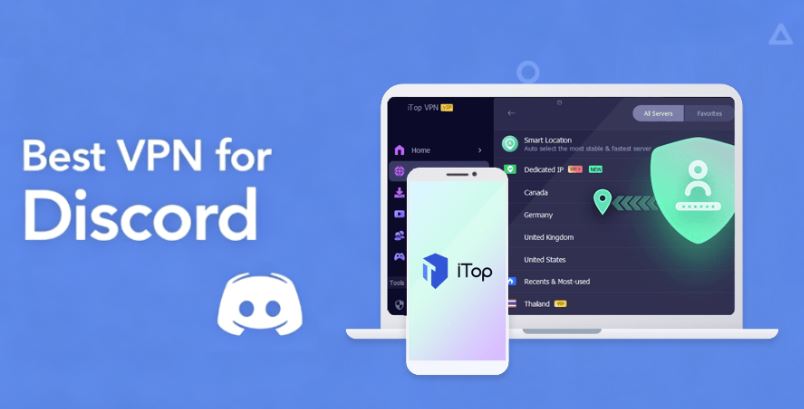
With 3200+ servers in over 100 countries, whether you’re connecting from regions like Malaysia or the UAE, or simply dealing with poor routing, iTop VPN helps improve stability. Even when browsing or performing tasks like buying TikTok coins cheaply, a better connection enhances the overall experience.
For anyone struggling with persistent Discord stream lag issues, switching to this reliable VPN for Discord streaming is often the turning point. Then, how to use it? See below.
If you’ve never used a VPN before, don’t worry. The setup process is straightforward and only takes a few steps. Since most users experiencing Discord stream laggy issues are streaming from desktop, especially while gaming, using a PC-based solution is the most effective approach. A properly configured VPN for Windows can quickly stabilize your connection, reduce latency spikes, and improve overall stream quality.
Follow the steps below to get started and eliminate Discord streaming lagging for good.
Step 1. Download and install iTop VPN for Windows.
Step 2. Launch it and log in to your account. Or you can use its free servers without a login.
Step 3. Select a low-latency server (preferably nearby) and click “Connect”.
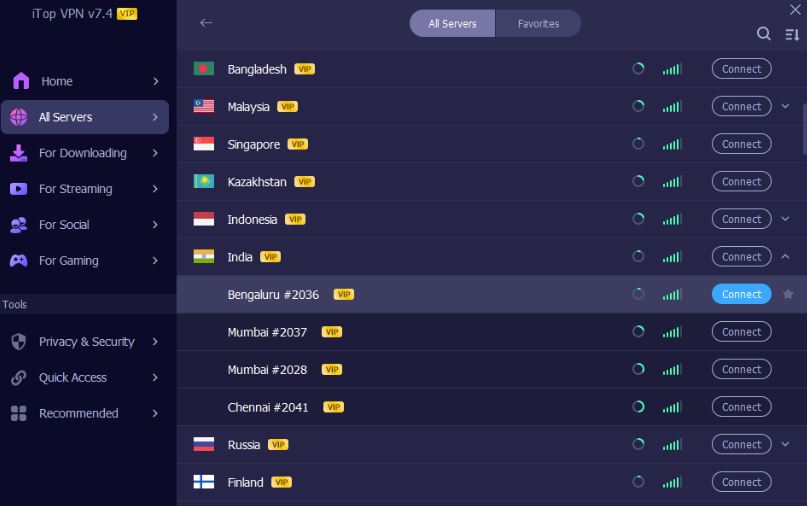
Step 4. Wait for the connection to establish.
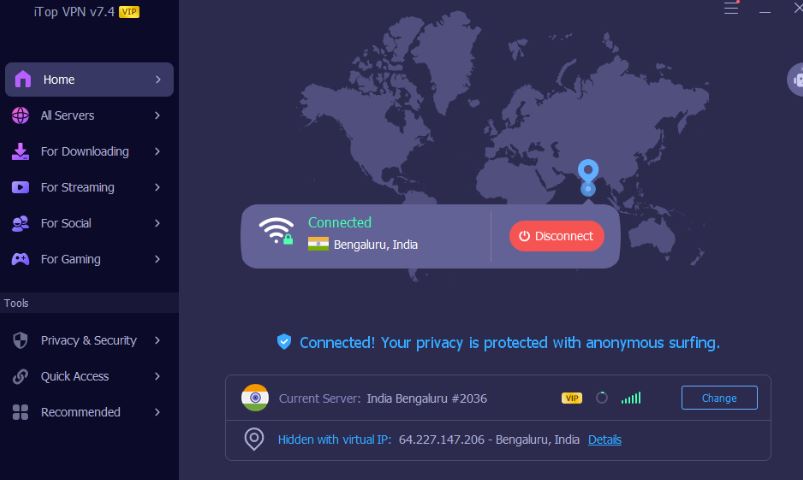
Step 5. Open Discord and start streaming with less or no lag now.
The Bottom Line
Discord lag usually comes from multiple reasons. By applying the right fixes and using a VPN for Discord streaming when needed, you can effectively eliminate Discord stream laggy problems and enjoy smoother performance overall. Whether you’re dealing with general Discord streaming lagging or a more demanding Discord stream lagging game situation, the right setup can greatly improve streaming quality and stability. Just try now.
10+ dedicated social app servers
Unblock your favorite apps
Encrypt and protect data

Subscribe to Our Newsletter
Subscribe to our newsletter to stay updated every moment.

Subscribe to Our Newsletter
Subscribe to our newsletter to stay updated every moment.
© 2026 iTop. All rights reserved.