Welcome to Smart Game Booster
Smart Game Booster is a user-friendly and high-efficiency optimization utility tailored for PC gamers. It effectively resolves common gaming issues, including frame drops, lag, high latency, compatibility errors, and security risks. Featuring all-round system optimization, hardware boosting, network acceleration, and security protection, it fully optimizes your PC gaming environment to deliver an ultra-smooth, stable, and secure gaming experience, making it an essential tool for every gamer.
System Requirements
• Windows 11/10/8.1/8/7
• 1 GHz processor or faster
• 512 MB of RAM memory
• 1400*990 screen resolution and above
Download & Installation
1) Click here to download the latest version of Smart Game Booster.
2) Double-click the downloaded smart_game_booster__setup.exe to start the installation. Then follow the on-screen instructions to complete the installation.
Uninstall
You can uninstall Smart Game Booster by following Uninstall Instructions.
Update
You can update Smart Game Booster by following the instructions below:
Open the main window of Smart Game Booster > click the Options icon  at the top right > click Check for Updates.
Sign Up/Log In
Smart Game Booster has three account types: Free, VIP, and SVIP. Free users have access to basic boosting and manual driver updates. VIP unlocks all functions except Network Acceleration, while SVIP includes the full feature set with Network Acceleration.
If you already have an iTop account, simply click the User profile icon in the bottom-left corner to log in via the pop-up window. You can also log in with your Google account or Microsoft account.
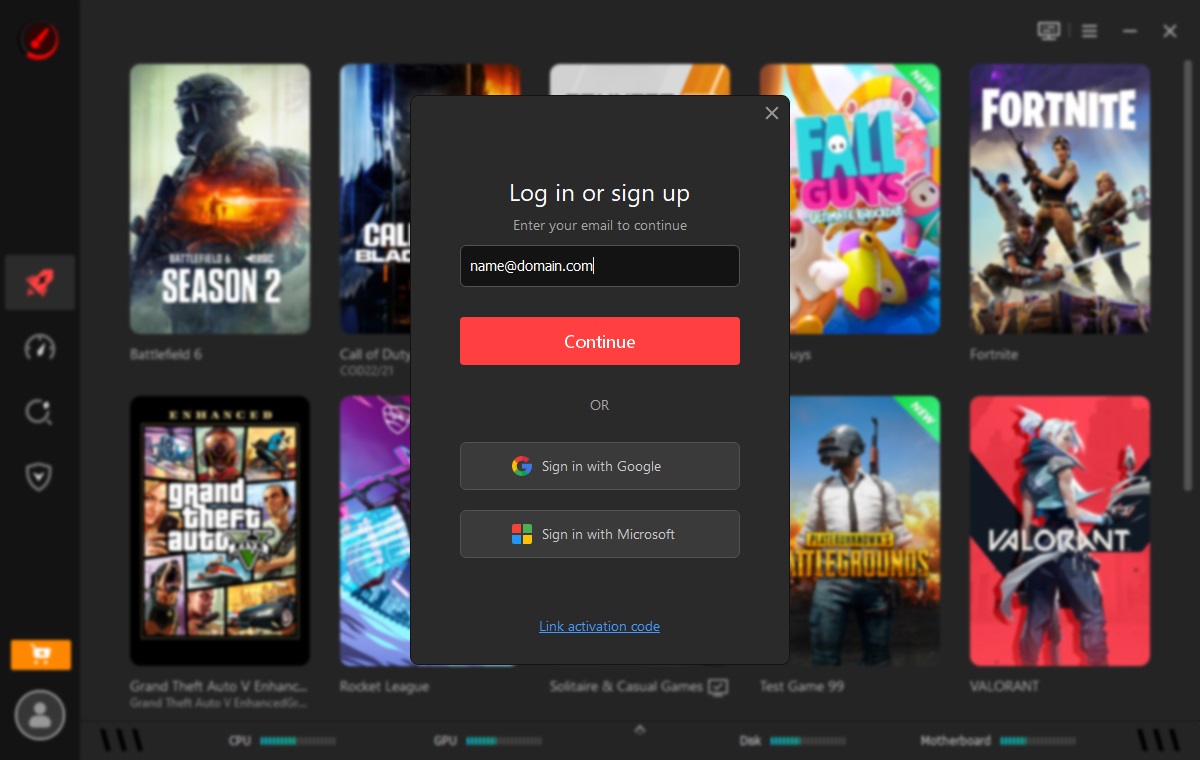
If you do not have an iTop account, clicking Continue during login will guide you through the registration process using the information you provided.

Activation
The iTop account used to place your order will be automatically upgraded to a VIP or SVIP account once the purchase is complete. If not, you can visit here for step-by-step activation instructions.
Forgot/Change Password
If you forget your password when logging in, just click the Forgot password? text link, and then follow the on-screen prompts to reset your password.
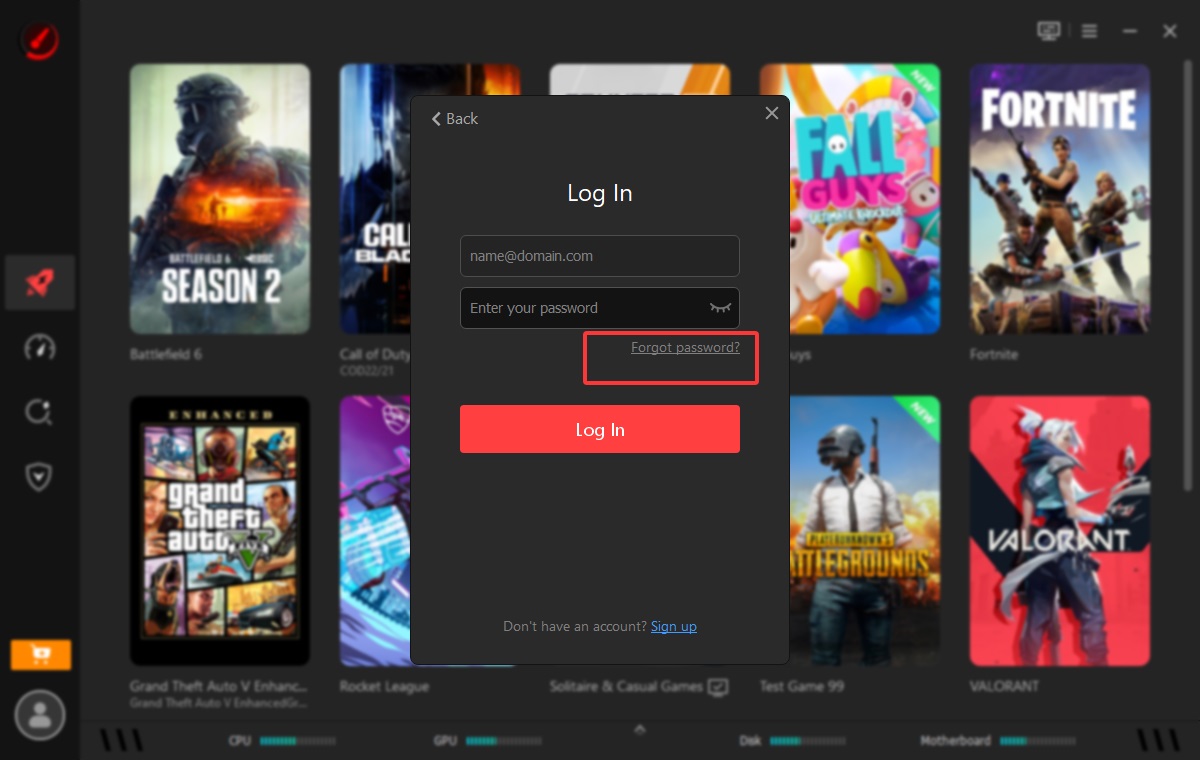
To change your password:
1. Click the User Profile icon in the bottom-left corner.
2. Select Change password.
3. Fill out the form in the new browser window.

Boost
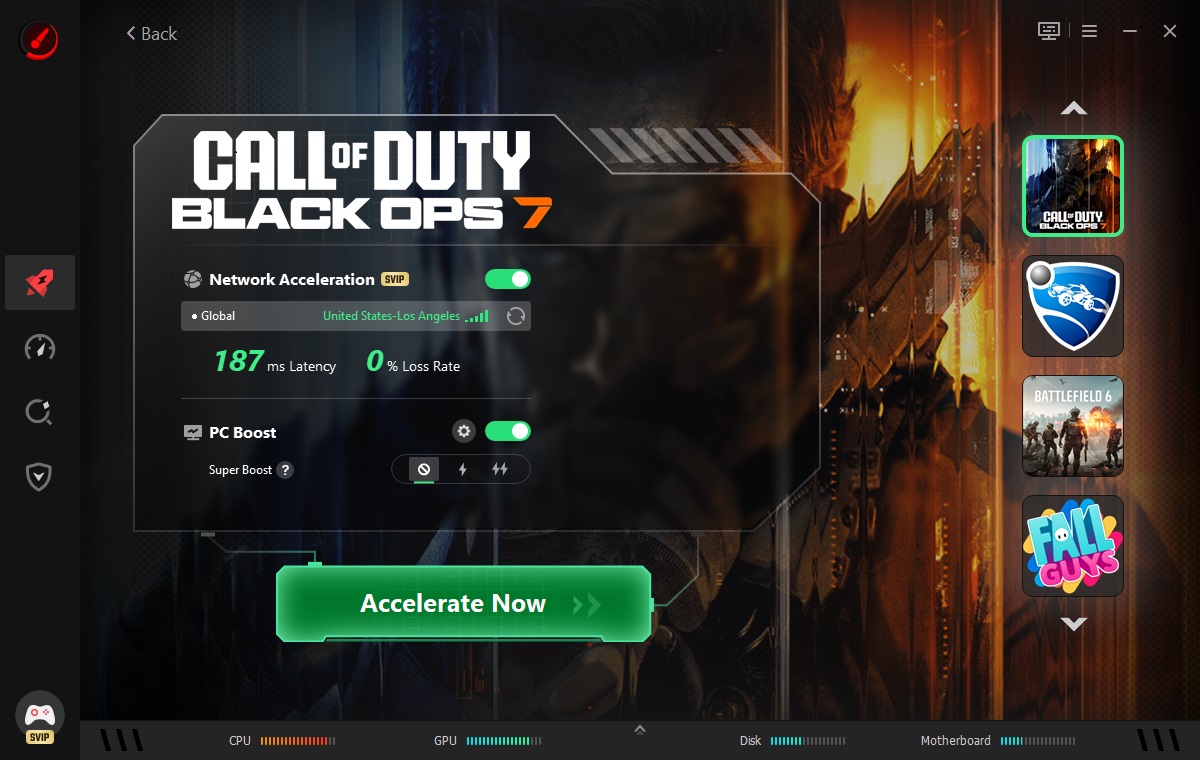
When you launch Smart Game Booster, the game list window will open. It displays both your local games alongside titles that support with Network Acceleration.

If a game is not detected automatically, you can click Add Local Game to add it manually.

Upon selecting a game, the Details panel provides the following:
Network Acceleration: Features a toggle with real-time latency and packet loss stats displayed directly below it.
PC Boost: Includes a toggle with the Super Boost option located right beneath it.
To quickly view another game, simply select it from the sidebar on the left.
Note: PC Boost is available to all users, Super Booster is for VIP and SVIP users only, while Network Acceleration is exclusive to SVIP members.
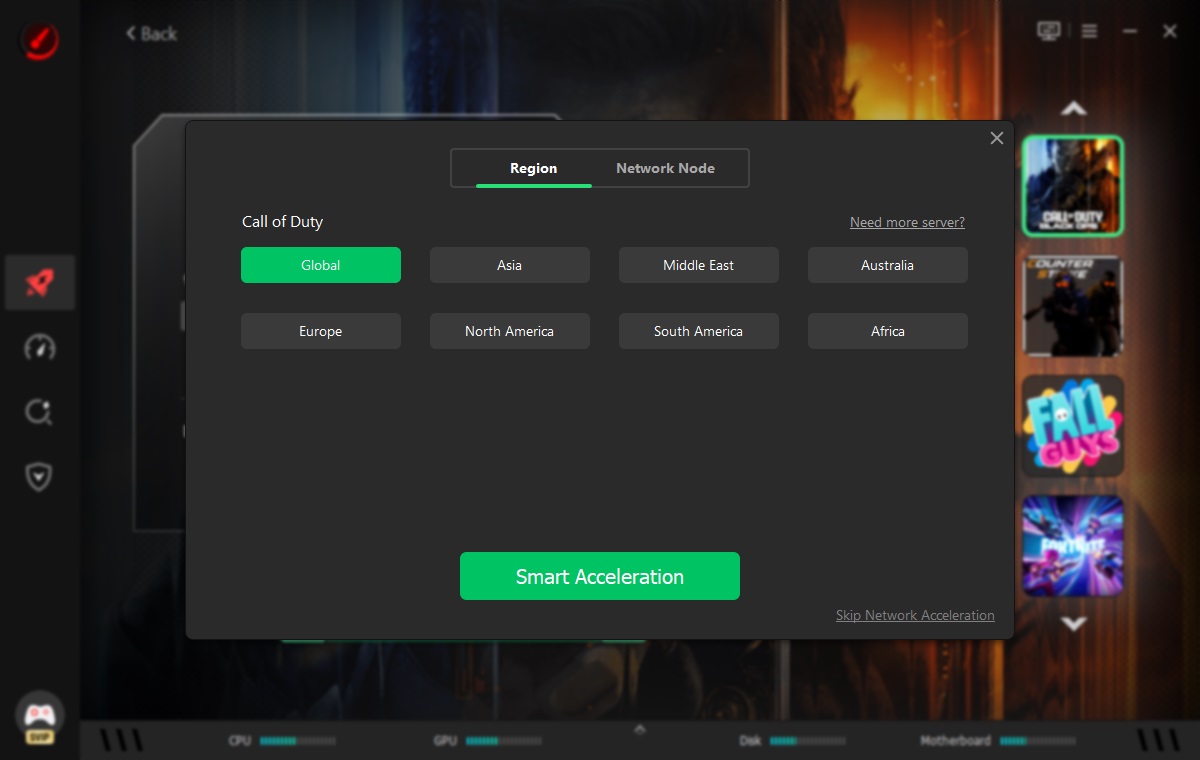
Pick your preferred Region and Network Node prior to starting Network Acceleration to enjoy the best game connection.
Click the gear icon  next to the PC Boost toggle to open the Configuration window. Here you can customize PC Boost and overclock settings. Max Mode and Customize for Super Boost are exclusive to VIP and SVIP users.
Important: Double-check all settings before applying them.
1) Ensure your work is saved if you have configured related processes to close before boosting.
2) Choosing to close explorer.exe may cause system instability, desktop disruptions, or unexpected errors post-boost.

Located beneath the PC Boost toggle, the Super Boost selection bar  allows you to quickly turn Super Boost on or off.
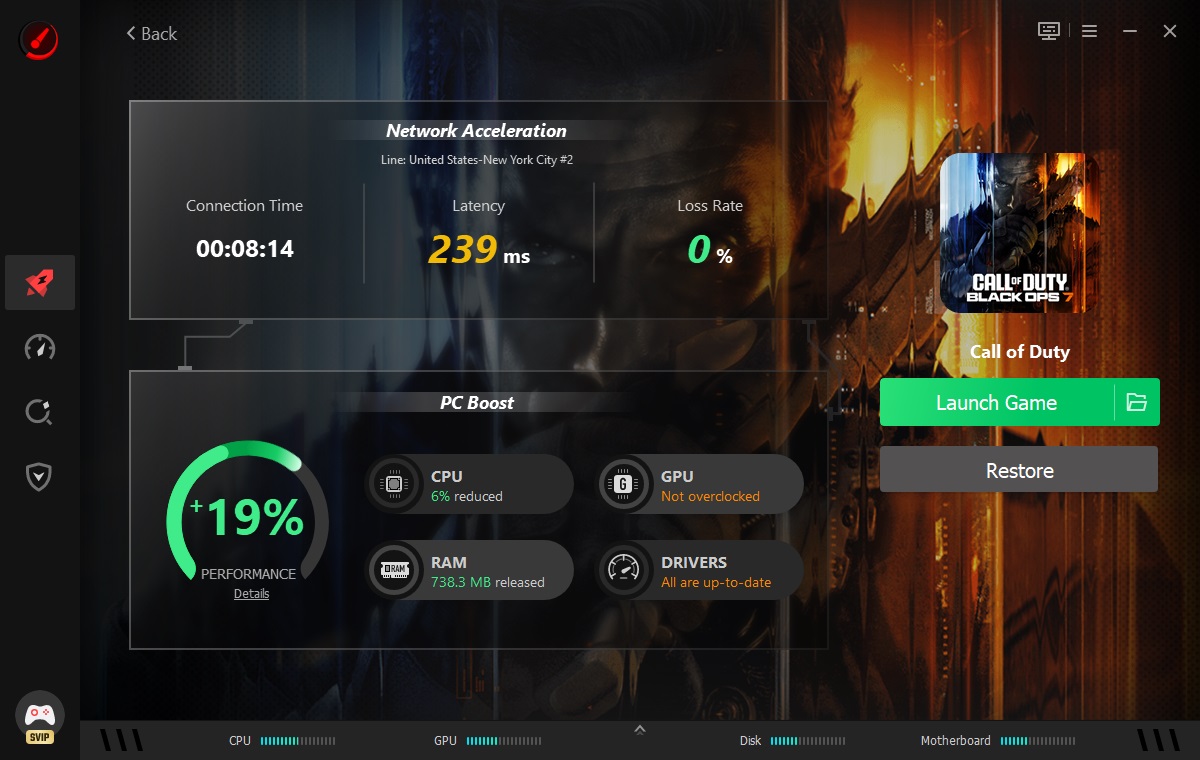
After completing the settings and clicking Acceleration Now, your system will be optimized for gaming. Click Launch Game to play, or click Restore to revert your PC to normal.
Performance
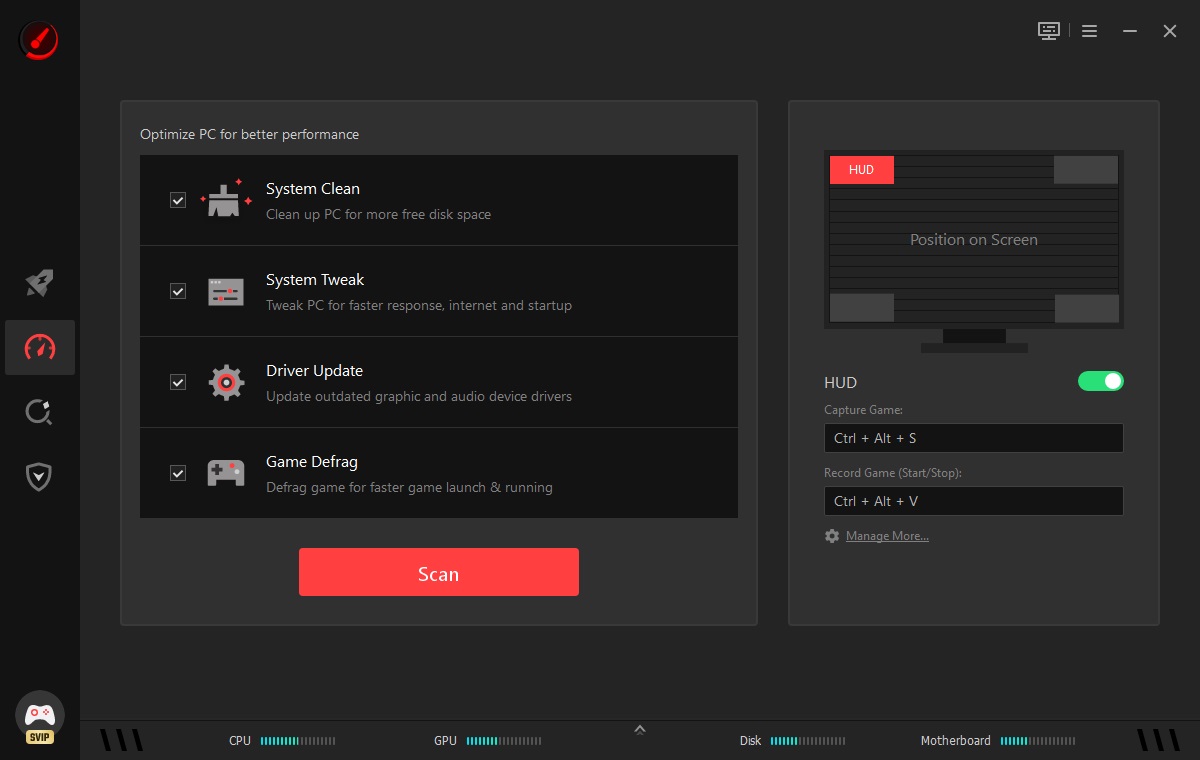
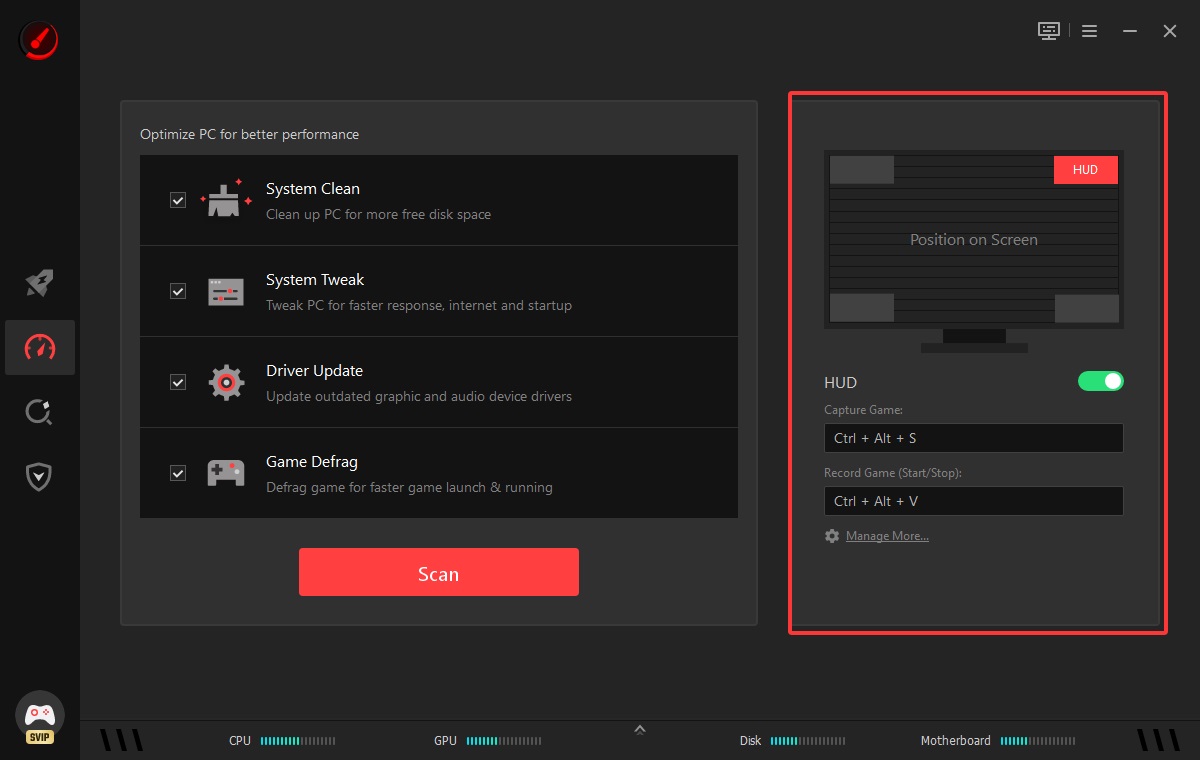
In Performance, Smart Game Booster features one-click tools to clean and tweak your PC, update old graphics & audio drivers, and defrag game files. You can also customize the HUD placement and configure hotkeys for in-game capture and recording.
Can I Run It
In Can I Run It, you can search for any game to verify if your PC meets its minimum and recommended system requirements. You can also click "What Games Can I Run?" to browse all games your device can run.

Guard
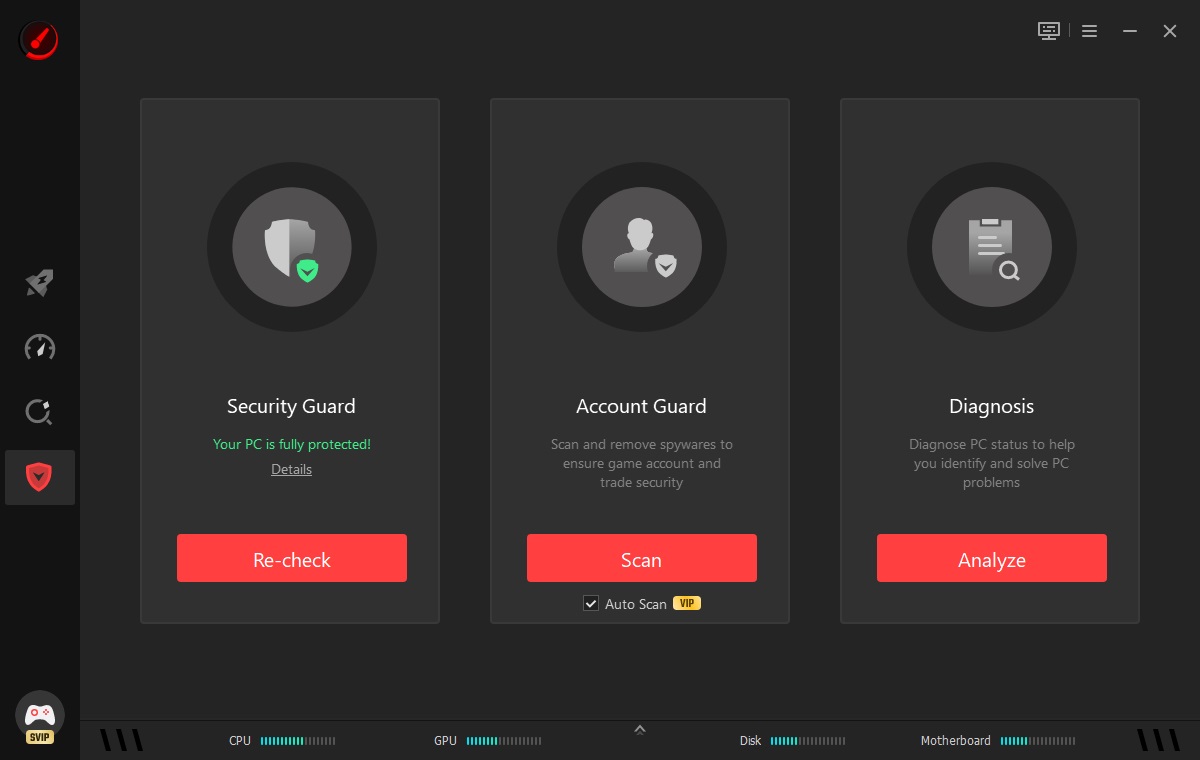
Smart Game Booster offers Security Guard, Account Guard, and Diagnosis to protect your games and detect & resolve PC issues.
Monitor Tune
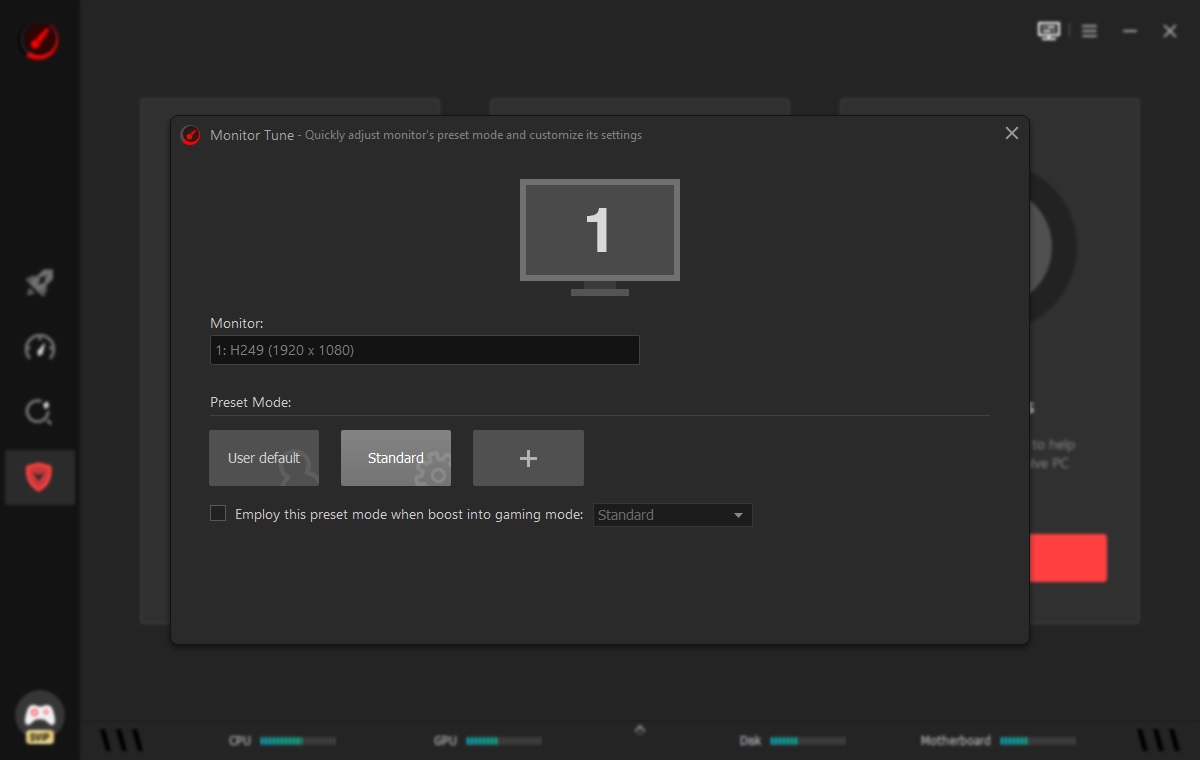
Clicking the monitor icon  at the top right opens Monitor Tune, allowing you to easily tweak your display's basic visual settings.
Real-time Monitor
The status bar at the bottom of the main window displays real-time metrics for your PC hardware components. Click the up-arrow icon  to view in-depth temperature and resource consumption data.


If you enable overheating alarms in Settings, an alert will be triggered when any monitored hardware component exceeds its safe temperature threshold.

Additionally, you can turn on the in-game HUD in Performance to monitor real-time FPS and hardware temperatures during gameplay.
Settings
Click the Options icon in the top-right corner of Smart Game Booster and select Settings to customize the application to your preferences. Please do click the OK button to save the changes.
Do Not Disturb helps you stay focused on what you are doing. When enabled, it suppresses all notifications from Smart Game Booster whenever a full-screen application or a specified program is running.
Note: Clicking Recommended can restore the settings to default.

Hotkey
You can customize hotkeys according to your preferences to use the program more efficiently.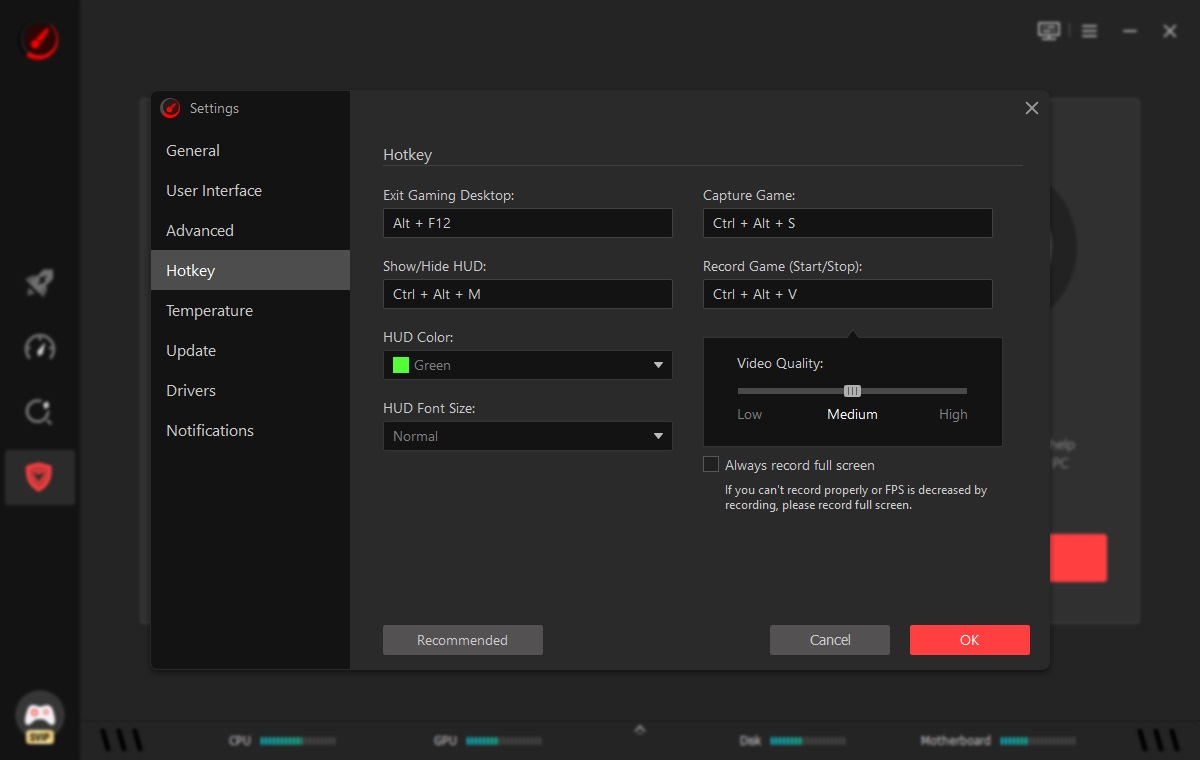
Change Language
You can also change the user interface language in Settings.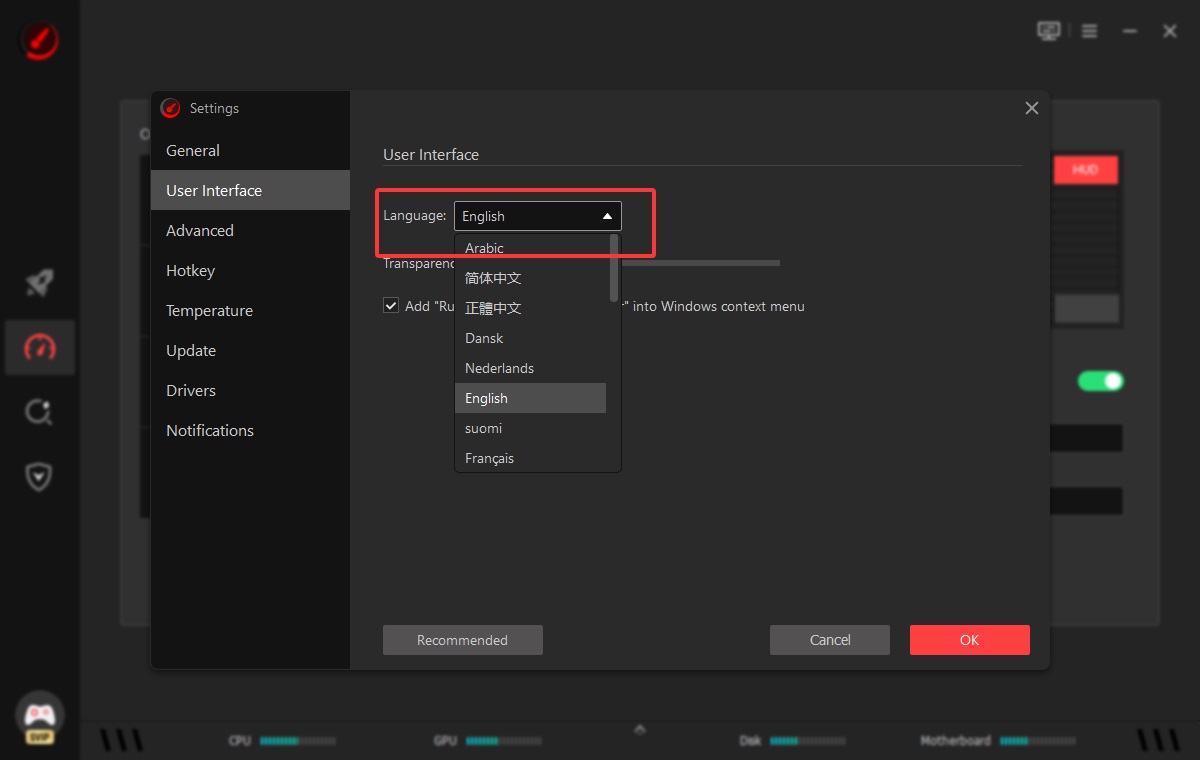
Technical Support
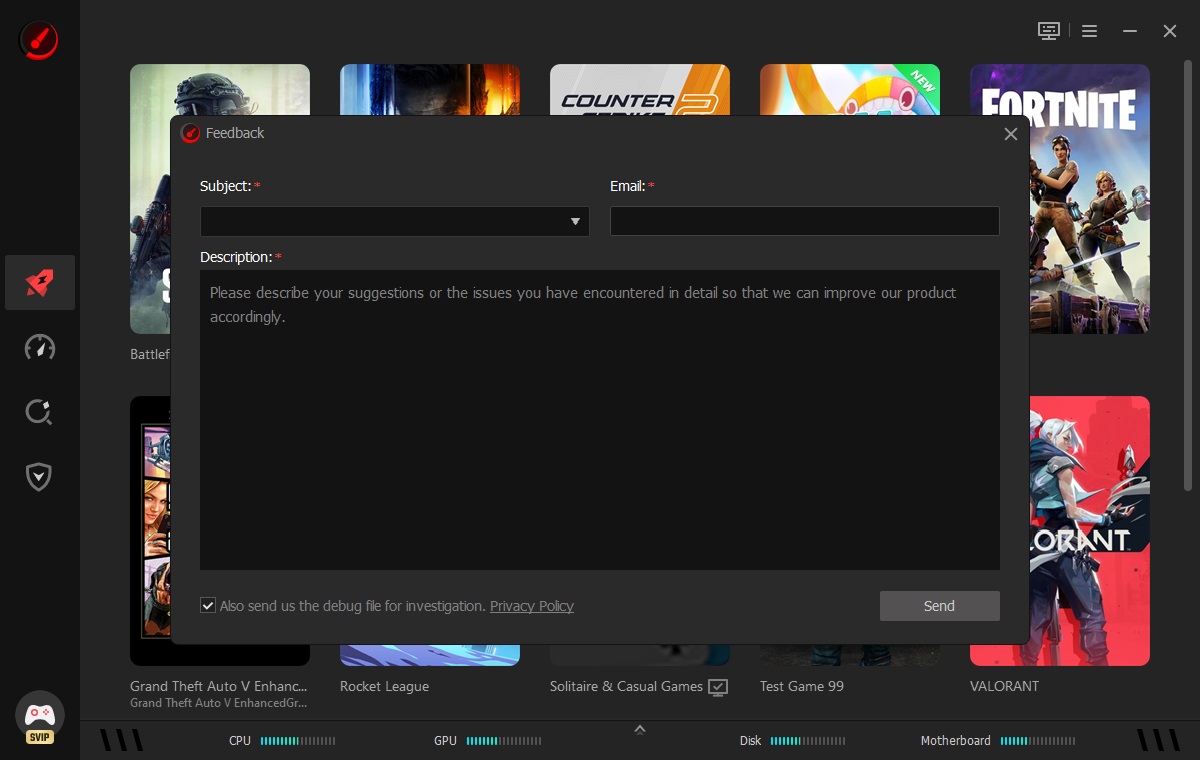
Feedback
We value all feedback from our users. To submit your feedback, please open the main window of Smart Game Booster > click the Options icon at the top right > click Feedback.
Thank You
Thanks to all Smart Game Booster users who motivated us to make this product and make it better and better.
Thanks to the following volunteer translators who greatly help improve Smart Game Booster and introduce it to more users worldwide:
MFM Dawdeh, alan@tw, Jørn Runge, Ernie Wong Lun Hing, NQH, Veikko Muurikainen, Frédéric Dectot, Stathis NToukas, Alexander Schmidt, Nacho Lomidze, Eli Ben David, Purwo Adi Nugroho, Erzam Bayu, Claudio Birello, Nagai Tsuneo, JaeHyung Lee, Normunds Jakuss, Staszek, Igor Ruckert, Fernando Santos, Cosmin Barna, Виктор Алиев, Ilija Komljenović, dedko58, Marjan Mirai, Roberto Paiva, Per, Sıtkı Evrenkaya, Rid Destro, Tony Nguyễn